¶ 💡 Compatibility
This guide applies to the following machine. Please note when referencing:
- Machine model: U1
¶ ⏰ When to Use This Guide
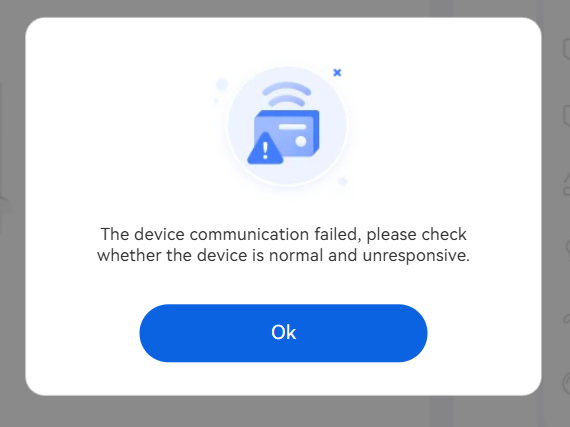
When the connection between Snapmaker Orca and the U1 printer is automatically disconnected, please refer to this guide for troubleshooting.
¶ 📋 Quick Info Card
- Difficulty: ⭐☆☆☆☆ (Easy)
- Estimated Time: 10 minutes
¶ 🔁 Troubleshooting Flowchart

¶ 🔍 Quick Diagnosis
Which situation are you experiencing?
- Device disconnected in Cloud mode → Go to Scenario 1
- Device disconnected in LAN mode → Go to Scenario 2
¶ ⚠️ Important Notes
¶ Network Band
The U1 only supports the 2.4 GHz Wi-Fi band and is currently not compatible with the 5 GHz band. Please ensure that your router has the 2.4 GHz network enabled.
Some Wi-Fi 6 or Wi-Fi 7 routers may cause the Snapmaker U1 to have difficulty connecting reliably to 2.4 GHz Wi-Fi. If the U1 frequently fails to connect after startup or rebooting, try the following:
(1) Connect to a dedicated IoT network: If your router provides a dedicated IoT network, try connecting the U1 to it. IoT networks are typically optimized for IoT device compatibility.
(2) Adjust the wireless mode: Depending on the options available on your router, try disabling Wi-Fi 6 (802.11ax) or Wi-Fi 7 (802.11be), or select a more compatible wireless mode. For example, on some Wi-Fi 6 routers, you can change the 2.4 GHz wireless mode from 802.11b/g/n/ax mixed to 802.11b/g/n mixed.
Note: Wireless settings vary between routers. Adjust the settings according to the options available on your router.
¶ Version Updates
Ensure that both the printer firmware and Snapmaker Orca are updated to the latest versions. Click to view the U1 Firmware Release Notes or Snapmaker Orca Release Notes for the latest versions.
¶ 🪄 Preparation
Before starting troubleshooting, let's first understand how the two connection modes work:
¶ Cloud Mode (Remote Connection)
When connecting to the device via cloud mode, Snapmaker Orca needs to send commands from your computer to the official cloud server over the internet, which then forwards them to the device. This means both your computer and the device need to have proper internet access. In most home networks, this requires a router. Therefore, it is recommended to check your network connection, including the router, computer network, and cloud server status.
¶ LAN Mode (Local Connection)
If your computer and the U1 printer are connected to the same local network, data will be transmitted internally without passing through the internet, and information is stored only locally on the computer. The workflow is: Computer ⇌ Router ⇌ Device. In this case, it is necessary to check the status of the router, computer network, and printer separately.
¶ 🛠️ Troubleshooting Steps
¶ Scenario 1: Disconnected in Cloud mode
¶ Step 1: Check Router Status
- Touch the exterior of the router with your hand:
- If the router feels warm or slightly hot, it indicates normal status. You may proceed for further troubleshooting.
- If it feels too hot to touch and you can't keep your hand on it for long, it indicates the router is overheating. In this case, it is recommended to unplug the router and wait for 5 minutes to allow it to cool down. Then plug it back in and restart for a refresh test.
Router overheating is often a sign of unstable performance. This is typically accompanied by increased network latency or lagging on other devices connected to the same Wi-Fi.
- Check whether the router’s WAN connection is working properly:
- If the router has a connection status indicator, check the WAN connection status through the indicator light.
- If there is no indicator light, connect a computer or mobile phone to the router and visit external websites to determine whether the connection is normal.
¶ Step 2: Check Computer Network Connection
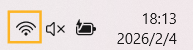
- If you are using a wireless network: check whether Wi-Fi is enabled on your computer and make sure you are connected to the correct Wi-Fi network. On a Windows system, for example, an icon will appear in the bottom-right corner once the connection is successful.
- If you are using a wired network: check whether the wired network connection on your computer is enabled and make sure the Ethernet cable is properly connected.
¶ Step 3: Check Cloud Server Status
If everything above seems normal, the issue may lie with the cloud server. Use the built-in network testing tool in Snapmaker Orca to check the connection status between the server and the software:
Snapmaker Orca V2.2.1 and above versions have added the network testing functionality. For better experience, please update the software to the corresponding version first.
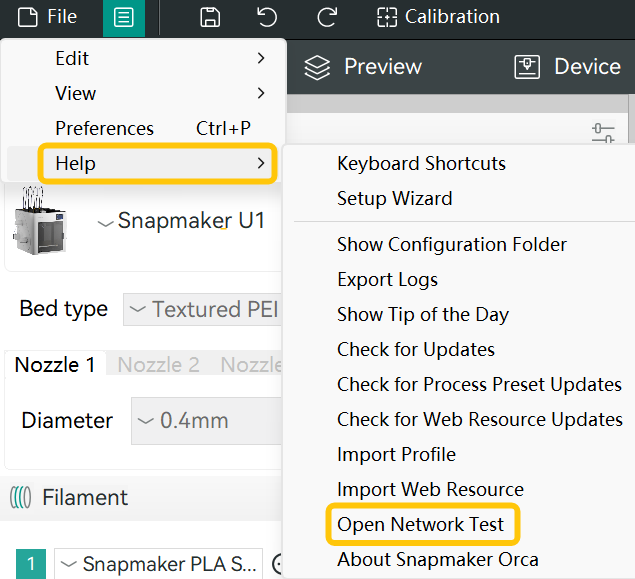
- Open the menu bar > Click
Help> SelectOpen Network Test.
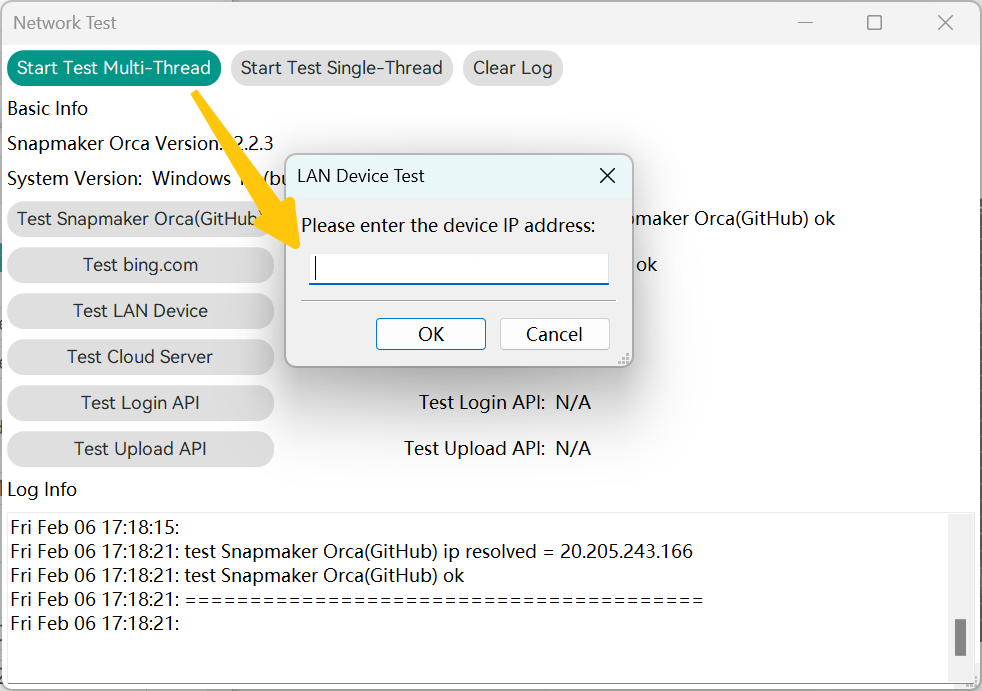
- Click
Start Test Multi-Threadand enter the device's IP address.
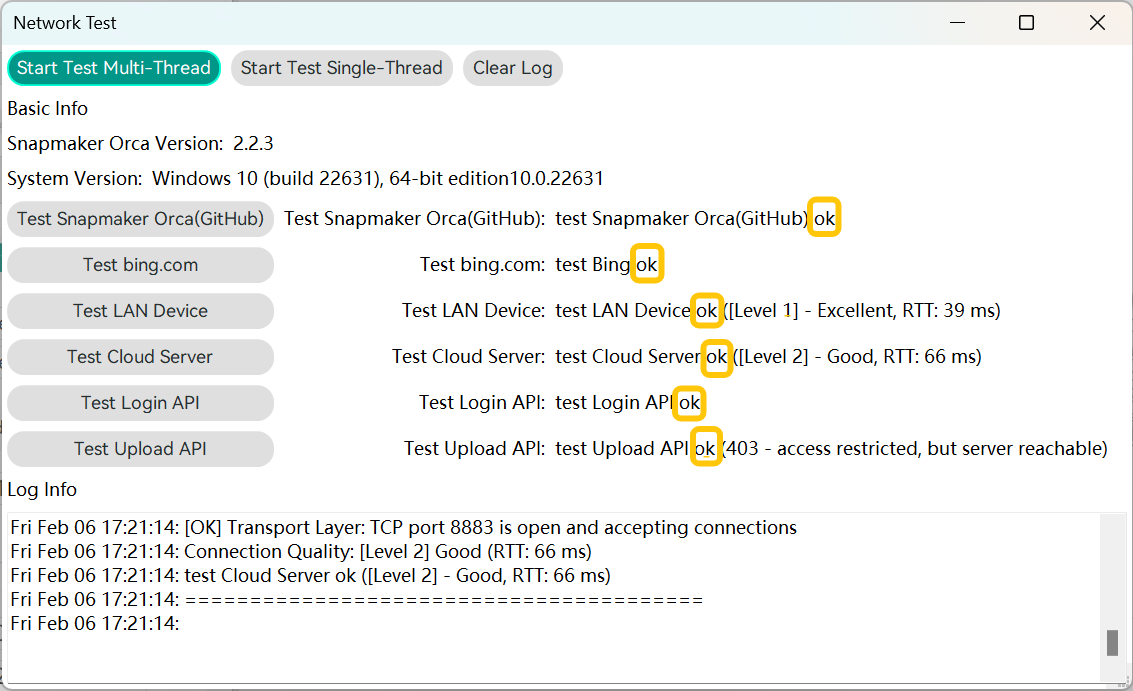
- Review the test results.
- If the problem persists, please export the U1 log files and Snapmaker Orca log files, along with any screenshots or videos taken during the troubleshooting process, and reach out to Snapmaker support for professional technical assistance.
¶ Scenario 2: Disconnected in LAN mode
¶ Step 1: Check Router Status
- Touch the exterior of the router with your hand:
- If the router feels warm or slightly hot, it indicates normal status. You may proceed for further troubleshooting.
- If it feels too hot to touch and you can't keep your hand on it for long, it indicates the router is overheating. In this case, it is recommended to unplug the router and wait for 5 minutes to allow it to cool down. Then plug it back in and restart for a refresh test.
Router overheating is often a sign of unstable performance. This is typically accompanied by increased network latency or lagging on other devices connected to the same Wi-Fi.
- Check whether the router’s WAN connection is working properly:
- If the router has a connection status indicator, check the WAN connection status through the indicator light.
- If there is no indicator light, connect a computer or mobile phone to the router and visit external websites to determine whether the connection is normal.
¶ Step 2: Check Computer Network Connection
- If you are using a wireless network: check whether Wi-Fi is enabled on your computer and make sure you are connected to the correct Wi-Fi network. On a Windows system, for example, an icon will appear in the bottom-right corner once the connection is successful.
- If you are using a wired network: check whether the wired network connection on your computer is enabled and make sure the Ethernet cable is properly connected.
¶ Step 3: Check Printer Status
If everything above is normal or the issue persists after restarting the router, computer, and the software, the problem may lie with the printer.
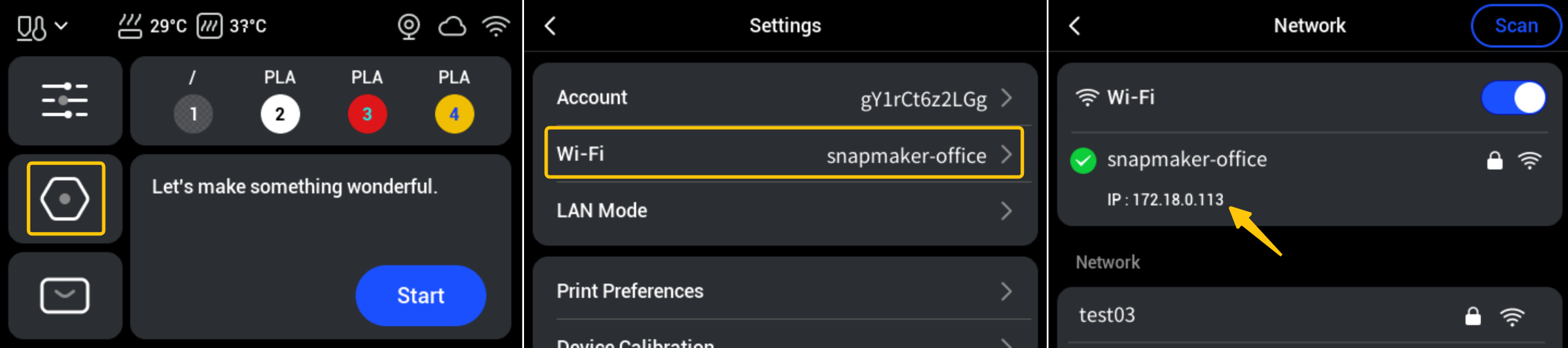
- On the touchscreen main interface, navigate to the Settings page > Tap
Wi-Fi. Check if an IP address is displayed at the bottom.
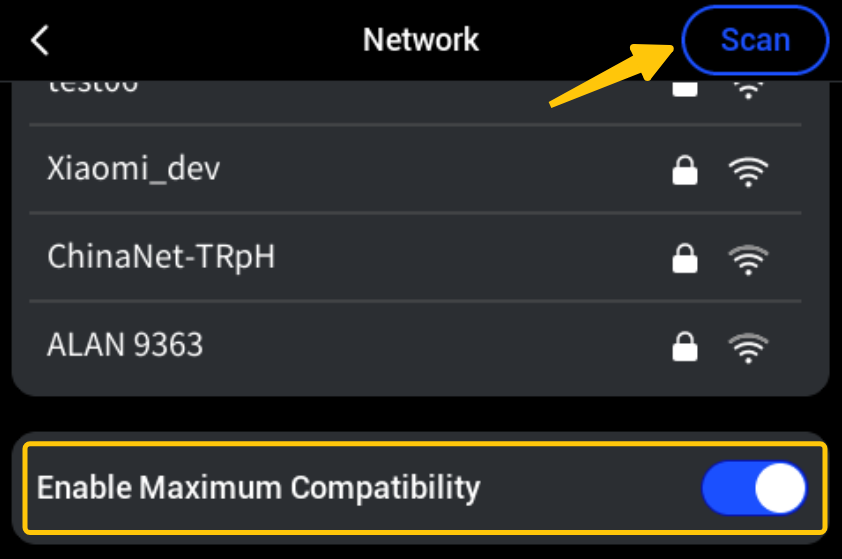
- If no IP address is shown, scroll to the bottom of the Wi-Fi page, select
Enable Maximum Compatibility, and then tapScanagain.
-
If the device has obtained an IP address but still cannot connect to Orca, we recommend using the ping command on your computer and entering the device’s IP address to test whether the network connection is working properly.
-
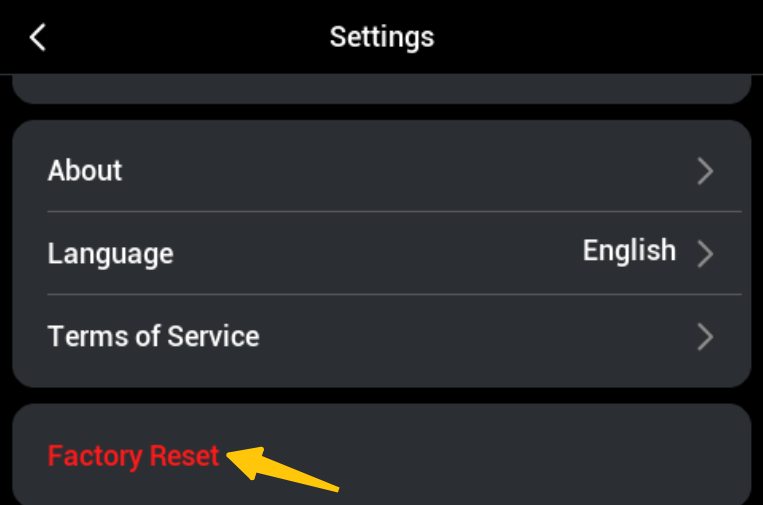
If the device still fails to connect, try restarting the printer or performing a
Factory Reset.
- If the problem persists, please export the U1 log files and Snapmaker Orca log files, along with any screenshots or videos taken during the troubleshooting process, and reach out to Snapmaker support for professional technical assistance.
¶ ✅ Verification
After completing the above troubleshooting steps, refer to the Snapmaker Orca Quick Start Guide for U1 to rebind the printer:
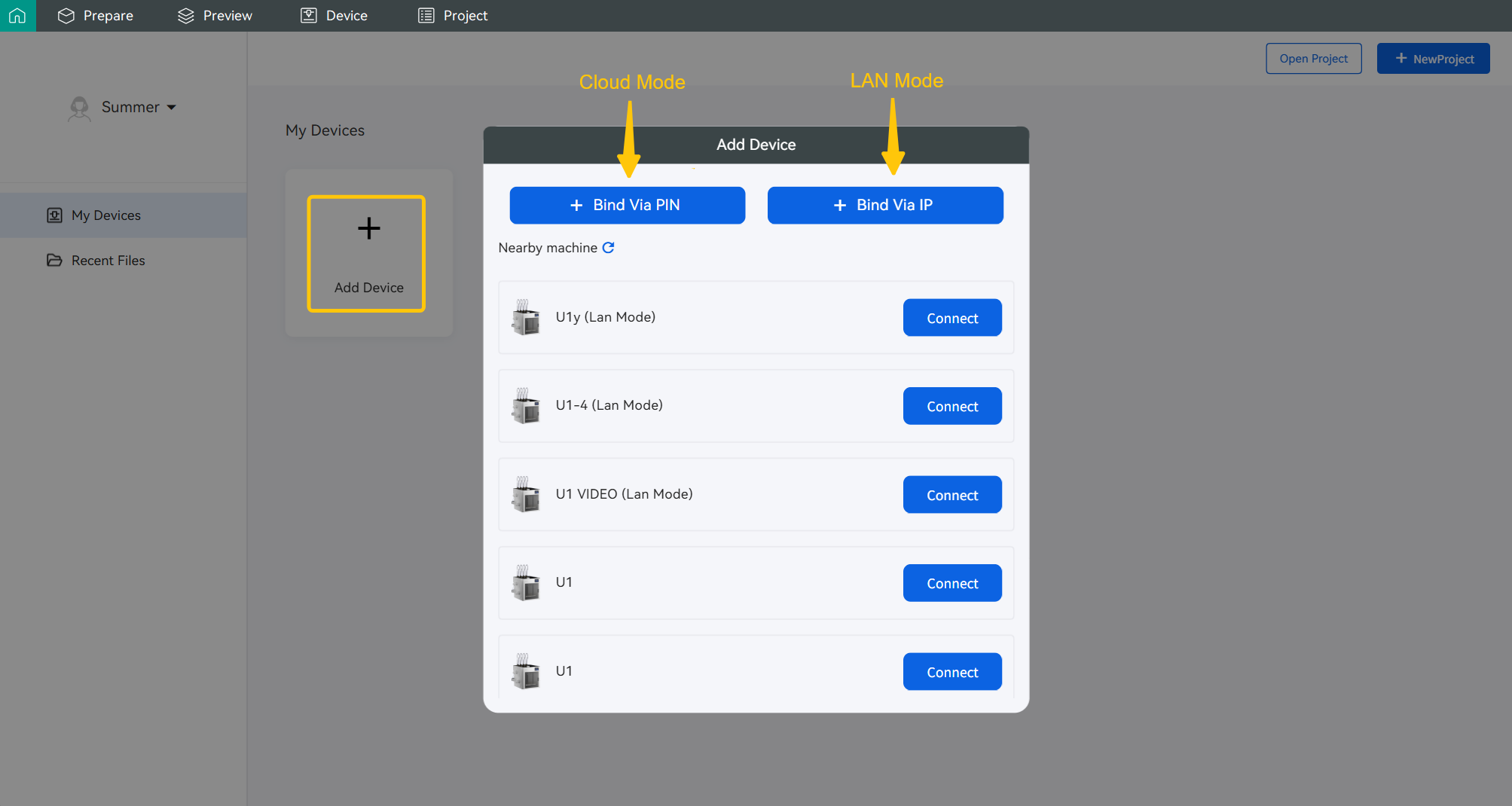
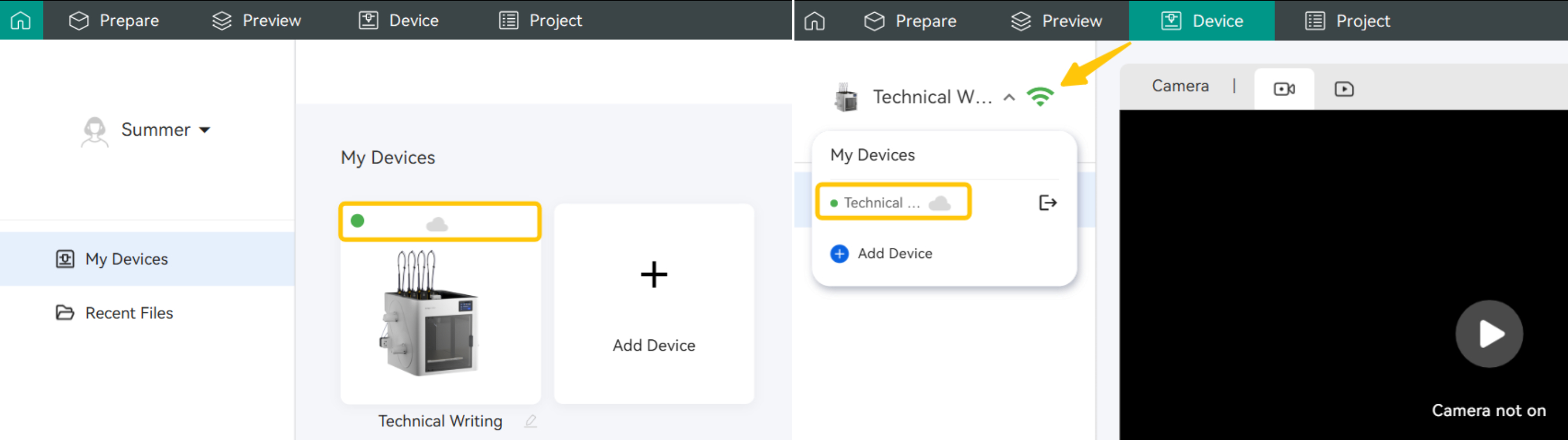
- Bind via PIN code: If the following interface appears in Cloud mode, it indicates a successful connection.
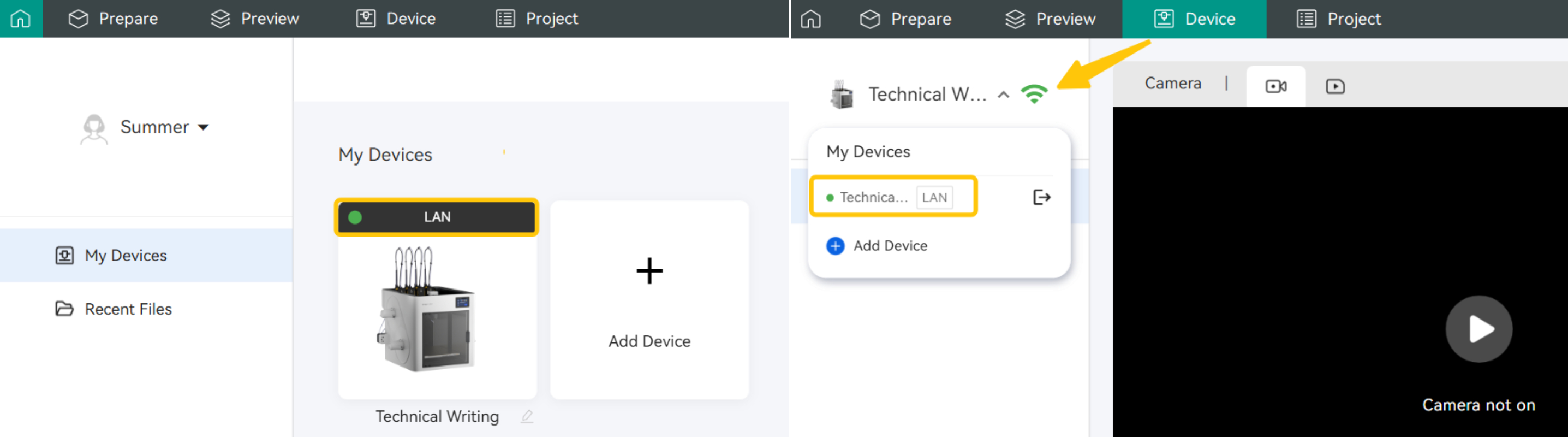
- Bind via IP address: If the following interface appears in LAN mode, it indicates a successful connection.
¶ 📚 Related Resources
- U1 Firmware Release Notes
- Snapmaker Orca Release Notes
- U1 how to export log files
- Snapmaker Orca how to export log files
- Snapmaker Orca Quick Start Guide for U1
- Snapmaker Orca/App connection failure (cloud mode)
¶ 💬 Reach out to Snapmaker Support
After following the troubleshooting steps, if you find it difficult to resolve your issue, kindly submit a support ticket through https://snapmaker.formcrafts.com/u1-troubleshooting-request and share your troubleshooting results with pictures or videos. Our dedicated support team will be more than willing to assist you in resolving the issue.