¶ 💡 Compatibility
This guide applies to the following machine. Please note when referencing:
- Machine model: U1
¶ ⏰ When to Use This Guide
When printing with the U1, related machine errors are recorded in log files. Therefore, if you encounter printing issues, exporting the log file and sending it to the Snapmaker support team will help us identify the root cause more efficiently.
¶ 📋 Quick Info Card
- Difficulty: ⭐☆☆☆☆ (Easy)
- Estimated Time: 5 minutes
- Required Tools: USB drive or computer
¶ 🔍 Quick Navigation
- Export to USB Drive → Go to Method 1: Export Logs to USB
- Export to Fluidd Folder → Go to Method 2: Export Logs to Local Storage
¶ 🛠️ Operation Steps
¶ Method 1: Export Logs to USB
¶ Step 1: Insert a USB drive
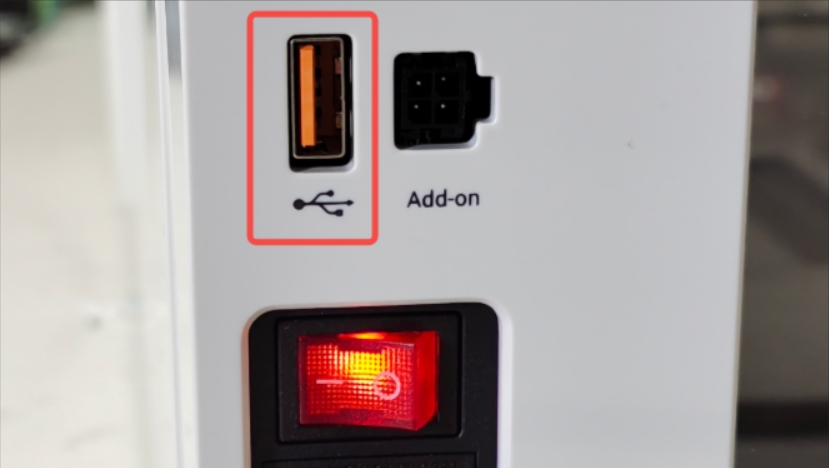
- Insert a USB drive into the USB port on the back of the machine.
To ensure the USB drive is properly recognized, make sure it meets the following requirements:
-File system: FAT32, EXT2, or EXT4
-Capacity: 64 GB or less
¶ Step 2: Export logs from the touchscreen
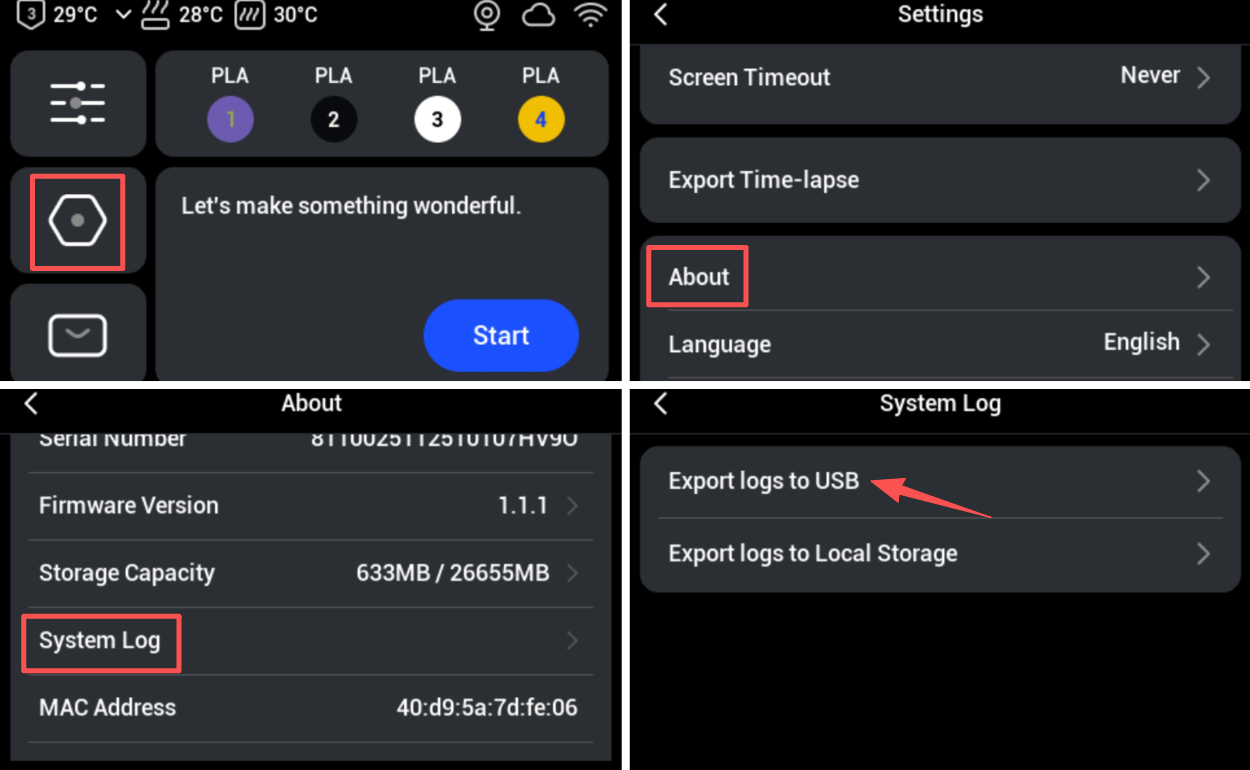
- On the touchscreen main interface, navigate to Settings >
About>System Log>Export logs to USB.
¶ Step 3: Retrieve the log file
- Remove the USB drive from the machine and insert it into your computer. Locate the log file named collection.tar.
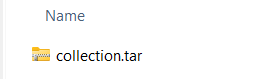
The log file is currently encrypted and cannot be viewed locally. Please send it to Snapmaker support for further analysis.
¶ Method 2: Export Logs to Local Storage
Starting from U1 Firmware V1.1.1, a new log export path has been added, allowing you to export log files directly to the Fluidd folder. To use this feature successfully, make sure your firmware is updated to V1.1.1 or above.
Click to view the U1 Firmware Release Notes.
¶ Step 1: Export logs from the touchscreen
- On the touchscreen main interface, navigate to Settings >
About>System Log>Export logs to Local Storage.
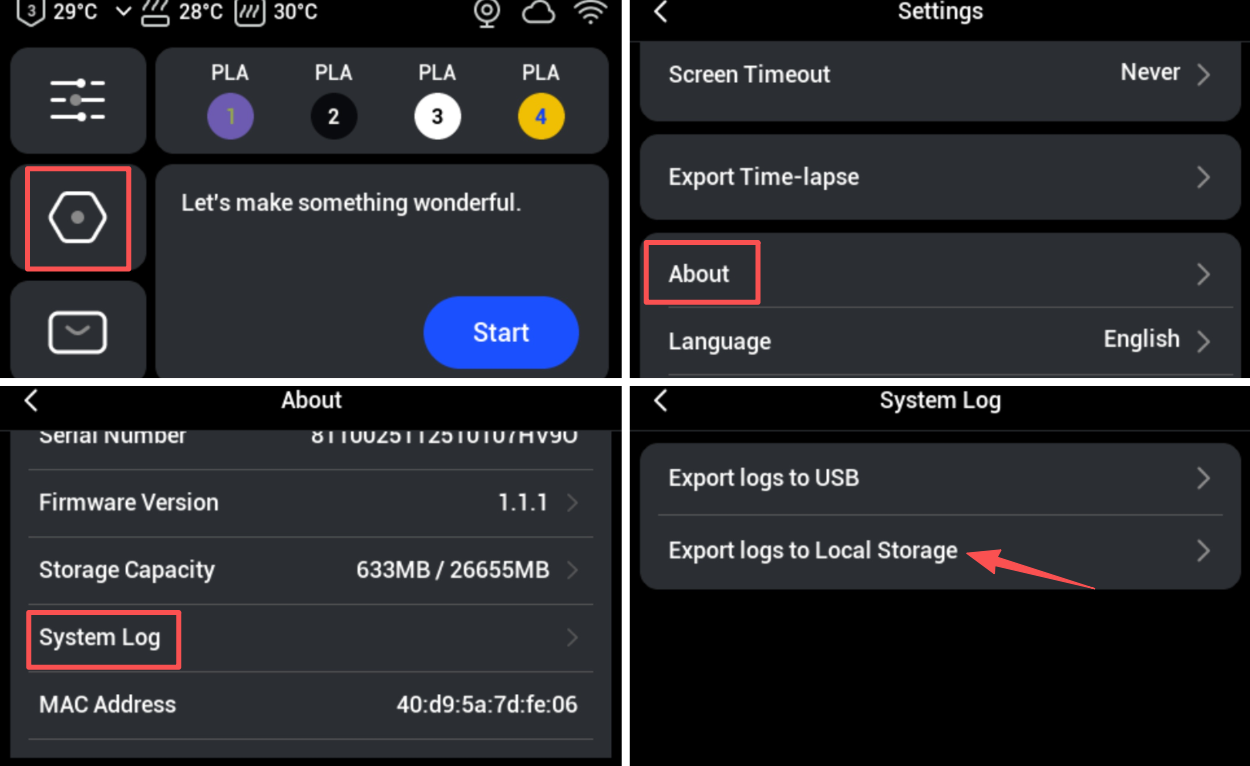
If you are experiencing issues related to the AI detection feature, please make sure to select the option Include AI Detected Photos when exporting the logs.
¶ Step 2: Access the Fluidd interface
- Obtain the printer’s IP address. Return to Settings > click
Wi-Fi, and check the device’s IP address. For example, the IP address shown in the screenshot is 172.18.0.102.
- Enter the printer’s IP address in a web browser to access the Fluidd interface.
¶ Step 3: Retrieve the log file
- On the Fluidd home page, locate the
Jobssection and open thelogsfolder.
- Select the compressed file in the folder, right-click it, and choose
Downloadto obtain the log file.
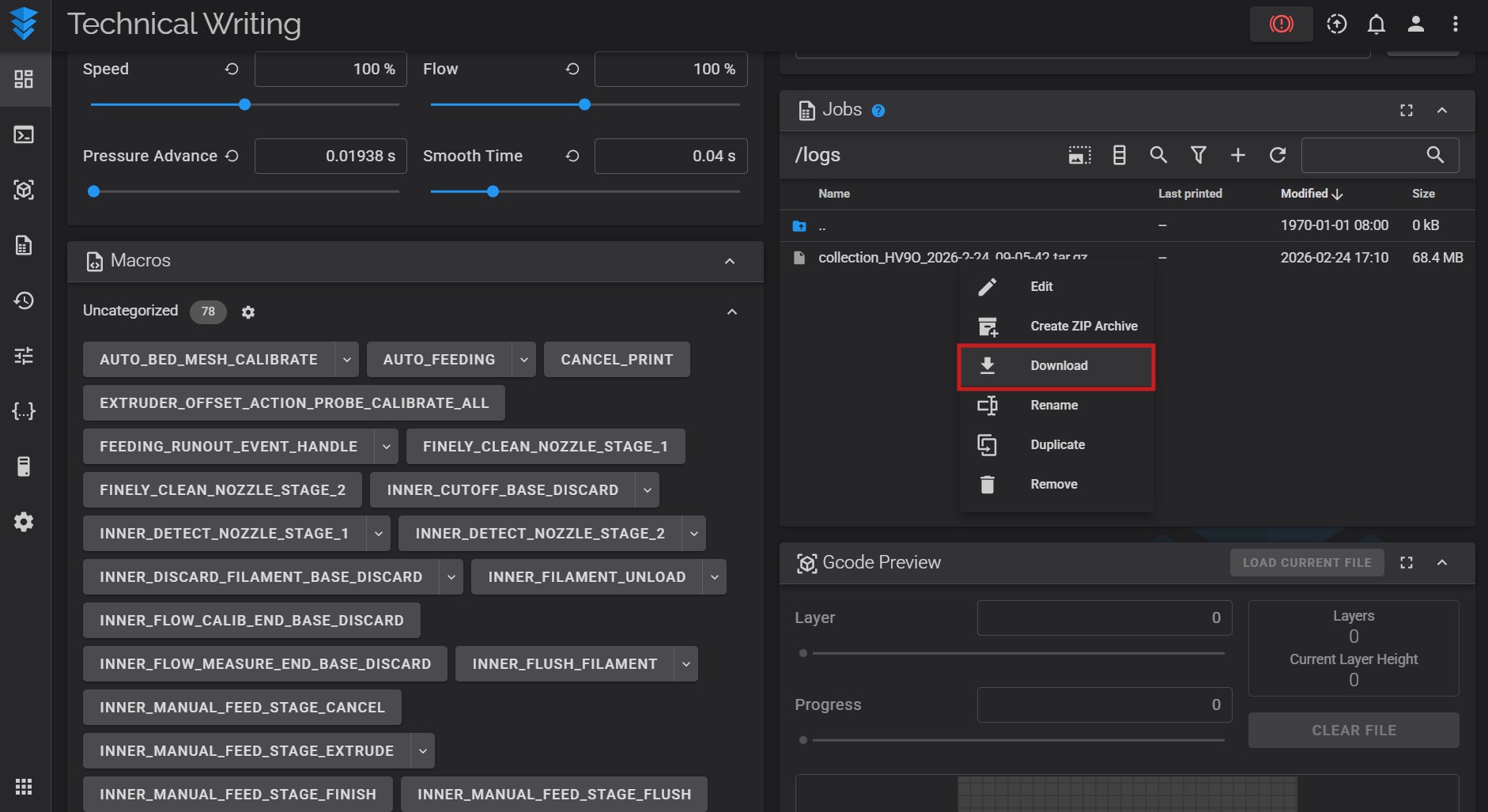
The log file is currently encrypted and cannot be viewed locally. Please send it to Snapmaker support for further analysis.
¶ 📝 Common Issues
I’m stuck on the initial setup screen and cannot export the logs by following the steps above.
The log files are too large to send by email.
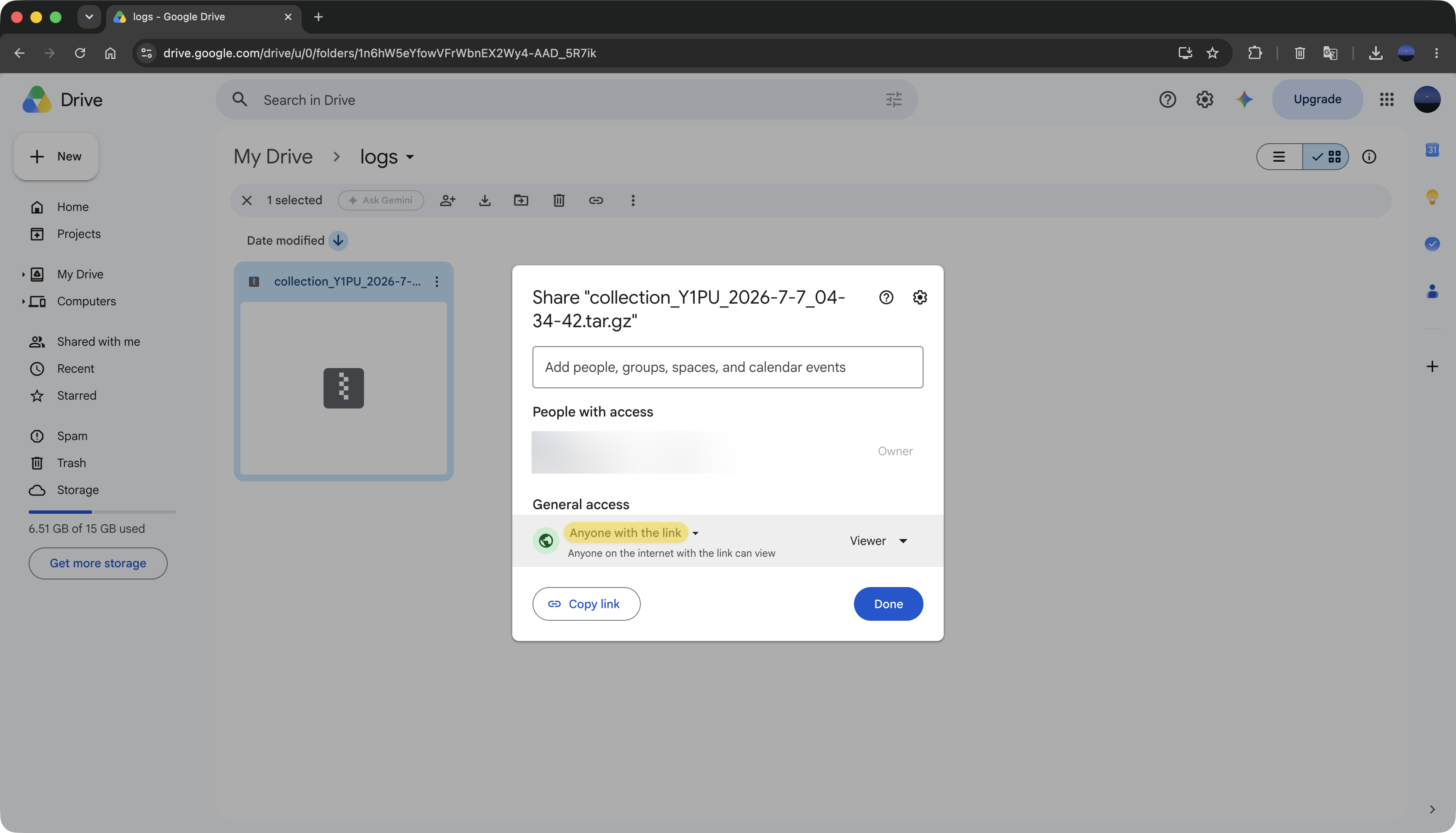
You can share the log files via Google Drive.
Before sending the sharing link, please make sure that General access is set to Anyone with the link so that we can access the files directly.
¶ 📚 Related Resources
¶ 💬 Reach out to Snapmaker Support
If you encounter any issues during the steps above, please kindly submit a support ticket through https://snapmaker.formcrafts.com/u1-troubleshooting-request. Our dedicated support team will be more than willing to assist you in resolving the issue.