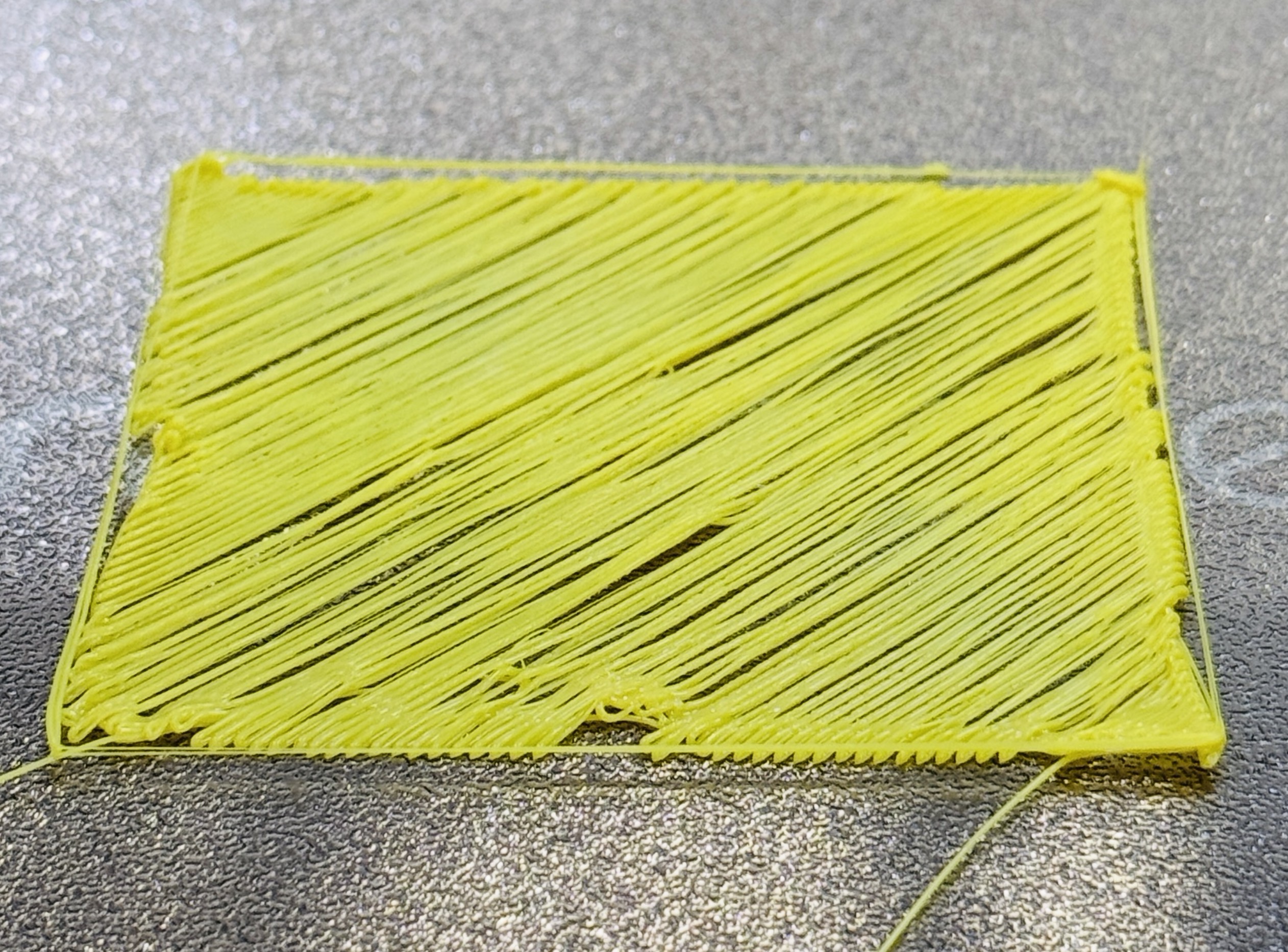
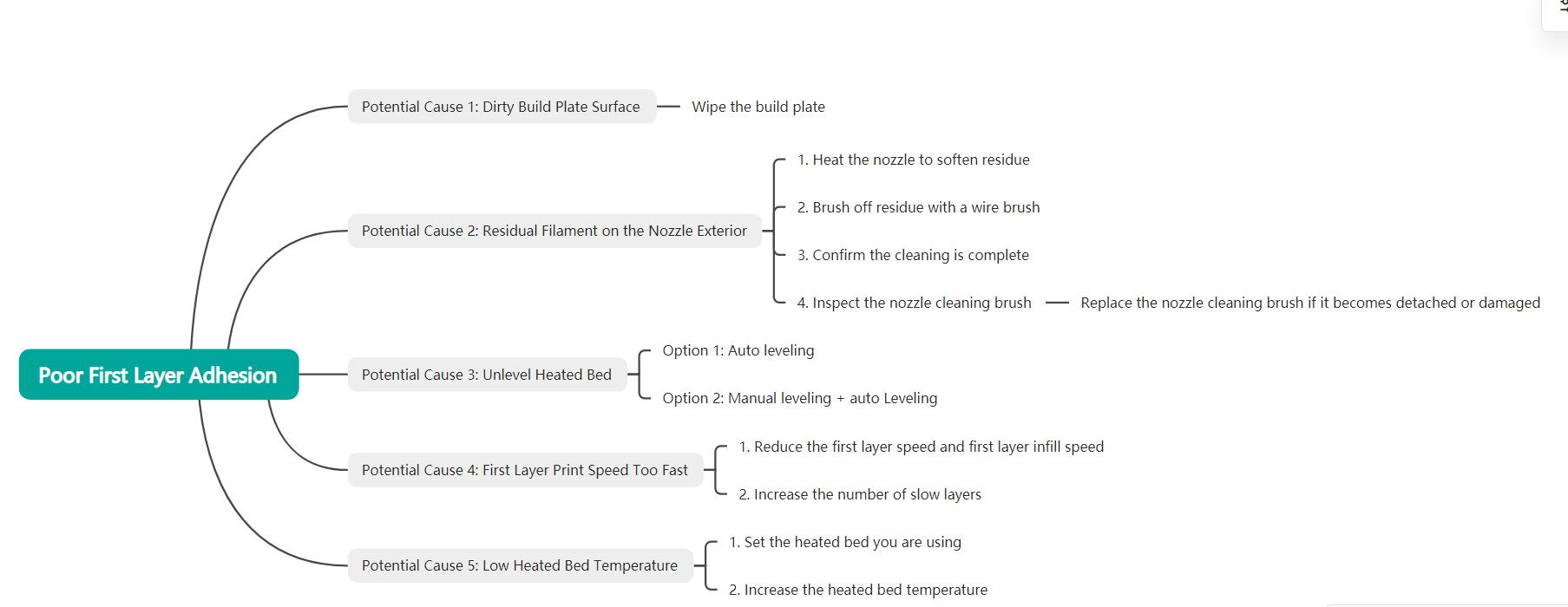
Poor first-layer adhesion refers to a situation where filament fails to adhere properly to the build plate, causing model edges to lift, the entire model to shift, or even the print to stop. In severe cases, the nozzle may scrape against the printed layers, deforming or damaging the model and ultimately resulting in print failure.
When handling the nozzle, avoid direct contact to prevent burns.
When using ethanol for cleaning, carefully read and follow the manufacturer's instructions. Keep away from heat and open flames, ensure adequate ventilation, and avoid inhalation, ingestion, and direct skin contact.
Dust, dirt, fingerprints, grease, and other contaminants on the build plate surface can prevent the filament from adhering to the build plate.
Remove the build plate from the heated bed.
Please cool the build plate to the room temperature for removal to prevent burns.
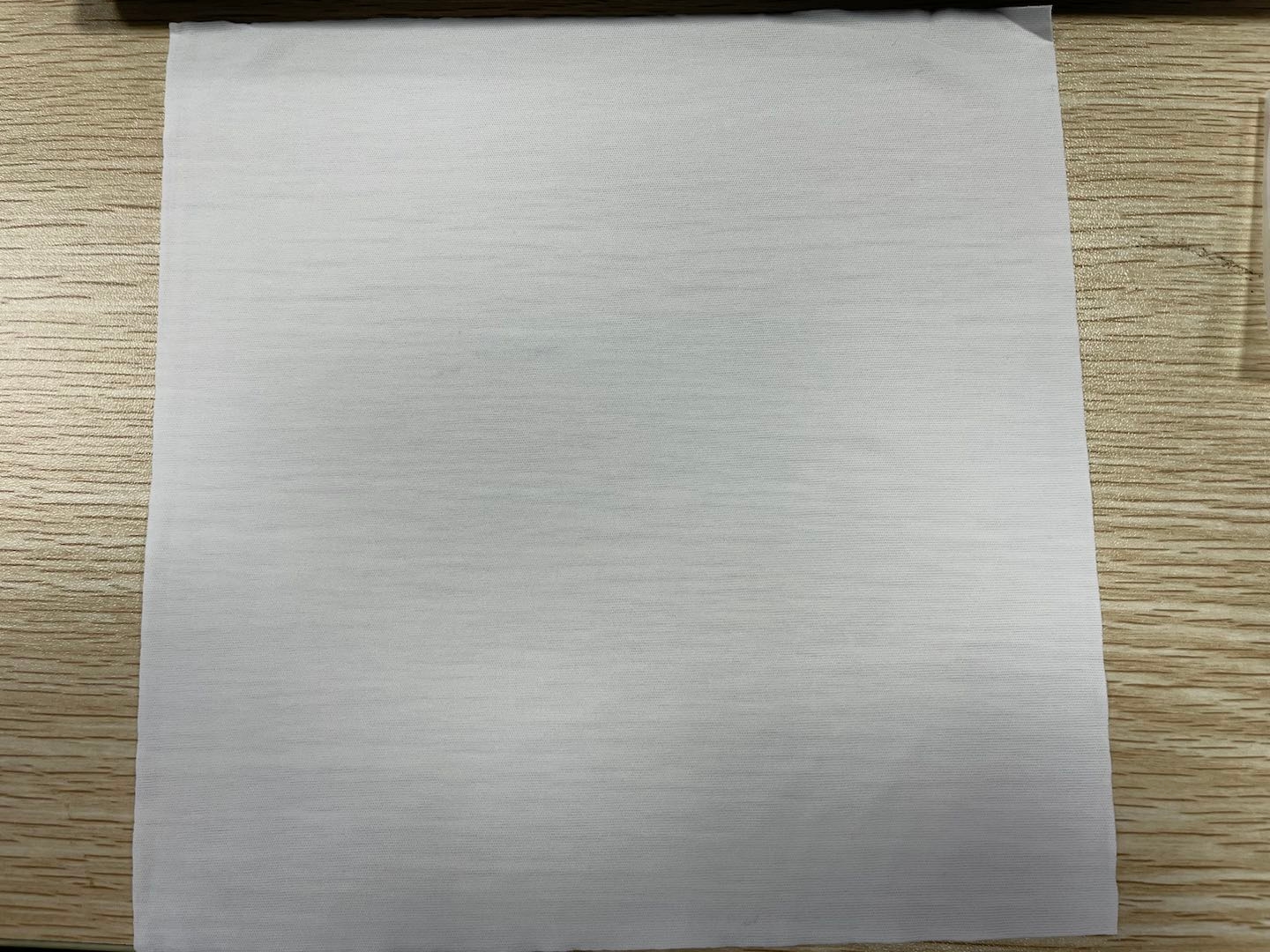
Use the wiping cloth from the U1 accessory toolbox (or other lint-free cloth), dampened with a small amount of ethanol, to gently wipe the build plate until no contaminants or residue remain.
Wiping cloth from the U1 accessory toolbox
Wipe the build plate gently and slowly. Avoid scraping the surface with hard tools, as this may cause irreversible damage to the coating.
When using a PEI steel sheet as the build plate, if you need to perform a thorough cleaning, you can refer to How to Clean the PEI Steel Sheet.
¶ Potential Cause 2: Residual Filament on the Nozzle Exterior
Residual filament stuck to the outside of the nozzle may obstruct normal extrusion, leading to insufficient extrusion or even interrupted extrusion lines. Since first-layer adhesion relies on adequate contact between the filament and the build plate, reduced contact area can lead to poor adhesion.
Therefore, clean the outside of the nozzle and check whether the nozzle cleaning brush has detached.
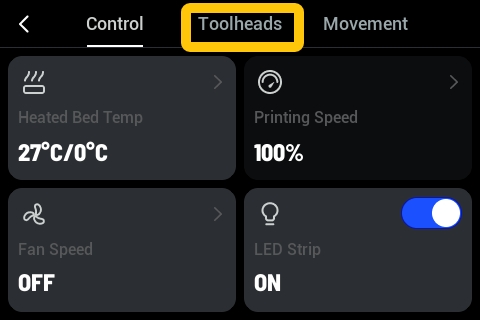
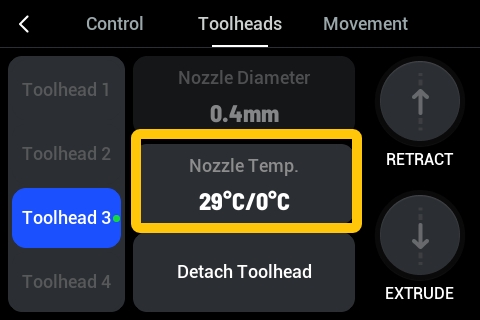
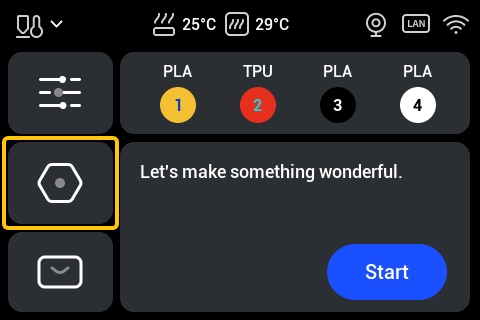
On the U1 touchscreen Home screen, go to the Control page, then tap Toolheads.
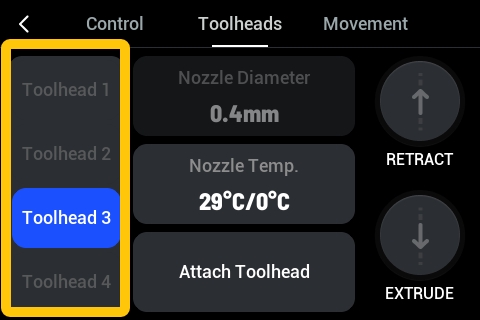
On the left side of the Toolheads screen, select the nozzle of the toolhead you want to clean.
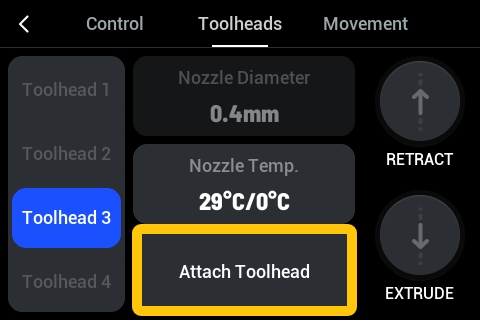
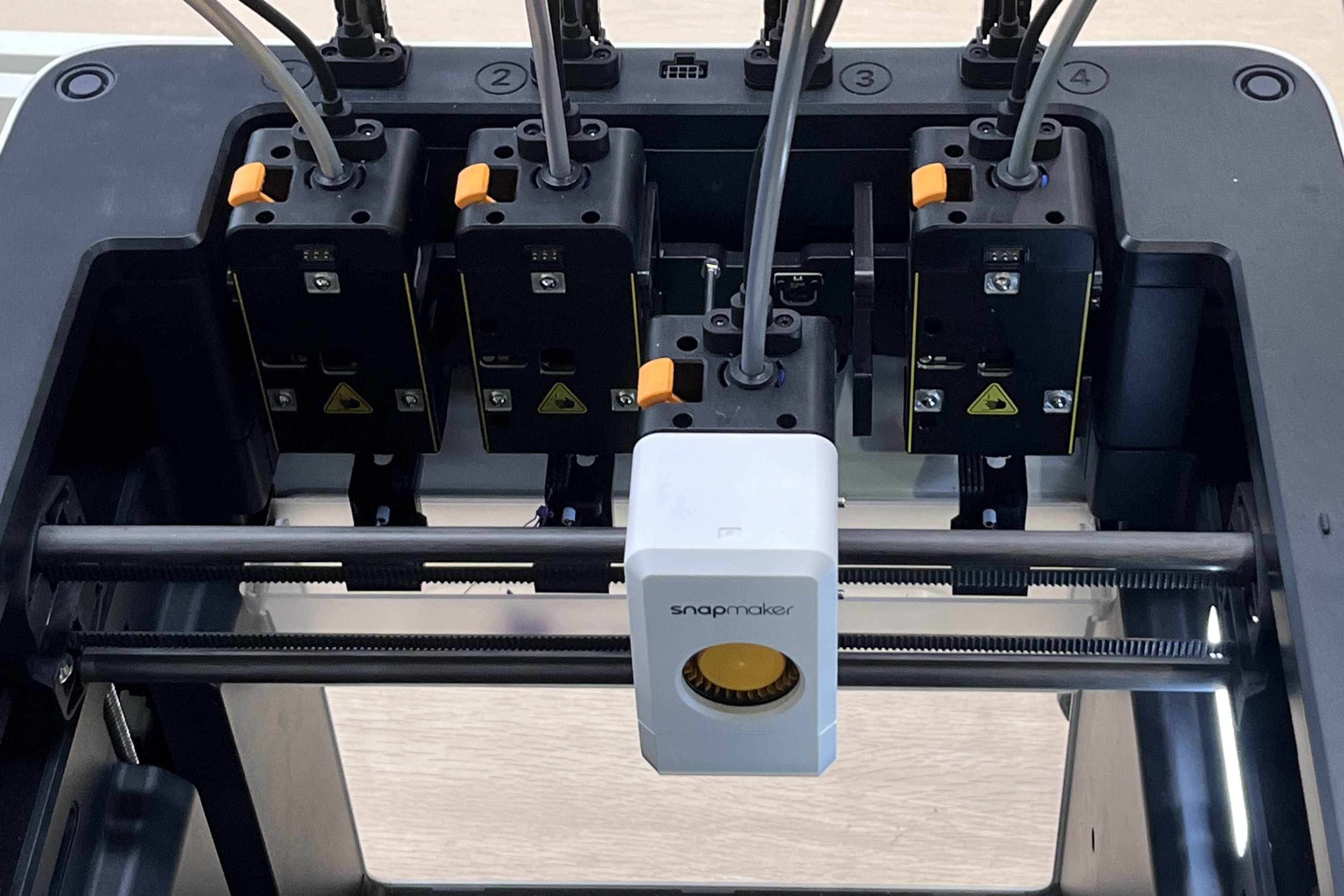
Tap Attach Toolhead and you can observe the machine picking up the corresponding toolhead.
Example: Tapping to attach toolhead 3Example: Toolhead 3 is attached
On the Toolheads screen, tap Nozzle Temp..
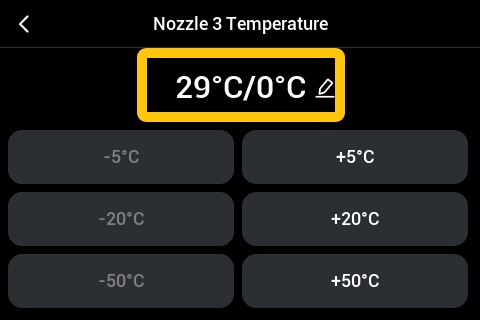
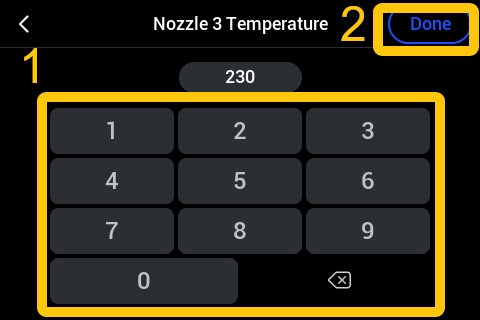
On the Nozzle Temp. screen, tap the temperature display area; set the target temperature, and tap Done.
Set the target temperature high enough to melt the residual filament on the nozzle exterior. Typically, use the printing temperature of the filament you normally print with. For example: PLA is generally set to about 200°C, and ABS and PETG are generally set to about 240°C.
Tap the temperature display areaEnter and set the target temperature
Wait for the nozzle to heat up to the target temperature.
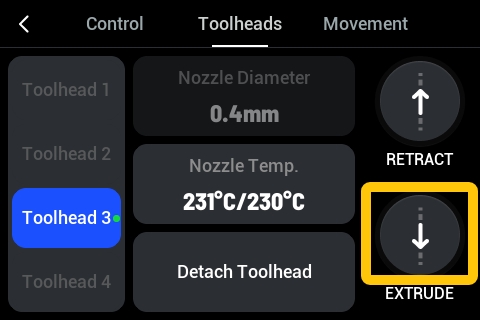
After cleaning, reheat the nozzle to the working temperature as described in the previous Step 1. Once the nozzle is at the target temperature, tap EXTRUDE.
If the filament extrudes smoothly and consistently, the cleaning process is complete.
Normally, the nozzle cleaning brush on the nozzle wiper automatically cleans the nozzle whenever a toolhead is picked up or returned. If the cleaning brush becomes detached, filament residue can accumulate more easily on the outside of the nozzle, which may reduce first-layer adhesion to the build plate.
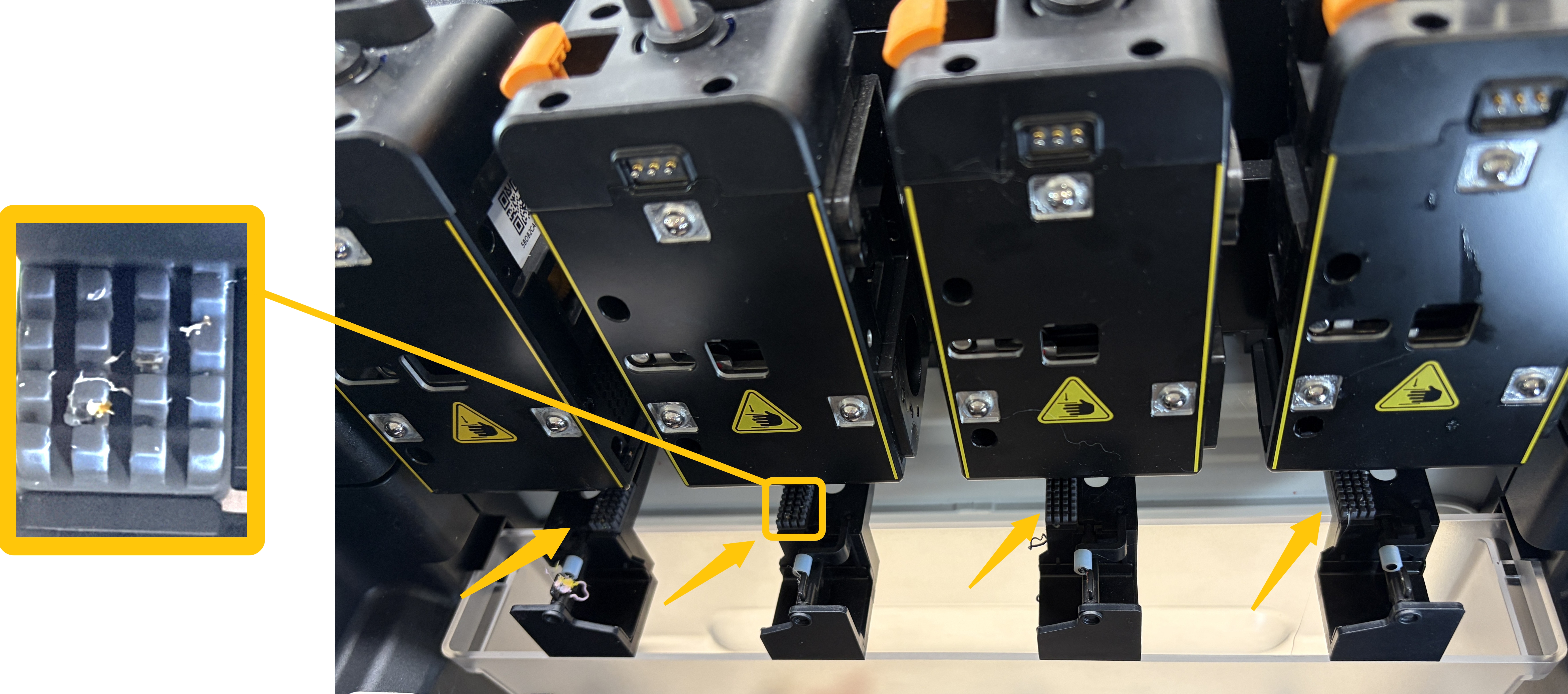
Check the nozzle cleaning brush on the nozzle wiper for any abnormalities, such as falling off.
Nozzle cleaning brush on the nozzle wiper. The image shows the normal state of the brush, with a small amount of filament residue cleaned from the nozzle remaining on it.
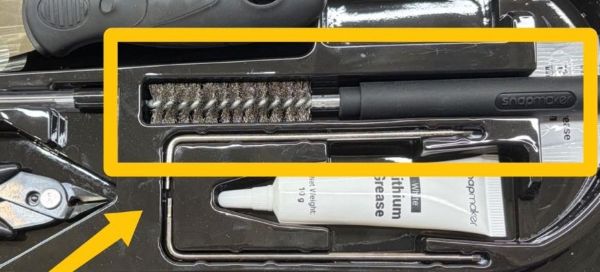
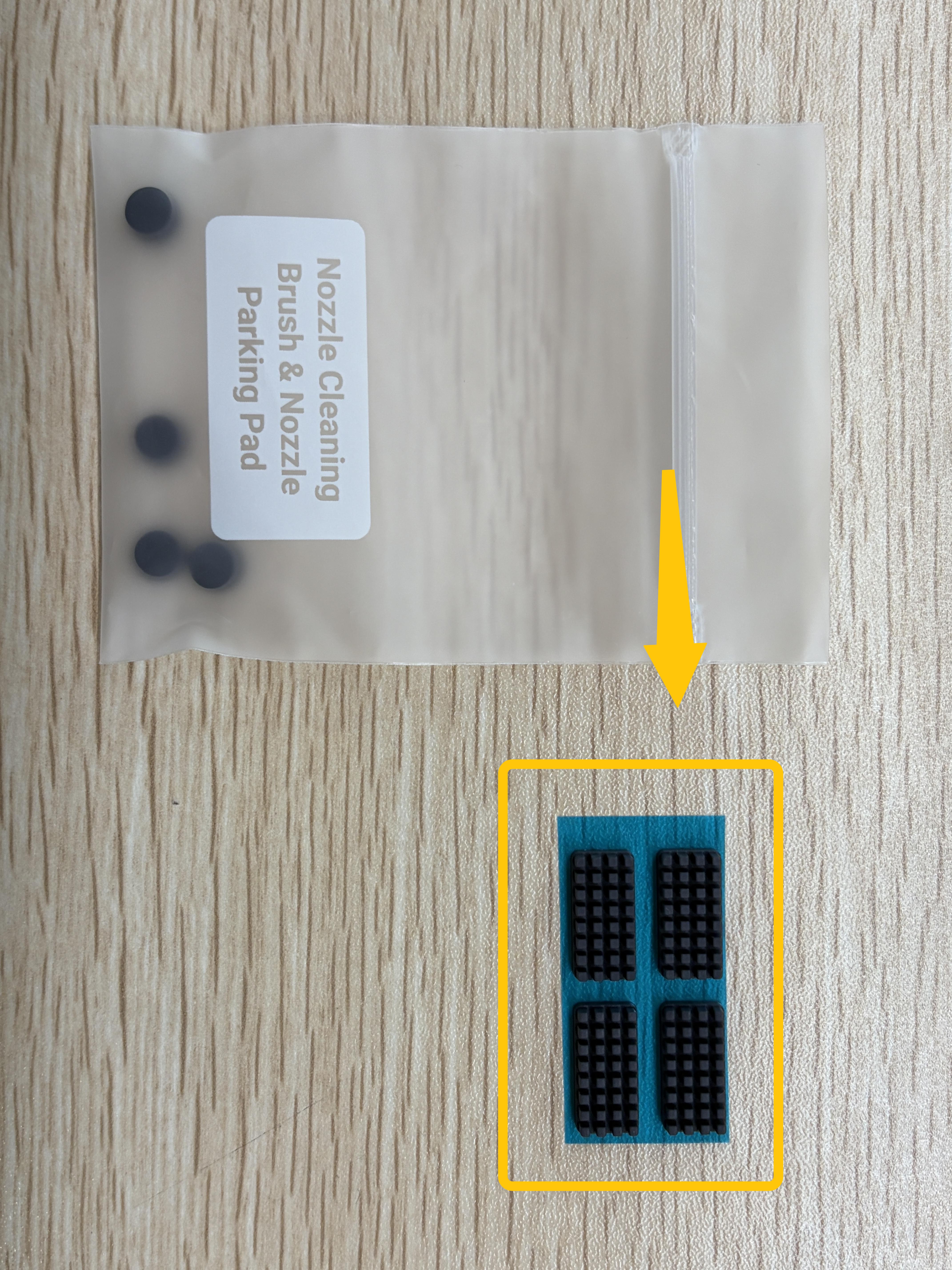
The nozzle cleaning brush will wear with normal use. If it becomes damaged or detached, remove the old brush and attach a spare nozzle cleaning brush from the U1 toolbox in its place.
Spare nozzle cleaning brush from the U1 accessory toolbox. After tearing off the damaged brush, paste the new nozzle cleaning brush in the original position.
An unlevel heated bed can cause inconsistent nozzle-to-build-plate distances across the build surface, preventing filament from being deposited evenly. As a result, different areas of the first layer may adhere differently to the build plate, leading to poor overall first-layer adhesion.
Normally, you can level the heated bed using Auto Leveling. If the heated bed is significantly out of level, or if Auto Leveling does not resolve the issue, you can choose Manual Leveling + Auto Leveling.
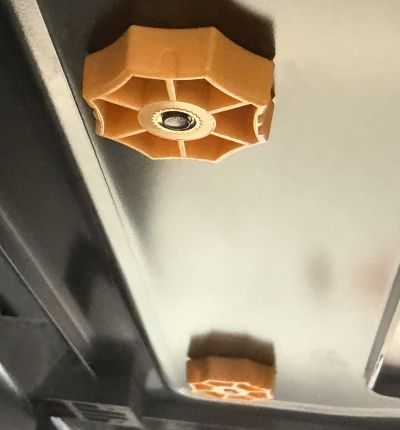
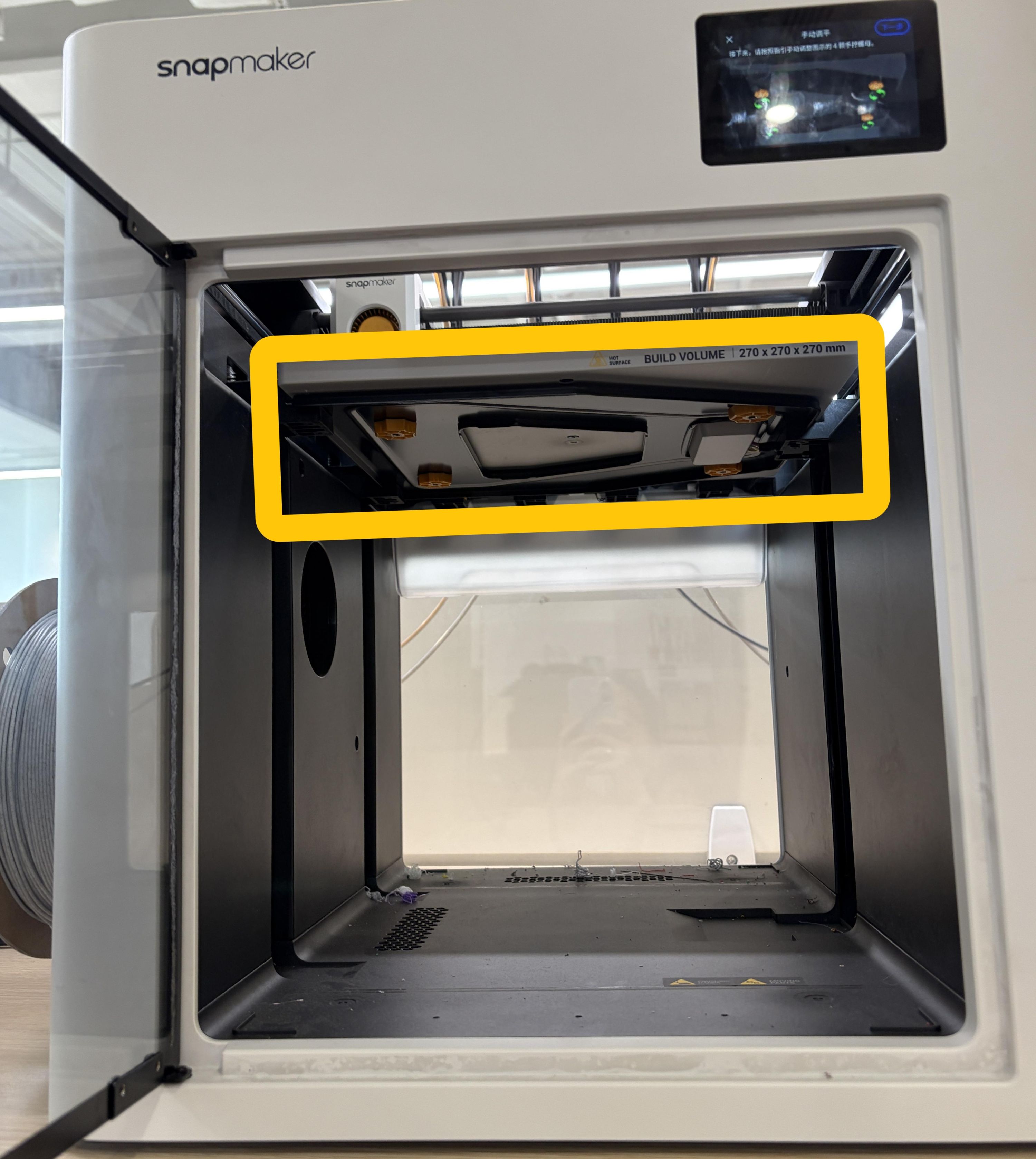
You can perform manual leveling directly by hand. Snapmaker U1 features yellow handwheels on the heated bed leveling screws, allowing routine adjustments without any additional tools.
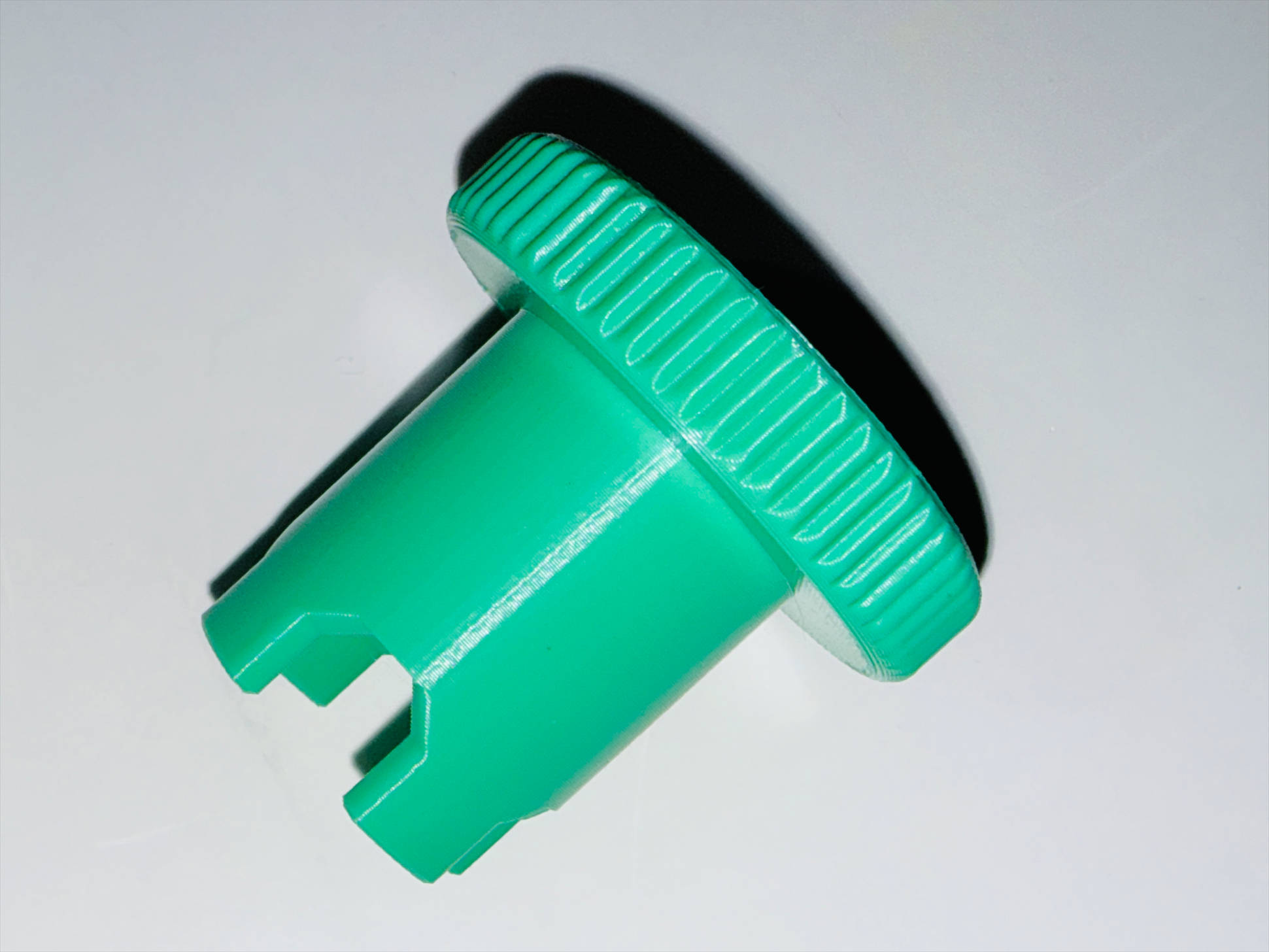
If desired, you can also download and print an auxiliary tool (see Table 1) and fit it over the handwheel. This provides additional leverage and makes manual leveling easier.
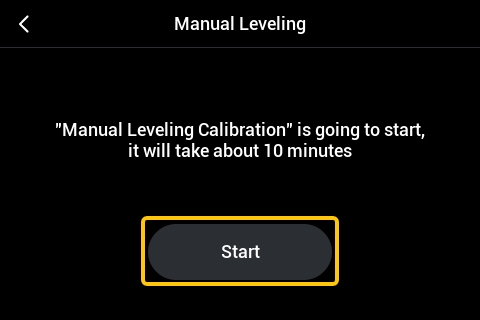
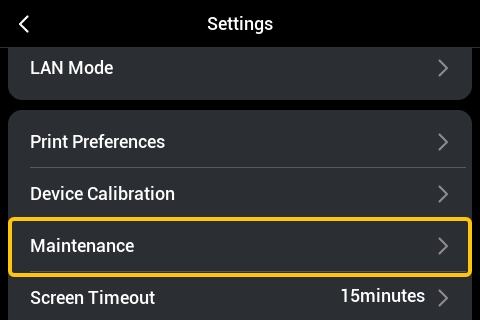
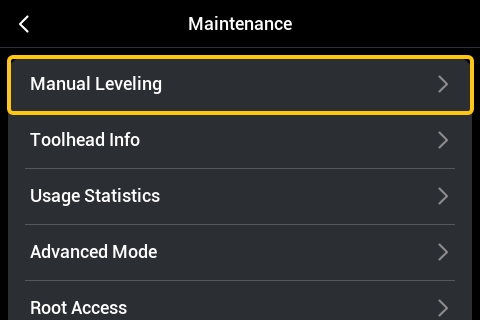
On the touchscreen Home Screen, go to the Settings page, then tap Maintenance > Manual Leveling, and follow the on-screen prompts to complete the leveling operation.
The leveling screws are located underneath the heated bed.
After the heated bed rises automatically, follow the on-screen instructions to turn the screws and level the bed.
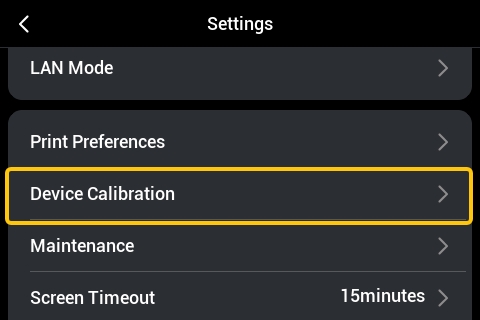
After manual leveling is complete, on the touchscreen Home Screen, tap to enter the Settings page, then tap Device Calibration.
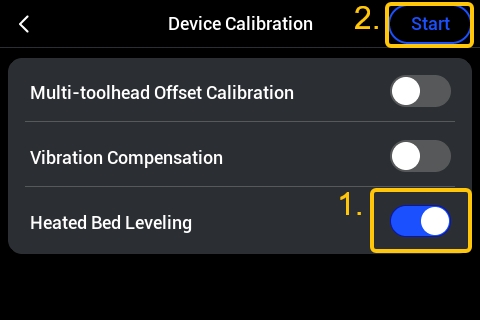
On the Device Calibration page, enable Heated Bed Leveling, and tap the Start button in the upper right corner.
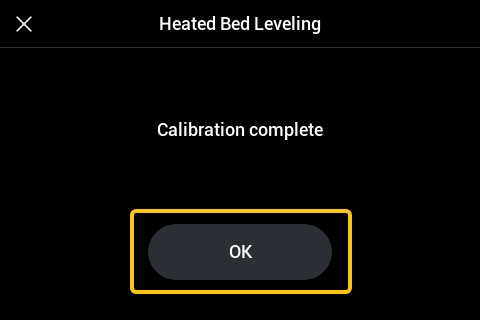
After starting, the machine will run the auto leveling program. Please wait for it to complete.
¶ Potential Cause 4: First Layer Print Speed Too Fast
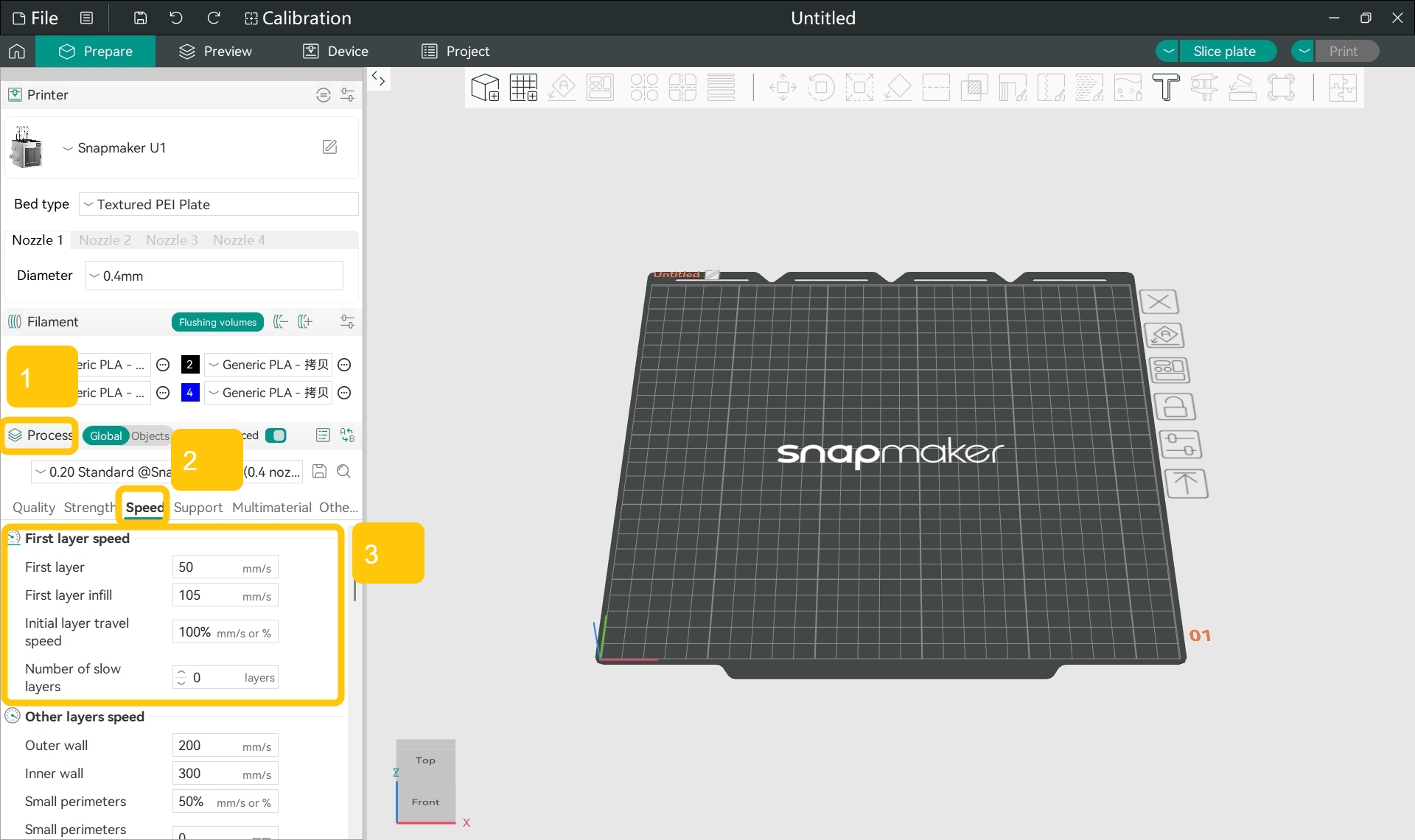
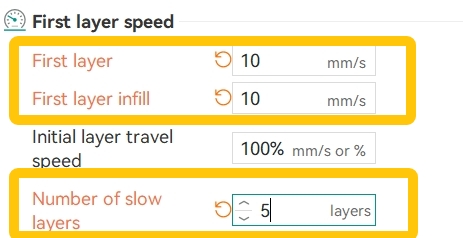
Printing the first layer too quickly may prevent the extruded filament from being properly compressed against the build plate. The filament may also cool too rapidly, reducing its ability to bond to the build plate and resulting in poor first-layer adhesion.
Ideally, the first layer filament should remain soft long enough to spread slightly and establish good contact with the build plate before solidifying. If the heated bed temperature is too low, the filament cools and shrinks too quickly, reducing adhesion to the build plate and increasing the likelihood of first-layer lifting or detachment.
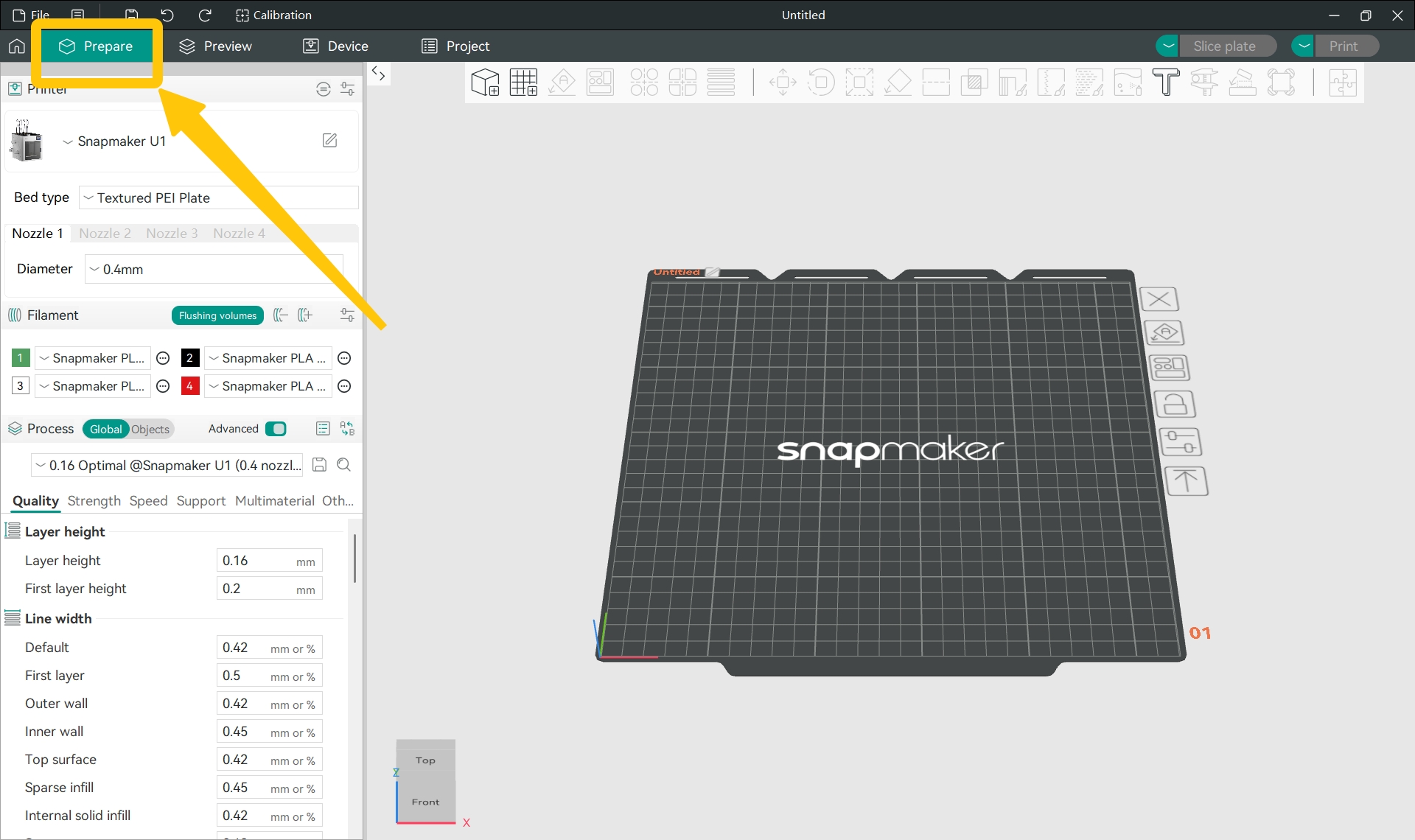
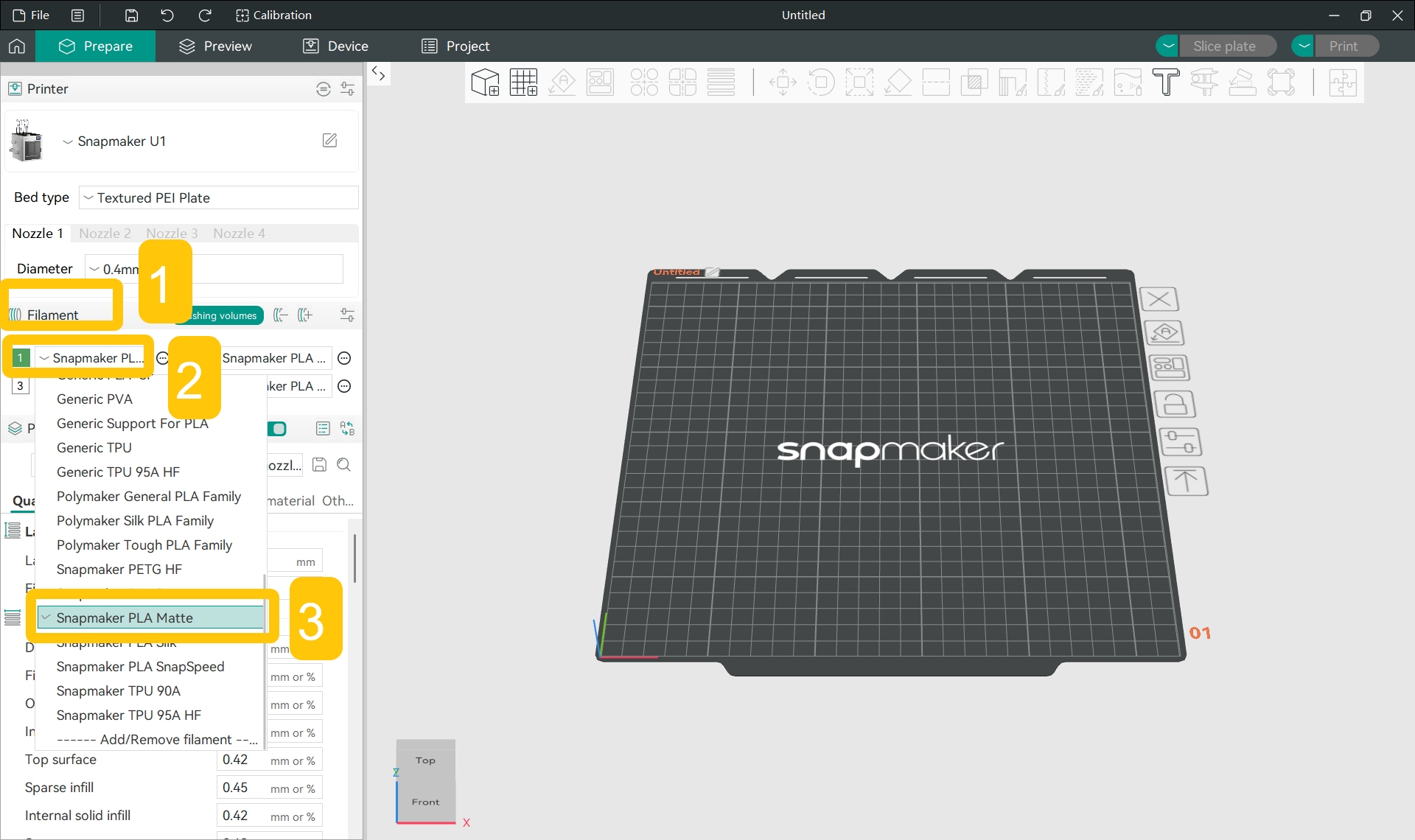
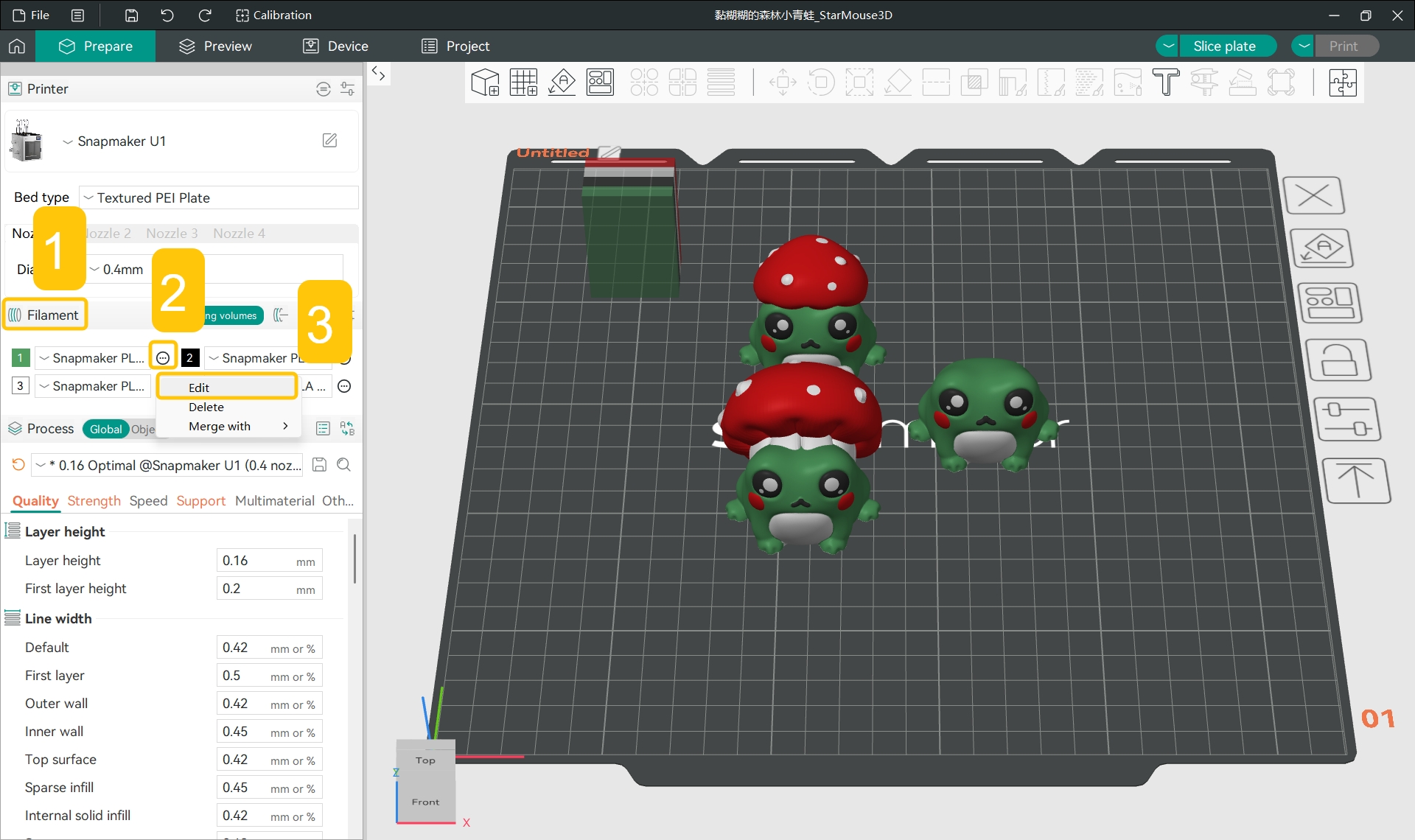
In the Filament section of the left sidebar, click the specific filament name and select the filament type you used for printing from the drop-down menu.
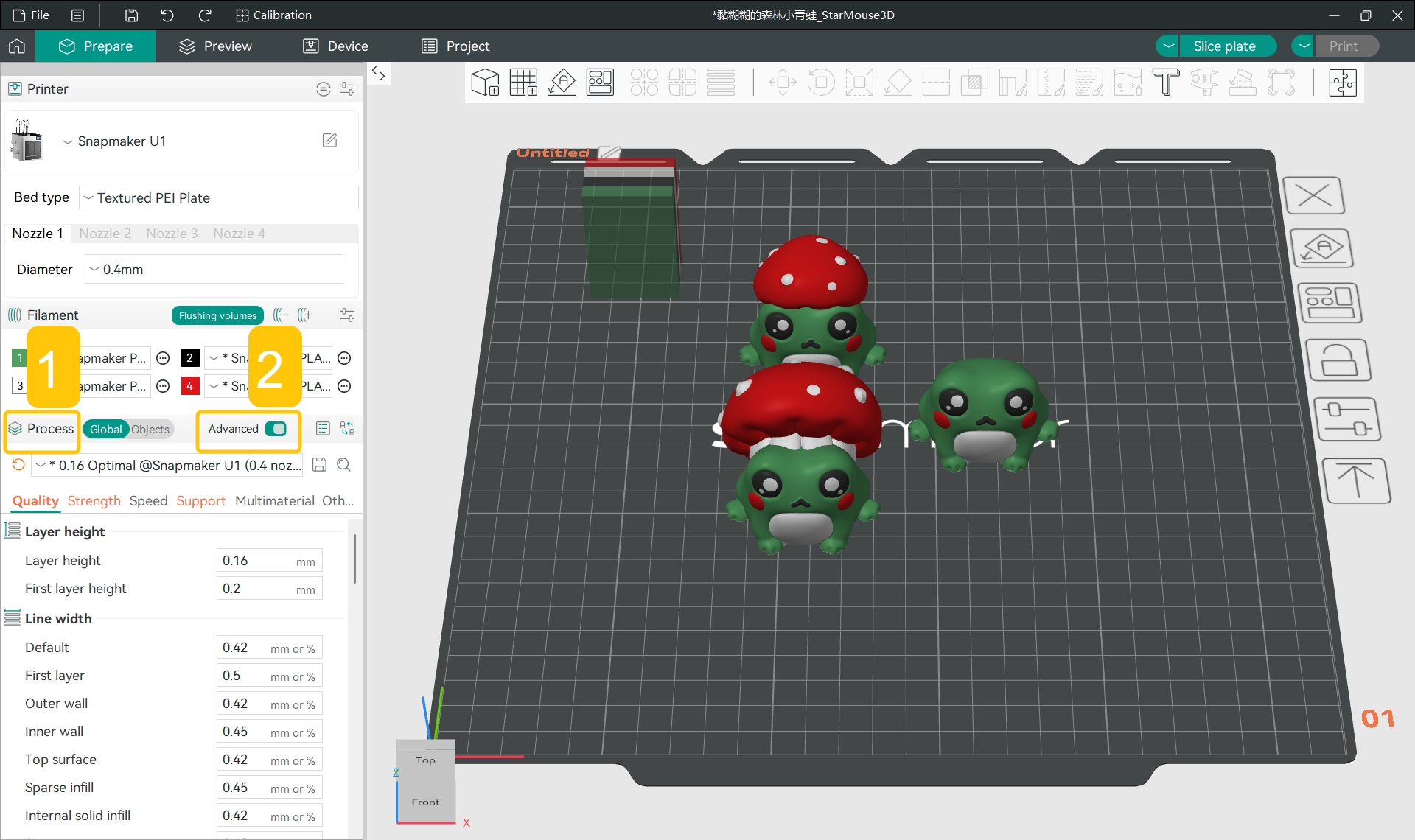
In the Filament section of the left sidebar, click the ... > Edit next to the specific filament.
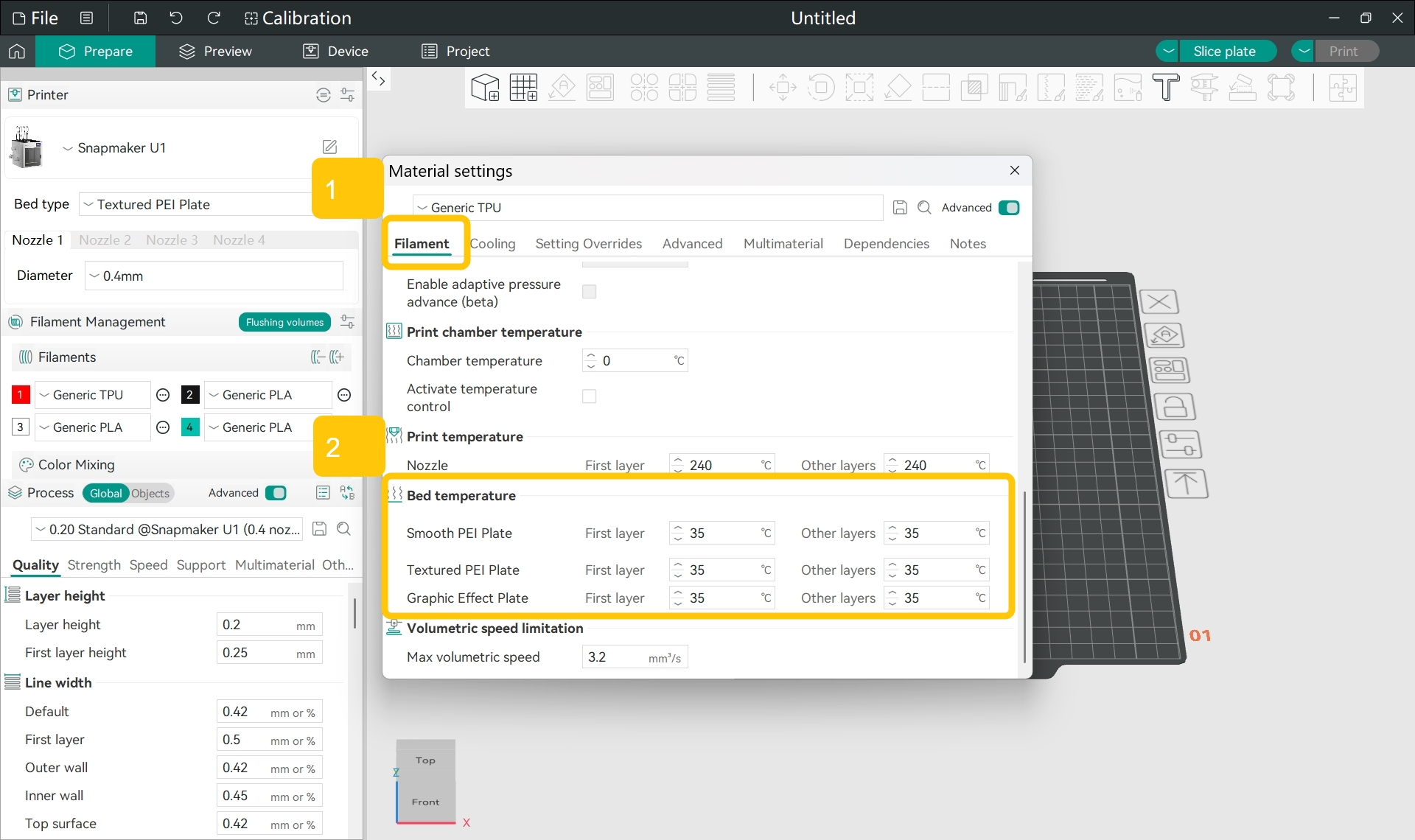
In the pop-up window, find Filament > Bed temperature.
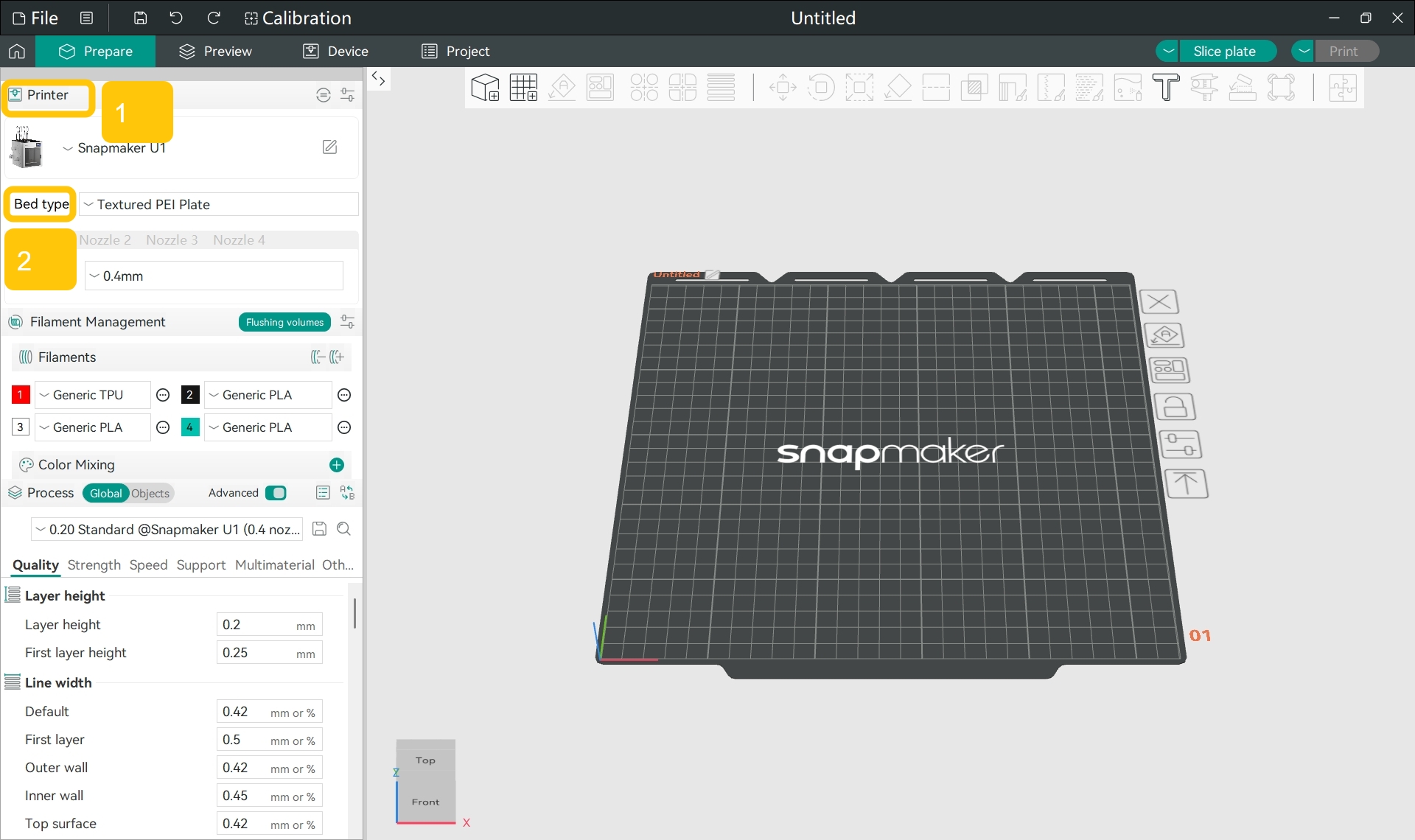
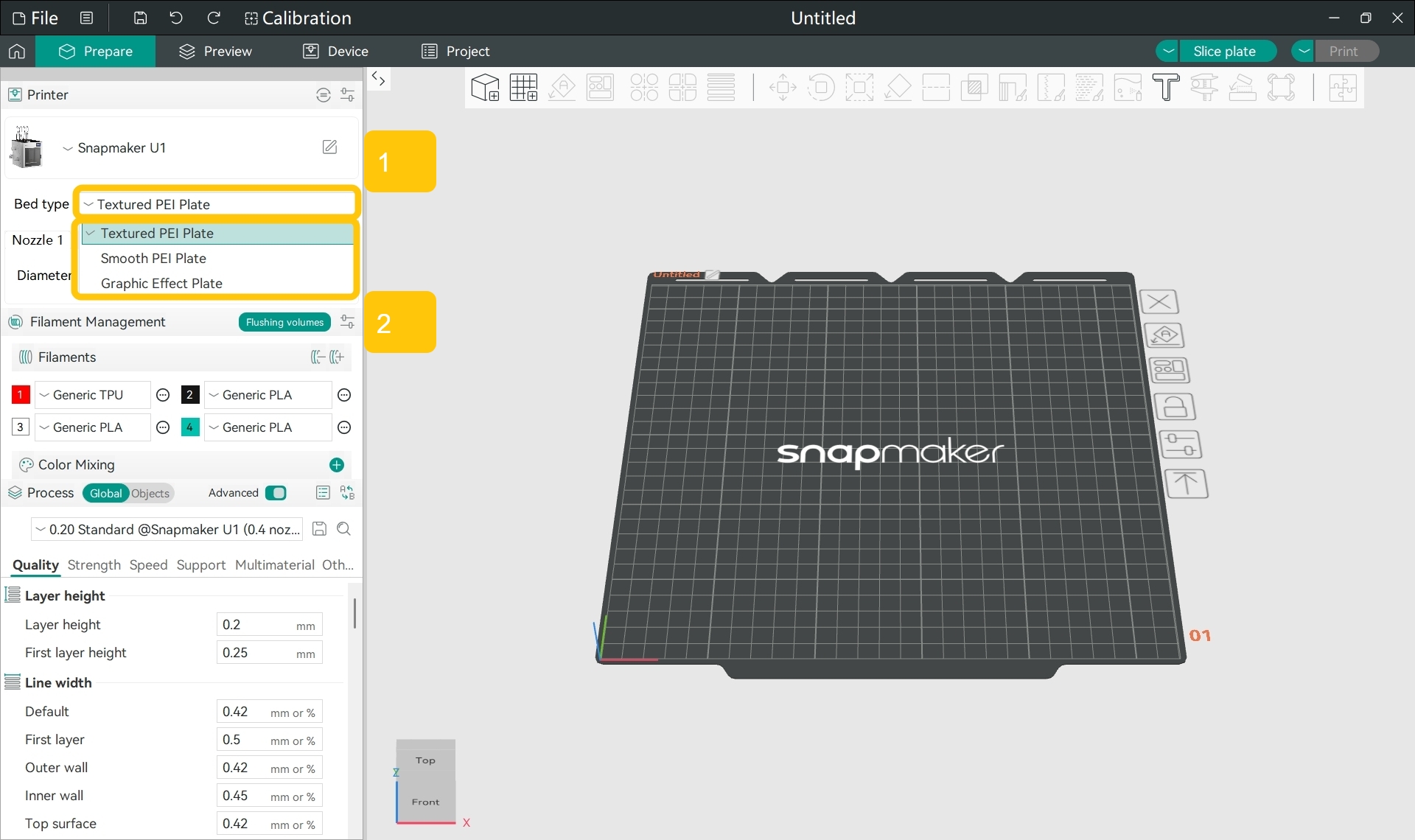
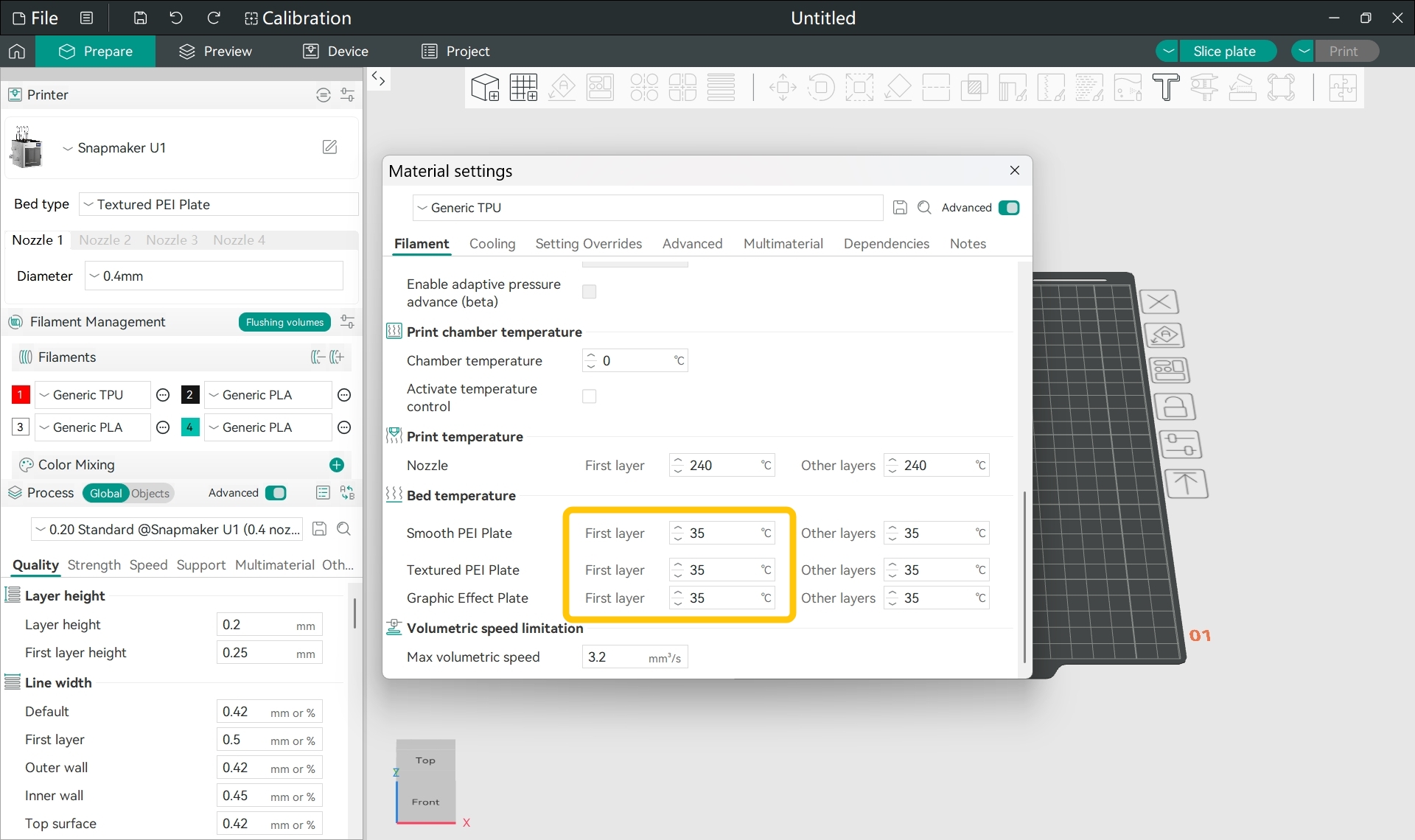
For the heated bed type you are currently using, appropriately increase the First layer bed temperature.
After re-slicing the model and starting a new print, check whether the first layer adheres firmly to the build plate without lifting or shifting. If it does, the issue has been resolved.
After following the troubleshooting steps, if you find it difficult to resolve your issue, kindly submit a support ticket through https://snapmaker.formcrafts.com/u1-troubleshooting-request and share your troubleshooting results with some pictures/videos.
Our dedicated support team will be more than willing to assist you in resolving the issue.