¶ 💡Compatibility
This guide applies to the following machine. Please note when referencing:
- Machine model: U1
¶ ⏰ When to Use This Guide
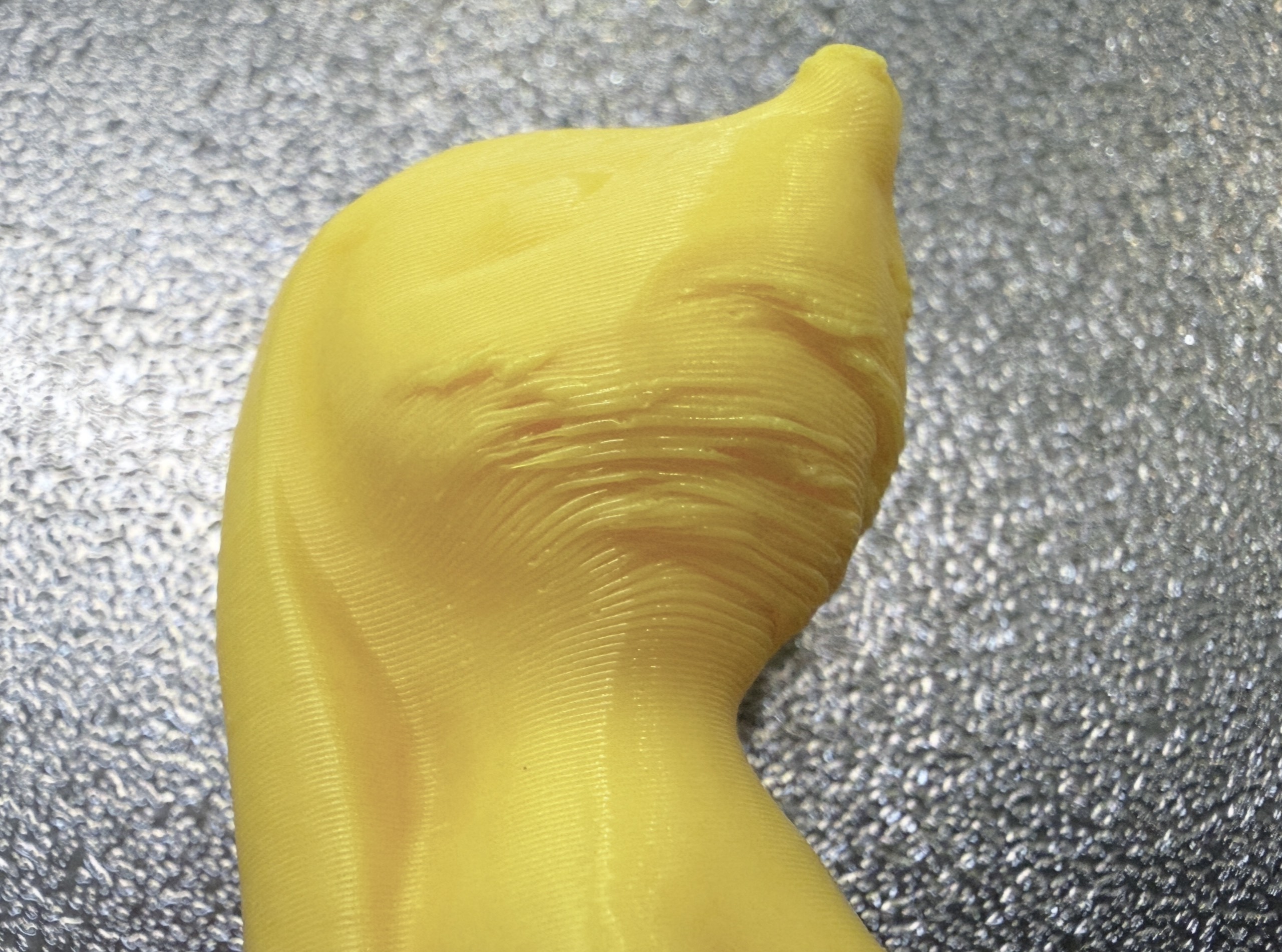
In 3D printing, an overhang refers to a portion of a model that extends outward or is suspended without solid support directly underneath.
When printing with the U1, if you observe any of the following issues in overhanging areas, refer to this guide for troubleshooting:
- Sagging or collapse
- Stringing on the surface
- Warping or deformation
¶ 📋 Quick Info Card
- Difficulty: ⭐⭐☆☆☆ (Easy)
- Estimated Time: 10 minutes
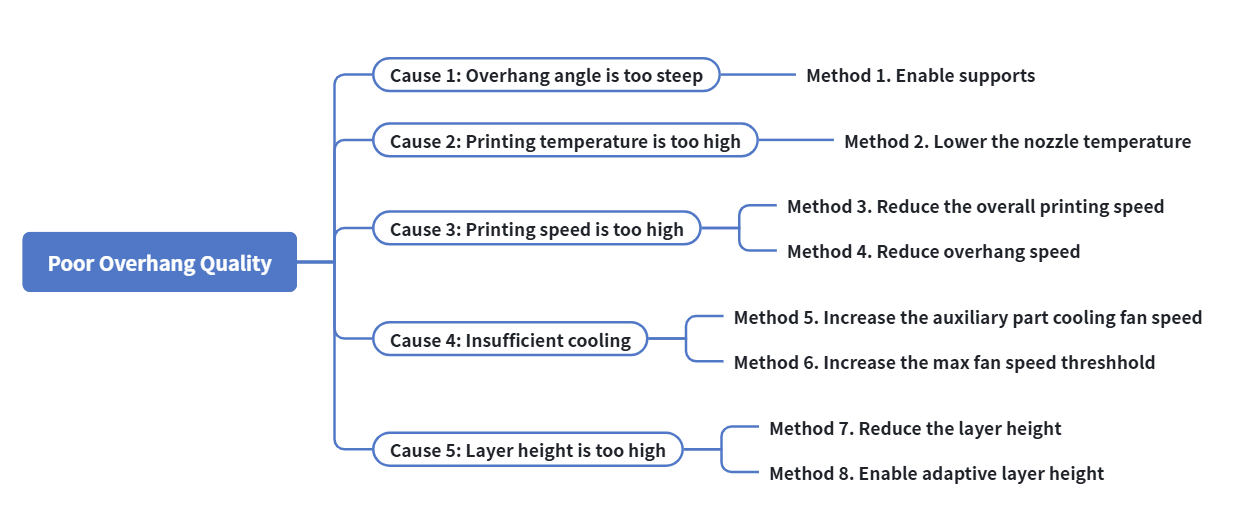
¶ 🔁 Troubleshooting Flowchart
¶ 🔍 Quick Diagnosis
The root cause of poor overhang quality lies in the conflict between gravity and cooling. Before the extruded filament has sufficient time to cool and solidify, gravity causes it to droop and shift from its intended position. You can identify the cause by following the steps below:
- Overhang angle is too steep → Go to Cause 1
- Printing temperature is too high → Go to Cause 2
- Printing speed is too high → Go to Cause 3
- Insufficient cooling → Go to Cause 4
- Layer height is too high → Go to Cause 5
¶ 🛠️ Troubleshooting Steps
¶ Cause 1: Overhang angle is too steep
¶ Method 1. Enable supports
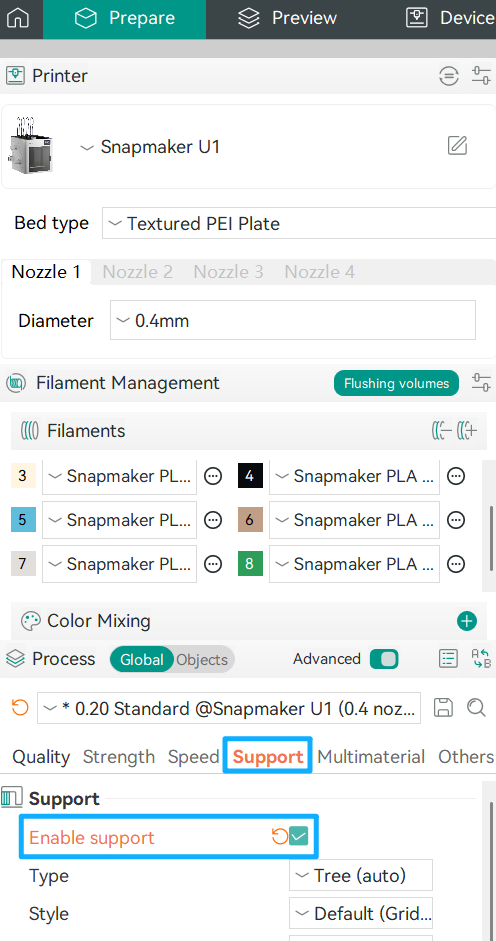
If the overhang angle is too steep (for example, greater than 45°), the risk of print collapse increases significantly. In this case, click on Enable support in Snapmaker Orca to improve print quality.
¶ Cause 2: Printing temperature is too high
¶ Method 2. Lower the nozzle temperature
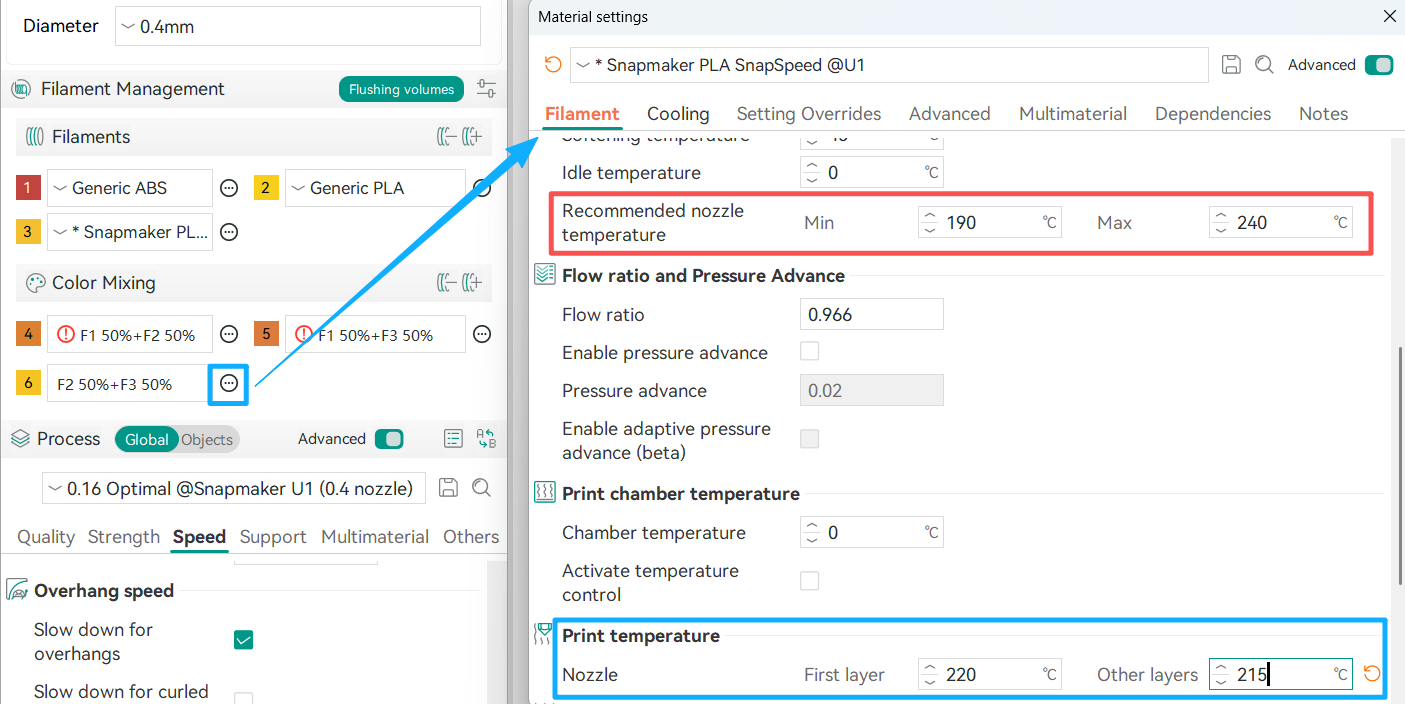
Reducing the nozzle temperature decreases the fluidity of molten material, allowing it to solidify more quickly after extrusion. Refer to the Filament library and reduce the printing temperature of Other layers in increments of 5°C. However, do not go below the Min recommended nozzle temperature, as this may result in poor layer adhesion.
¶ Cause 3: Printing speed is too high
¶ Method 3. Reduce the overall printing speed
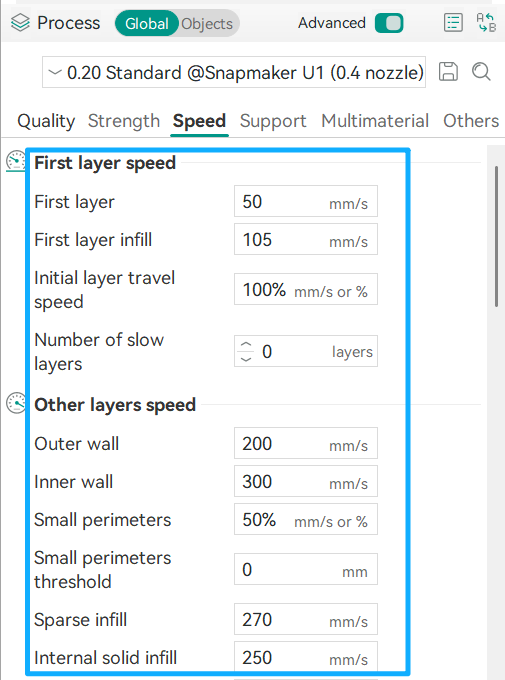
In Snapmaker Orca, you can adjust the printing speed under Prepare > Process. We recommend reducing the overall speed to 60%–80% of the current value.
¶ Method 4. Reduce overhang speed
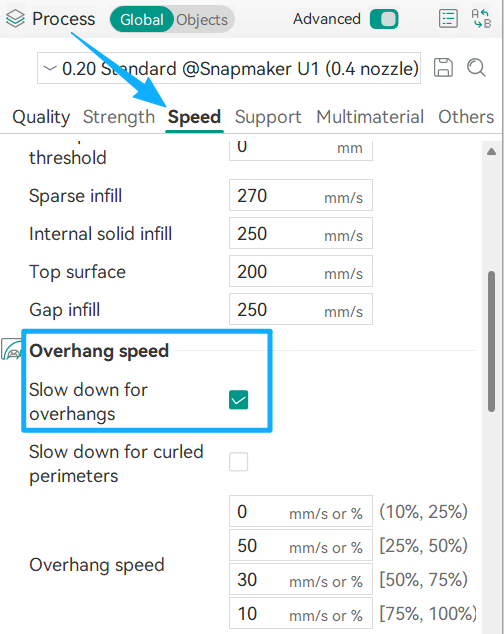
Reducing the speed specifically for overhang regions is a more effective approach. Under the Speed settings, locate Overhang speed and enable Slow down for overhangs.
¶ Cause 4: Insufficient cooling
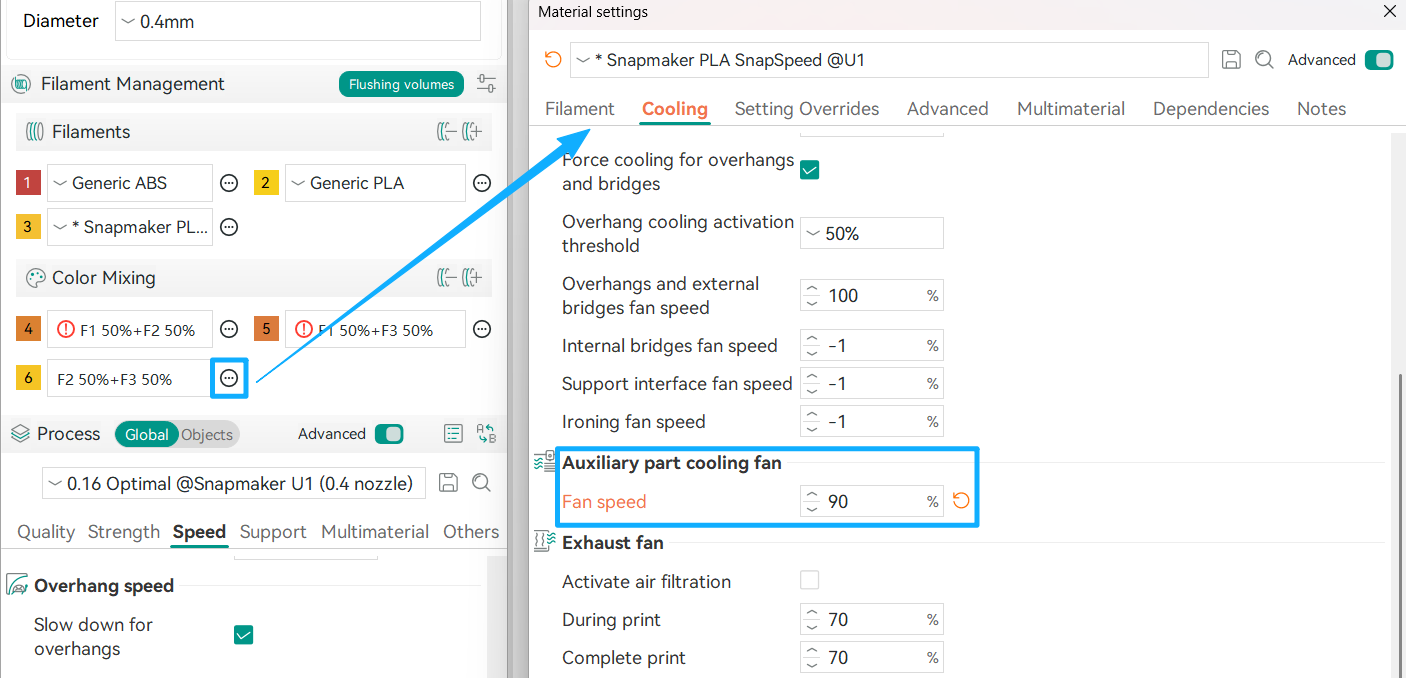
¶ Method 5. Increase the auxiliary part cooling fan speed
Go to Filament > Edit > Cooling, then increase the auxiliary part cooling fan speed appropriately. Enhanced cooling helps reduce deformation and surface roughness caused by molten filament sagging under gravity.
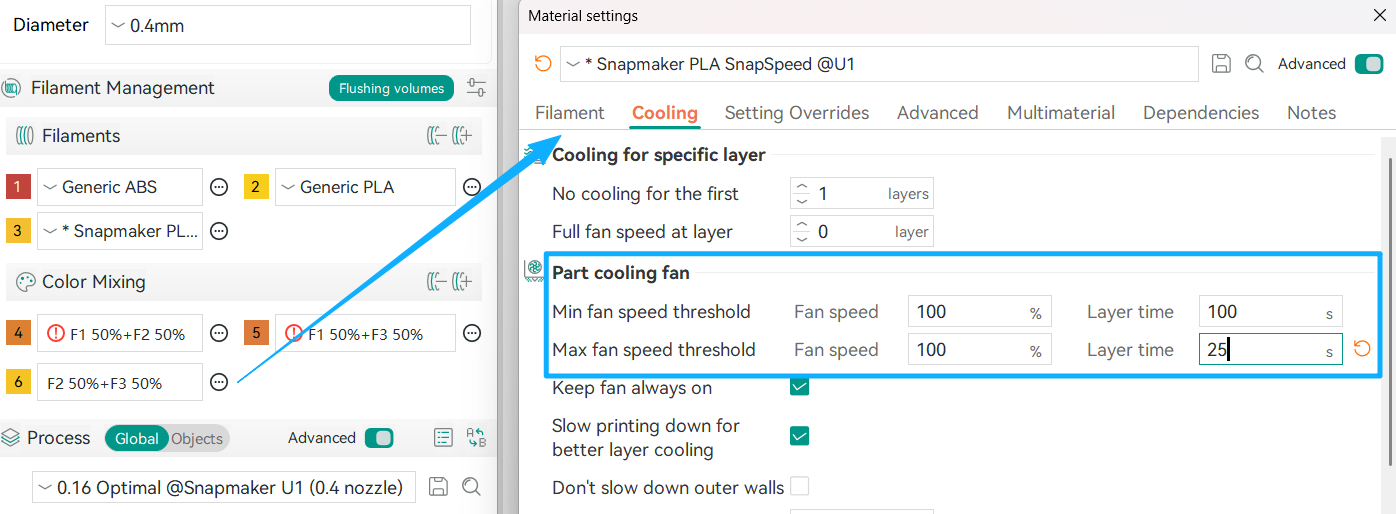
¶ Method 6. Increase the max fan speed threshhold
As different filament types have different cooling characteristics, the values shown in the figure below are for reference only.
¶ Cause 5: Layer height is too high
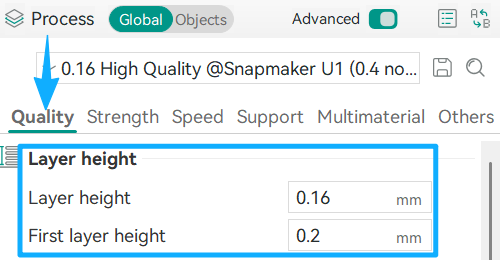
¶ Method 7. Reduce the layer height
When the layer height is too large, more material is extruded per layer, increasing the weight of unsupported sections and making them more prone to sagging and deformation. Lowering the layer height in the Process settings can improve print quality.
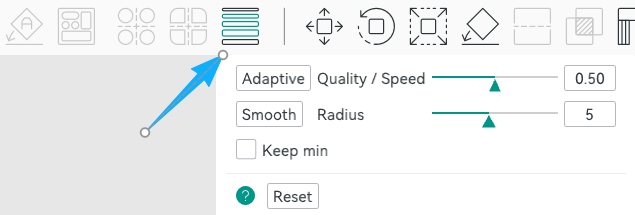
¶ Method 8. Enable adaptive layer height
Use the adaptive layer height feature in the top toolbar to reduce the layer height only in overhang regions, improving print quality while maintaining overall printing efficiency.
¶ ✅ Verification
After applying the troubleshooting methods above, reprint the model. If the print shows no warping, collapse, or visible defects, the overhang quality issue has been successfully resolved.
¶ 📚 Related Resources
¶ 💬 Reach out to Snapmaker Support
After following the troubleshooting steps, if you find it difficult to resolve your issue, kindly submit a support ticket through https://snapmaker.formcrafts.com/u1-troubleshooting-request and share your troubleshooting results with pictures or videos. Our dedicated support team will be more than willing to assist you in resolving the issue.