¶ Introduction
Snapmaker U1 supports auto-refill to ensure uninterrupted printing. During a print task, when the filament in one toolhead runs out, U1 will automatically switch to another toolhead loaded with the same type of filament and continue printing.
If multiple backup filaments are loaded, U1 will perform auto-refill in ascending order of toolhead numbers. For example, if you start with toolhead 2 and all other toolheads are loaded with backup filaments, the refill order will be toolhead 1 → 3 → 4, and so on.
This feature is commonly used in the following scenarios:
Scenario 1: Single-color printing — enabling long, unattended printing
When printing large models or running batch production, you can load backup filaments onto other toolheads in advance. This allows the printer to switch seamlessly after the first spool runs out, without the need for manual intervention, thereby achieving extended continuous printing without supervision.
Scenario 2: Multi-color/multi-material printing — improving overall print success rate
During multi‑color print tasks, it is recommended to prepare a standby toolhead loaded with the same filament for the most frequently used color. When the original material runs out, printing will continue automatically. This frees you from the length limitation of a single spool and allows you to plan complex projects with greater confidence.
¶ Preparations
- Update the U1 firmware to V1.5.2 or later.
See the U1 Firmware Release Notes for the corresponding firmware version.
- Enable Auto-Refill in advance.
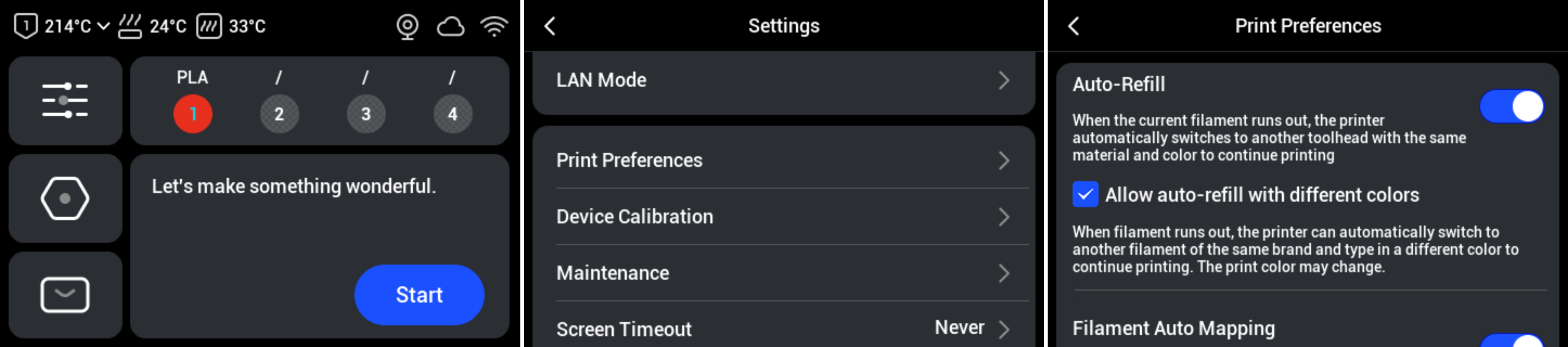
On the touchscreen main interface, navigate to Settings >Print Preferences> and turn onAuto-Refill.
- Make sure the backup filament has the same brand, material type, and color as the original filament.
To allow auto-refill with different colors, enable
Allow auto-refill with different colors. The printer will automatically switch to another filament of the same brand and material type to continue printing.
¶ Procedures
To ensure smooth auto-refill, please make sure that at least one standby toolhead is loaded with filament that has the same properties as the current one before it runs out. You can follow the steps below:
- Mount the backup filament on an empty filament holder and insert the filament into the feeder. When the white indicator light stays on, pre‑loading is complete.
Rigid filaments support automatic loading, so the following steps can be performed either before printing or during printing without interrupting the print task.
Flexible filaments cannot be loaded automatically. In this case, you must pause the print and perform manual loading in order to refill. Therefore, to ensure continuity and save time, we recommend you to perform Manual Loading before starting the print task.
- On the touchscreen main interface, go to the Filament page and edit the filament information (in the illustration, filament holder No.2 is the backup filament).
- When using Snapmaker official filament with RFID, the printer will automatically recognize and import the filament information.
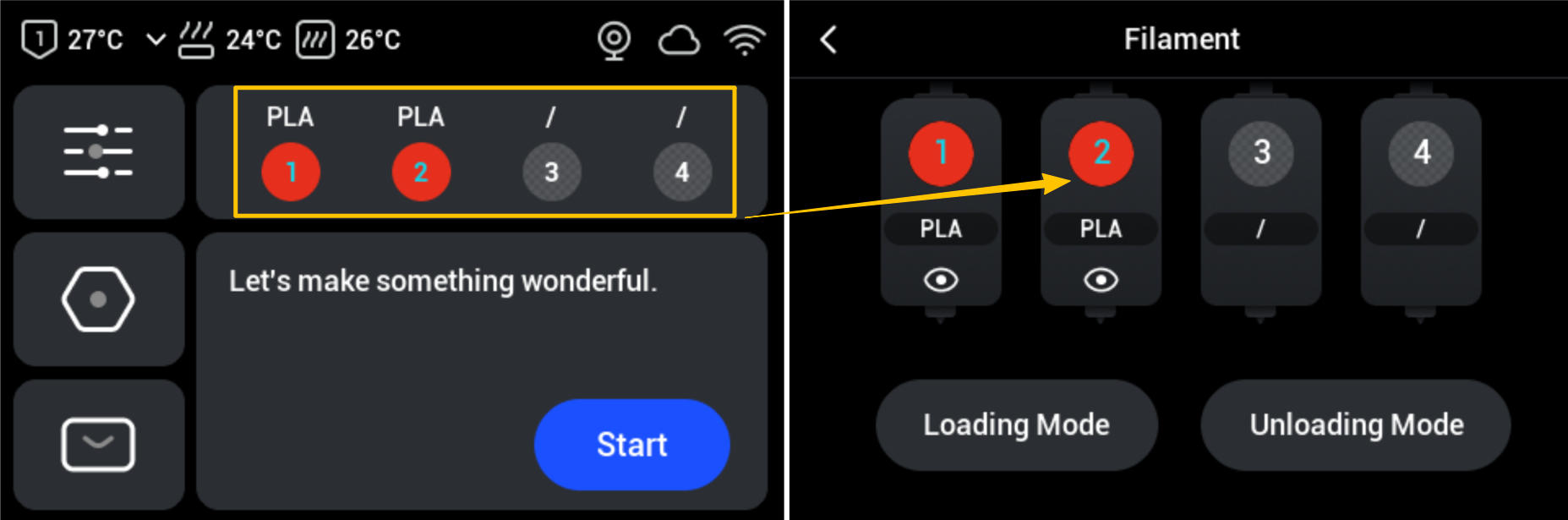
- For third-party filament or Snapmaker filament without RFID, manual editing is required.

- When the current filament runs out, the printer will automatically refill, switch to the corresponding toolhead, and resume printing.
¶ Auto-Refill Failure
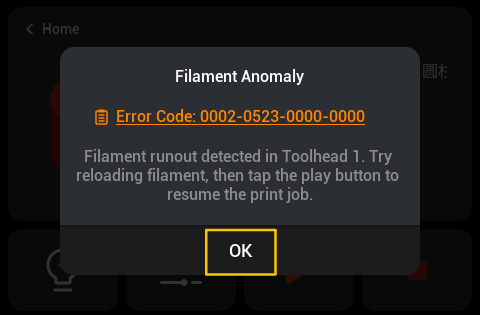
- If no backup filament is loaded when the current filament runs out, the printer will automatically pause the print. Tap OK in the pop‑up window.
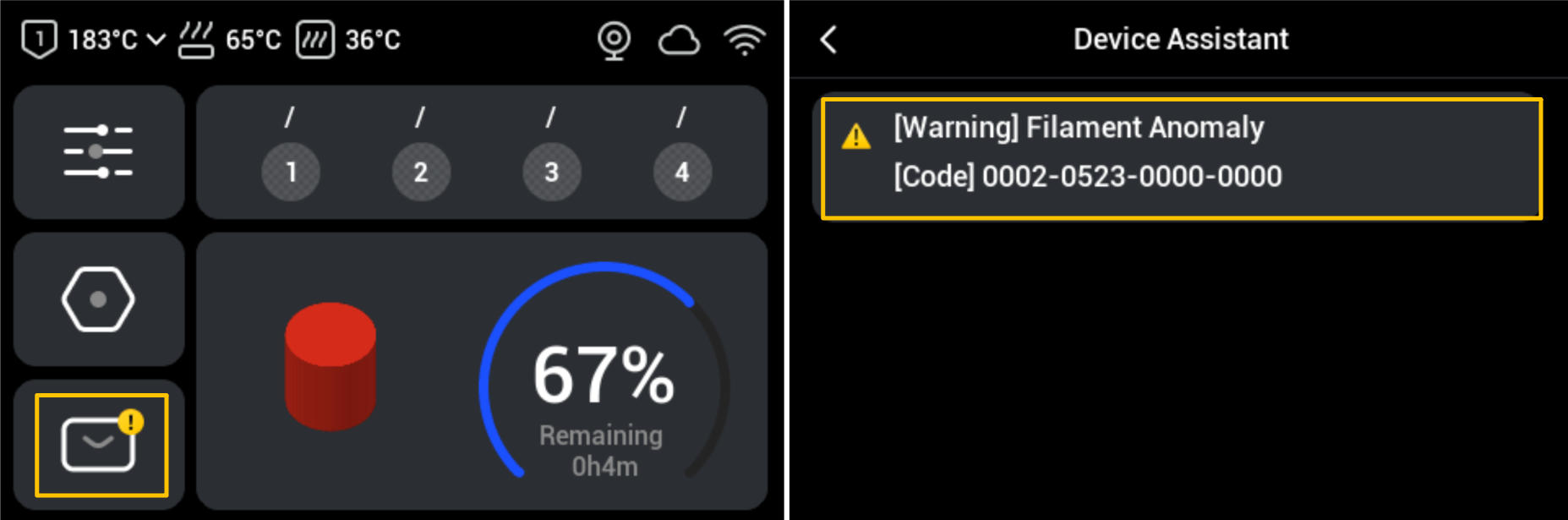
You can check out this message from the notification bar on the home screen.
- Replace the filament on the original filament holder with the backup filament and reinsert it into the feeder. When the white indicator light stays on, pre‑loading is complete.
If you are using flexible filament, please complete filament loading by following the manual loading procedure.
- On the touchscreen main interface, go to the Filament page and edit the filament information.
- When using Snapmaker official filament with RFID, the device will automatically recognize and import the filament information.
- For third-party filament or Snapmaker filament without RFID, manual editing is required.
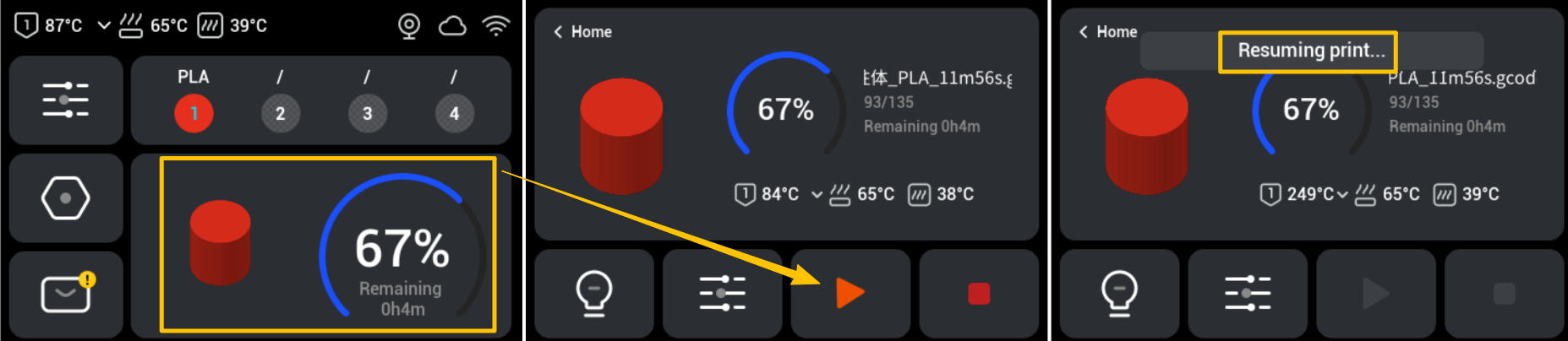
- Return to the touchscreen home screen, enter the Print Workspace in the lower‑right corner, then tap the ▶ icon. The printer will automatically resume printing.
Known Issue
When using flexible filament, after loading the backup filament, you need to re-enable the Auto Loading feature; otherwise, Auto-Refill will not function. We plan to optimize this operation logic in the future. Once updated, Auto-Refill will work without manual configuration.