¶ 💡 Compatibility
This content applies to the following software and hardware. Please confirm before referencing:
- Recommended Device: Snapmaker U1;
- Software Version: The latest version of firmware and Snapmaker Orca.
¶ ⚠️ Important Notes
- Recommended Filament: This tutorial is based on the Snapmaker PLA Full Spectrum Filament Bundle.
Get the PLA Full Spectrum Filament Bundle from your regional Snapmaker store:
Snapmaker Global Store
Snapmaker US Store
Snapmaker EU Store
Snapmaker DE Store
Due to factors such as filament properties, model geometry, print settings, and lighting conditions, the final print result produced with Full Spectrum may differ from the expected appearance.
Therefore, Full Spectrum is best suited for users who are familiar with 3D printing and slicing settings and are willing to experiment with new features, as well as creators who place a greater emphasis on color expression, gradients, and texture effects.
For print jobs that require high repeatability, accurate color reproduction, or high precision, use this feature with caution.
¶ ⏰ Overview
The Full Spectrum feature generates different colors inside the model based on the mixing ratios of various filaments. Since the optical properties of the actual filaments affect the final results, the preview effect within Snapmaker Orca cannot fully represent the actual printed colors.
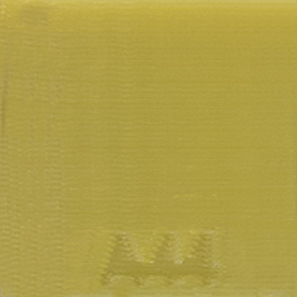
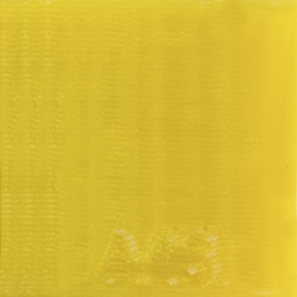
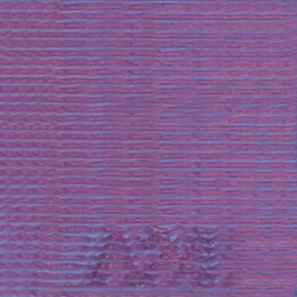
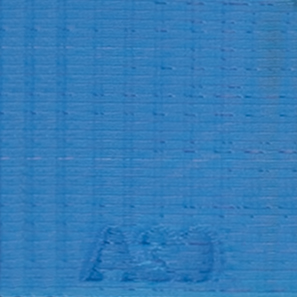
To address this, we have introduced the Full Spectrum color reference. This set of color swatches is calibrated based on actual printing results and can help you calibrate and select color effects that are closer to your expectations.
While this color reference provides a valuable baseline for your creative work, color discrepancies may still arise due to factors such as filament properties, model geometry, printing parameters, and ambient lighting. Thus, we recommend printing your own test swatches and fine-tuning the settings as needed to achieve the best results for your specific project.
¶ 🛠️ Calibrate Color
¶ 1. Prepare Filament
- Use the Snapmaker PLA Full Spectrum Filament Bundle.
- Refer to the Snapmaker U1 Filament Loading & Unloading Guide. Following Table 1, load the specified filament colors into their respective toolheads.
Table 1: Toolhead - Filament Assignment
| Toolhead Number | Color | Base Color Code |
|---|---|---|
| Toolhead 1 | ■ PLA Full Spectrum Filament Bundle Cyan (#08ABFB) | F1 |
| Toolhead 2 | ■ PLA Full Spectrum Filament Bundle Magenta (#D93B90) | F2 |
| Toolhead 3 | ■ PLA Full Spectrum Filament Bundle Yellow (#F9ED3D) | F3 |
| Toolhead 4 | ■ PLA Full Spectrum Filament Bundle Gray (#9199A4) | F4 |
The mixing ratios in this tutorial strictly follow the color sequence in Table 1. Please load the filaments according to the color assignments in Table 1 to ensure your results match the recipes provided.
¶ 2. Color Query
You can use the following methods to obtain printing colors that are closer to your expectations.
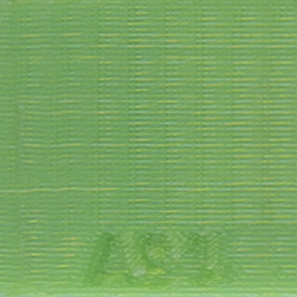
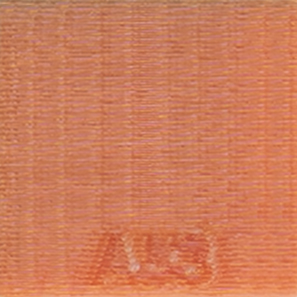
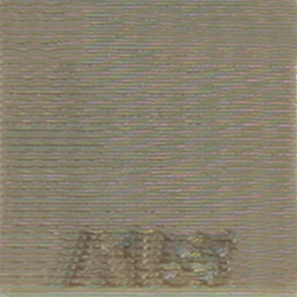
For better results, it is recommended to print mixes composed of two base colors, maintaining a mixing ratio of 33% to 67% for each.
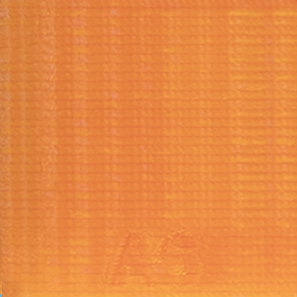
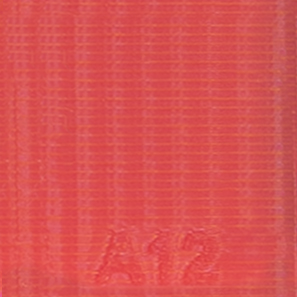
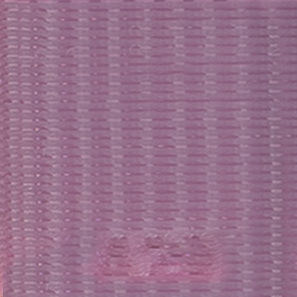
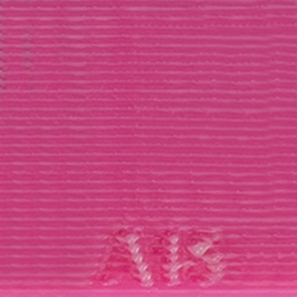
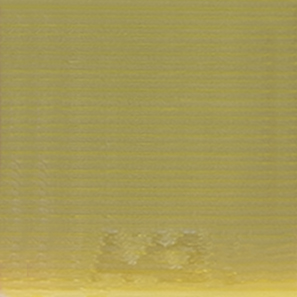
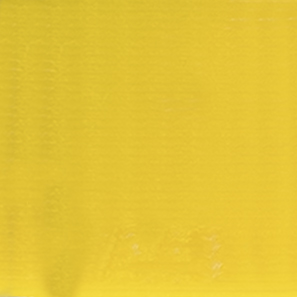
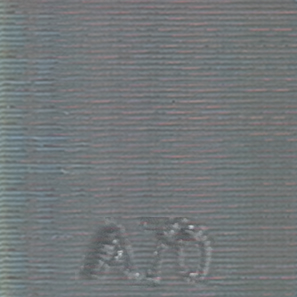
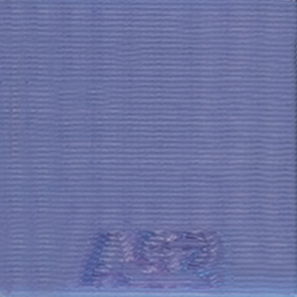

¶ 3. Color Configuration
¶ 3.1 Open your mixed color printing model
- Open the model you wish to apply mixed colors to.
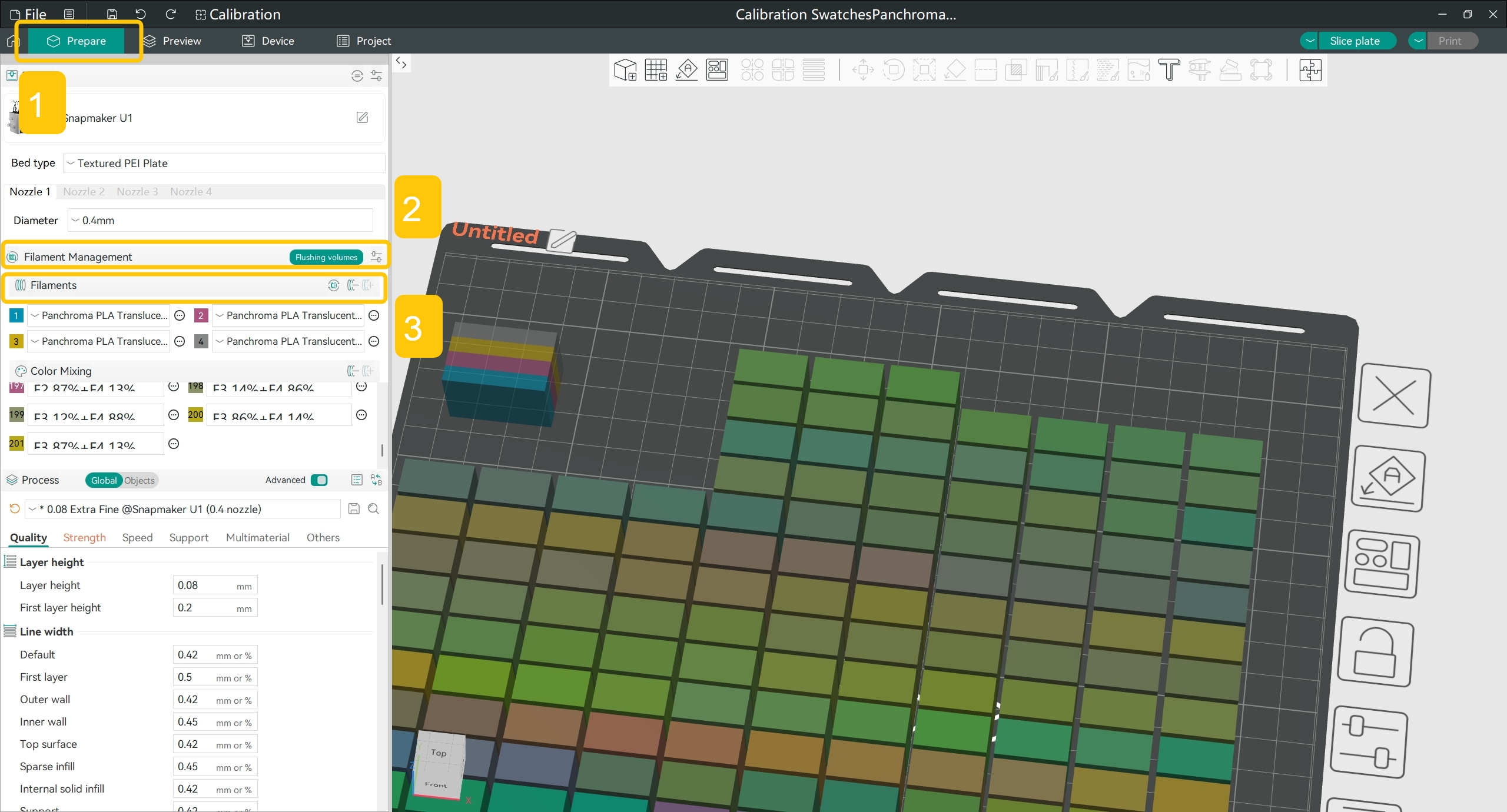
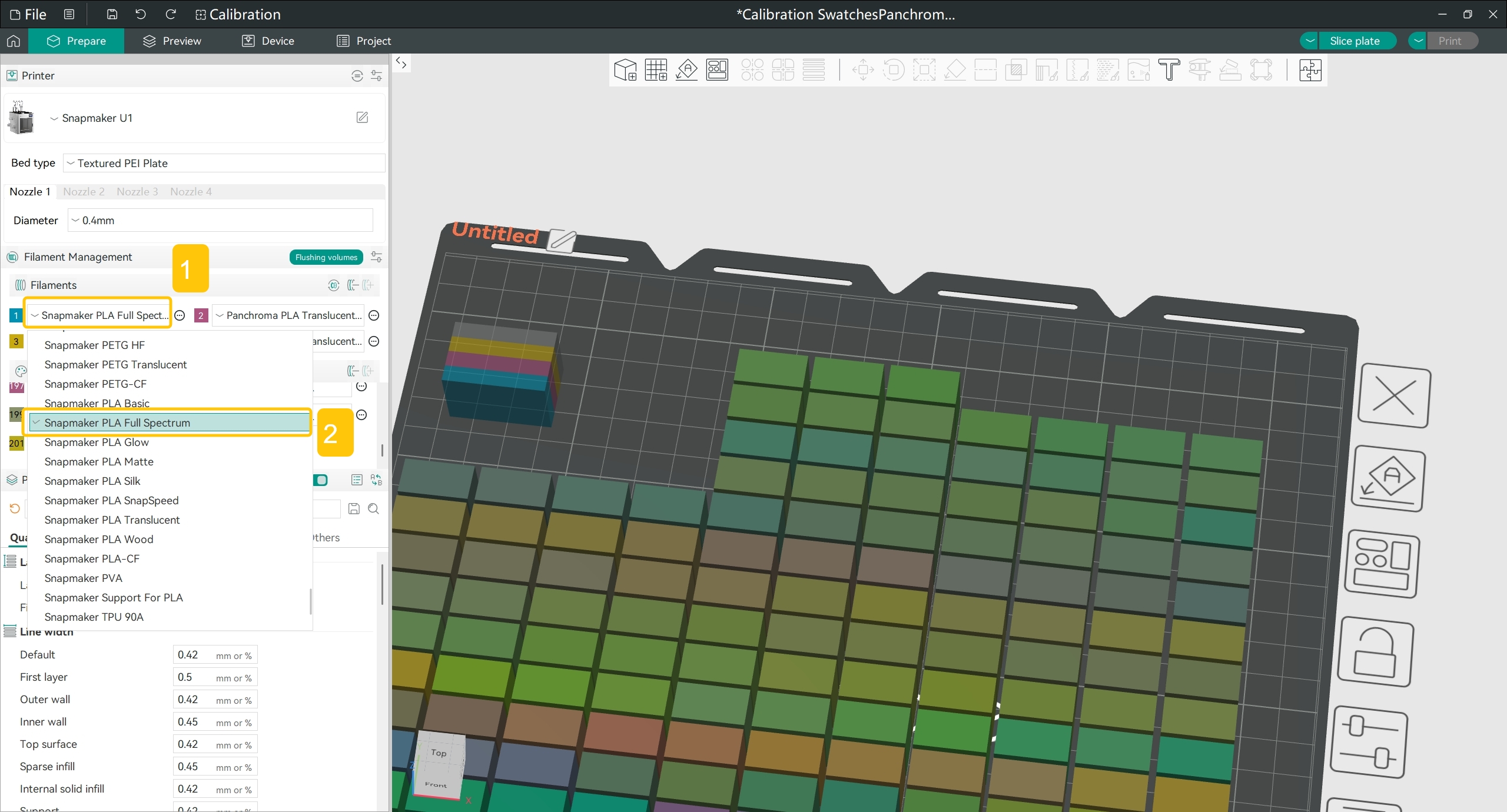
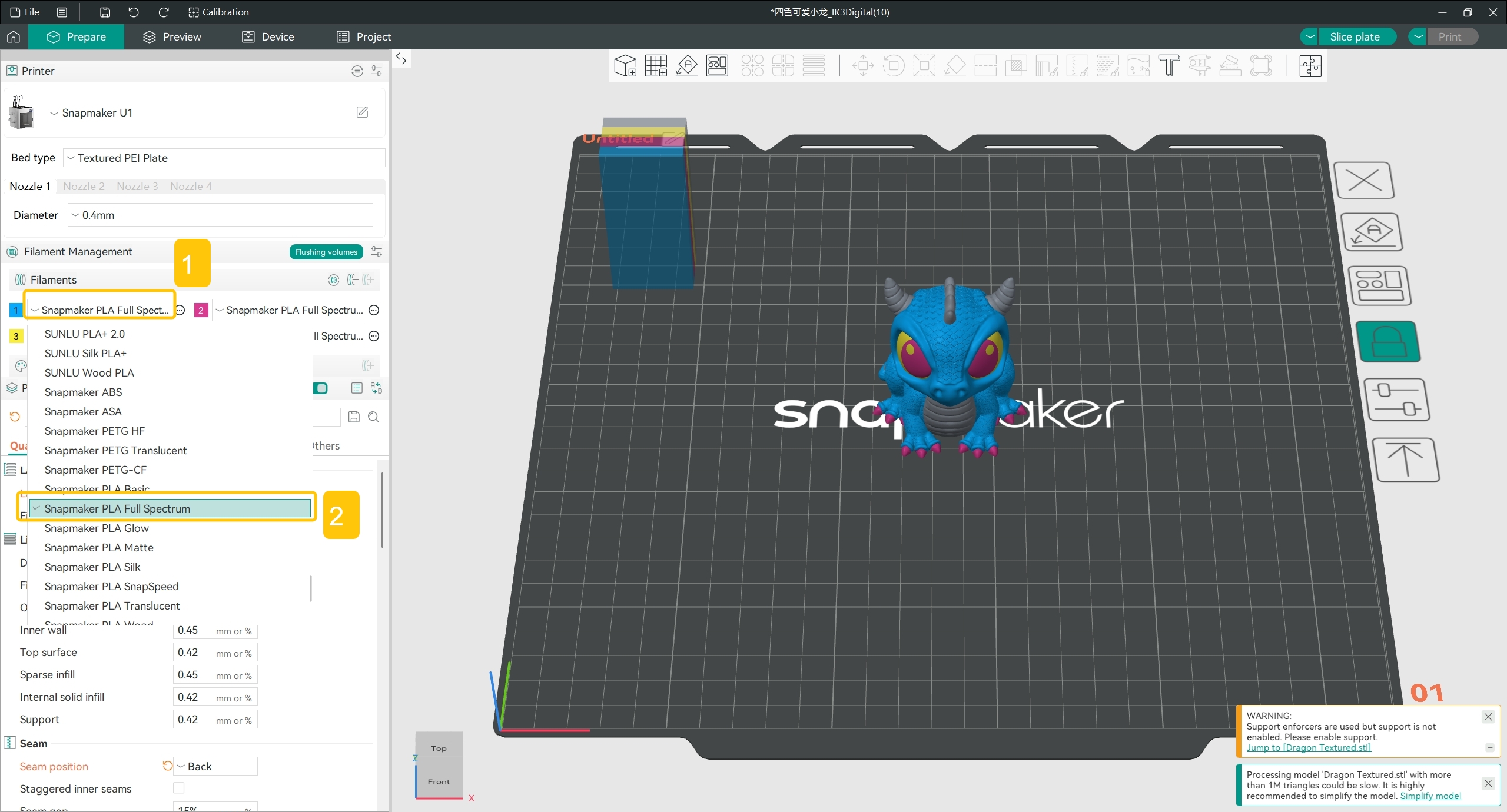
- In the left side bar, find
Filament Management>Filaments. Set the names and colors for the four filaments in sequence:- Click the filament name for each of the four filaments and select
Snapmaker PLA Full Spectrumfrom the dropdown menu.
- Click the filament name for each of the four filaments and select
- Click the color box for each of the four filaments and follow the Table 1 to:
- Set filament 1 to ■ Cyan;
- Set filament 2 to ■ Magenta;
- Set filament 3 to ■ Yellow;
- Set filament 4 to ■ Gray.
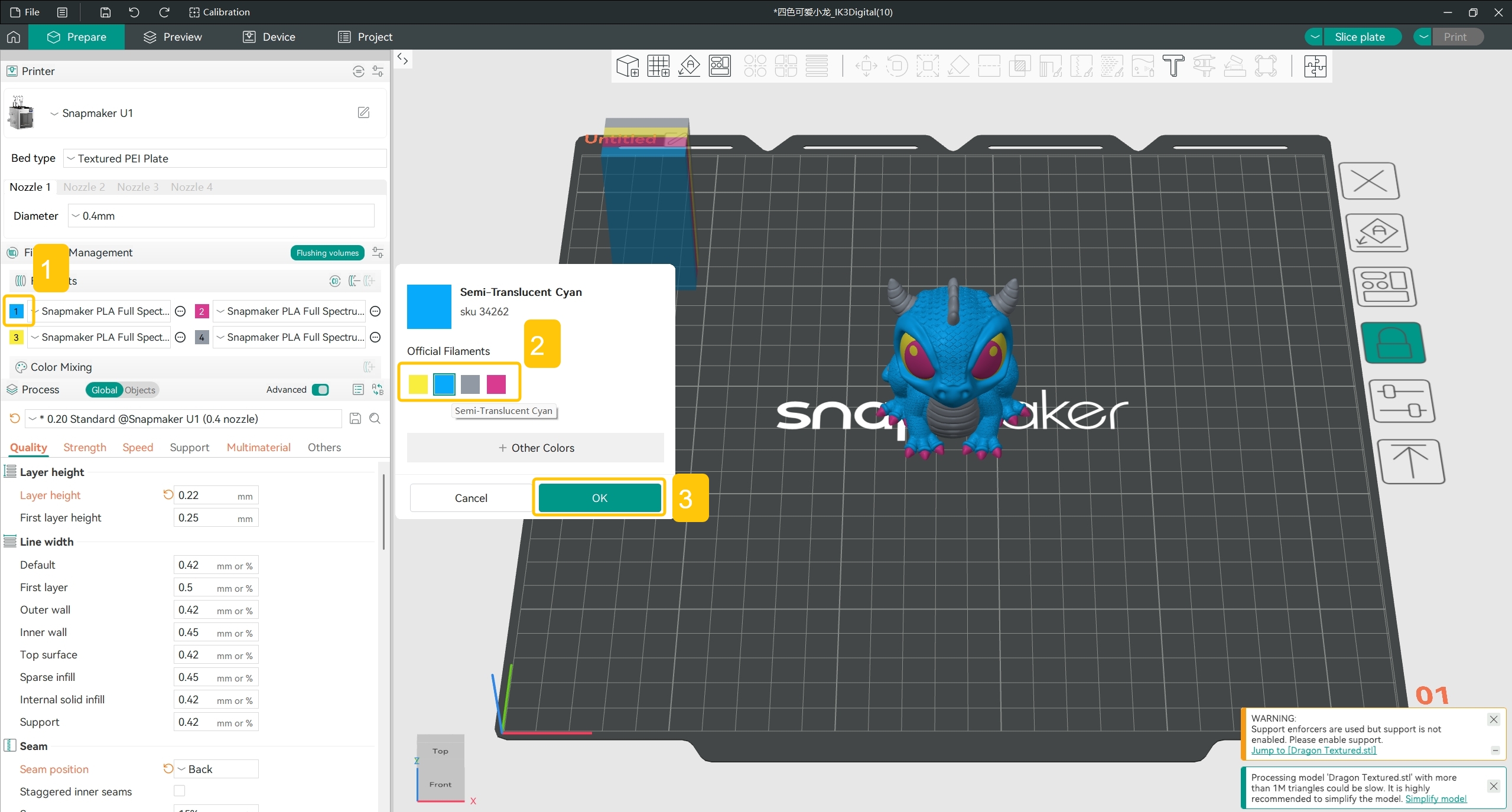
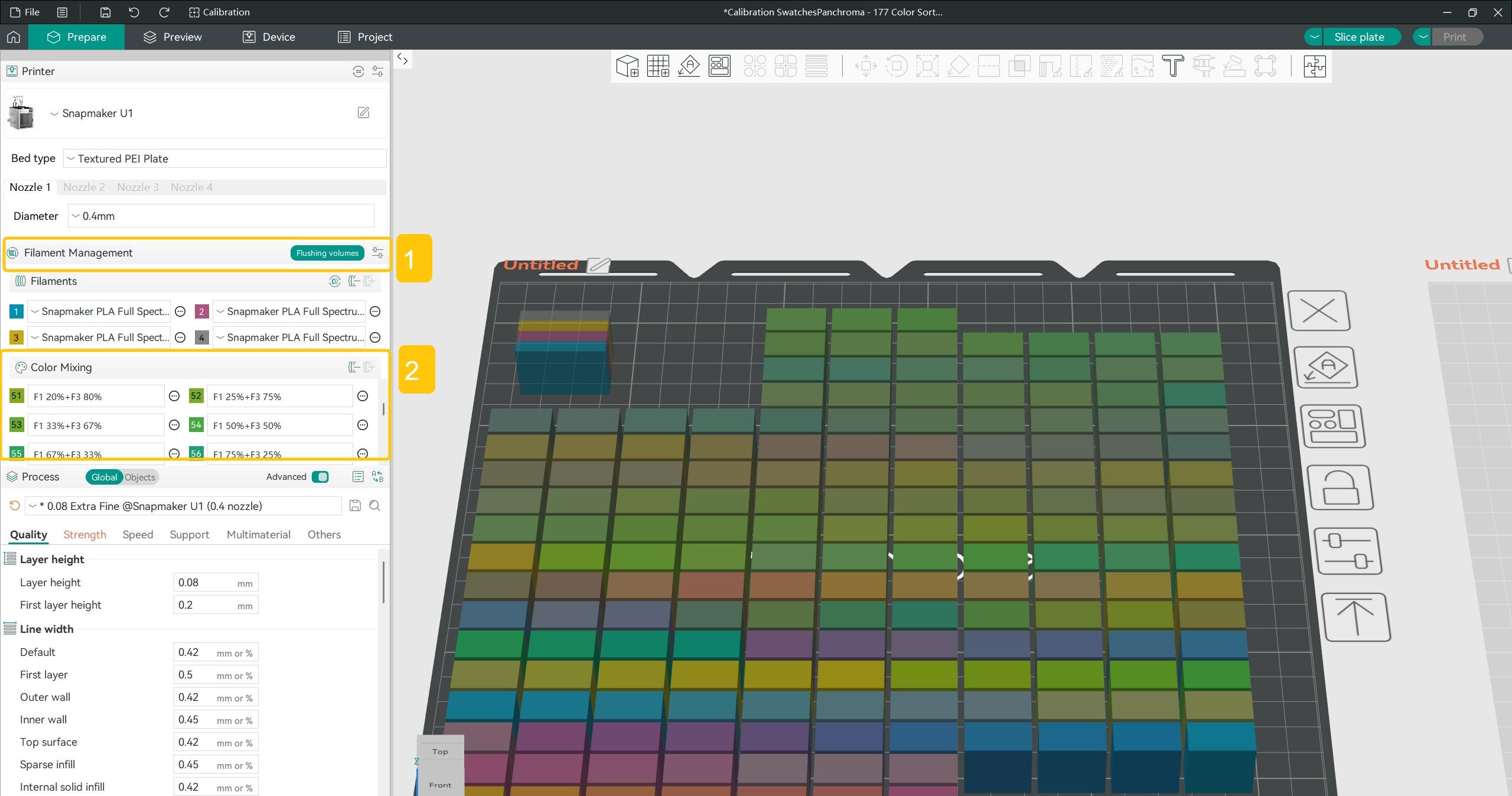
Once configured, you should achieve results identical in order, color, and filament name to the following:

¶ 3.2 Add and set mixed colors referring to mixing ratios
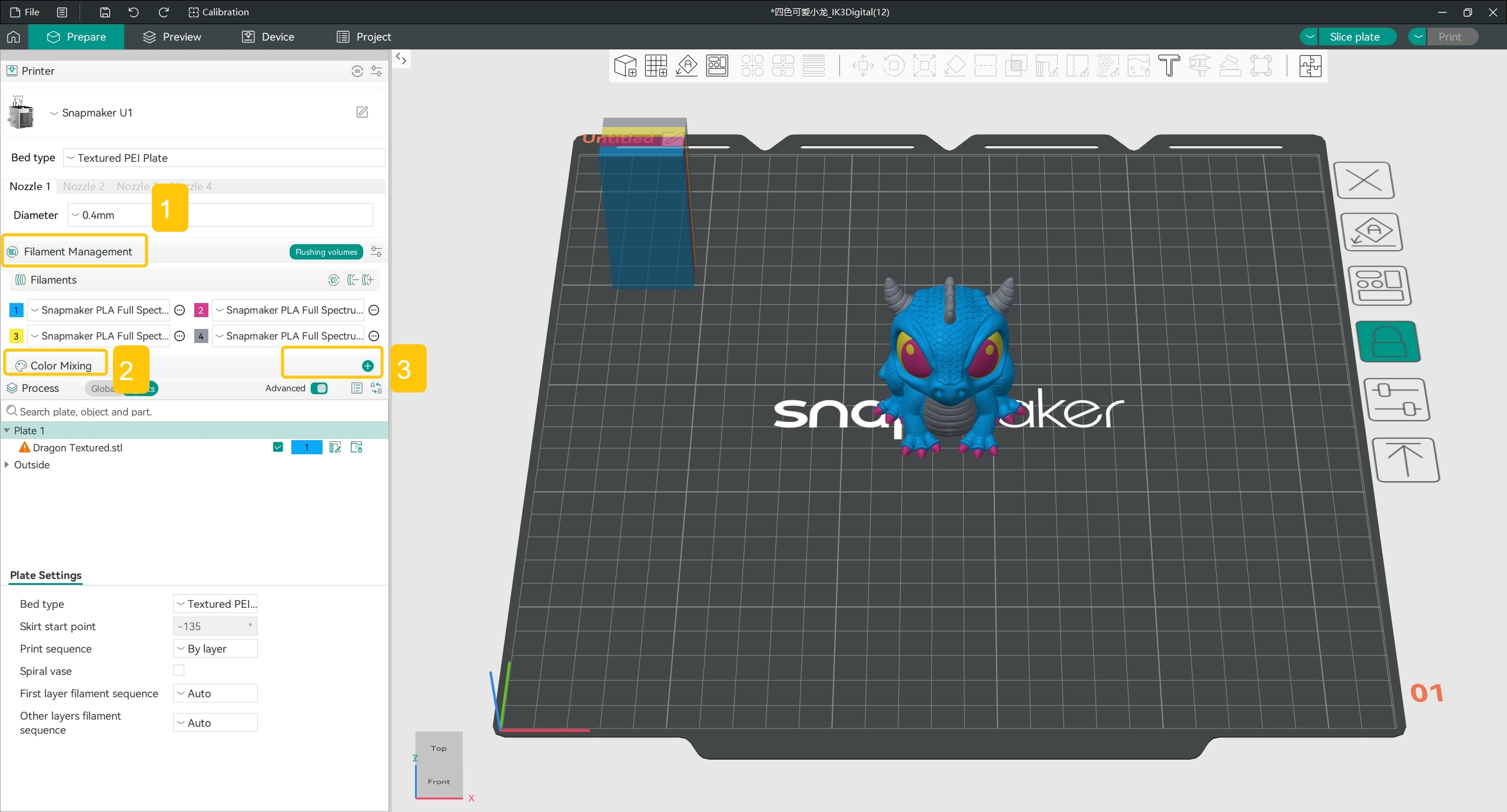
- In the left side bar, find
Filament Management>Color Mixing, and click the+icon on the right.
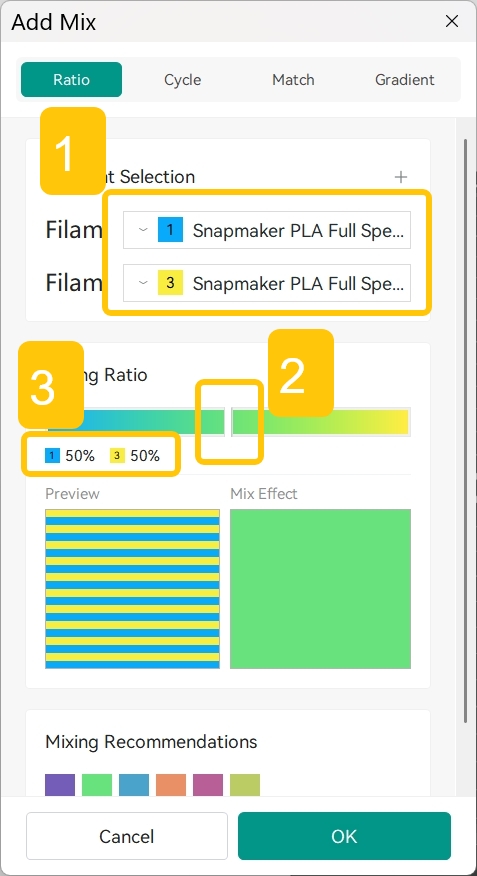
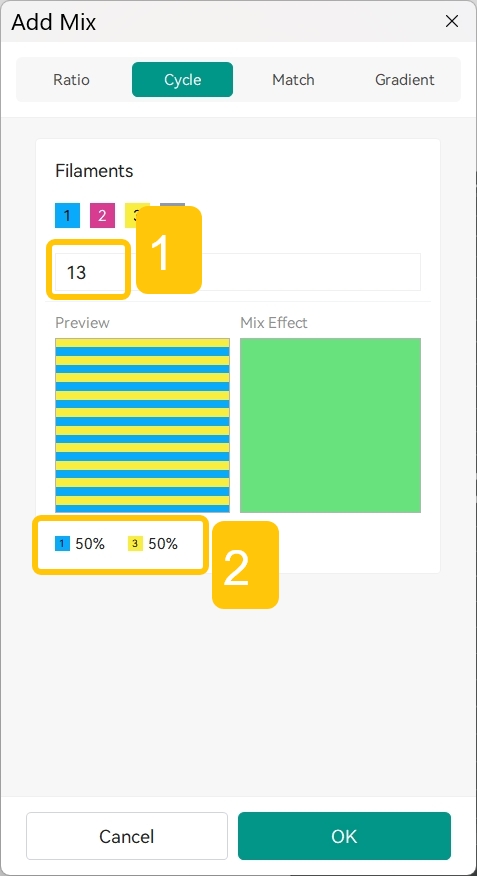
- In the popup window, refer to the Full Spectrum guide. Use either Ratio Mode or Cycle Mode to apply the mixing ratio you identified.
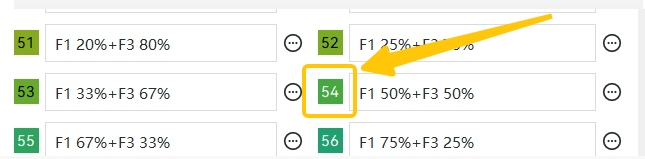
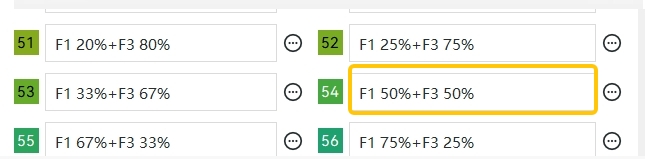
For example, to mix color No. 54 (A54, 50% Cyan, 50% Yellow), you can use Ratio Mode, select the base filaments as Cyan and Yellow, and then drag the slider until the Mixing Ratio below displays 50% Cyan and 50% Yellow.
For example, to mix color No. 54 (A54, 50% Cyan, 50% Yellow), you can use Cycle Mode and set the cycle parameters until the Mixing Ratio below displays 50% Cyan and 50% Yellow.
¶ 4. Color Painting and Printing
- Refer to Full Spectrum to use mixed colors for Color Painting on the model.
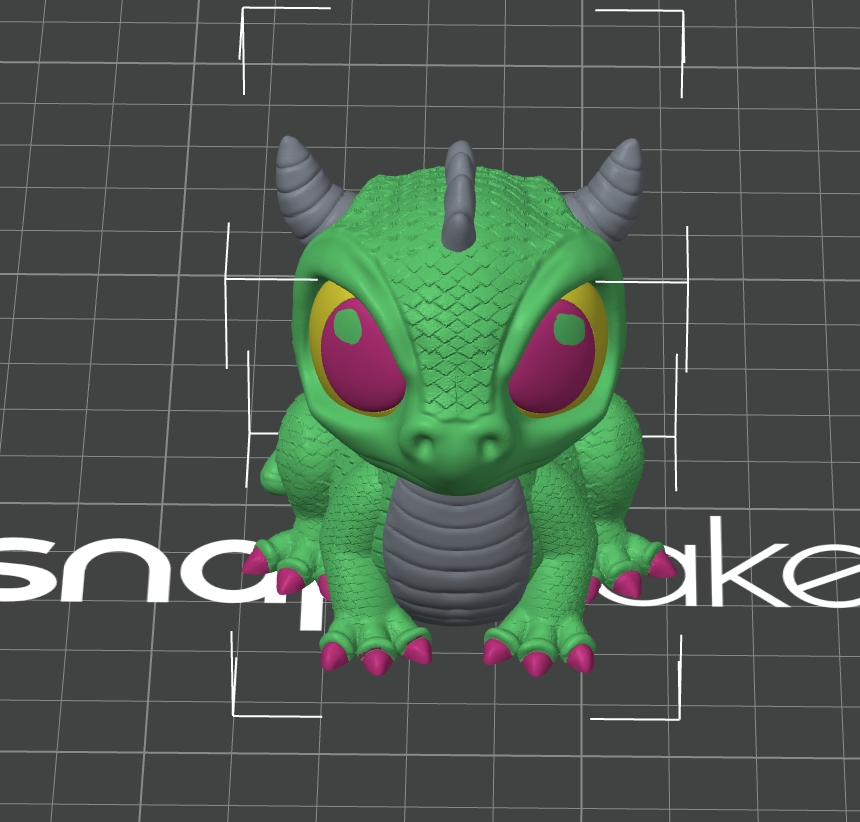
For example, a model painted with color No. 54 (A54, 50% Cyan, 50% Yellow) is shown below. Color No. 54 is applied to the body and the eye highlights of the model.
-
Refer to the Snapmaker Orca Quick Start Guide for U1 to complete slicing.
-
Refer to the Snapmaker Orca Quick Start Guide for U1 to connect the U1 with Snapmaker Orca.
-
Refer to the Snapmaker Orca Quick Start Guide for U1 to send the print job to the U1 and complete printing.
¶ 5. Observe and Adjust
- Observe the appearance and color of the printed product, and fine-tune as needed based on the results and your expectations.