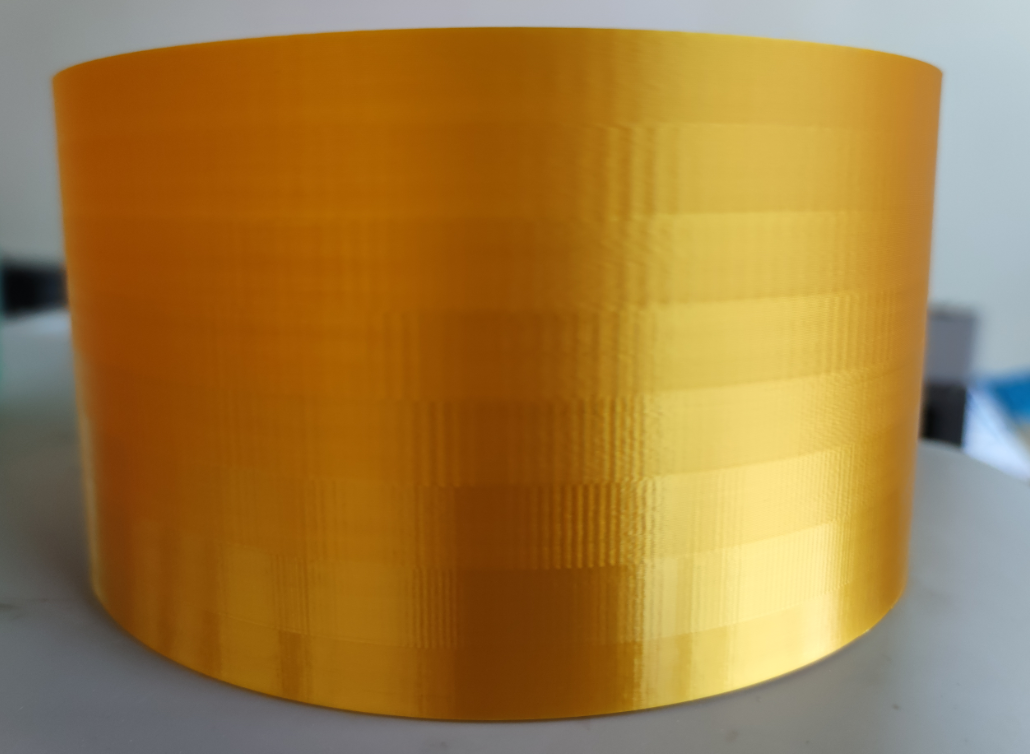
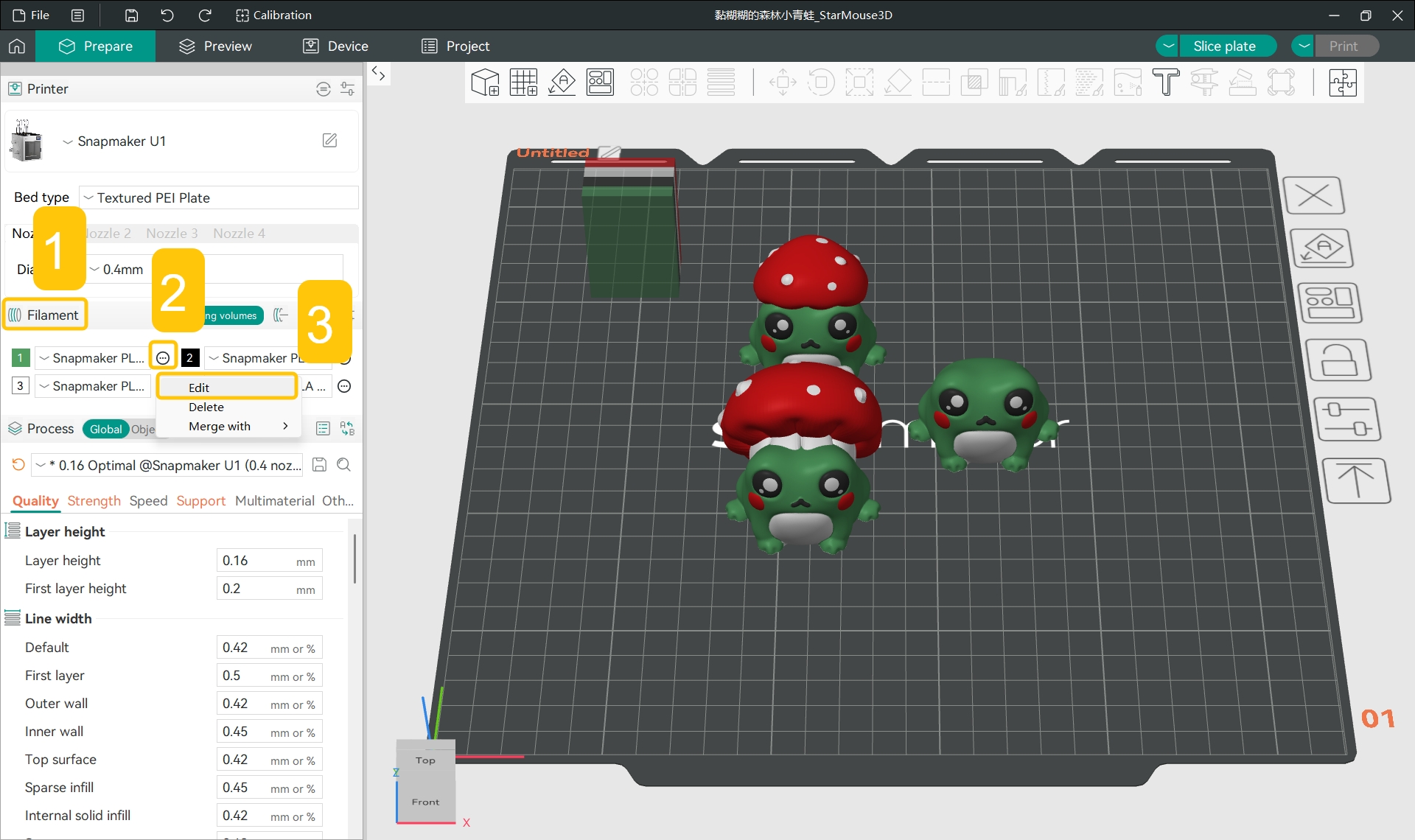
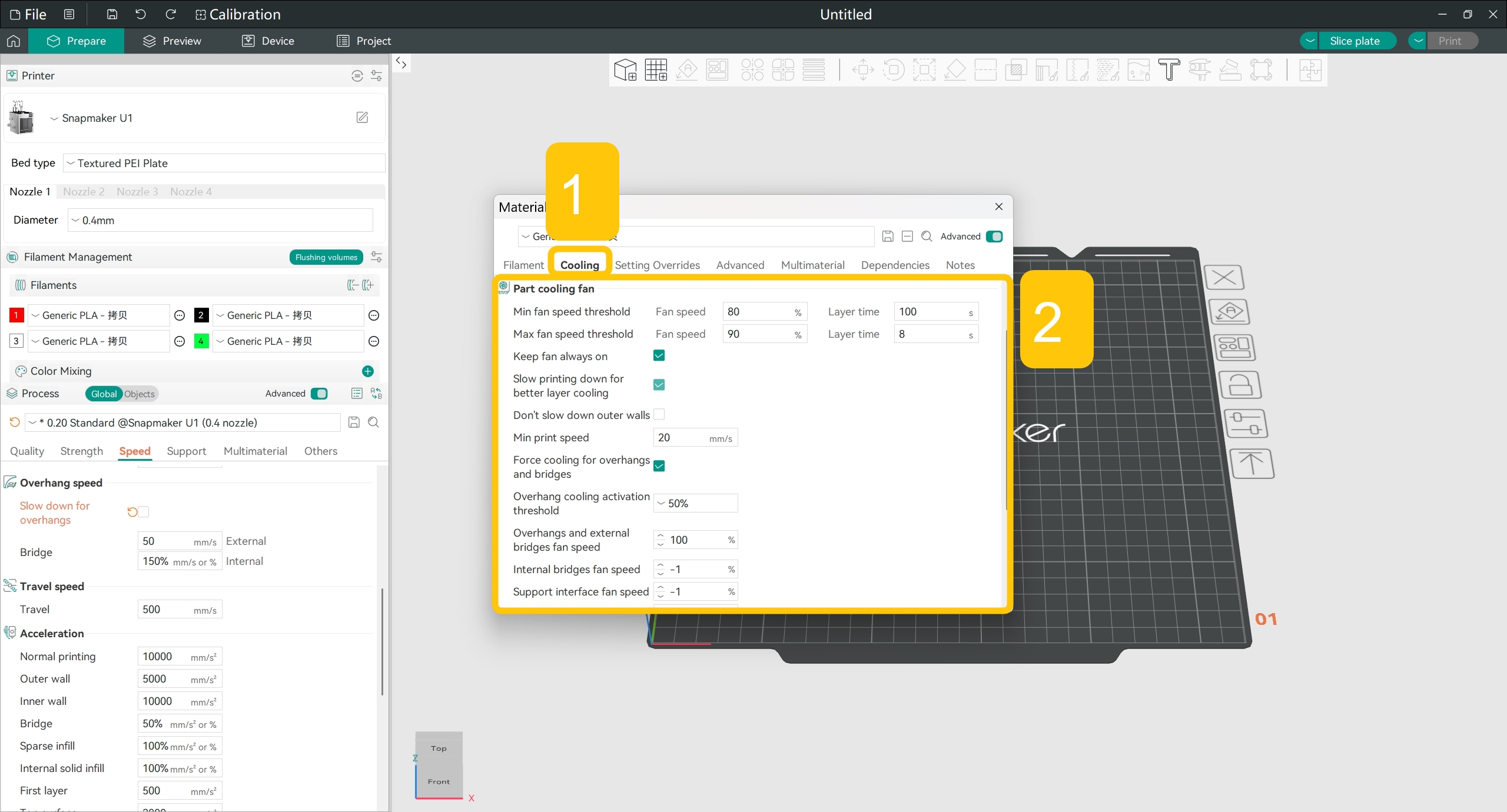
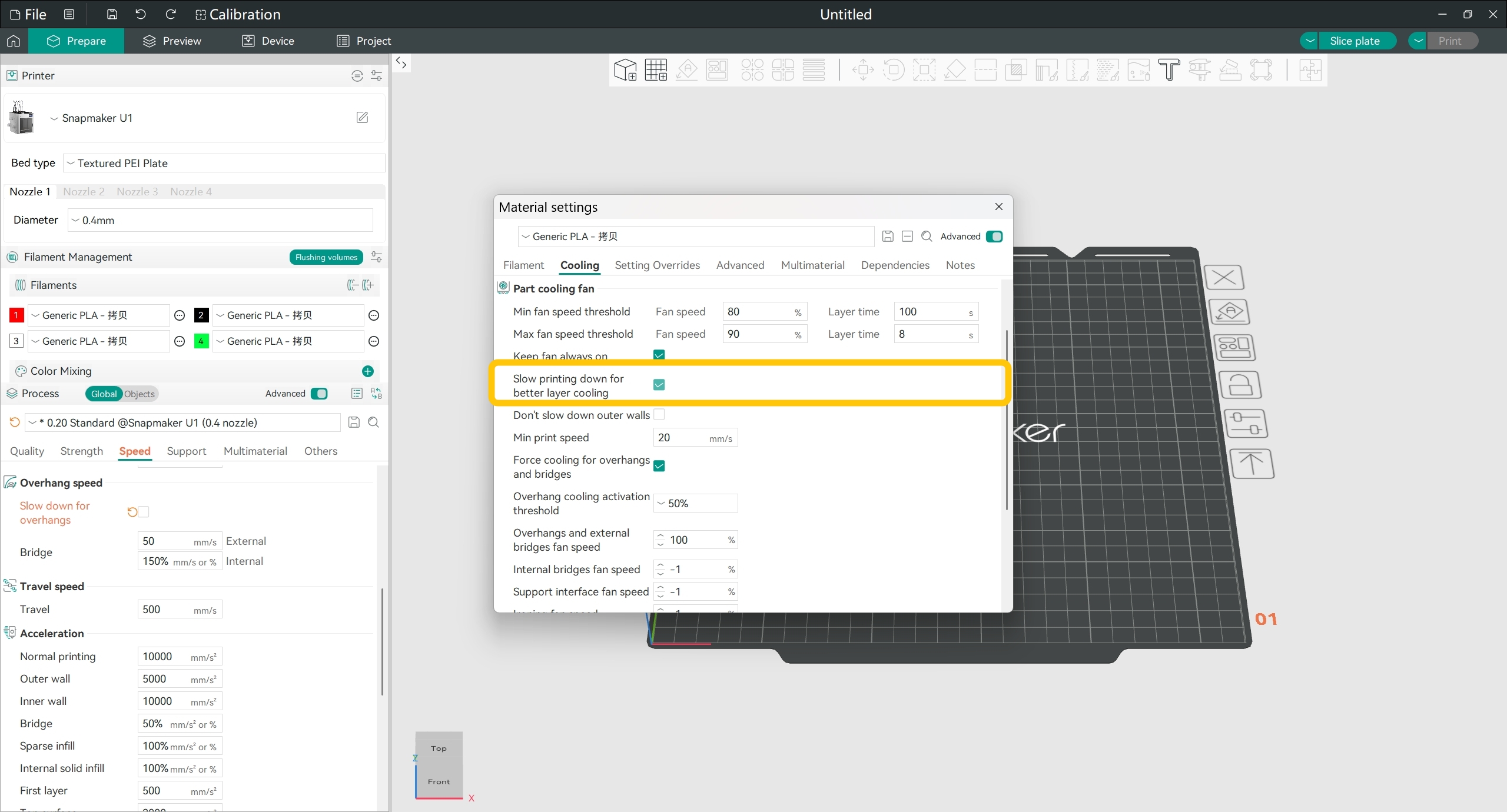
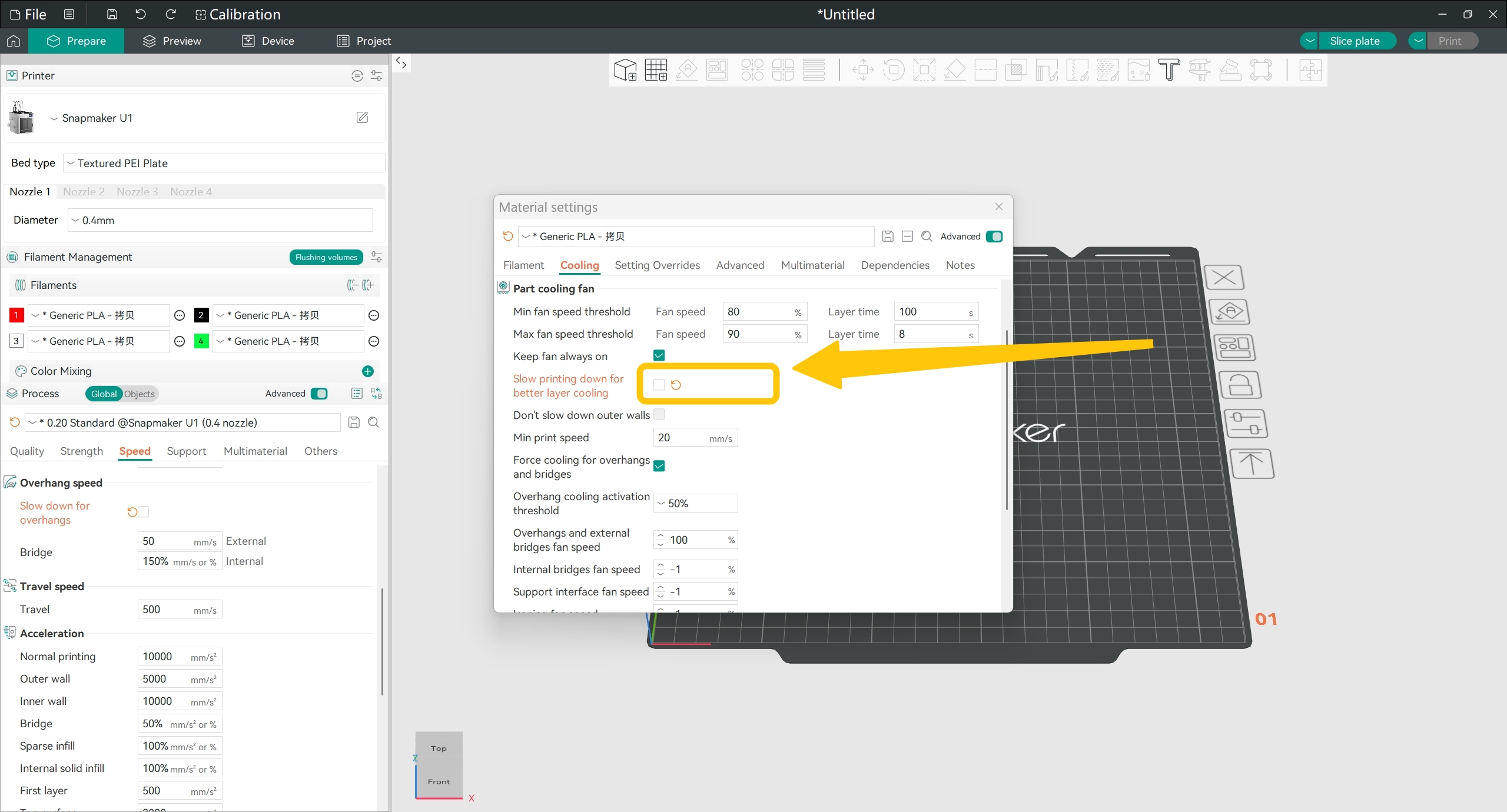
Significant gloss variation across different regions of the model refers to a condition where certain areas of the printed part appear glossy while others appear matte, affecting visual consistency and print quality. This issue is particularly noticeable when printing with high-gloss filaments such as Silk.
The primary cause for gloss variation on the model surface is differences in print speed between layers. To address this issue, try to minimize the print speed differences across layers.
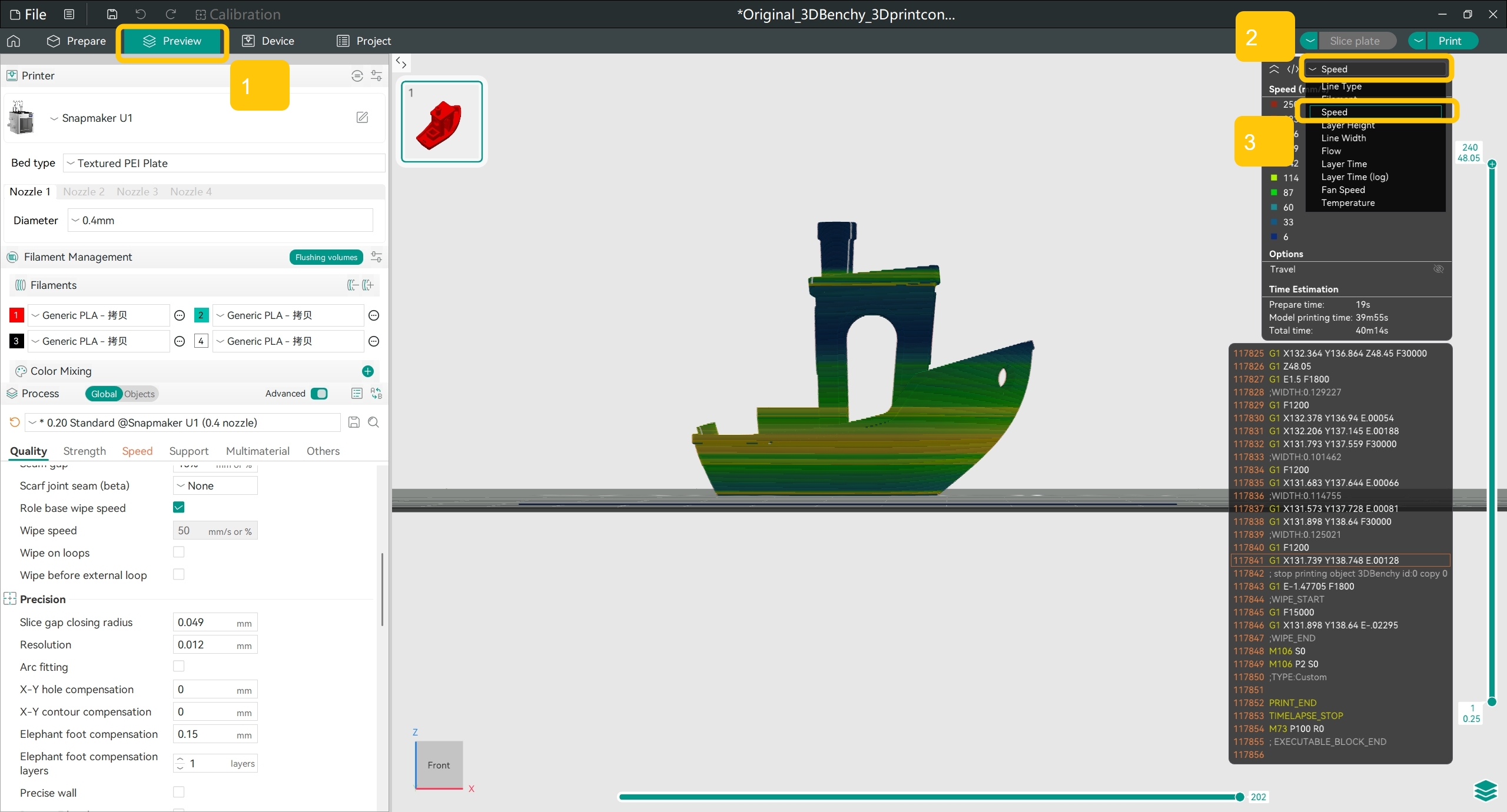
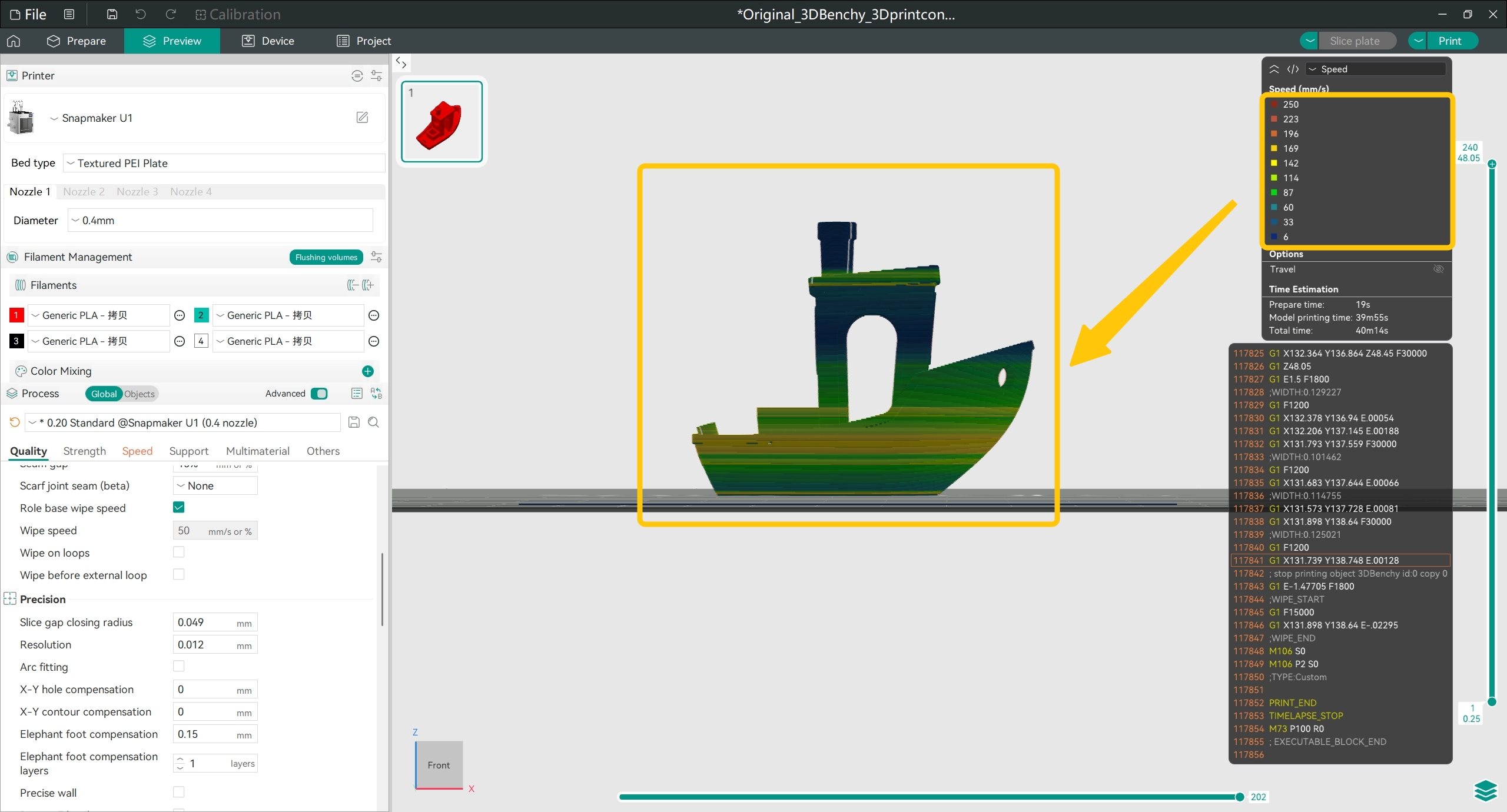
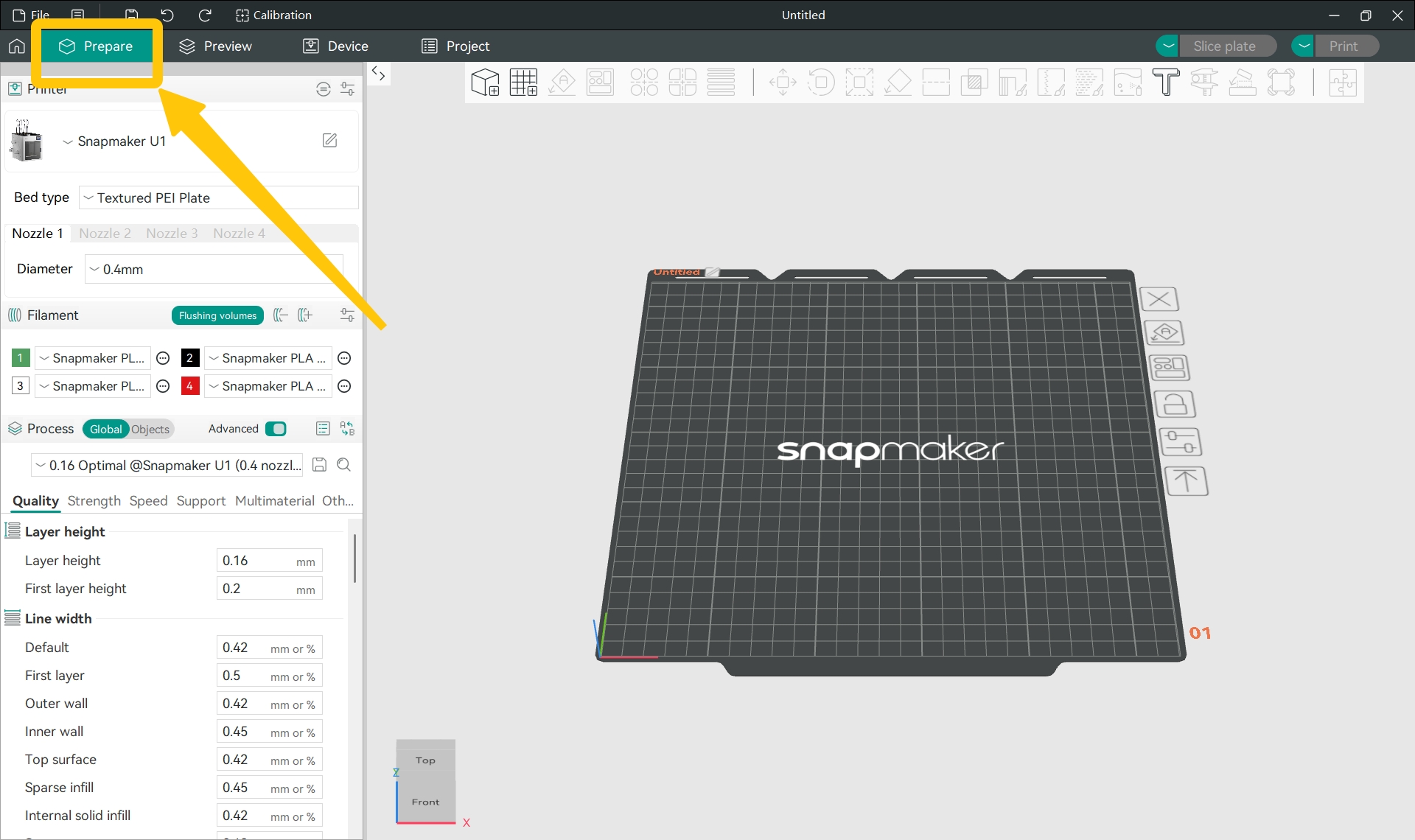
After slicing your model in Snapmaker Orca, you can go to the Preview page and select the Speed preview mode from the upper-right corner to check the print speed of each layer. Once enabled, you can see different layers colored according to their corresponding print speeds.
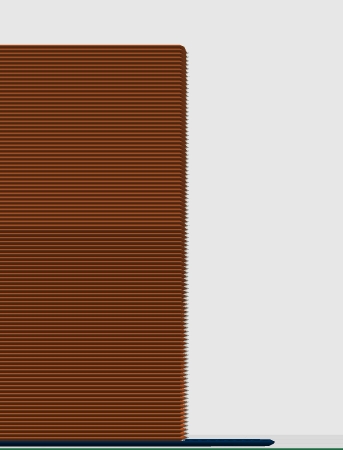
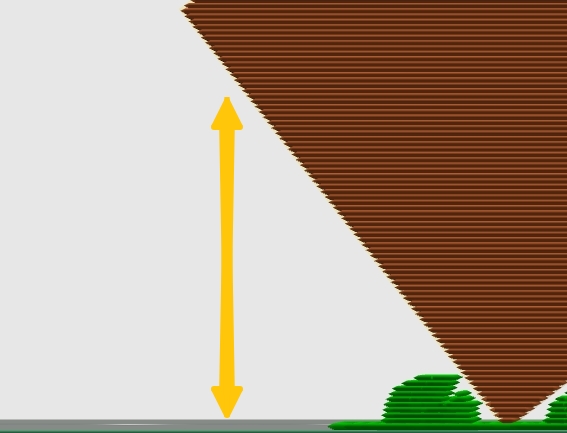
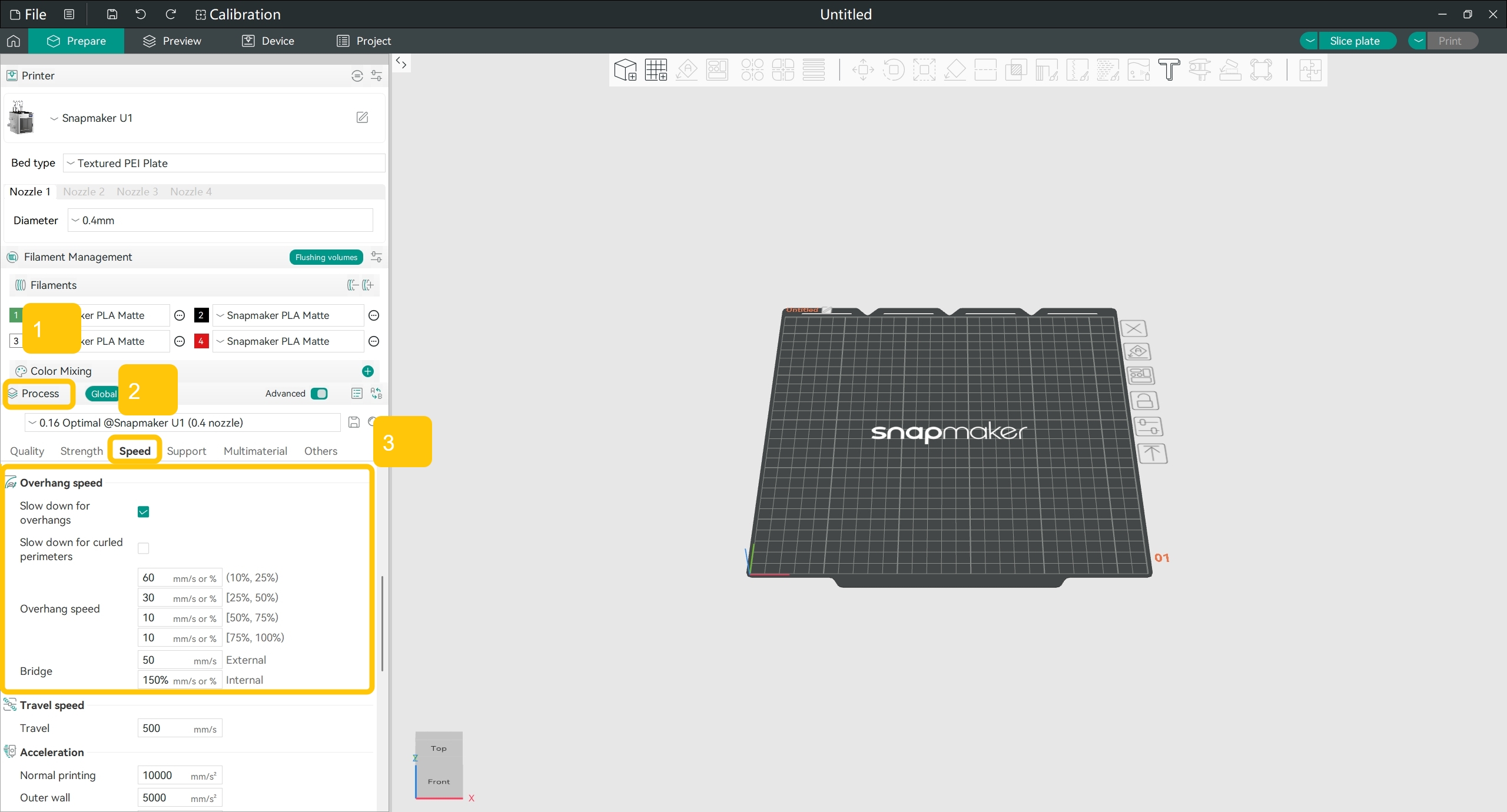
Overhangs refer to "cliff-like" walls where the lower portion is in a "semi-suspended" state. When printing overhang structures, the freshly extruded filament lacks sufficient support before cooling and may sag under gravity. Snapmaker Orca's "Slow down for overhangs" feature automatically identifies overhang structures and reduces print speed for them, allowing adequate cooling time and improving print quality on overhangs.
Normal vertical wallOverhang wall – note the "semi-suspended" upper portion leaning forward
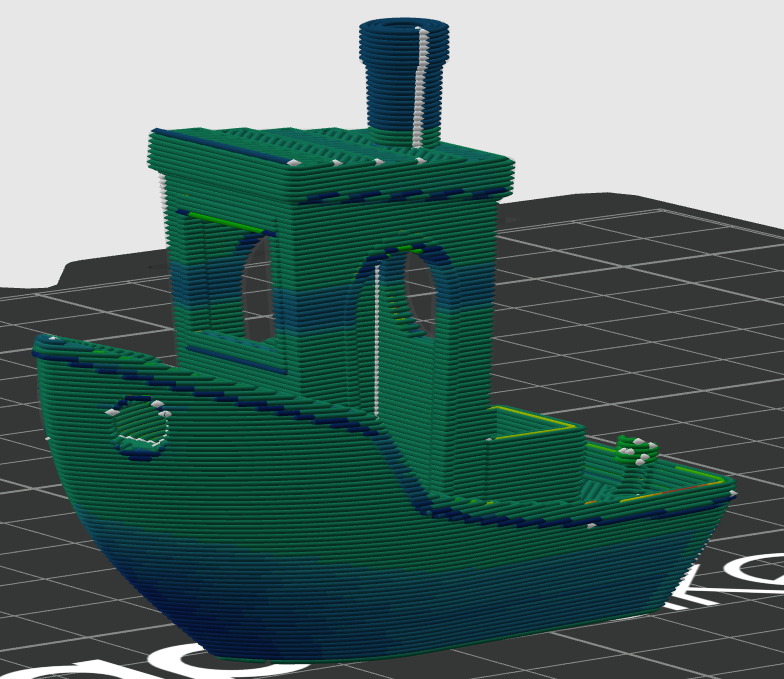
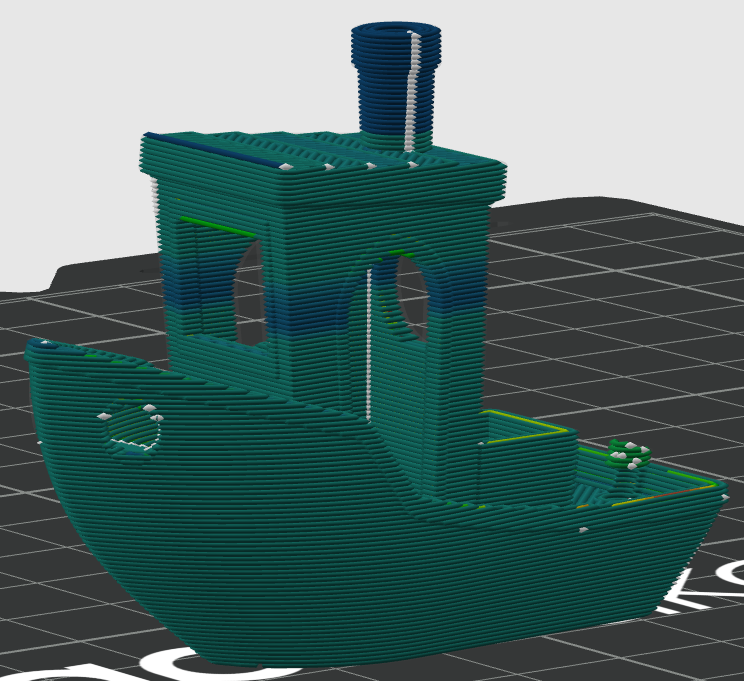
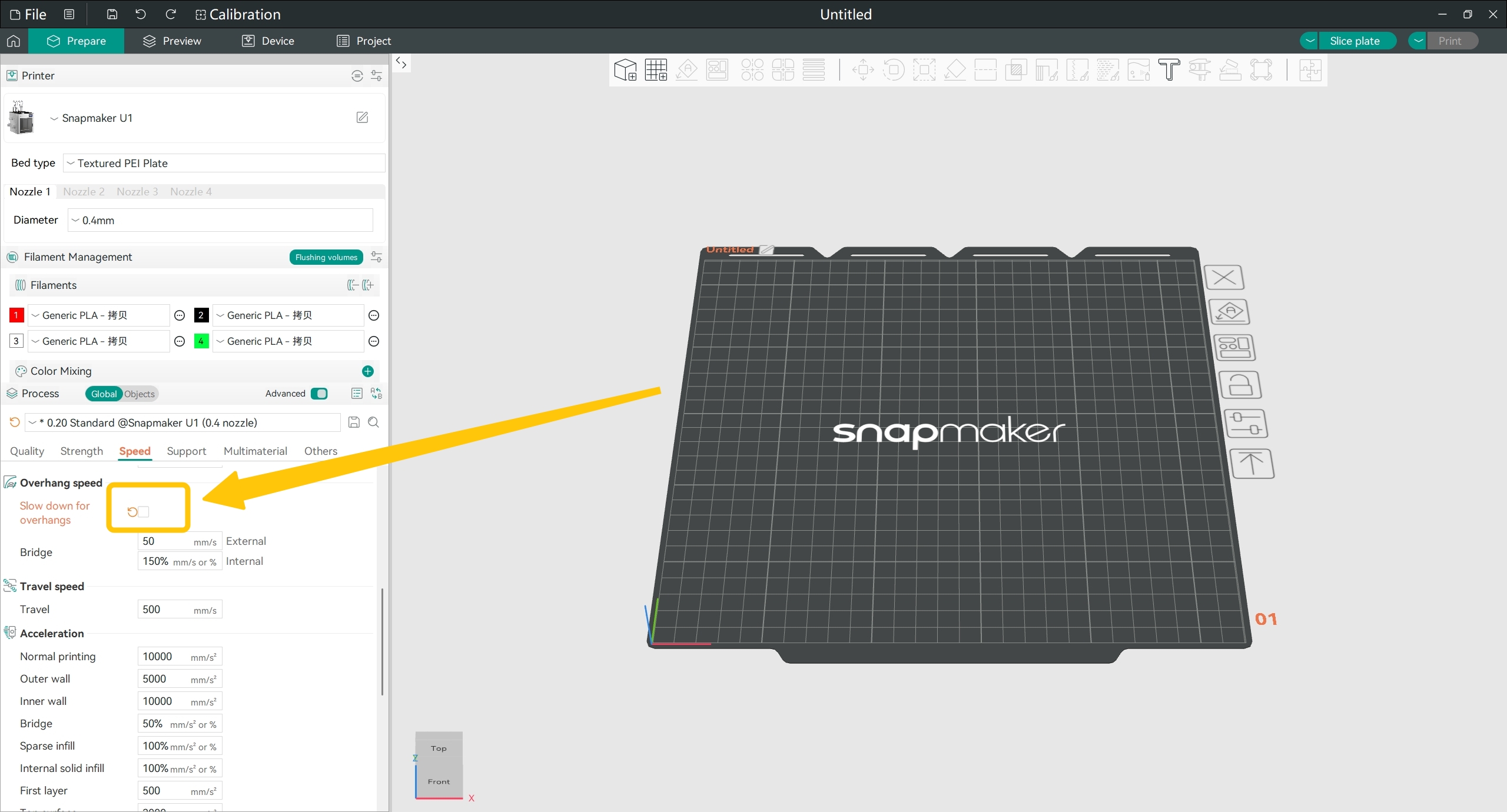
When printing with Silk filament, enabling "Slow down for overhangs" may cause inconsistent gloss on the model surface. Consider disabling this feature and using supports to support overhang portions instead.
Slow down for overhangs enabled – blue areas indicate slower printing on overhangs (bow and gunwale)Slow down for overhangs disabled – uniform speed across overhang areas (bow and gunwale)
After following the troubleshooting steps, if you find it difficult to resolve your issue, kindly submit a support ticket through https://snapmaker.formcrafts.com/u1-troubleshooting-request and share your troubleshooting results with some pictures/videos.
Our dedicated support team will be more than willing to assist you in resolving the issue.