¶ 💡 Compatibility
This guide applies to the following machine and software. Please note when referencing:
- Machine model: U1
- Software: Latest firmware and Snapmaker Orca software installed.
¶ ⏰ When to Use This Guide
Refer to this guide when interlayer cracking occurs on your model.
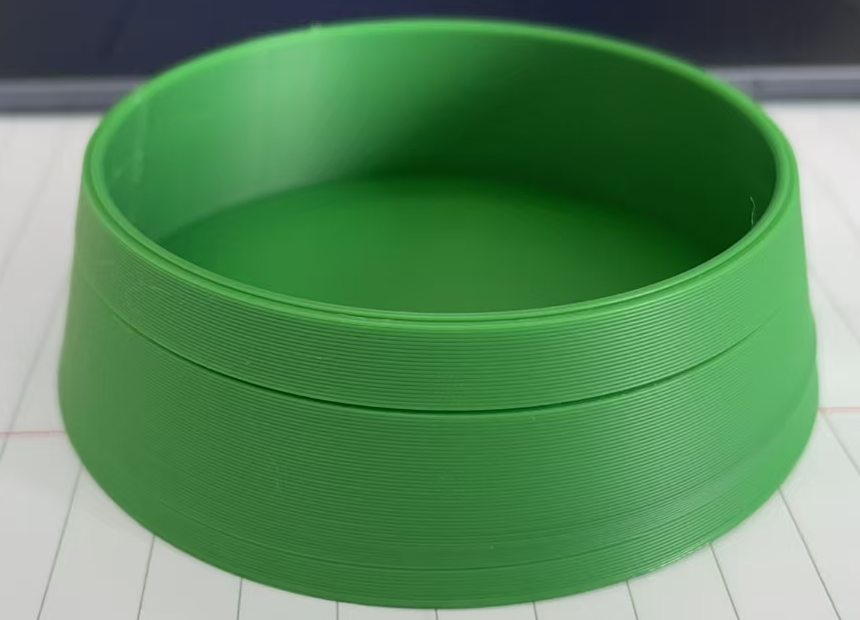
Interlayer cracking refers to visible gaps or complete separation between adjacent print layers that occur during printing or as the part cools. This weakens the model's structure. In severe cases, models can break under slight force. Interlayer cracking compromises both the strength and appearance of the model.
¶ 📋 Quick Info Card
- Difficulty: ⭐⭐☆☆☆
- Estimated Time: 30–45 minutes
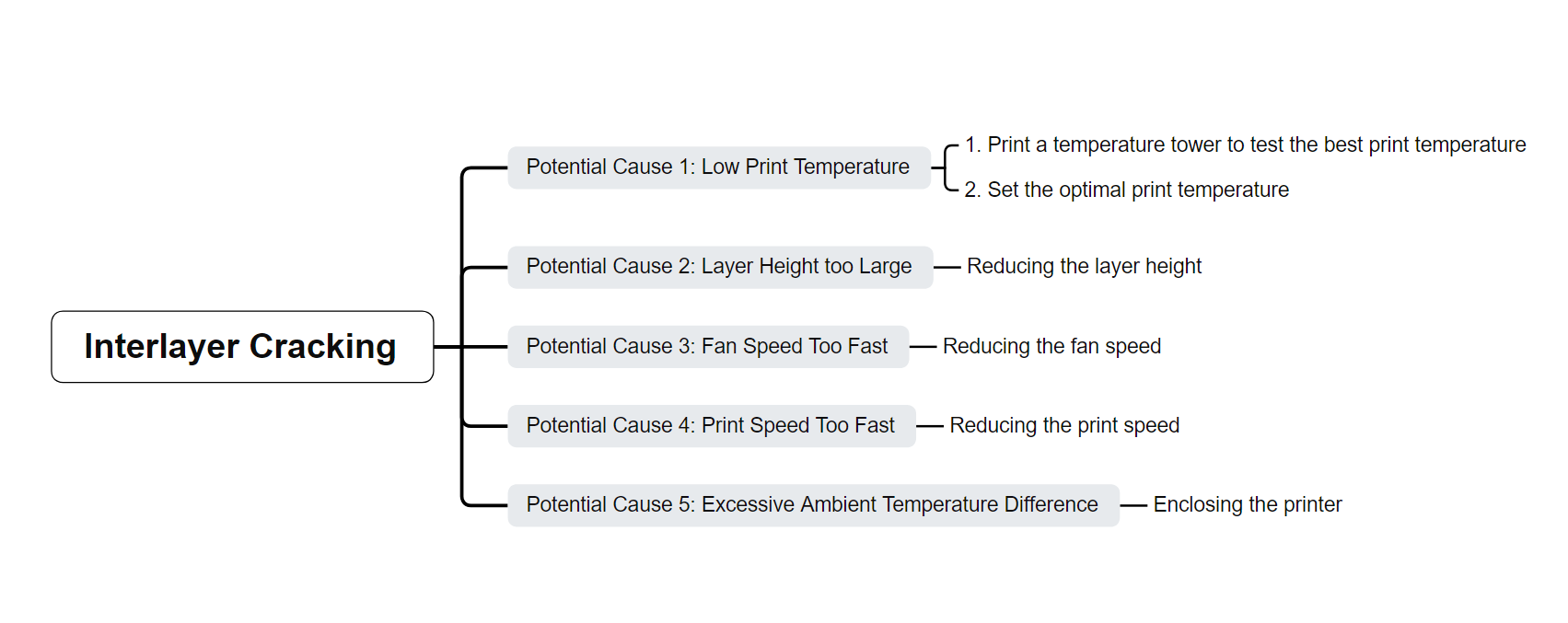
¶ 🔁 Troubleshooting Flowchart
¶ 🛠️ Troubleshooting Steps
¶ Potential Cause 1: Low Print Temperature
When the nozzle extrudes filament, it must reach a sufficient print temperature to properly melt the filament and bond the layers. Therefore, if the print temperature is too low, layer adhesion will be poor and cracking is likely to occur.
¶ 1. Print a Temperature Tower to Test the Best Print Temperature for Your Filament
The best print temperature can vary for each filament. It is recommended to perform this test for the specific filament you are using.
- Open Snapmaker Orca and switch to the
Preparetab.
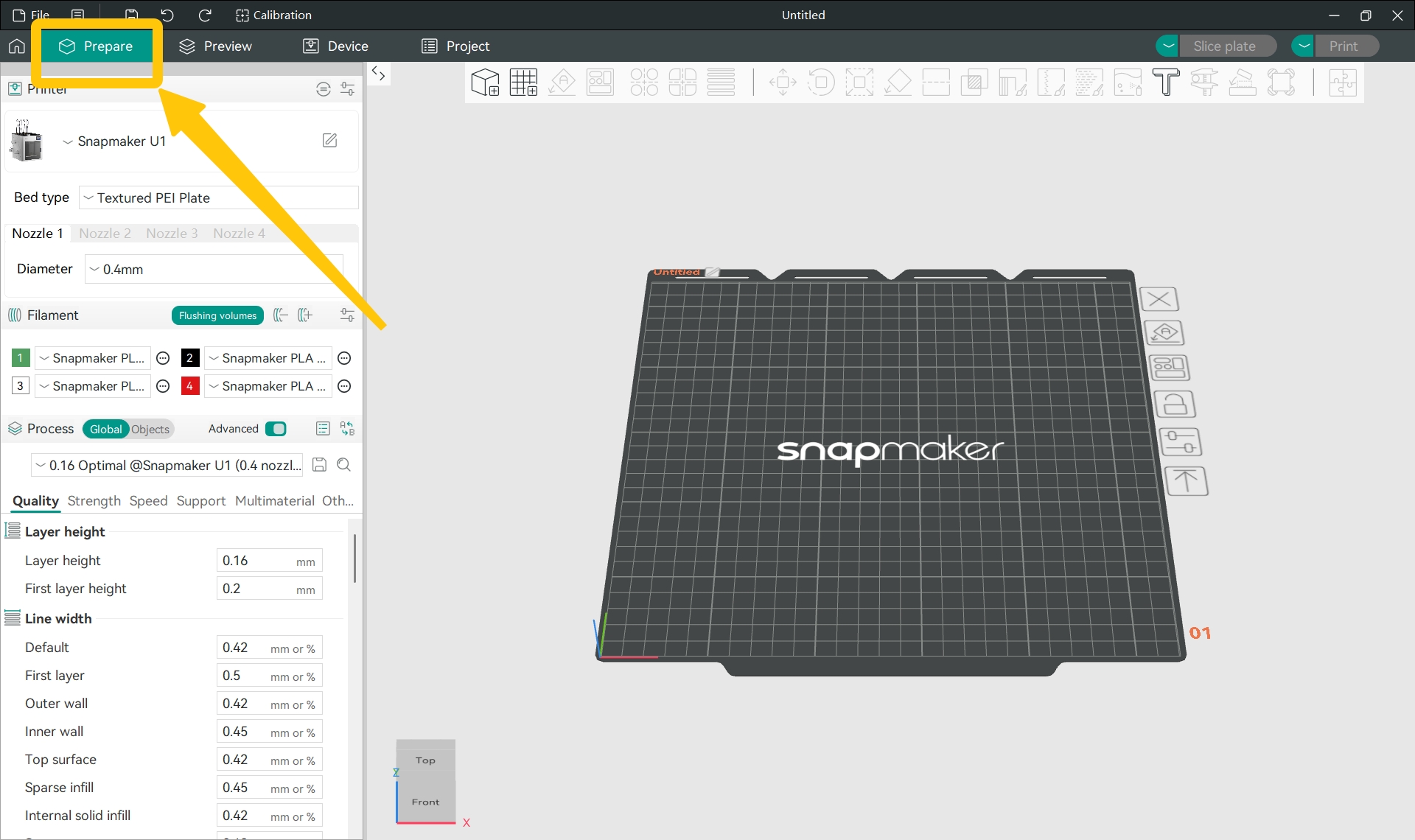
- In the
Filamentsection of the side list, click the filament name and select the filament you used for printing from the drop-down menu.
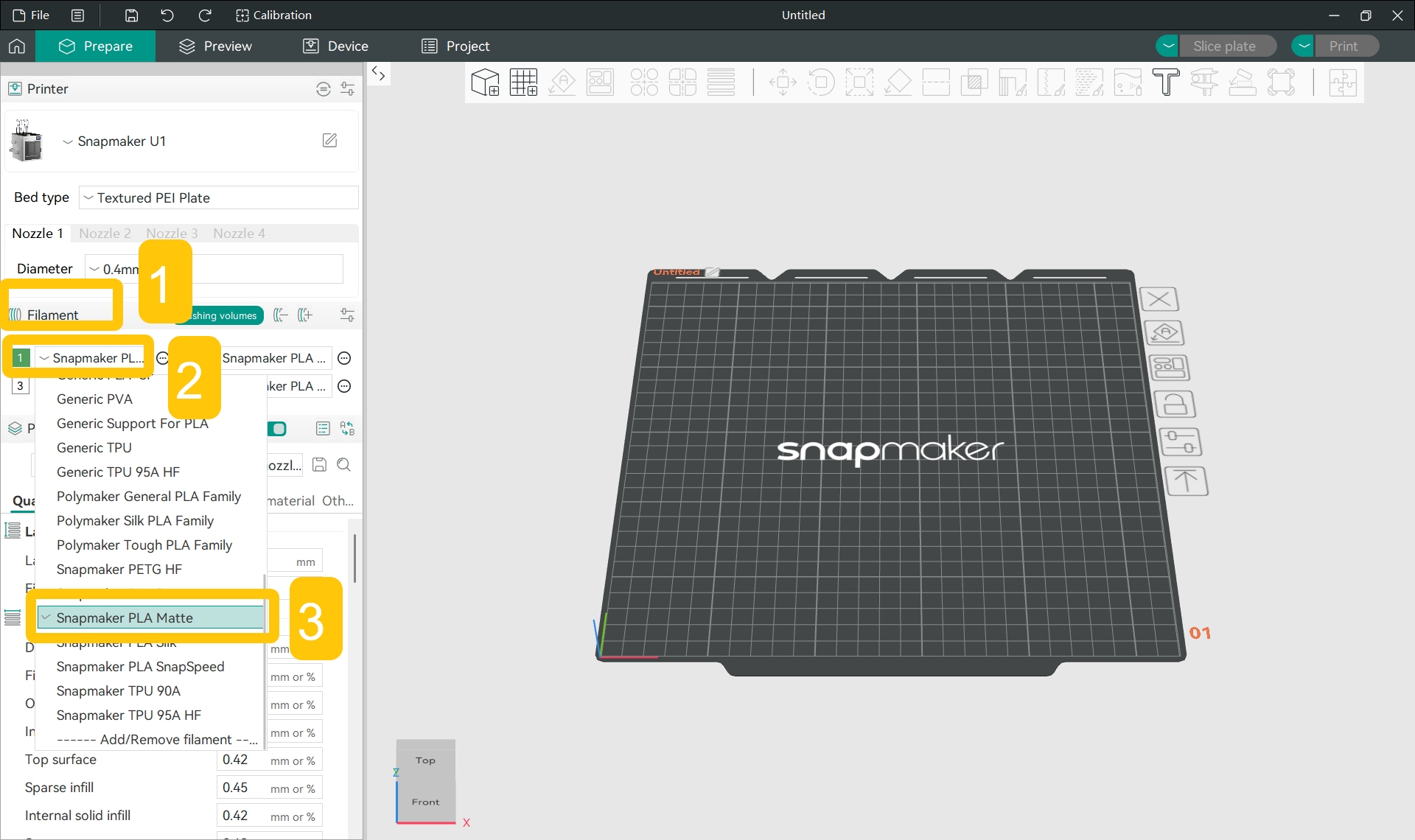
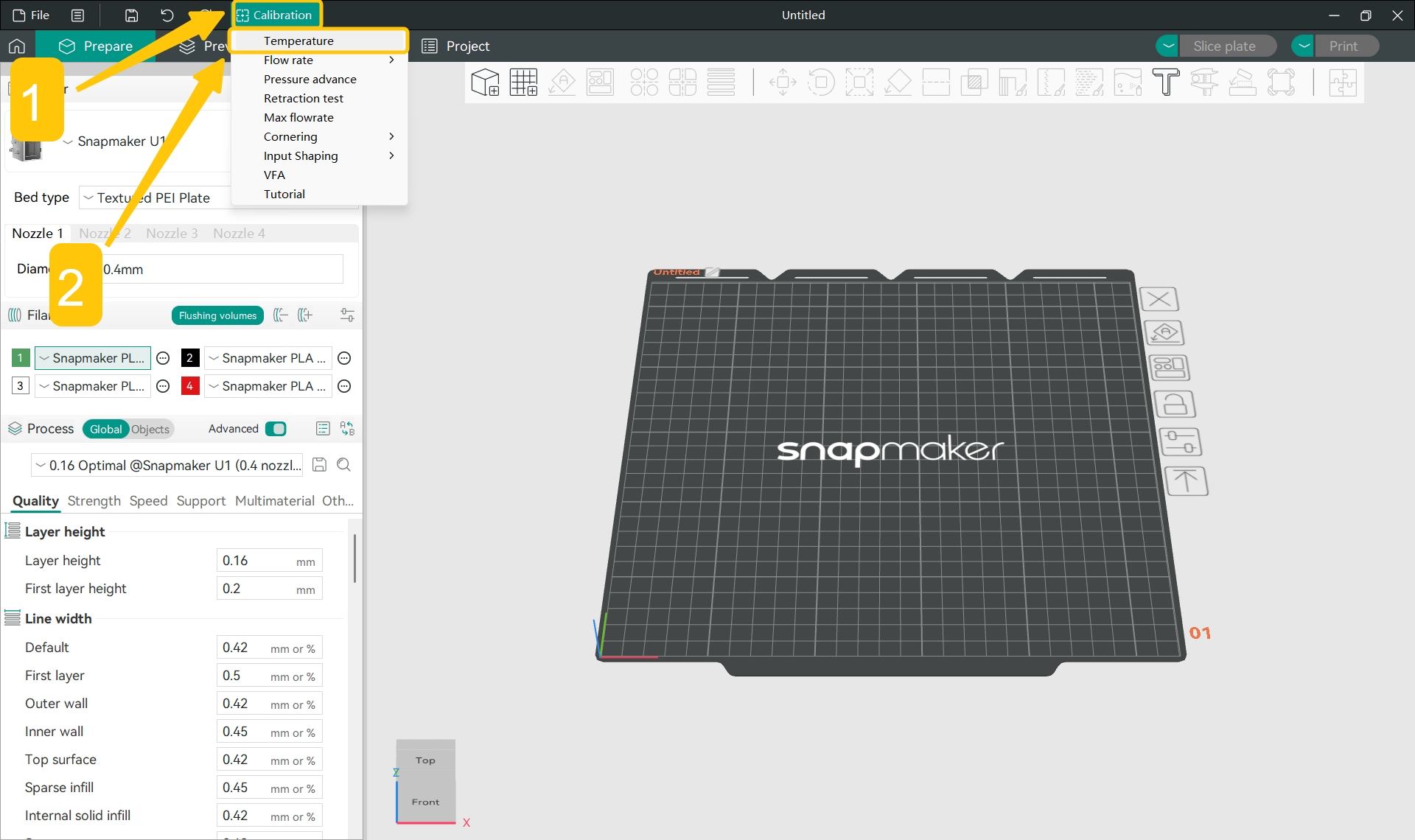
- In the top menu bar, click
Calibration>Temperature.
- In the pop-up window, select your filament type and set the start temperature (
Start temp) and end temperature (End temp).
Snapmaker Orca has different default start and end temperatures for various filament types. You can directly use the software's preset start and end temperatures to test and calibrate your filament.
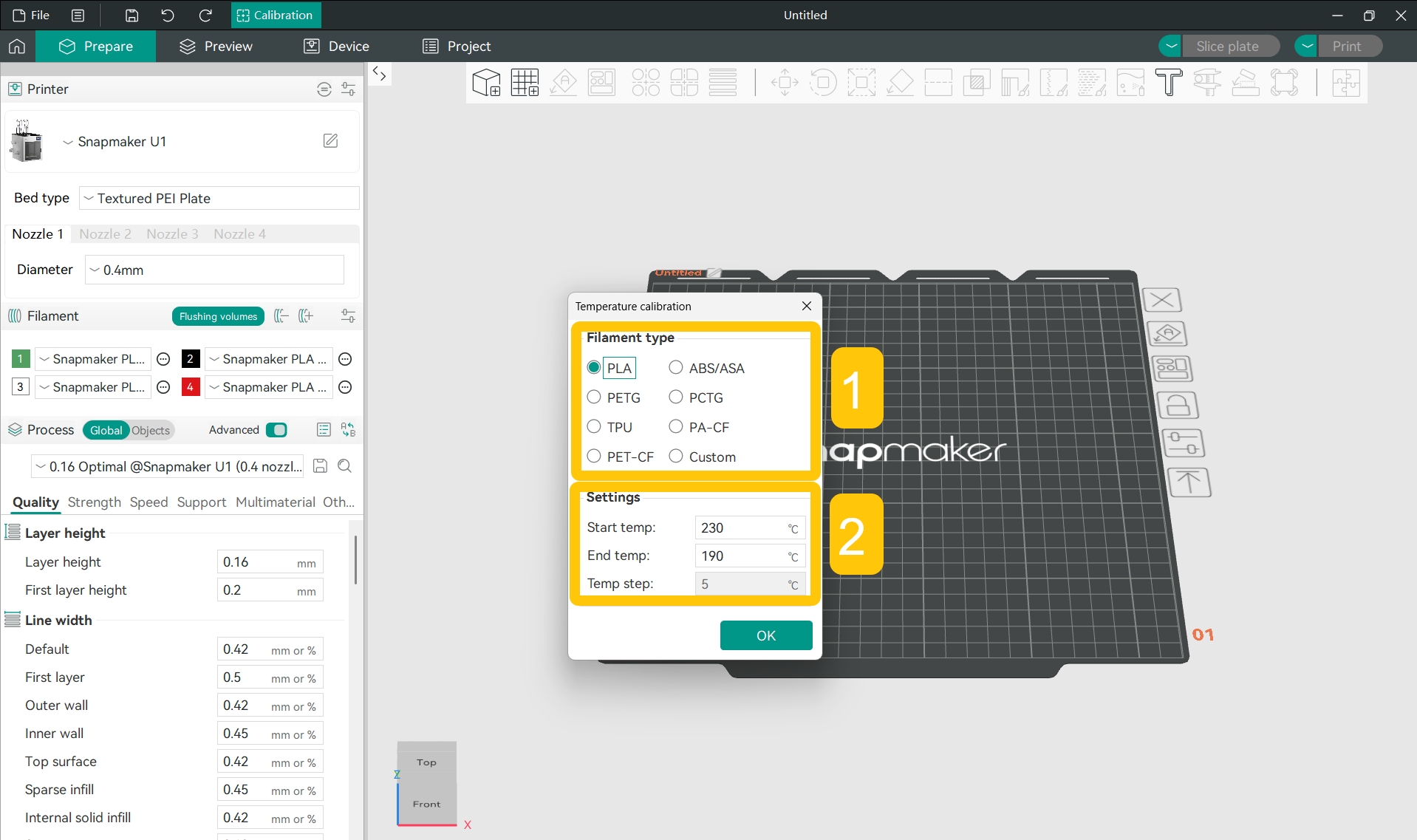
- Click
OKand the software will automatically generate a temperature tower model.
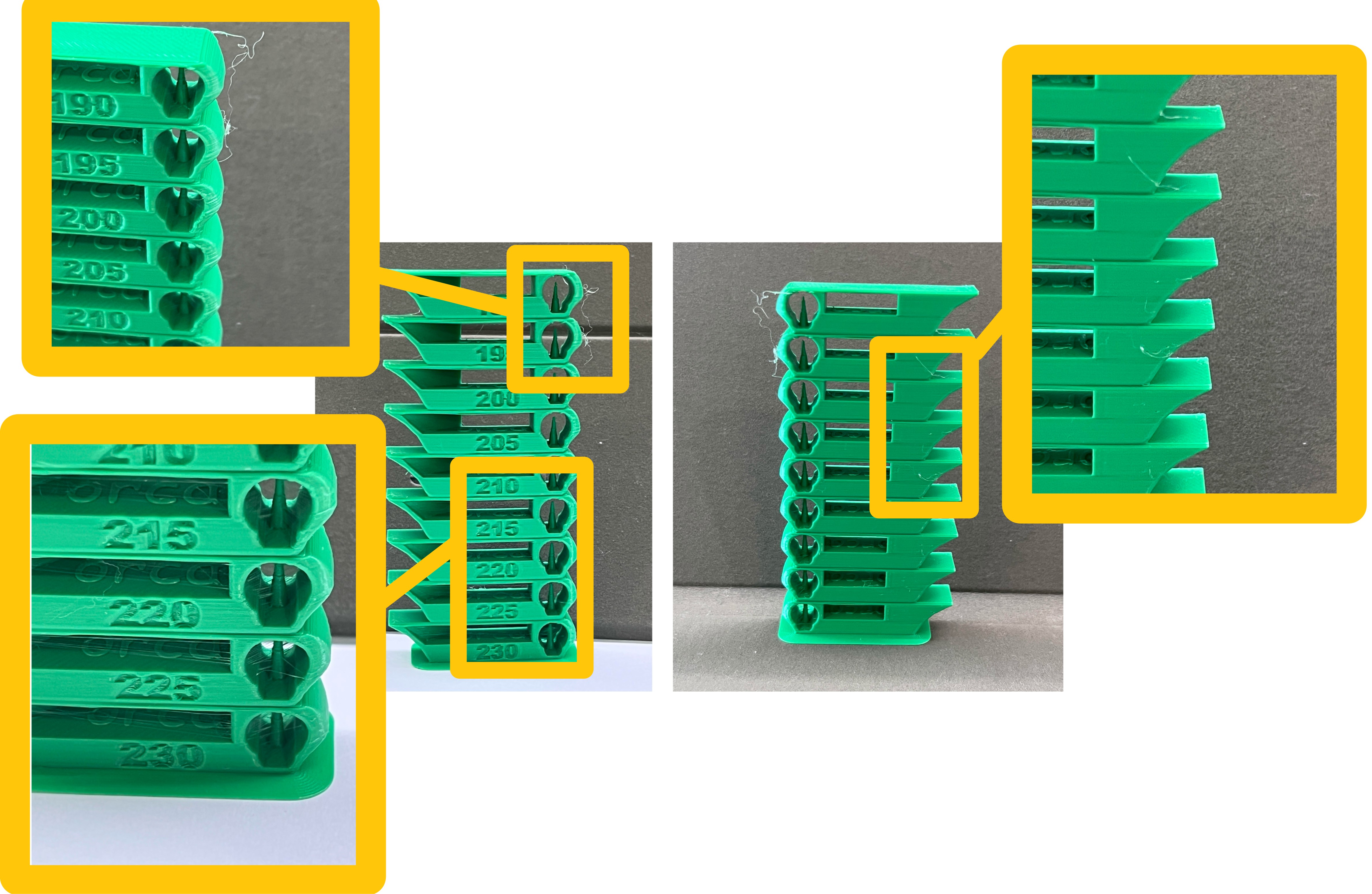
Temperature Tower Model: Every layer of the temperature tower looks exactly the same, but each layer is printed at a different temperature. The temperature of each layer is determined by the start and end temperatures set previously and the default temperature step of the software.
Therefore, a temperature tower is a common calibration tool. You simply need to observe which layer of the printed temperature tower has the best quality to find out the best print temperature for your current filament.
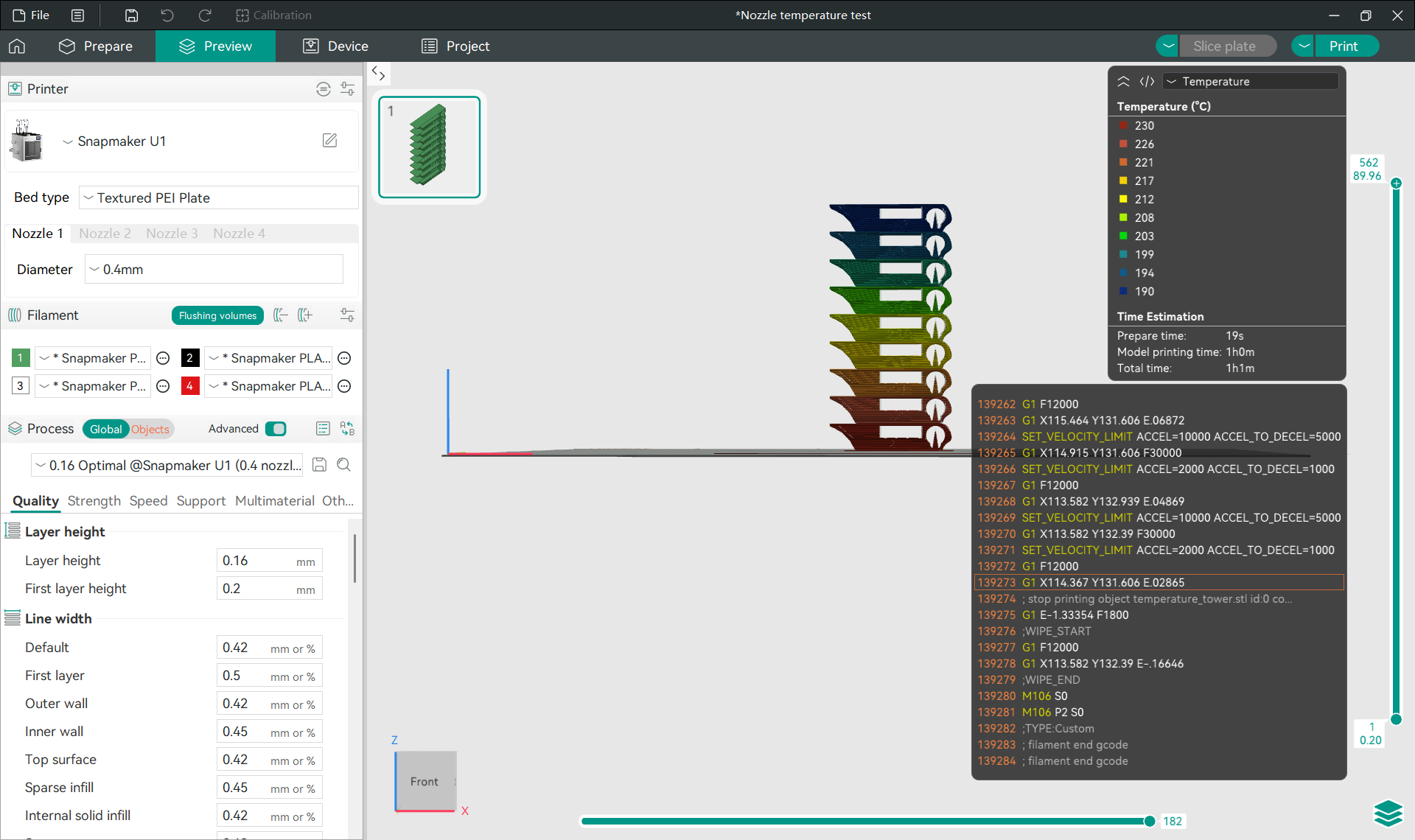
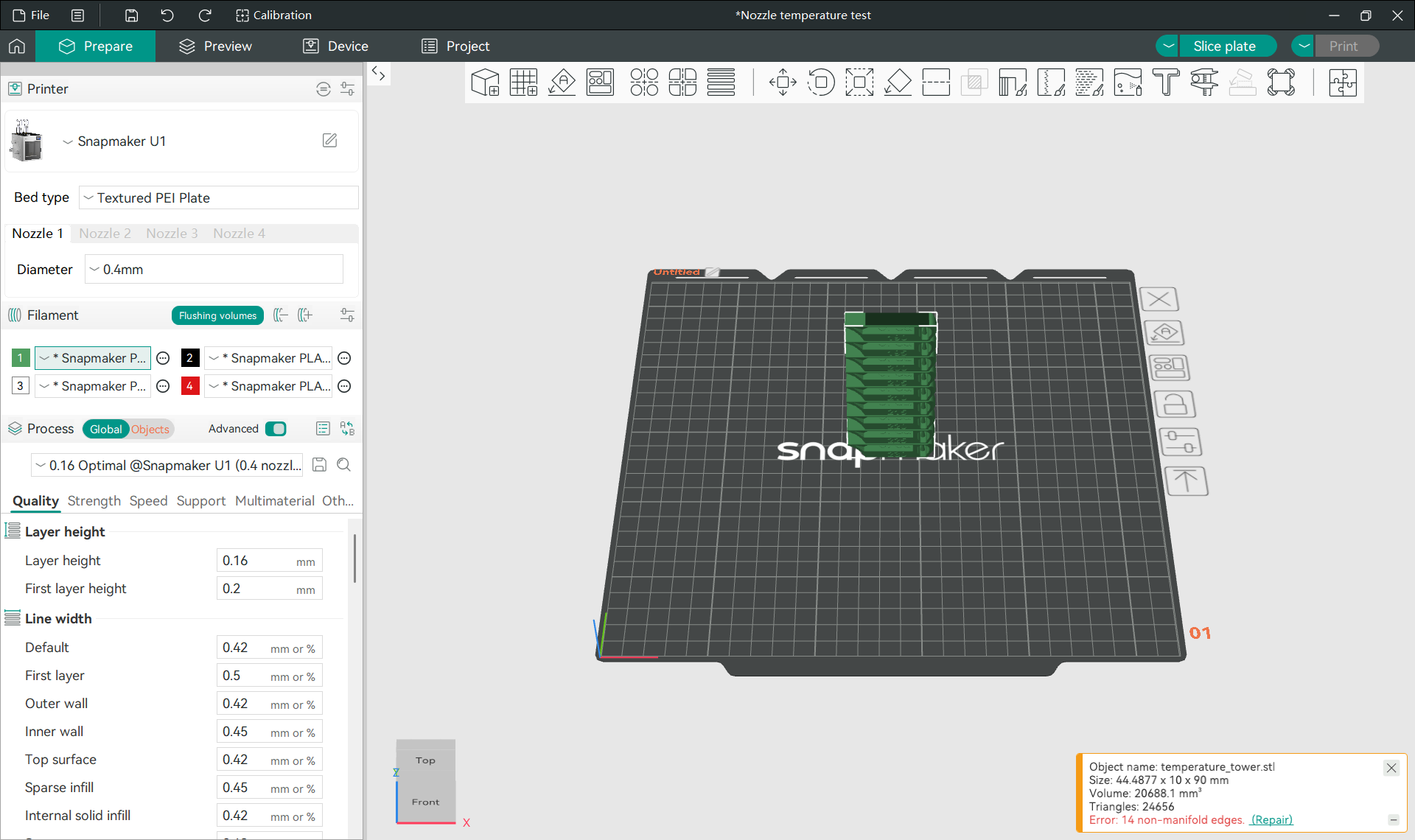
- Use your U1 to print the temperature tower model and examine each layer of the finished part. Eliminate layers with poor print quality and find the layer with the best print quality — the number marked on it is the optimal print temperature (in °C in this example).
For example, if you think the layer marked with 200 has the best print quality, then 200°C is your optimal print temperature.
¶ 2. Set the Optimal Print Temperature for Your Model
-
Add your project model.
-
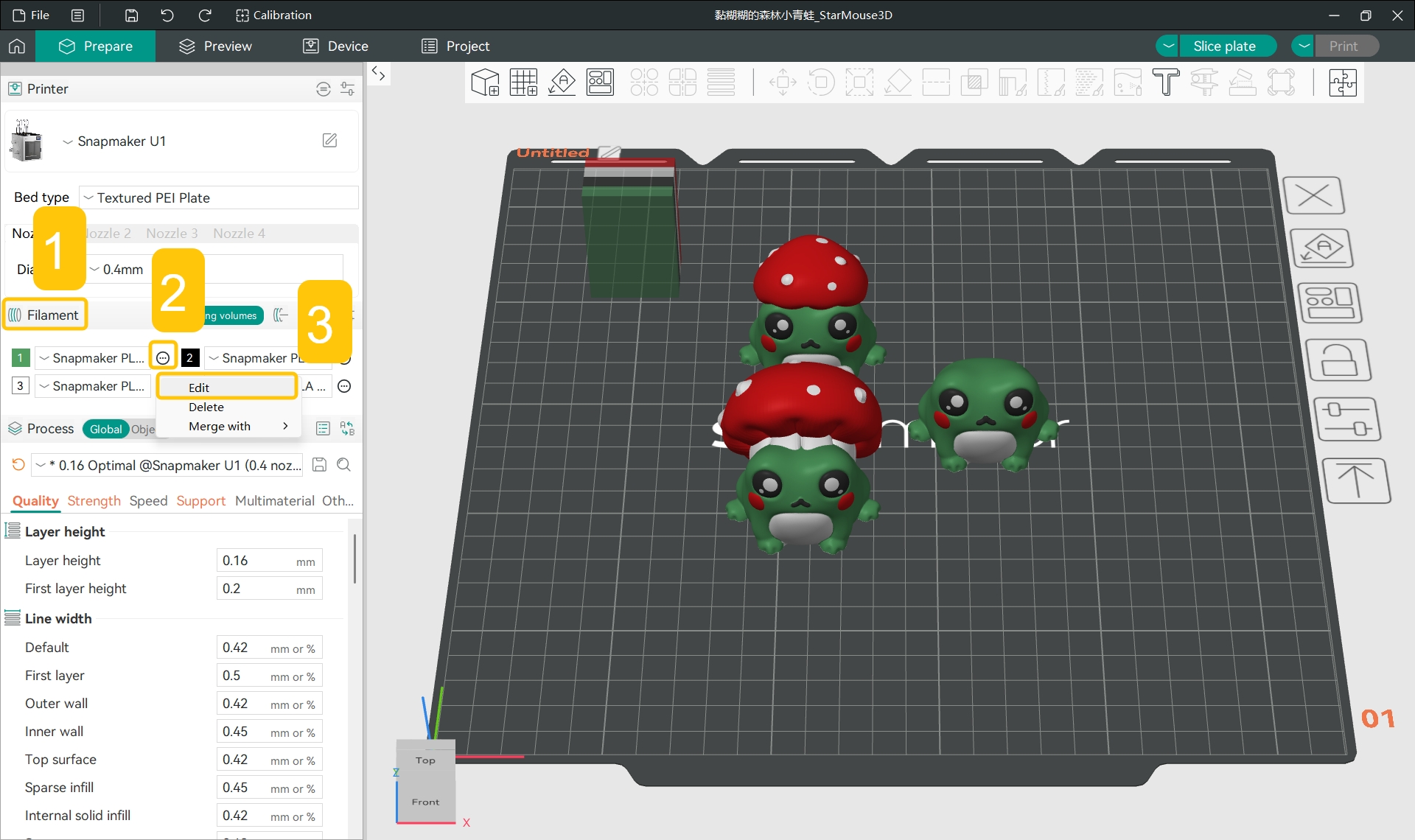
In the
Filamentsection of the left side list, click the...>Editnext to the specific filament.
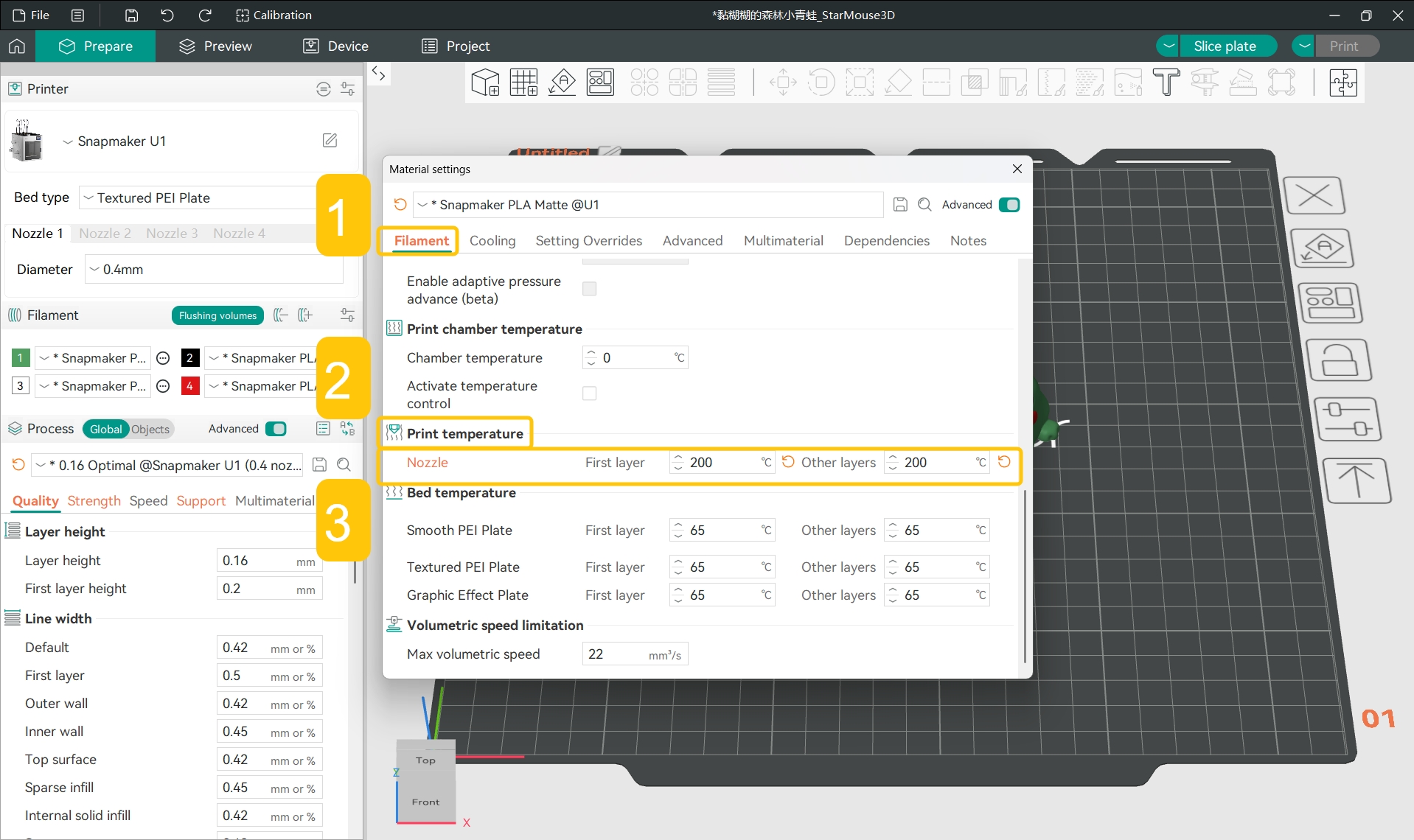
- In the pop-up window, find
Filament>Print temperature>Nozzle.
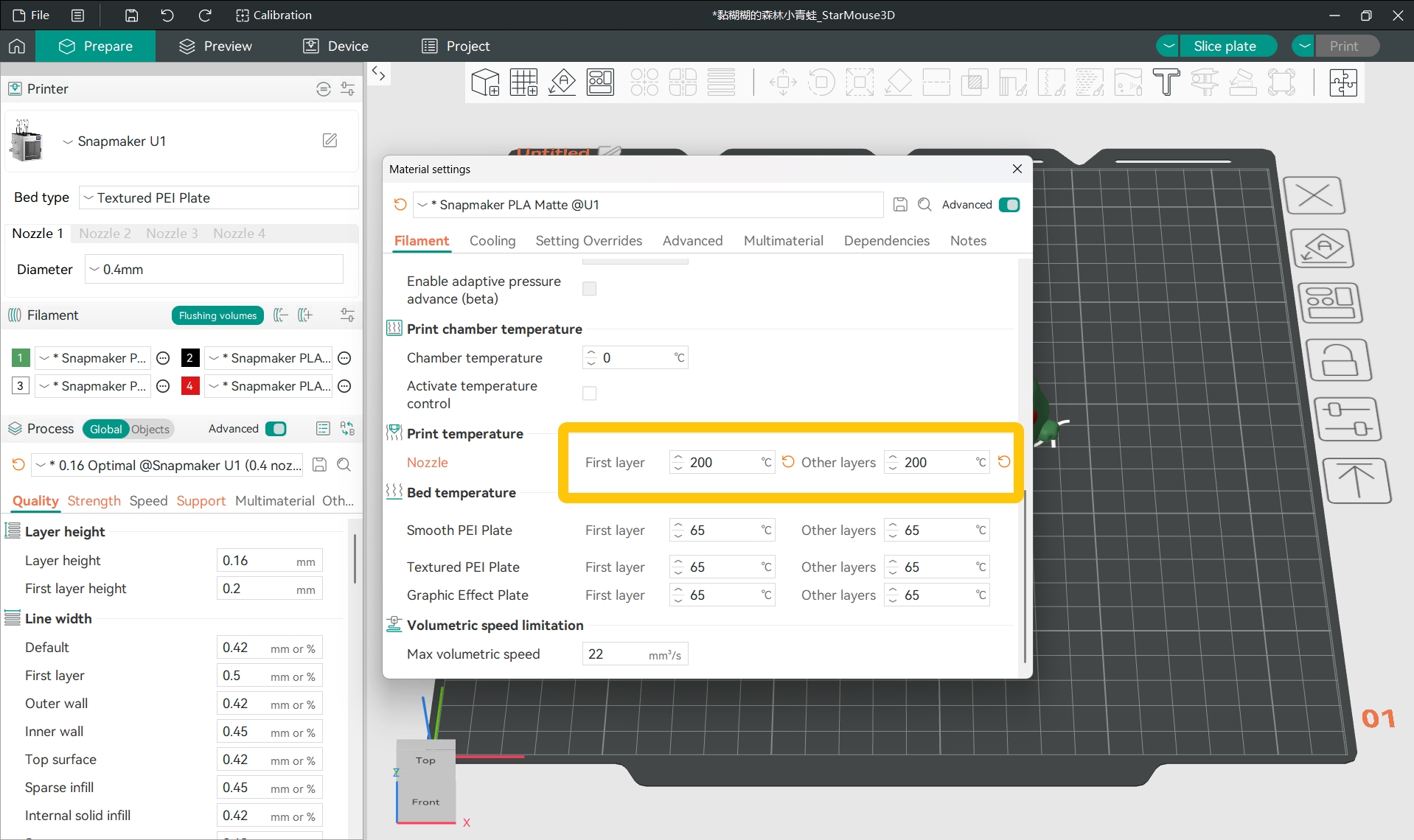
- Set the nozzle's first layer and other layers temperatures to the optimal print temperature.
For example, based on the previous test result, set the first layer and other layers temperature to 200 (in °C in this example).
¶ Potential Cause 2: Layer Height too Large
A large layer height may result in weak bonding between layers, causing interlayer cracking. Therefore, consider lowering the layer height before slicing.
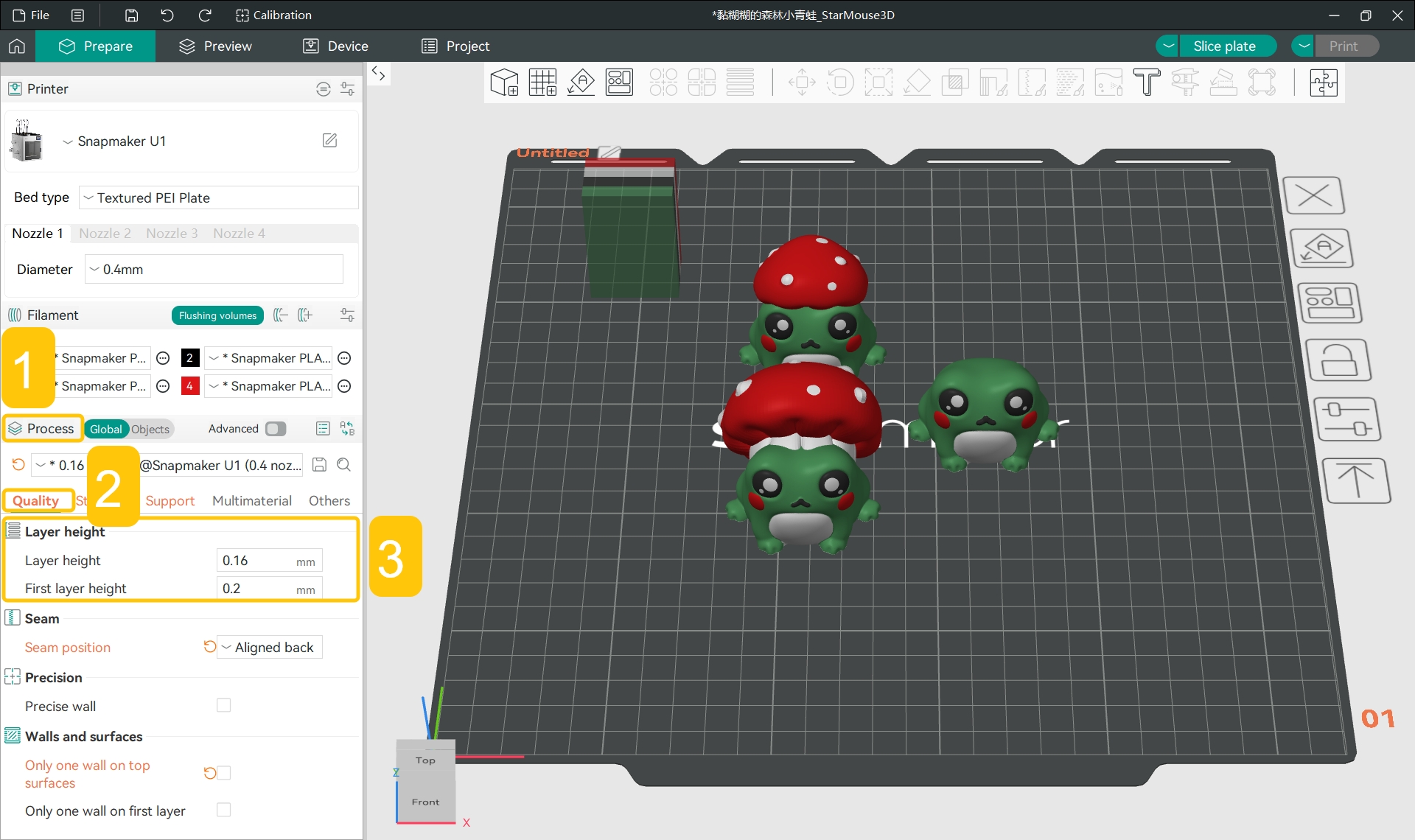
- Find
Process>Quality>Layer height.
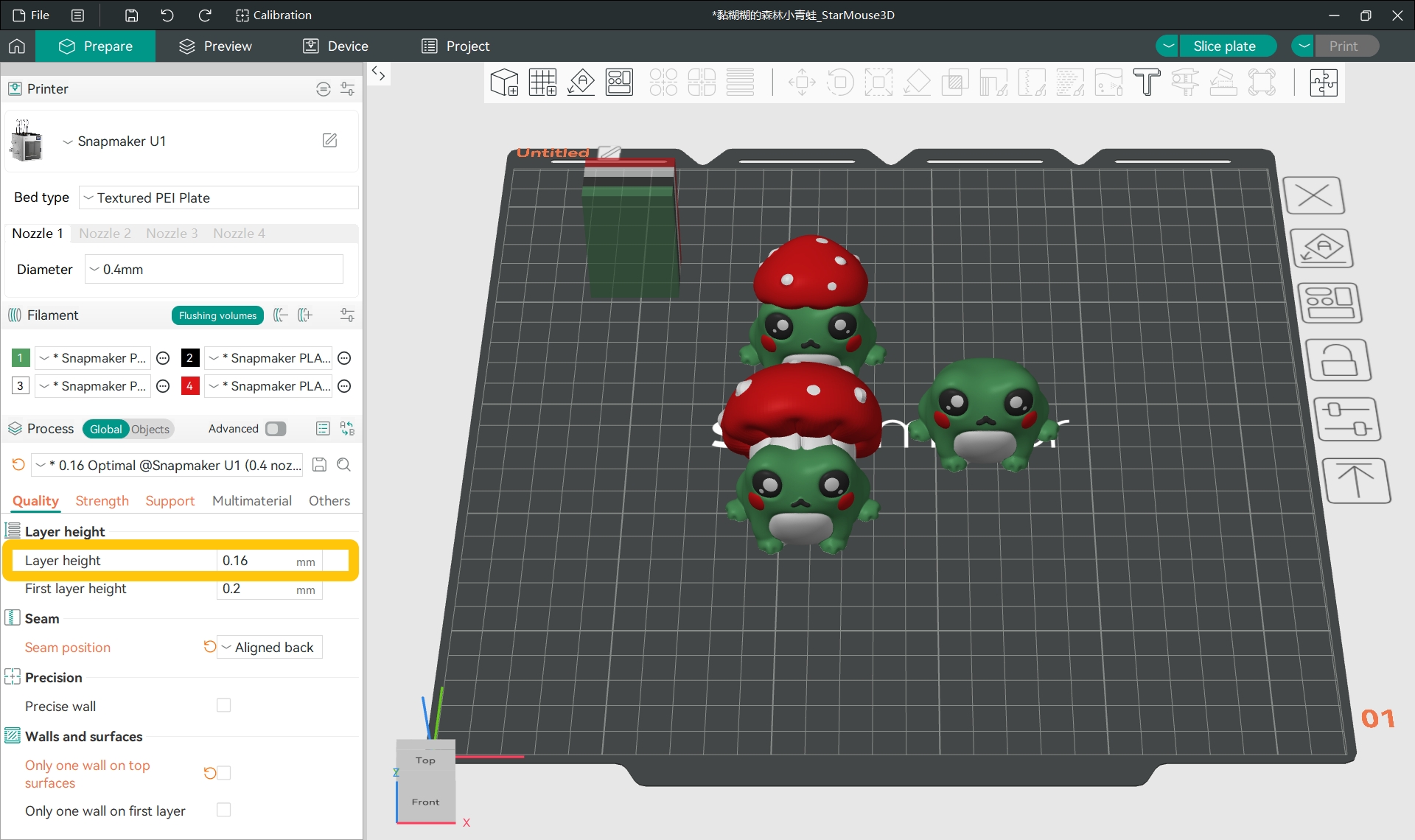
- Appropriately reduce the
Layer heightvalue.
It is recommended to set the layer height at 20%–80% of the nozzle diameter.
For example, if you are using a 0.4 mm nozzle, the corresponding layer height should be 0.08 mm-0.32 mm.
¶ Potential Cause 3: Fan Speed Too Fast
If the fan speed is too fast, the filament may cool before the layers have bonded, causing interlayer cracking. Therefore, consider appropriately reducing the fan speed before slicing to allow enough time for the filament to bond.
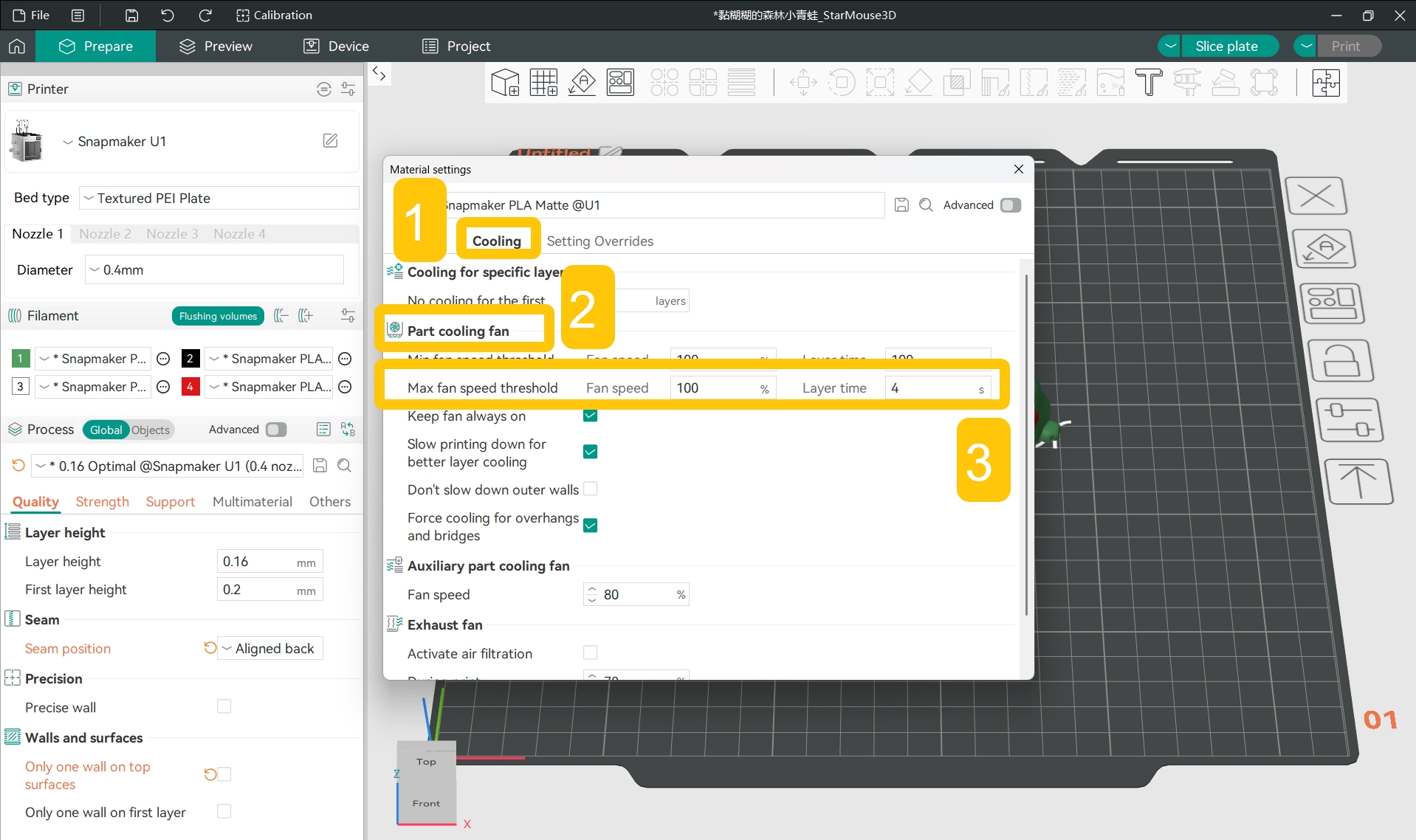
- In the
Filamentsection of the left side list, click the...>Editnext to the specific filament.
- In the pop-up window, find
Cooling>Part cooling fan>Max fan speed threshold.
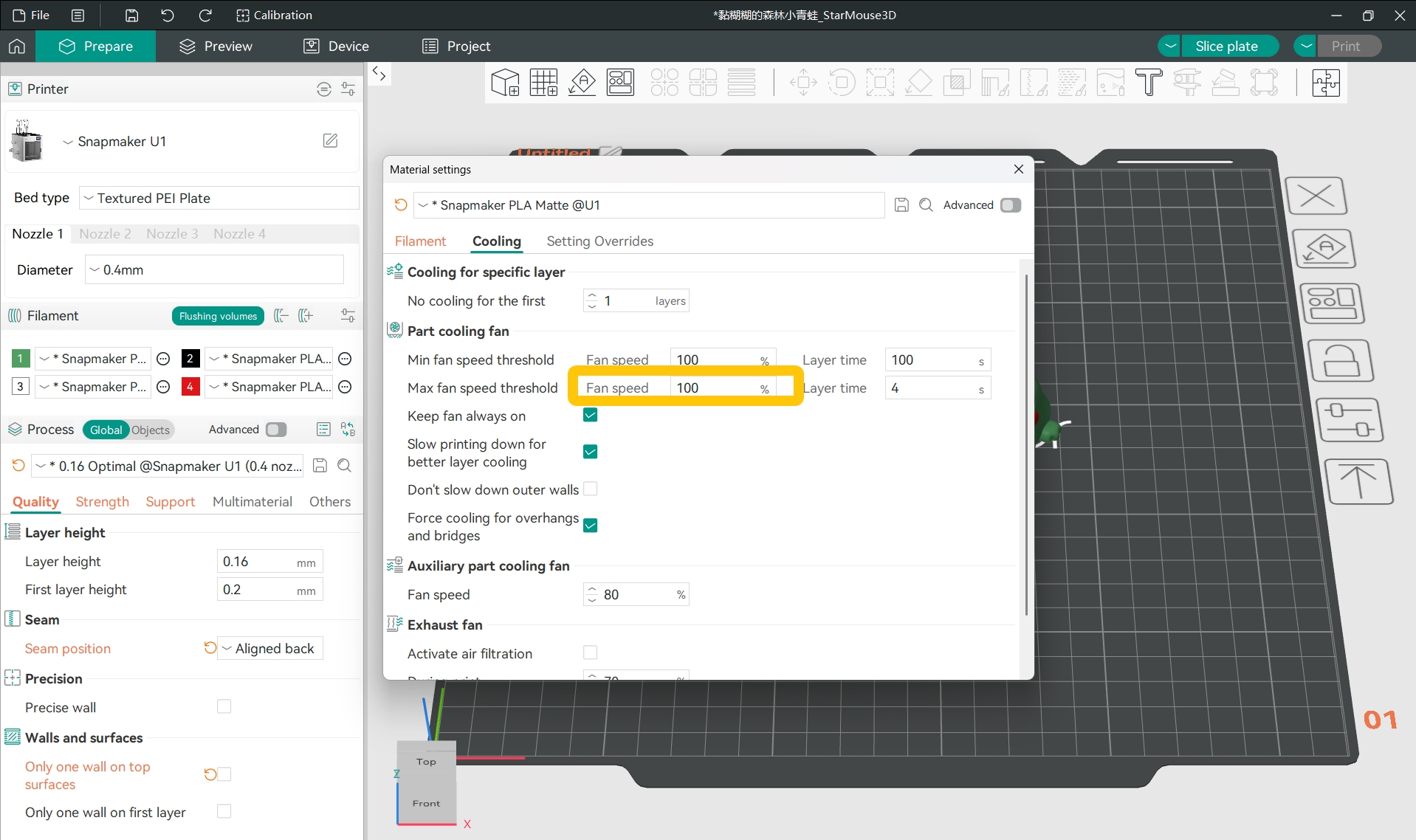
- Appropriately reduce the
Fan speed.
¶ Potential Cause 4: Print Speed Too Fast
A high print speed may cause poor layer adhesion because the freshly extruded filament doesn't get enough pressure or heat from the nozzle before cooling. Therefore, consider lowering the print speed before slicing.
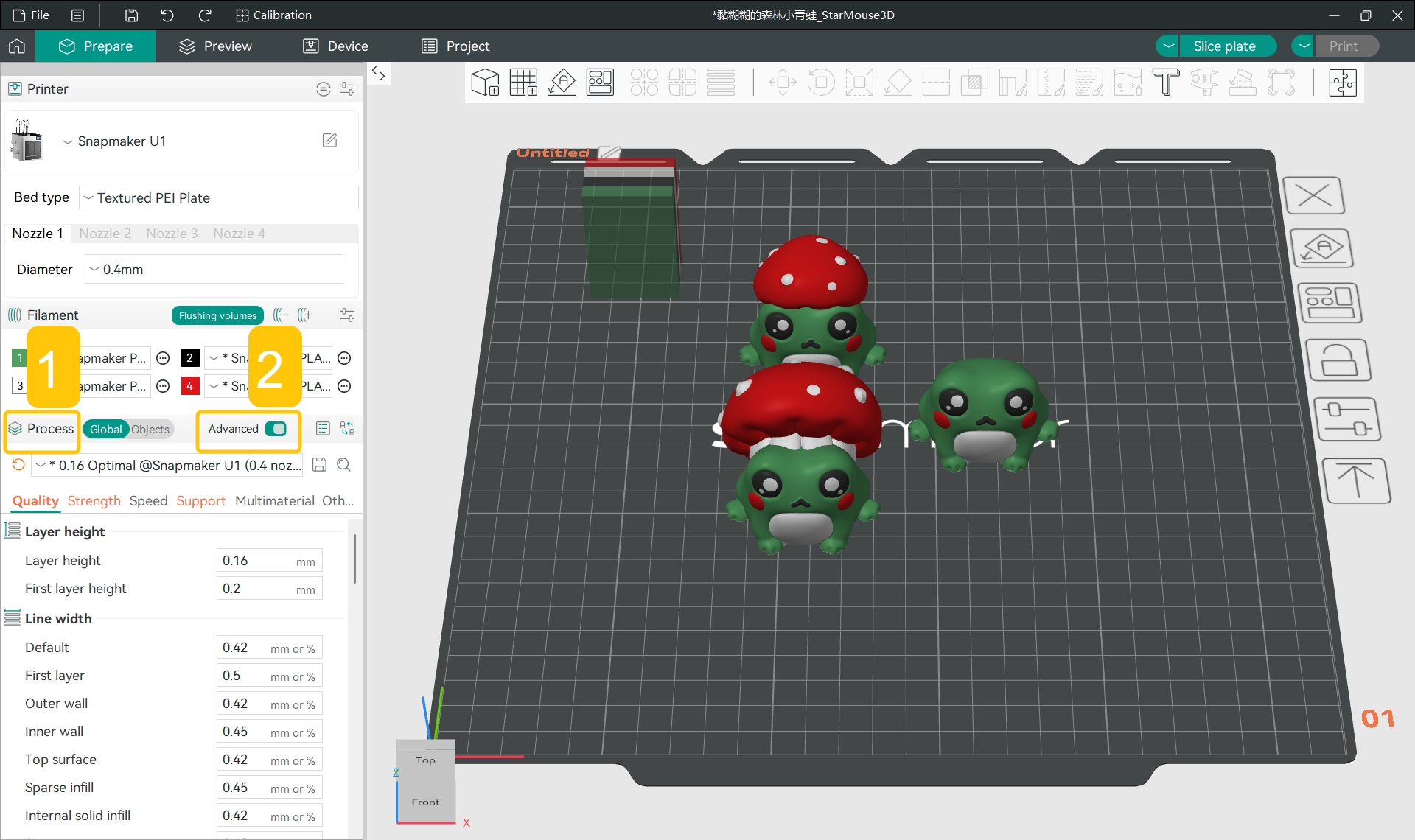
- Enable
Process>Advanced.
- Find
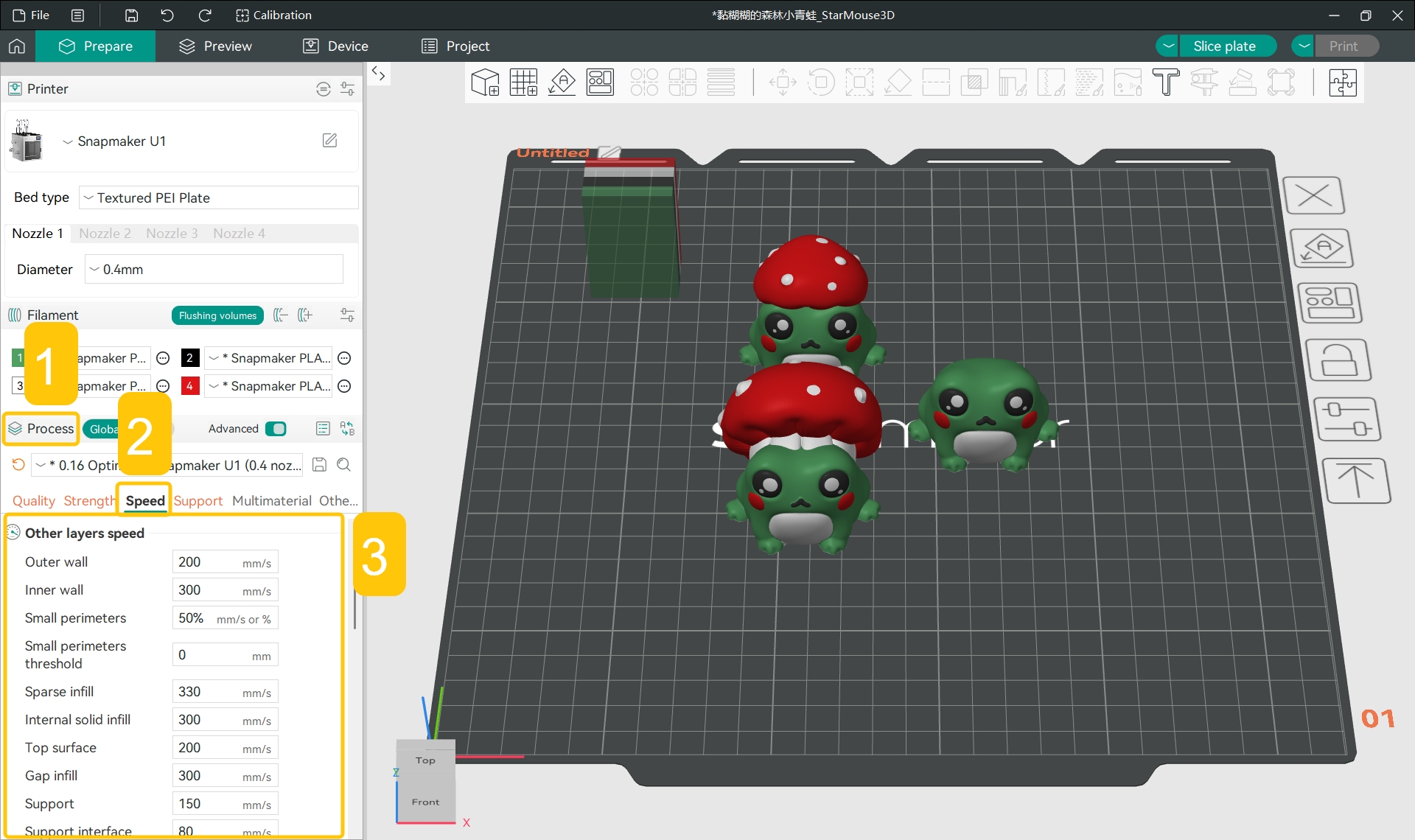
Process>Speed>Other layers speed.
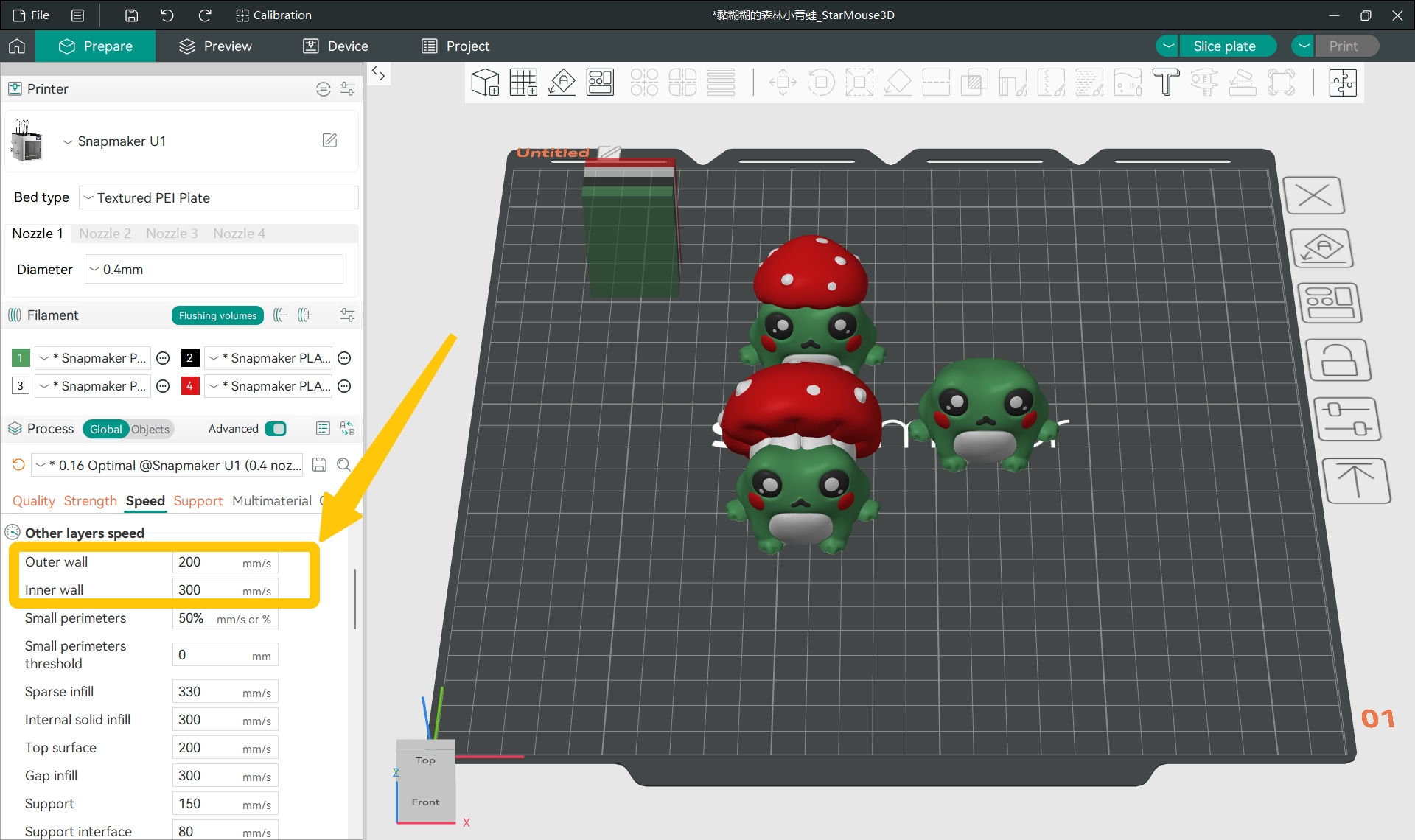
- Appropriately reduce the print speed, especially for the
Outer wallandInner wallvalues.
Outer wall speed is usually lower than inner wall speed. This produces a smoother surface and higher strength, while a higher inner wall speed reduces overall print time.
¶ Potential Cause 5: Excessive Ambient Temperature Difference
An excessive ambient temperature difference can also cause the layers to cool before bonding, leading to interlayer cracking. Therefore, consider enclosing the printer to maintain enough heat for proper bonding.
- You can choose the Top Cover for Snapmaker U1 for enclosure.
¶ ✅ Verification
After re-slicing and printing the model, if the layers are well bonded and there are no visible gaps or cracking, you have successfully resolved the issue.
¶ 📚 Related Resources
¶ 💬 Reach out to Snapmaker Support
After following the troubleshooting steps, if you find it difficult to resolve your issue, kindly submit a support ticket through https://snapmaker.formcrafts.com/u1-troubleshooting-request and share your troubleshooting results with some pictures/videos.
Our dedicated support team will be more than willing to assist you in resolving the issue.