¶ Overview
¶ Location
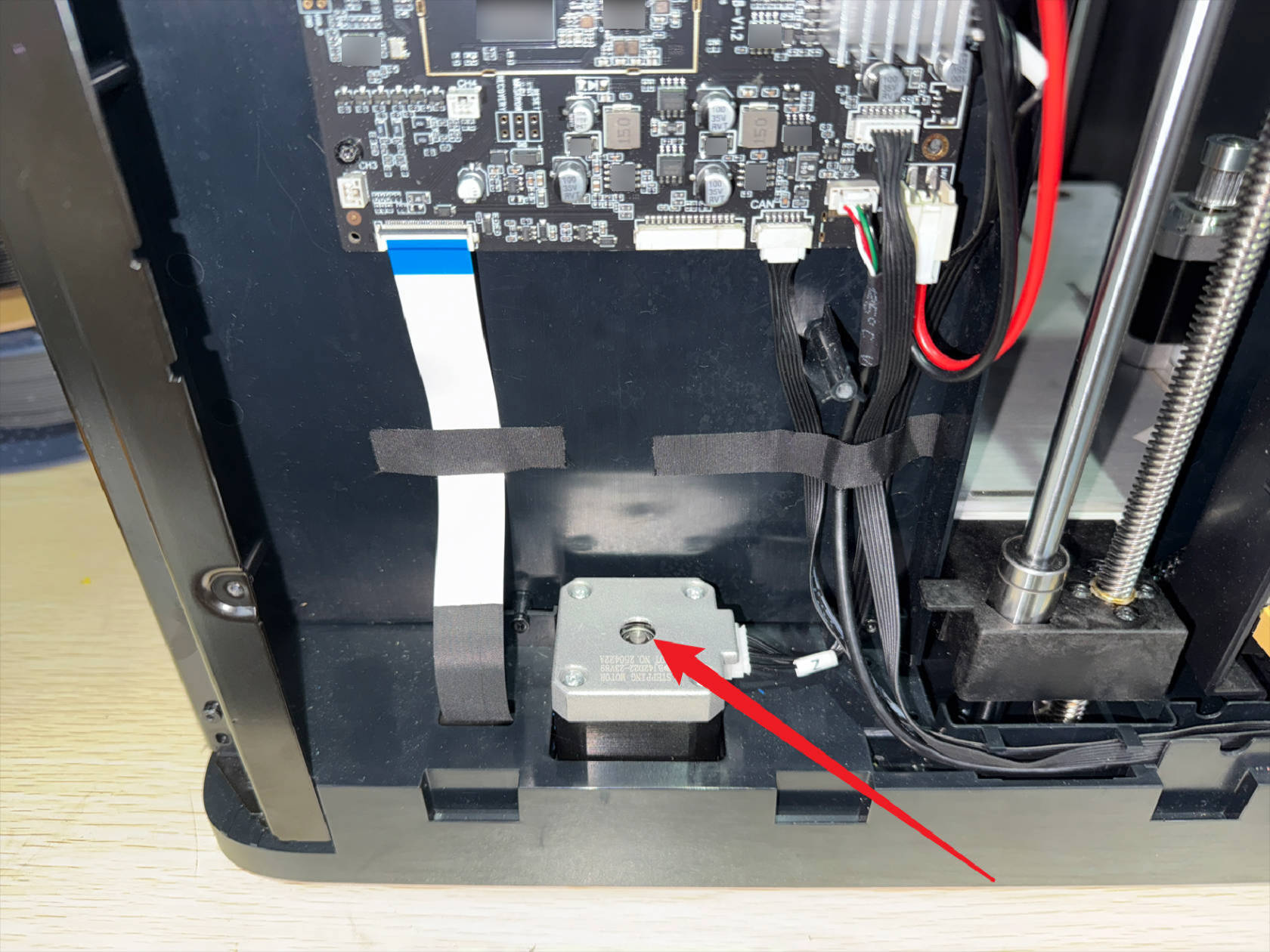
Z motor is located inside the right panel, which must be removed before it can be replaced
¶ Difficulty and Time Estimate
- Difficulty:★★★ ☆☆ (moderate)
- Estimated Time:45mins
¶ Where to Buy
This accessory is expected to be available on the official Snapmaker online store soon. Please stay tuned.
¶ Tools and Parts Required
- H2.0 hex key
- New Z motor
¶ Procedure
¶ Step 1. Unload filament
-
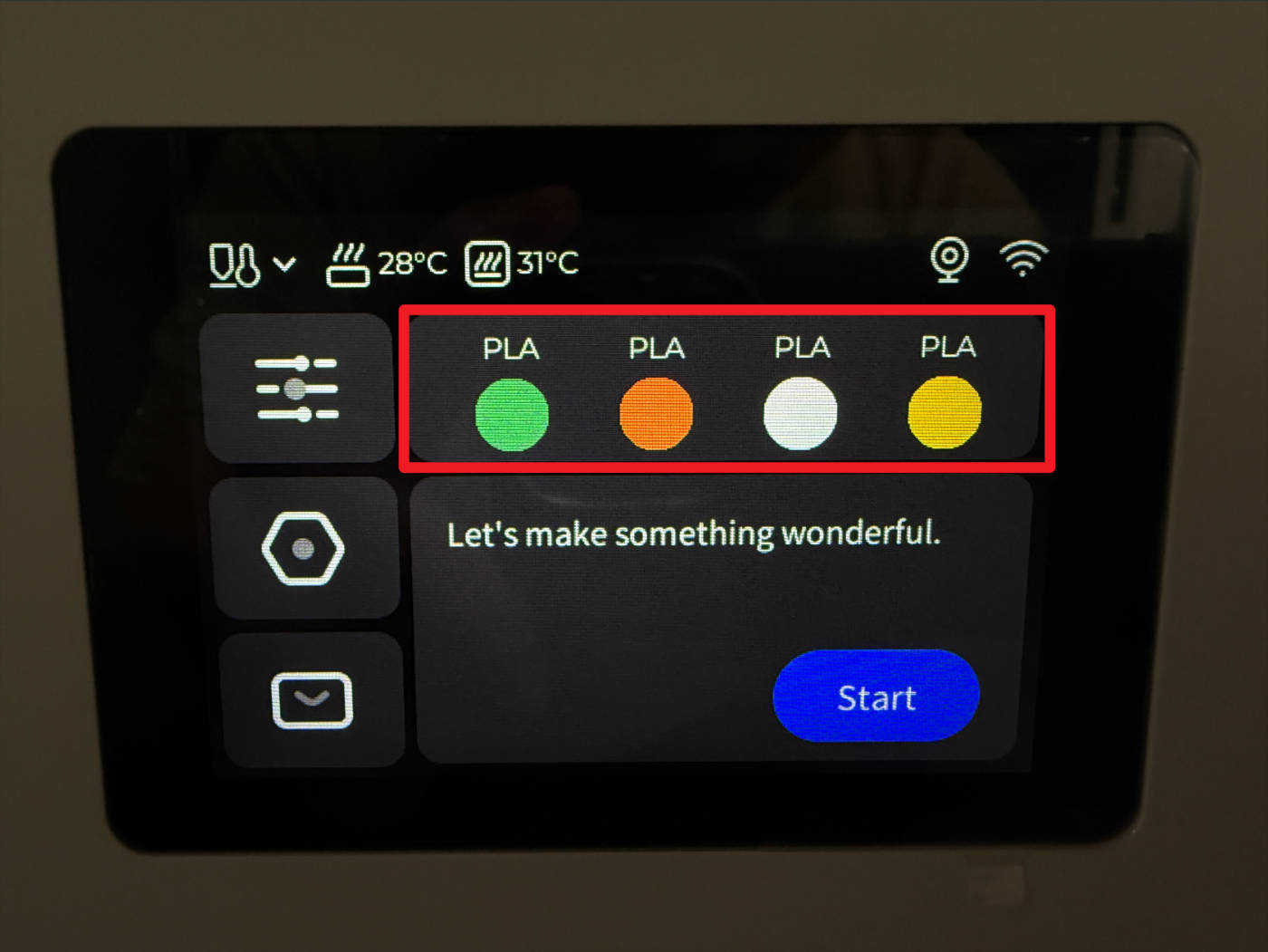
Tap the marked position on the screen
-
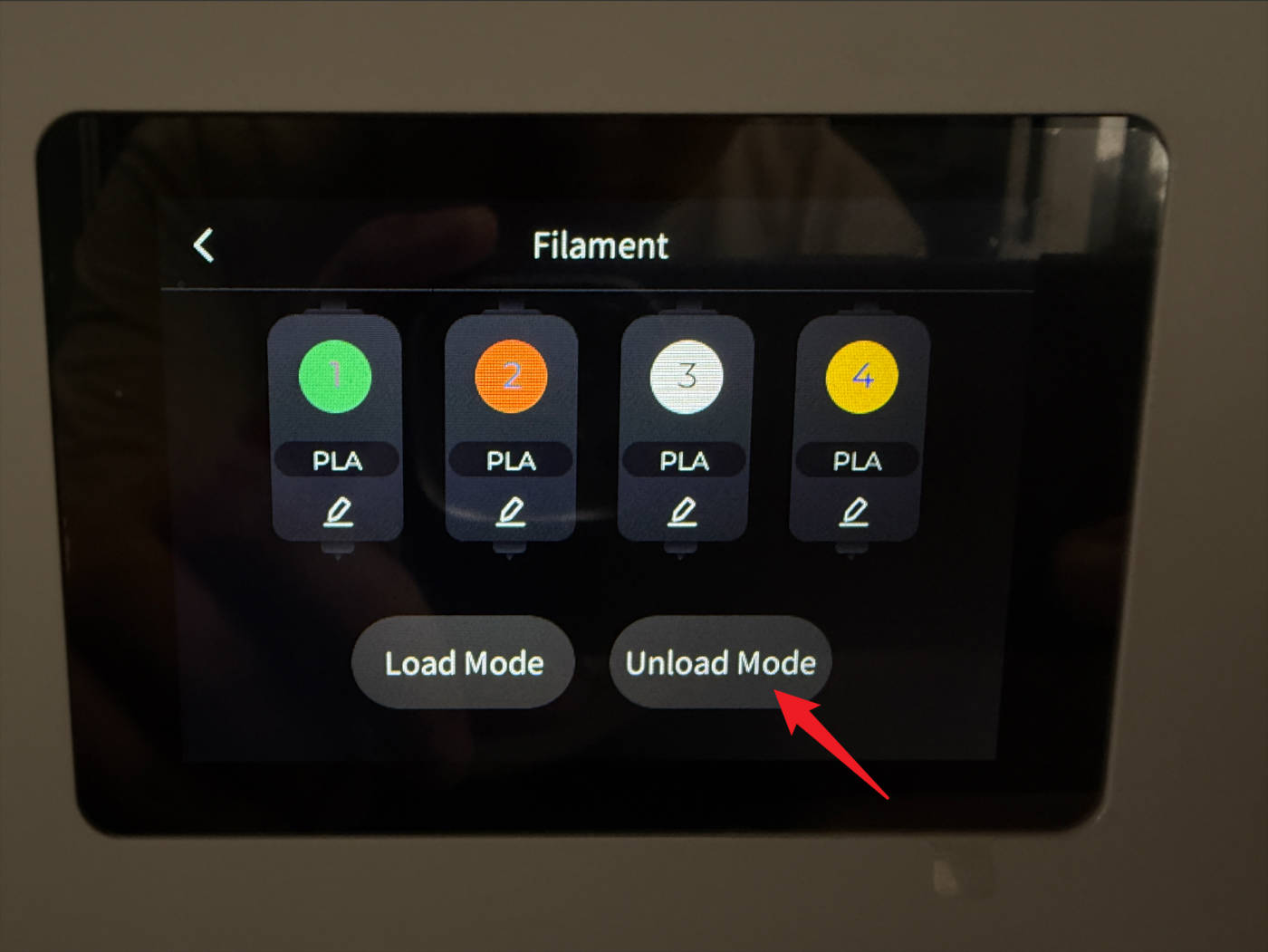
Tap Unload Mode
-
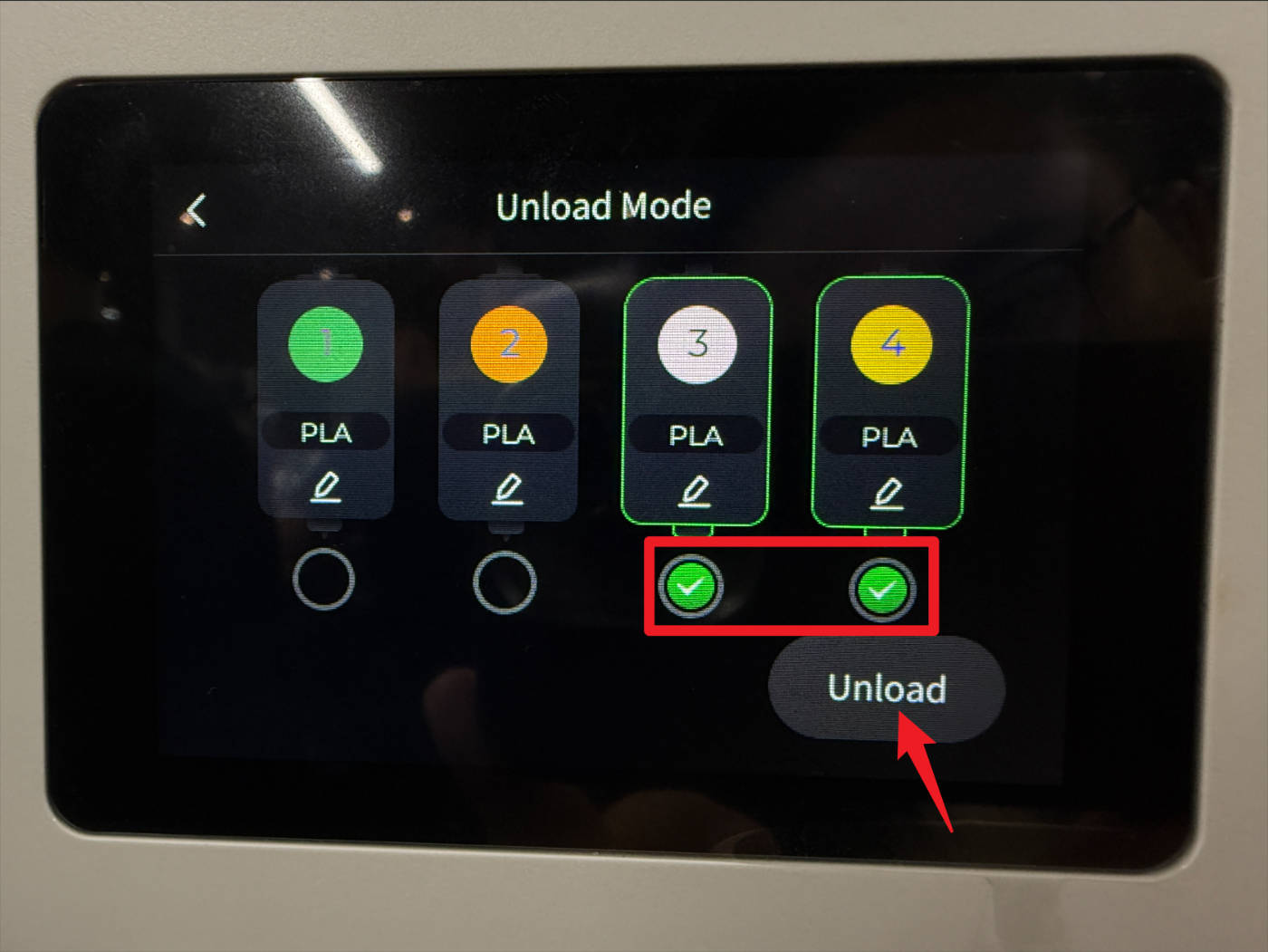
Select toolhead-3、4, tap Unload
-
Wait for the printer to complete the filament unloading automatically
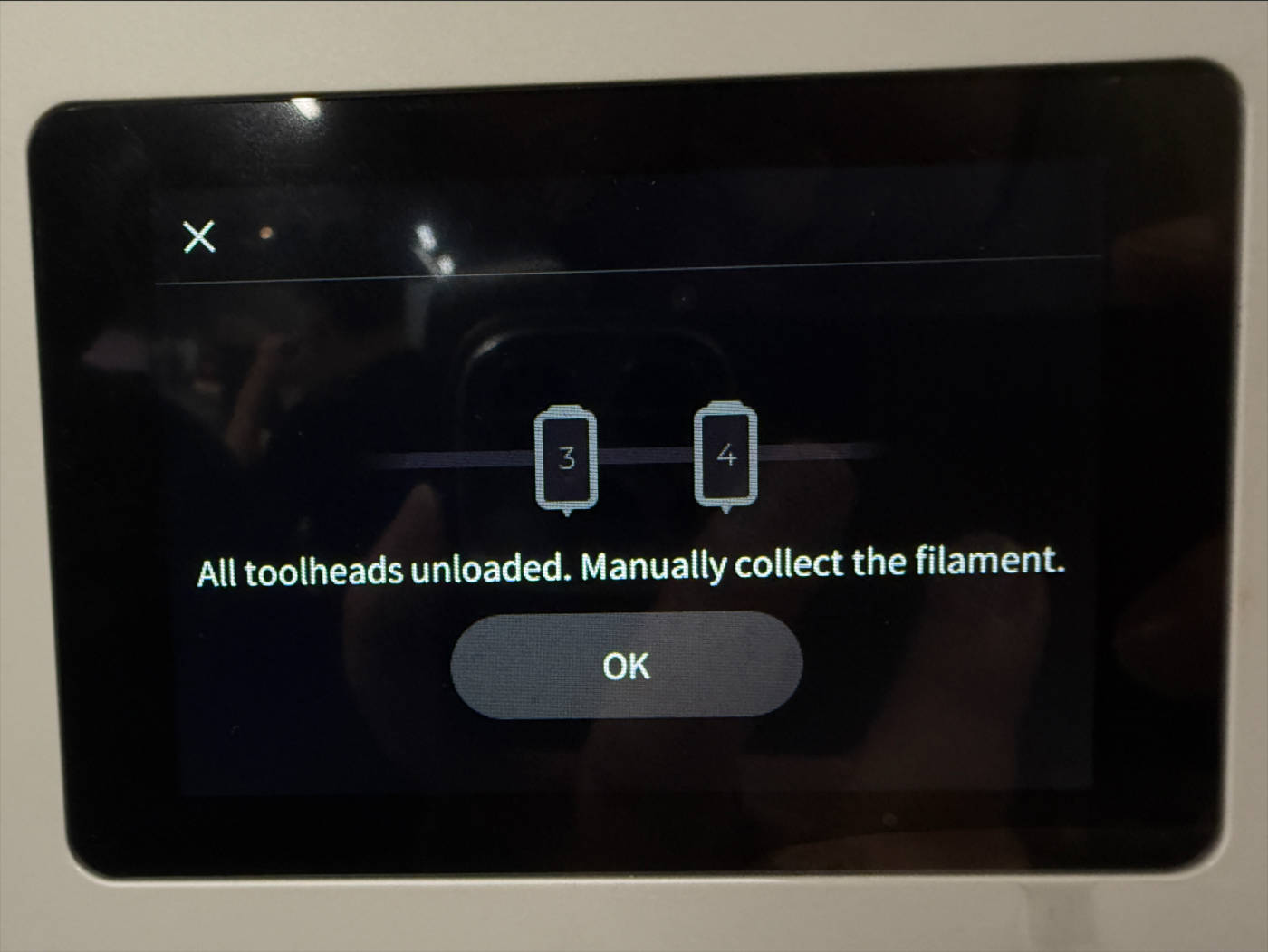
-
Rotate the spool-3、4 to retract all filament
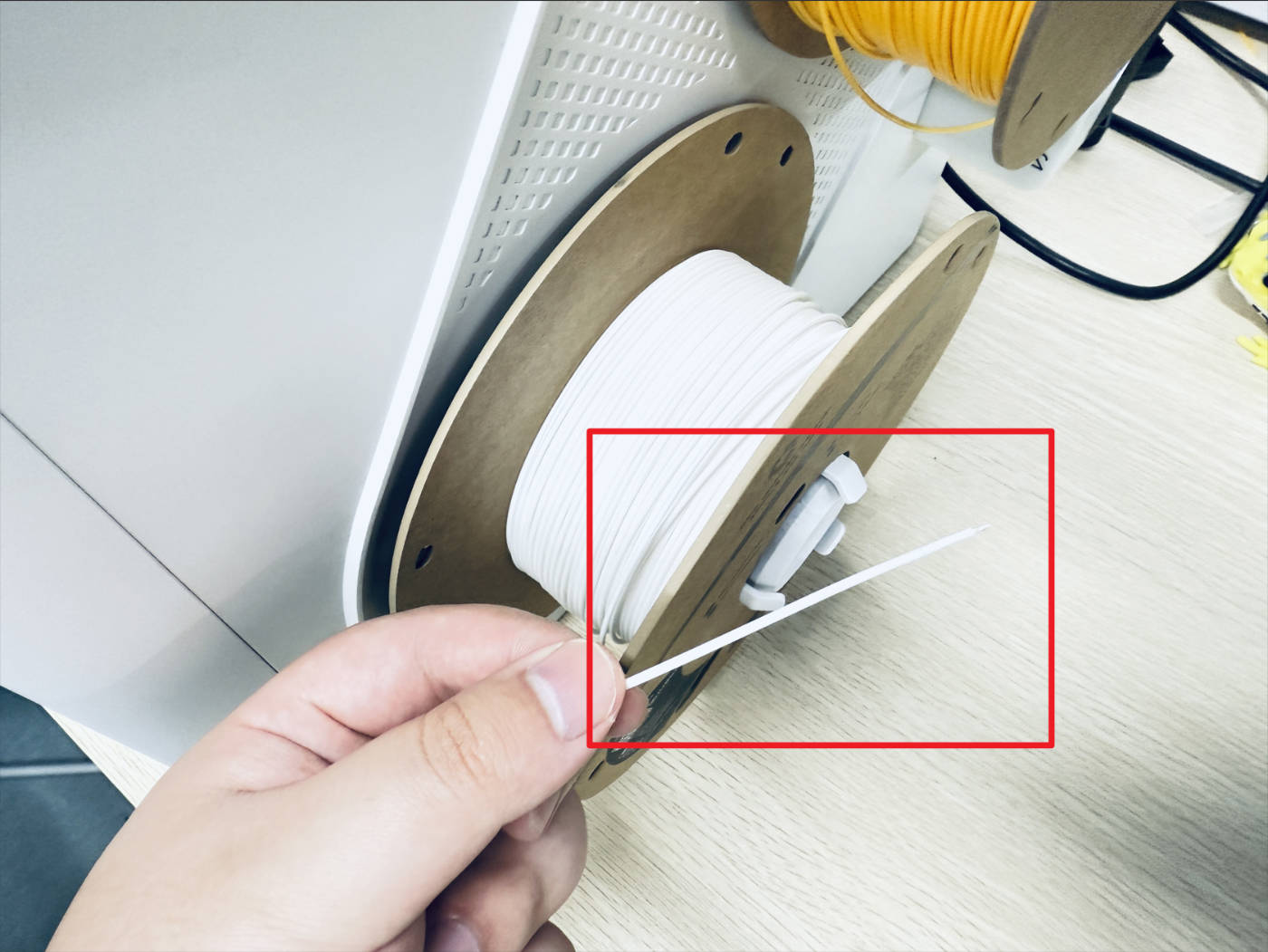
-
Remove the spool-3、4 (including the spool holders)
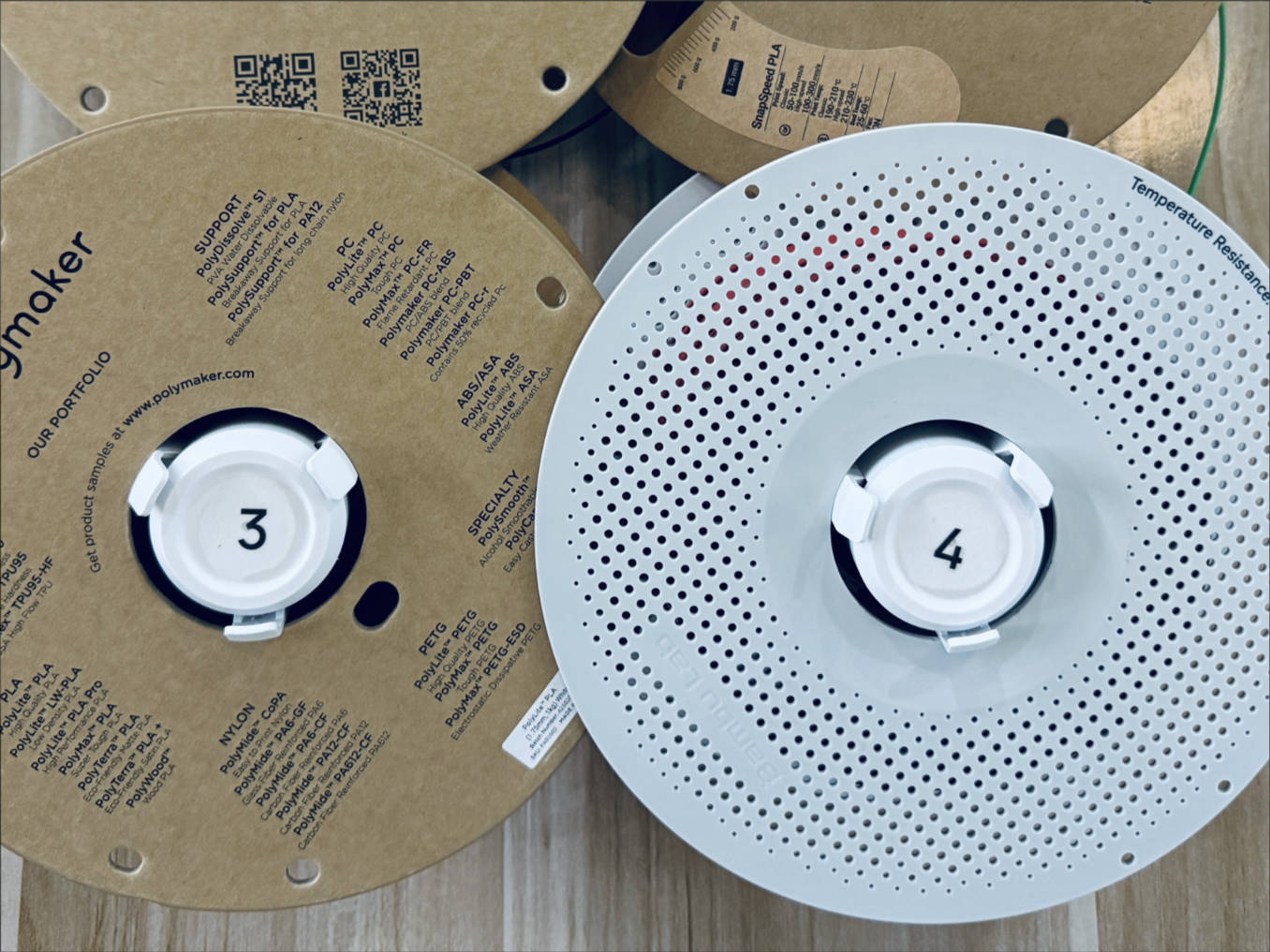
¶ Step 2. Lower the heated bed
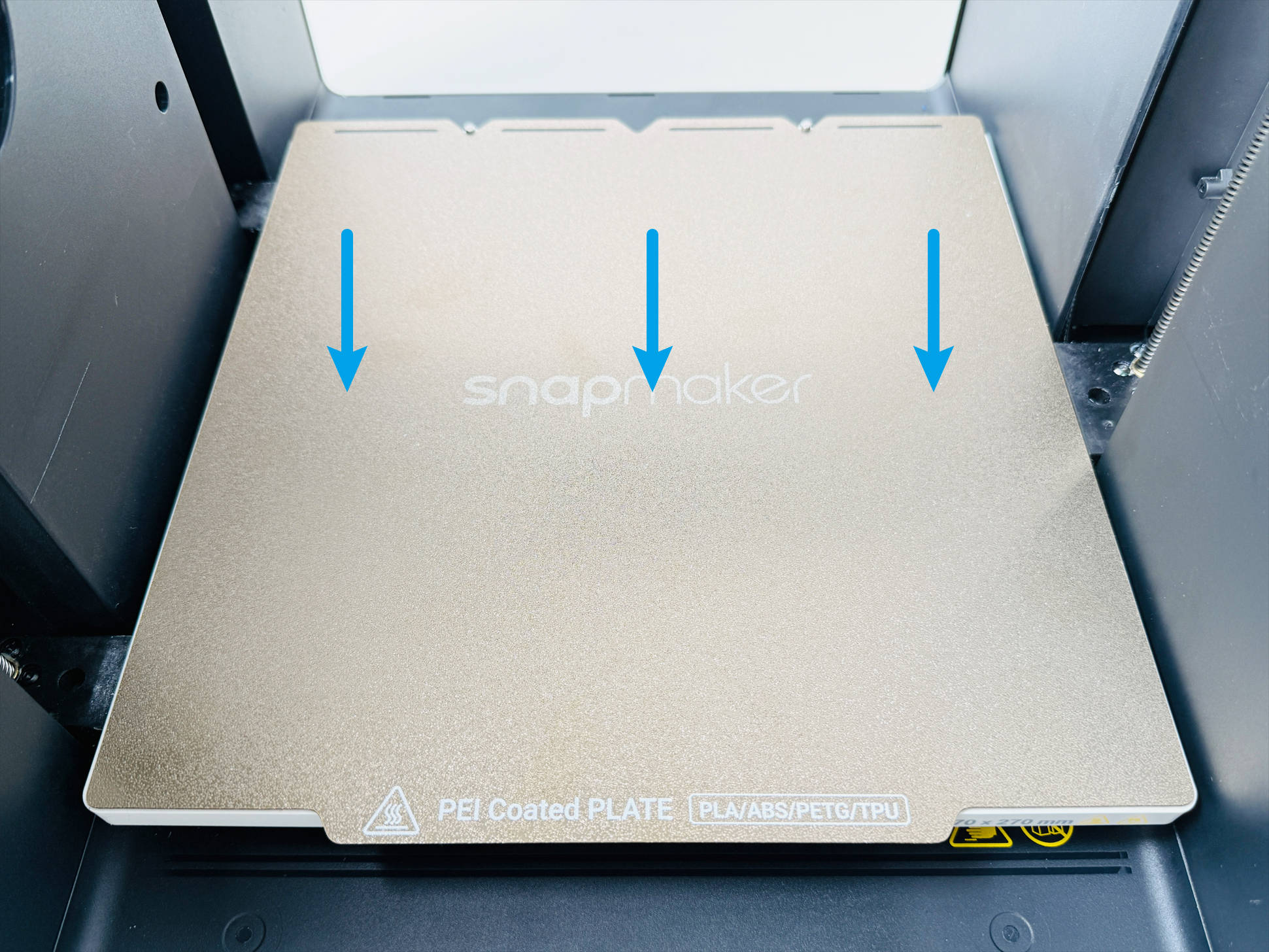
- Pull the timing belt at the bottom of the machine to the right to lower the heated bed to its lowest position.
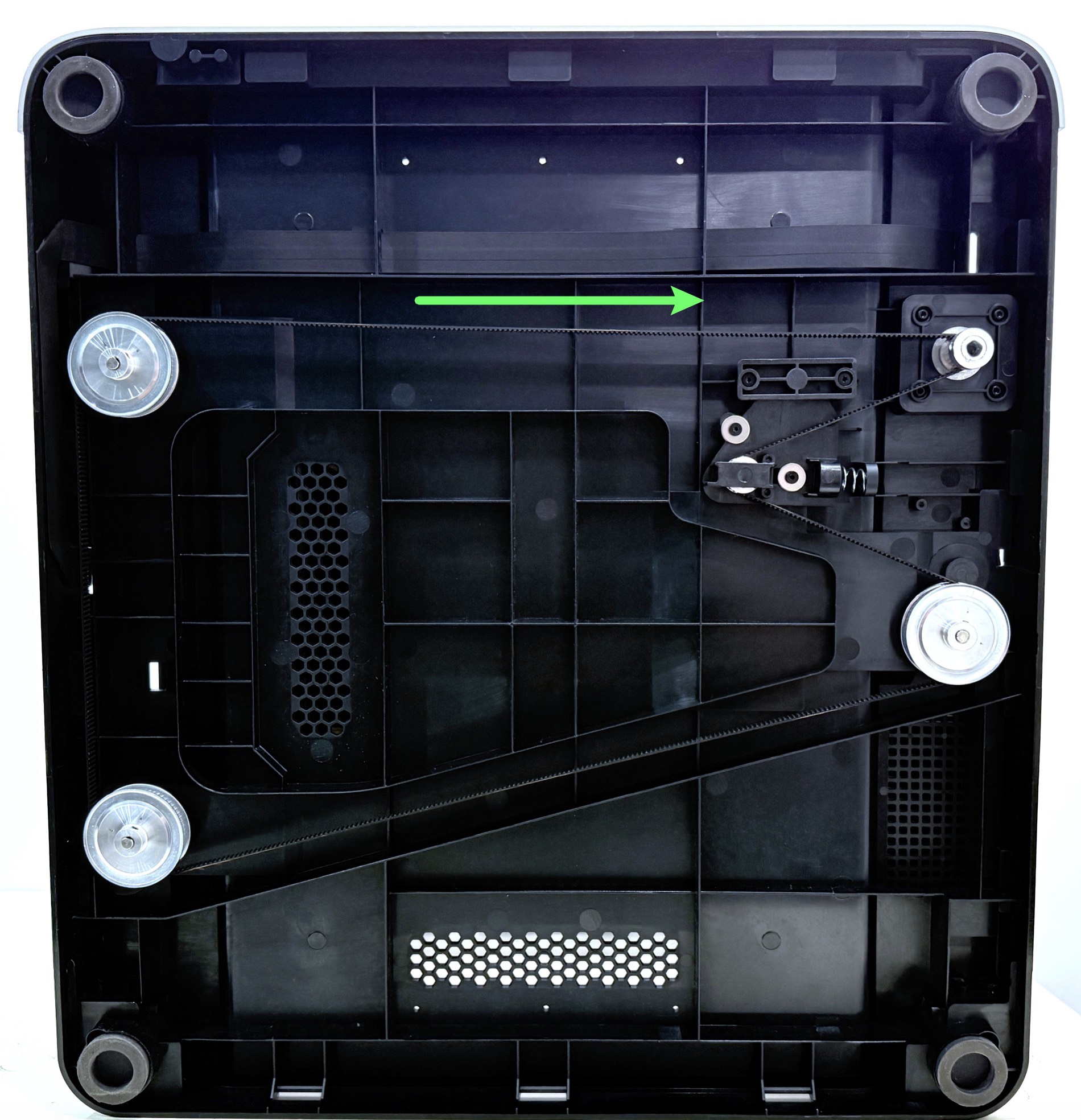
¶ Step 3. Remove the printer casing
-
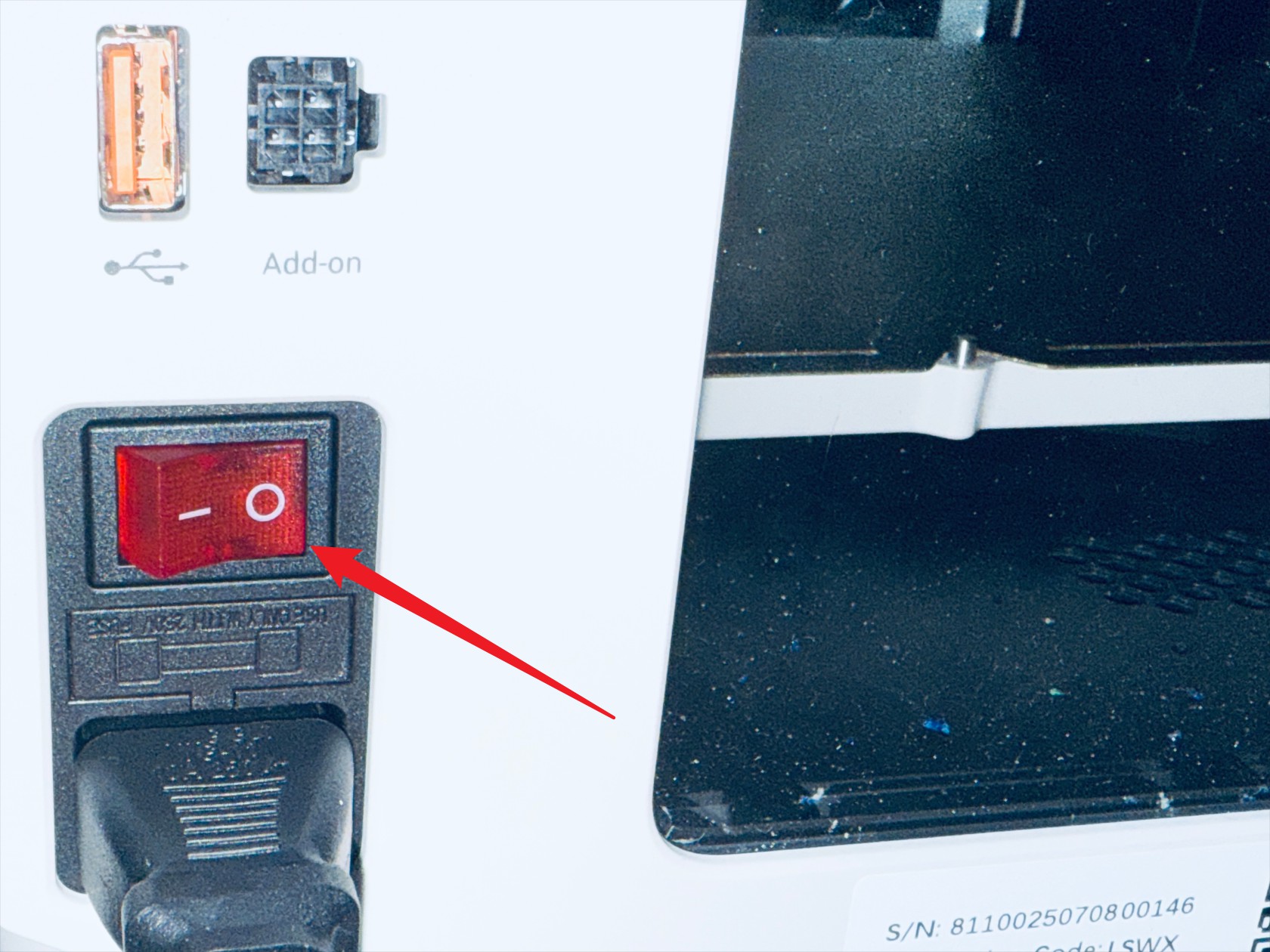
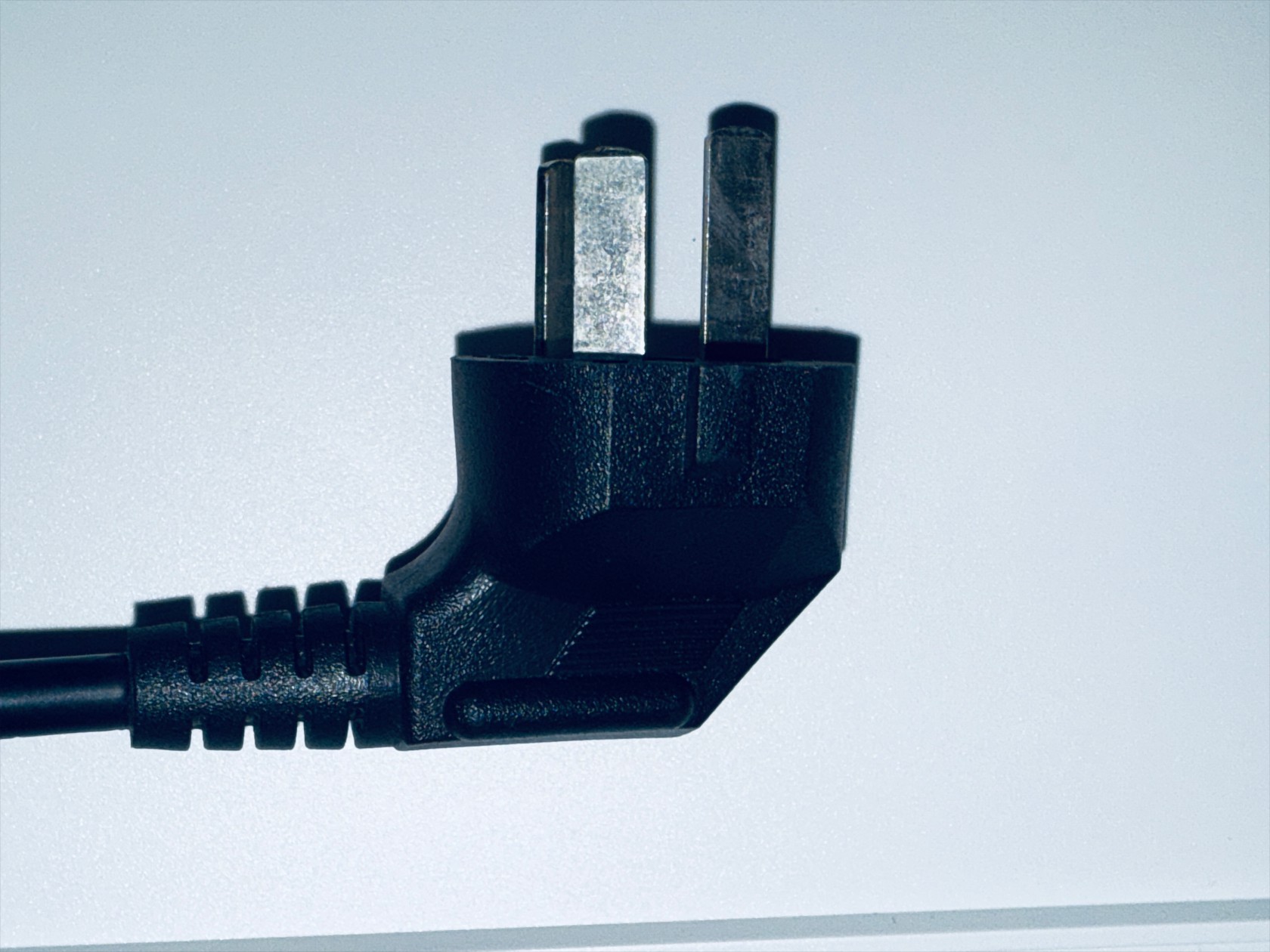
Power off the printer and disconnect the power supply
-
Remove the right feeder according to the instructions below
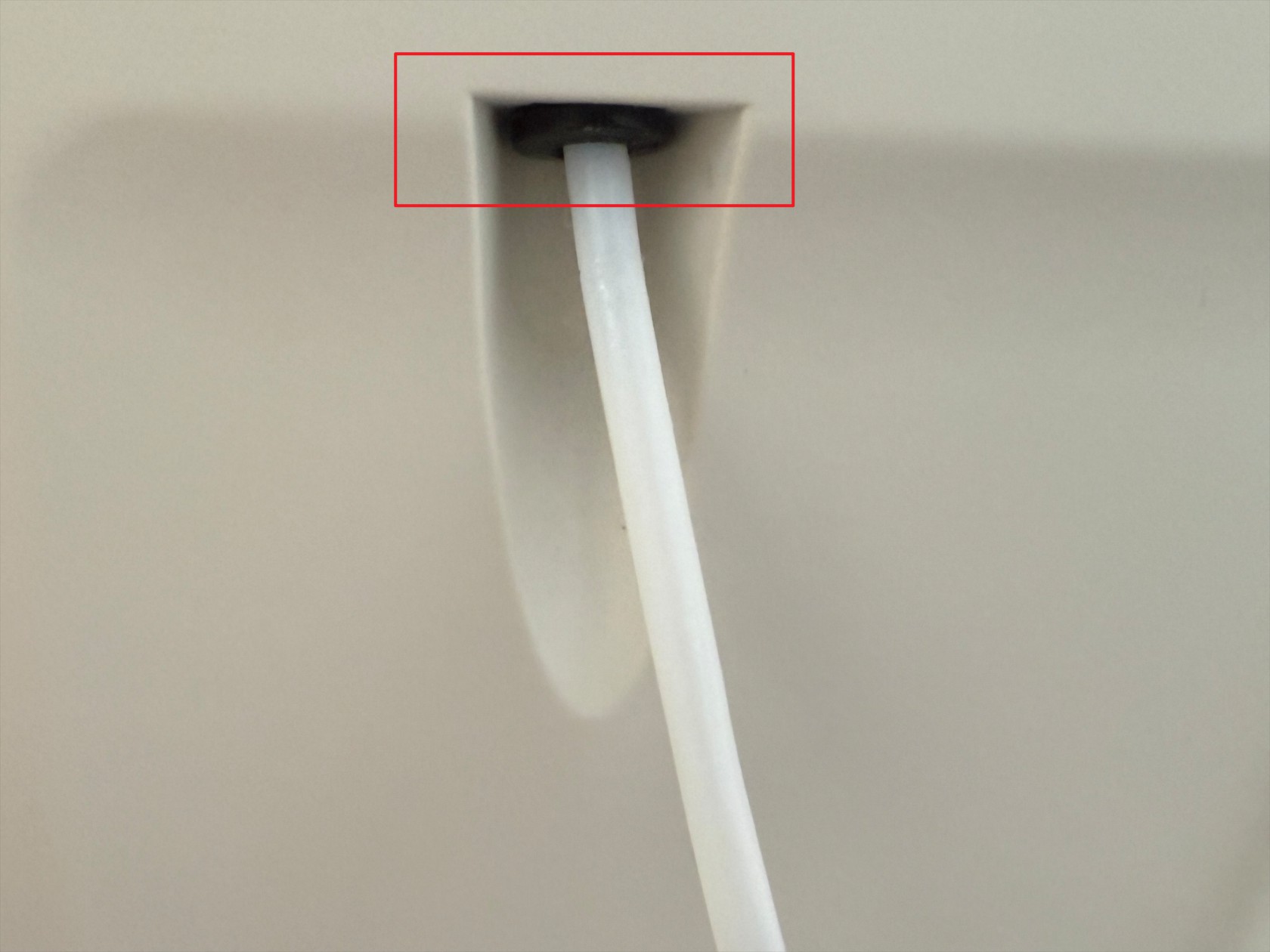 Press the quick connector at the back of the printer and remove the two 4 mm filament tubes
 Press the marked position
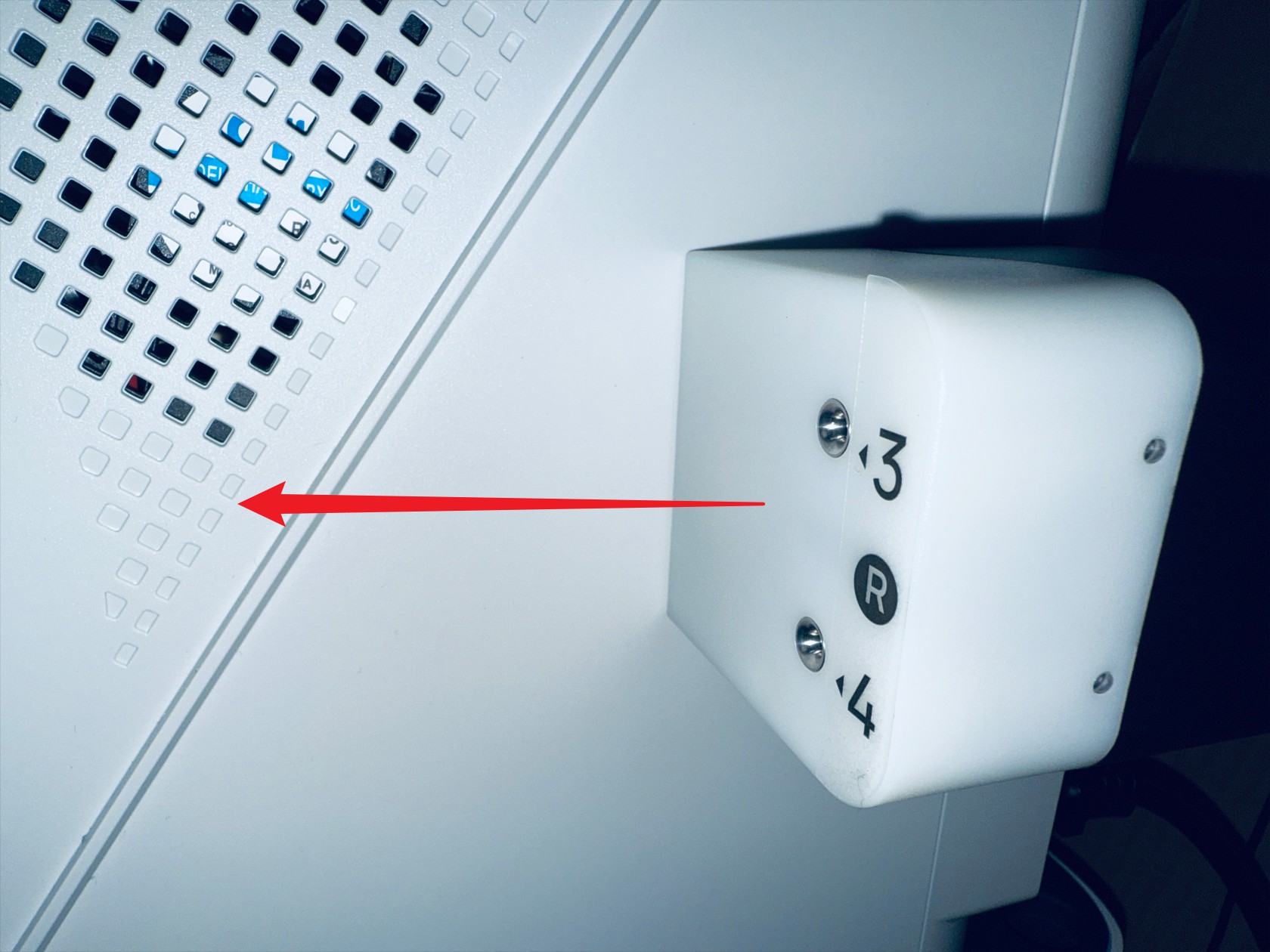 While holding pressed, move in the indicated direction and remove the feeder
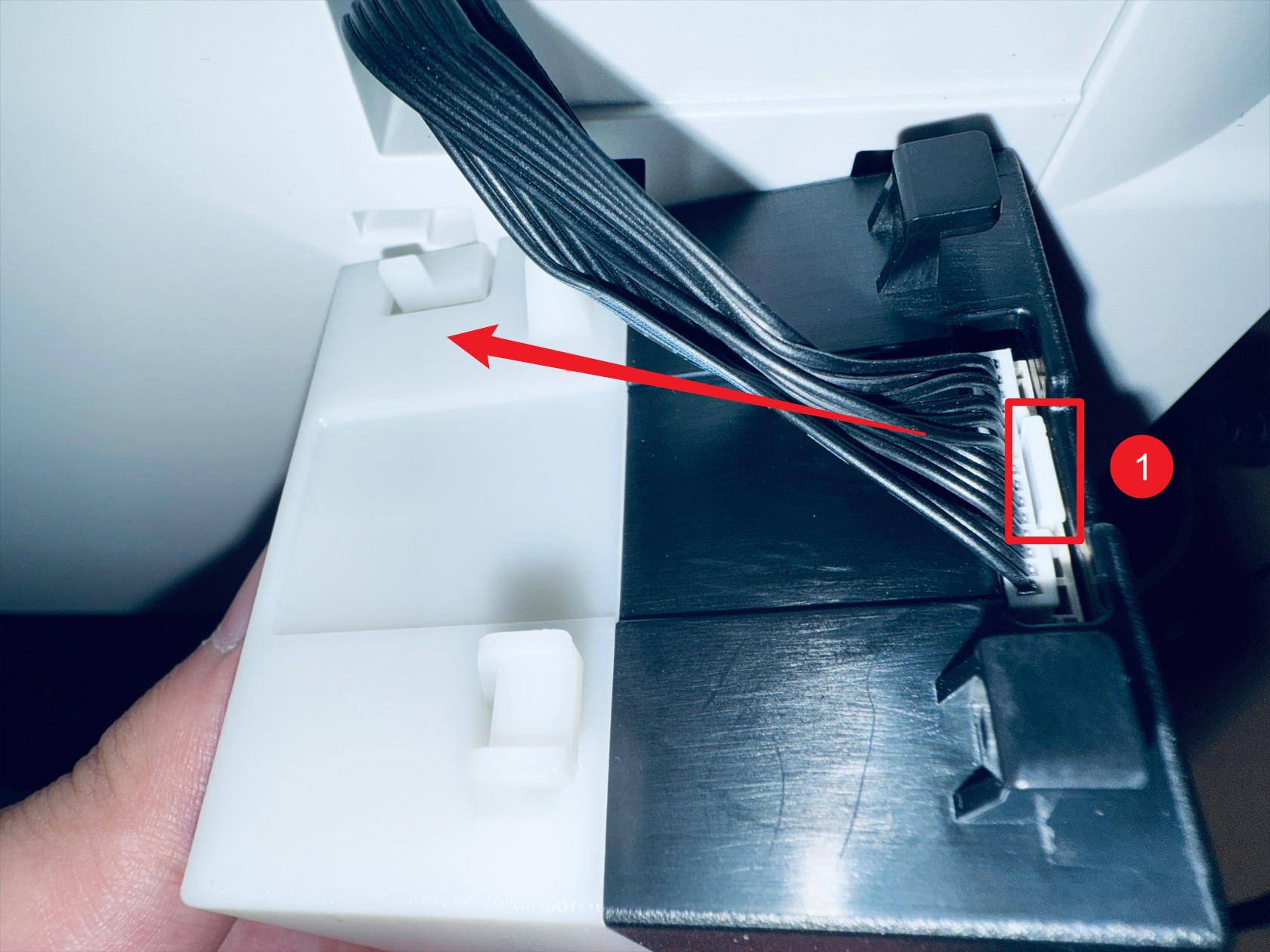 Press at point 1 and disconnect the feeder wiring
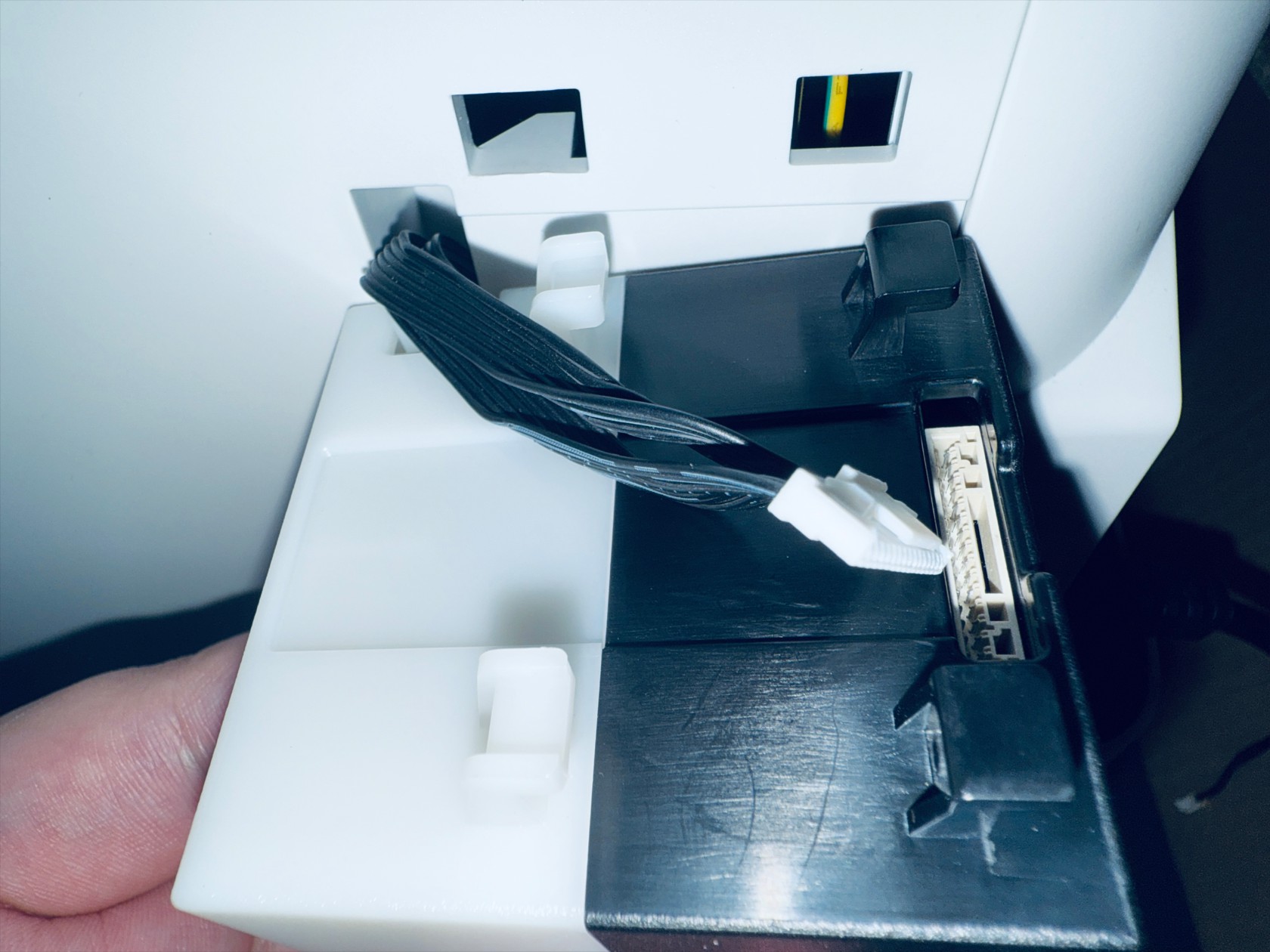 Completed
-
Use an H2.0 hex key to unscrew the 8 screws securing the 4 USB cables, and unplug the USB cables

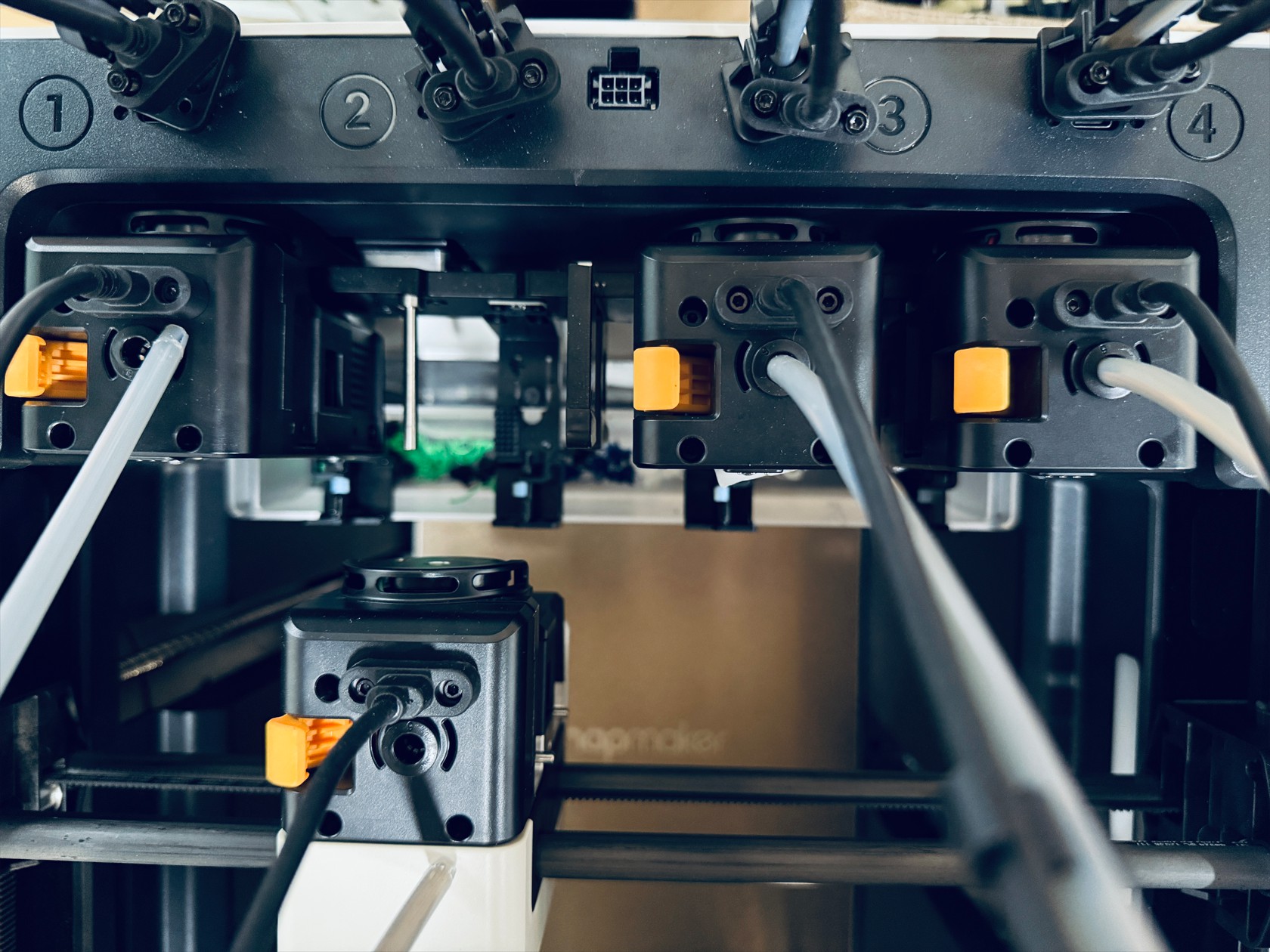
-
Remove the silicone plugs from the four corners of the top cover, then use an H2.0 hex key to unscrew the 4 screws beneath the silicone plugs
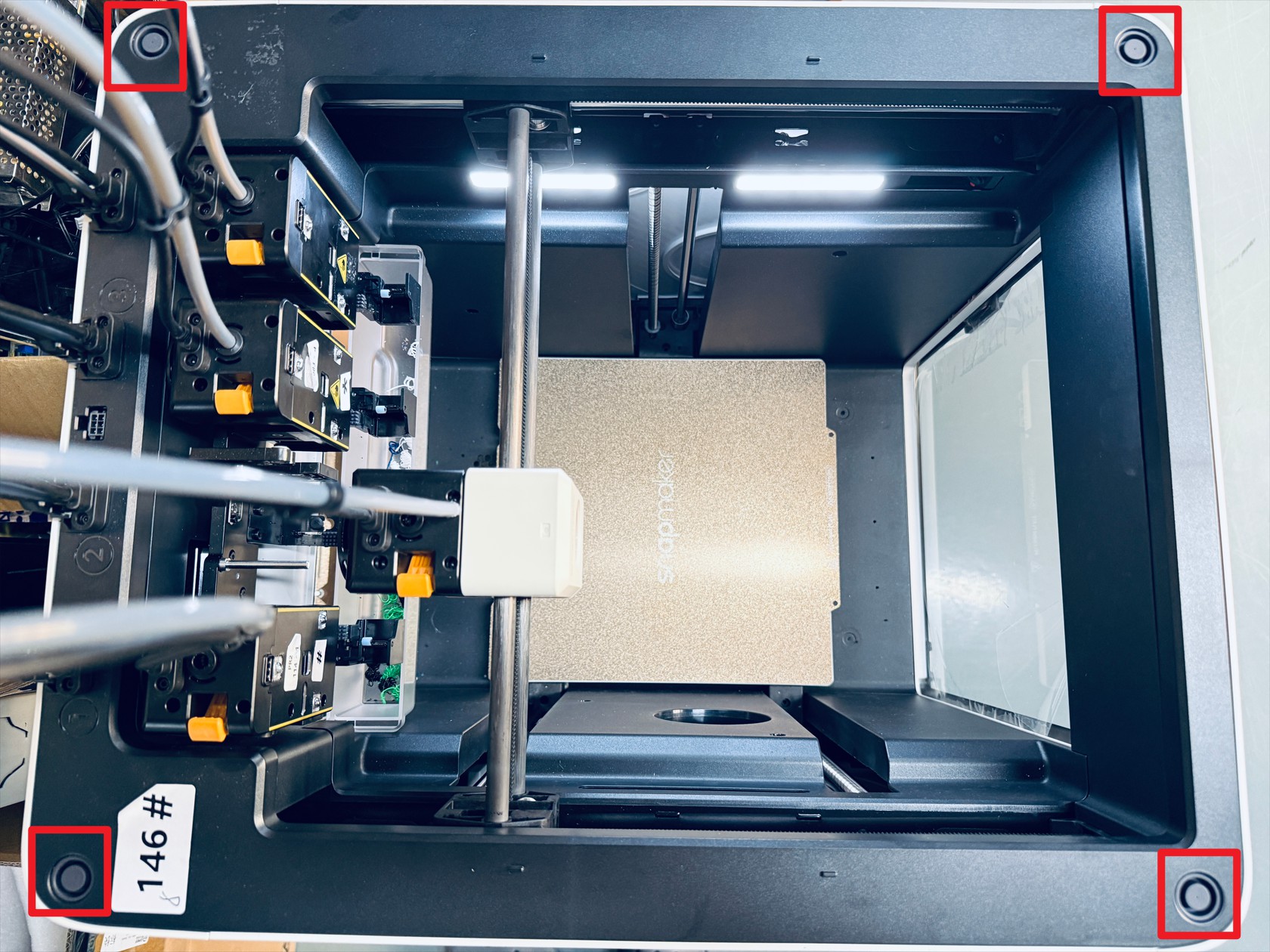
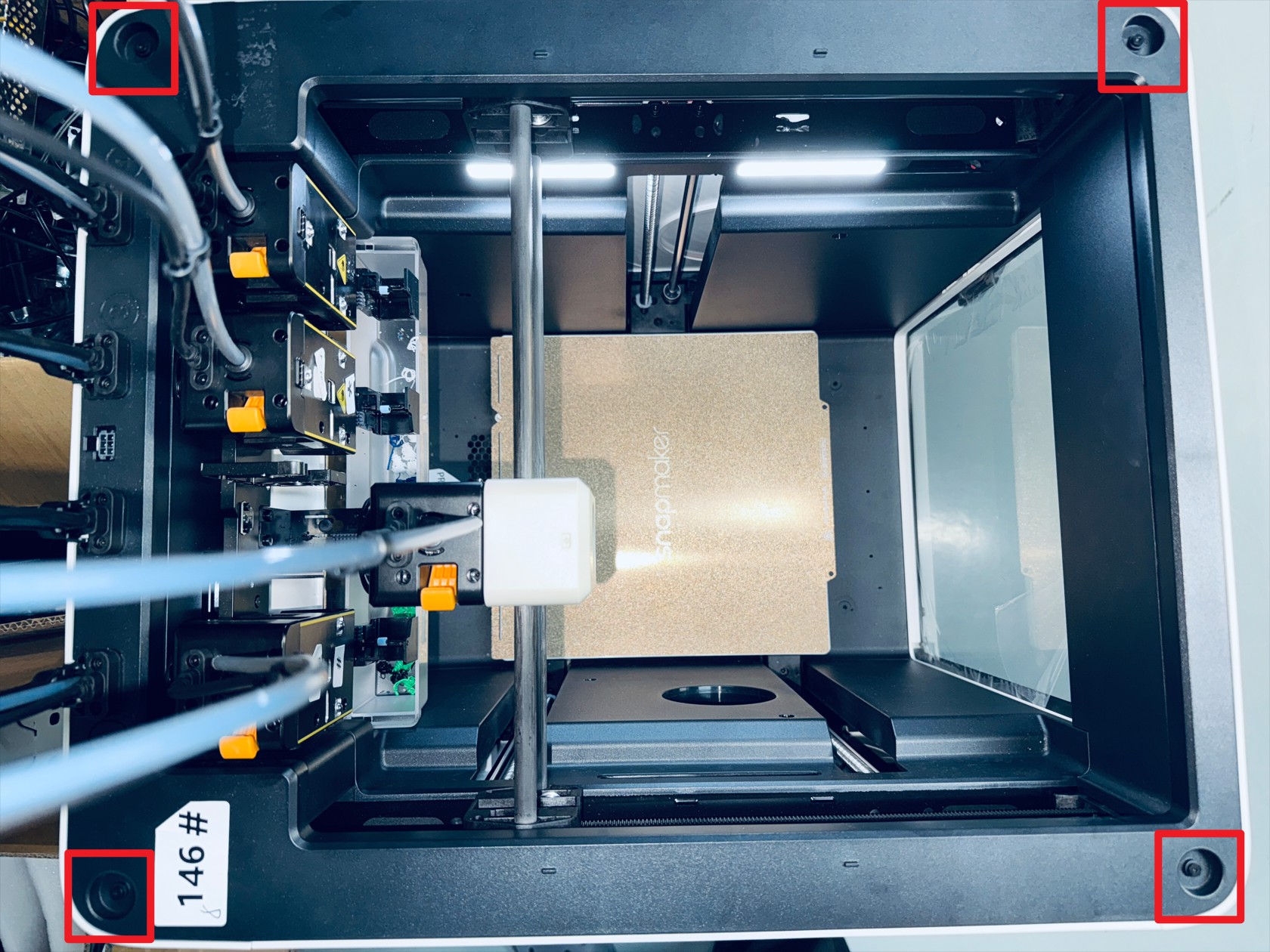
-
拆除右侧板,方法如下:
 Use an H2.0 hex key to unscrew screws 1–4
 Use an H2.0 hex key to unscrew screws 5–6 (located in the holes corresponding to the spool holder)
 Use an H2.0 hex key to unscrew screws 7–8 (right inner panel)
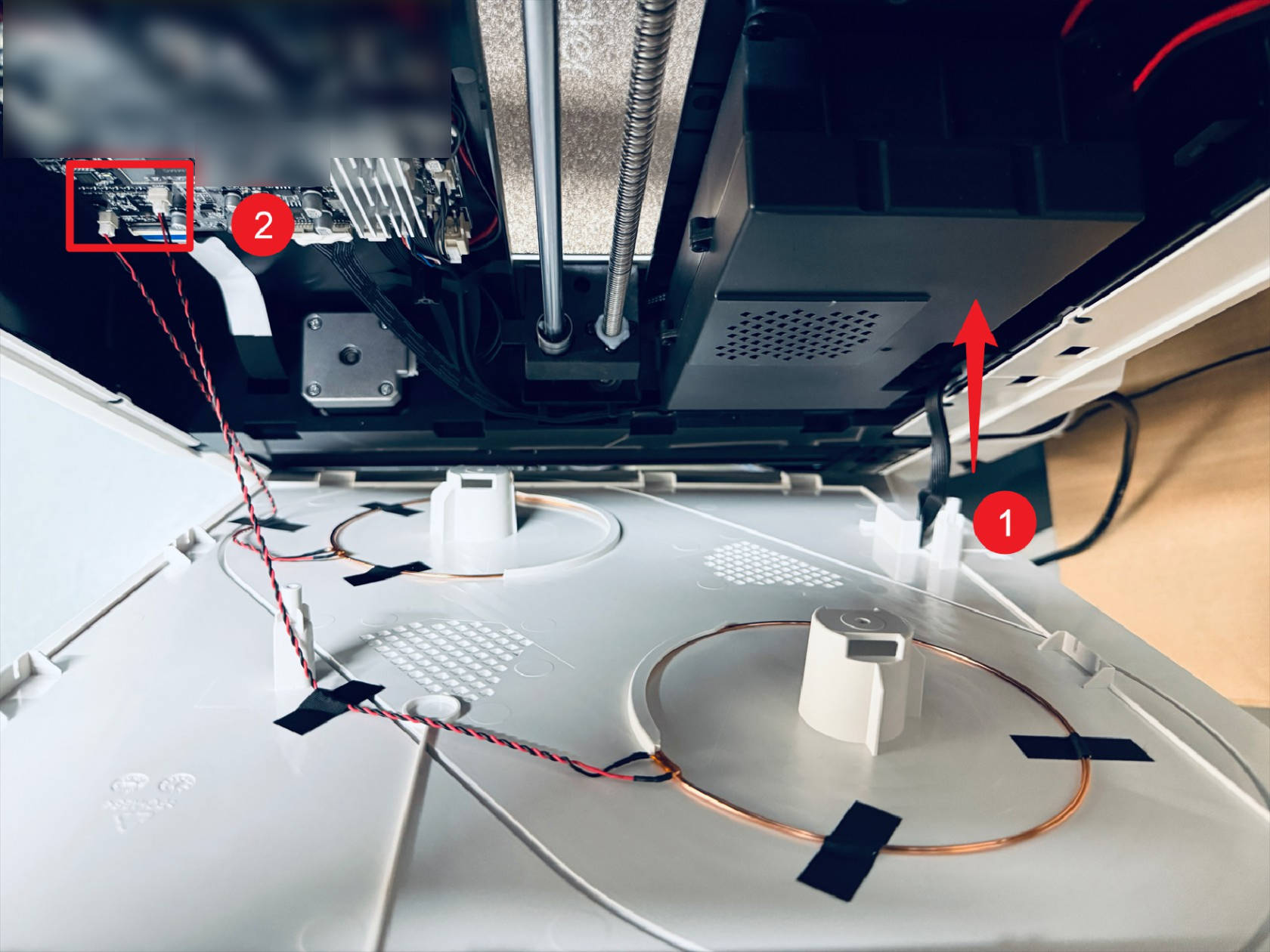 The feeder cable passes through point 1
disconnect the 2 RFID cables at point 2, then remove the right plastic panel
¶ Step 4. Replace Z motor
-
Place the printer with the back facing down, use an H2.0 hex key to remove screws 1 and 2 and the lower washer
(note: screws 1 and 2 have different specifications, separate them after removal, do not mix)

-
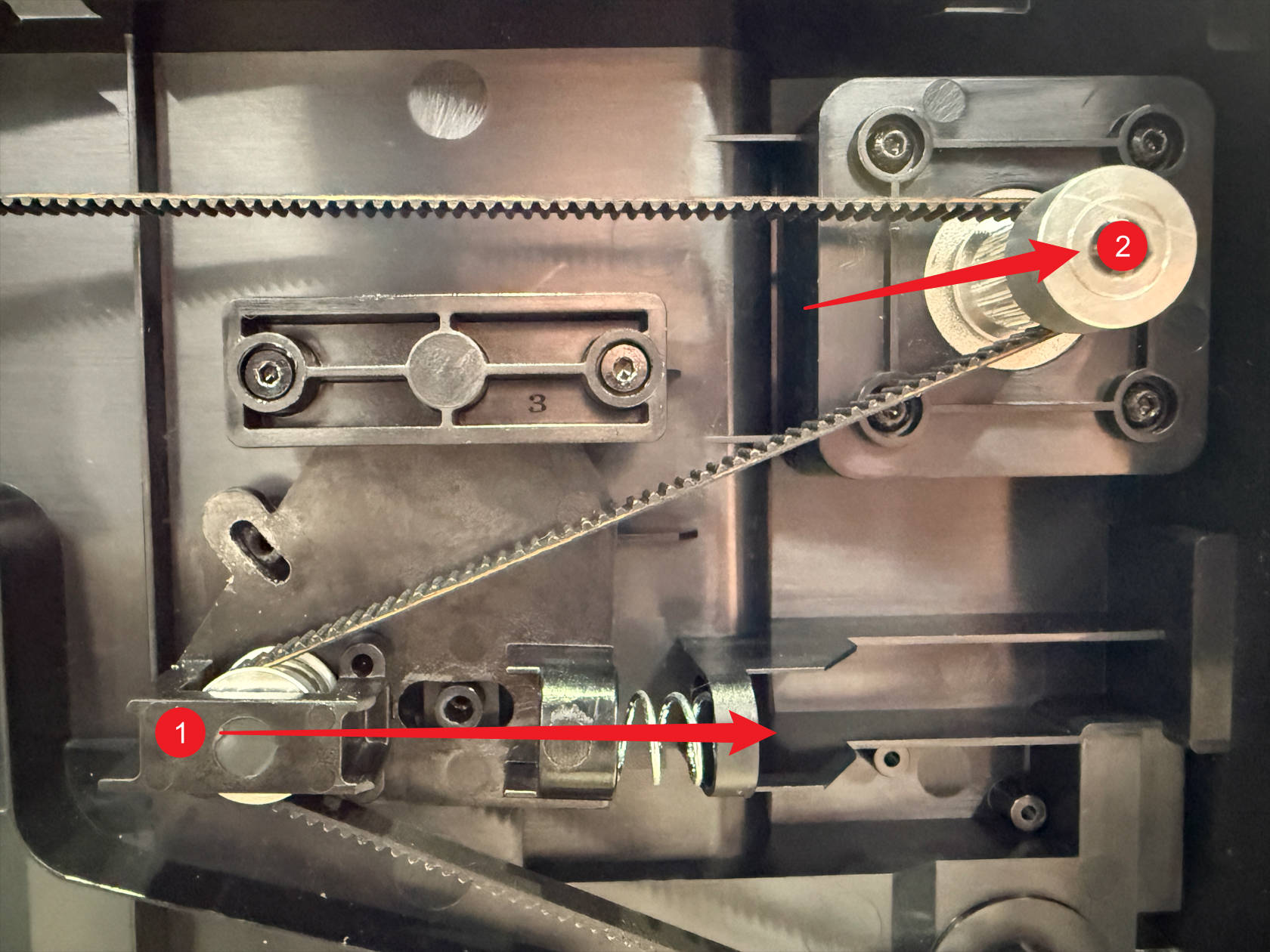
Press the timing belt tension arm in the direction shown at point 1 to release the Z-axis timing belt, then remove it from the Z motor pulley at point 2
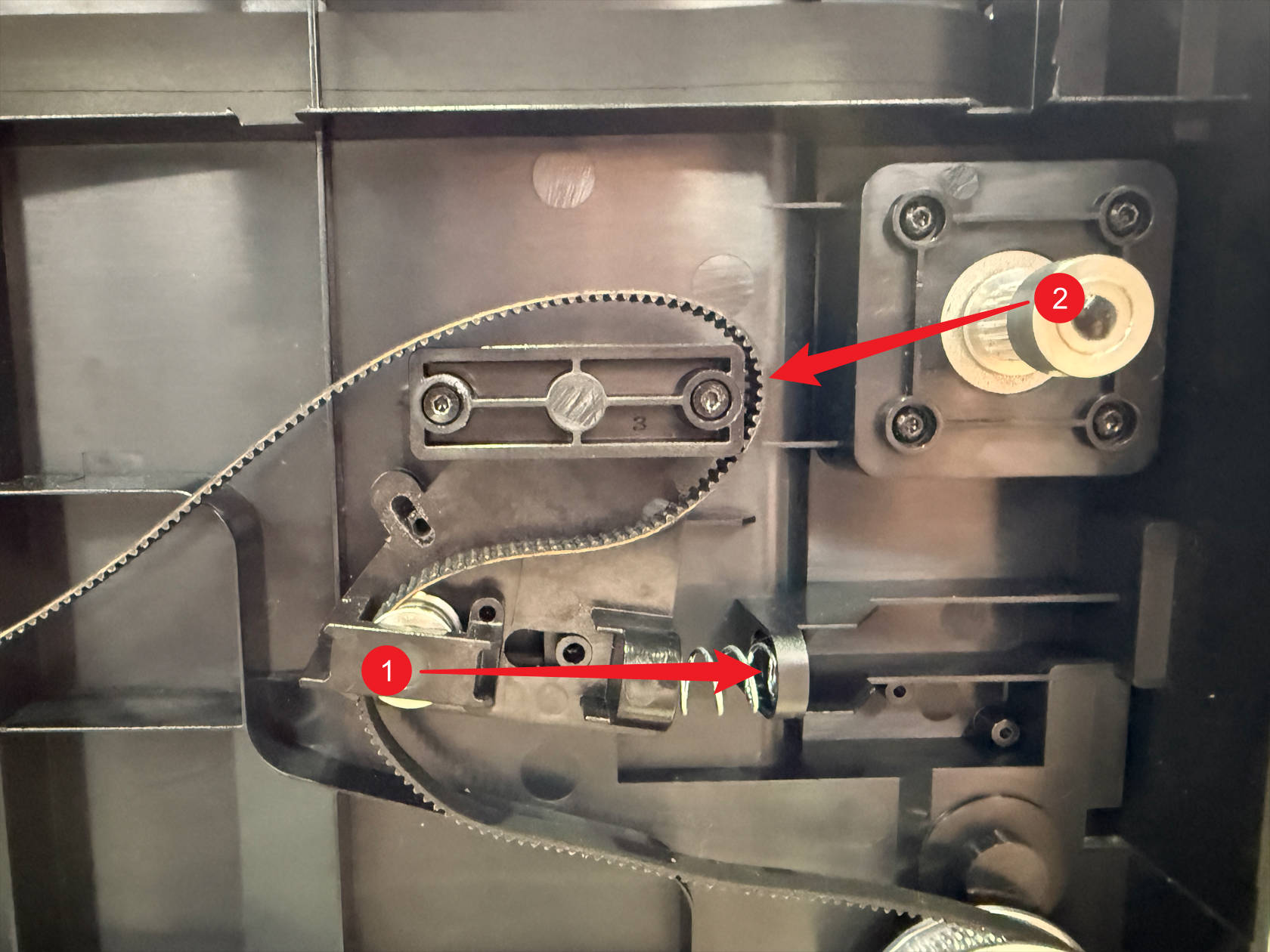
-
Use an H2.0 hex key to unscrew 4 screws

-
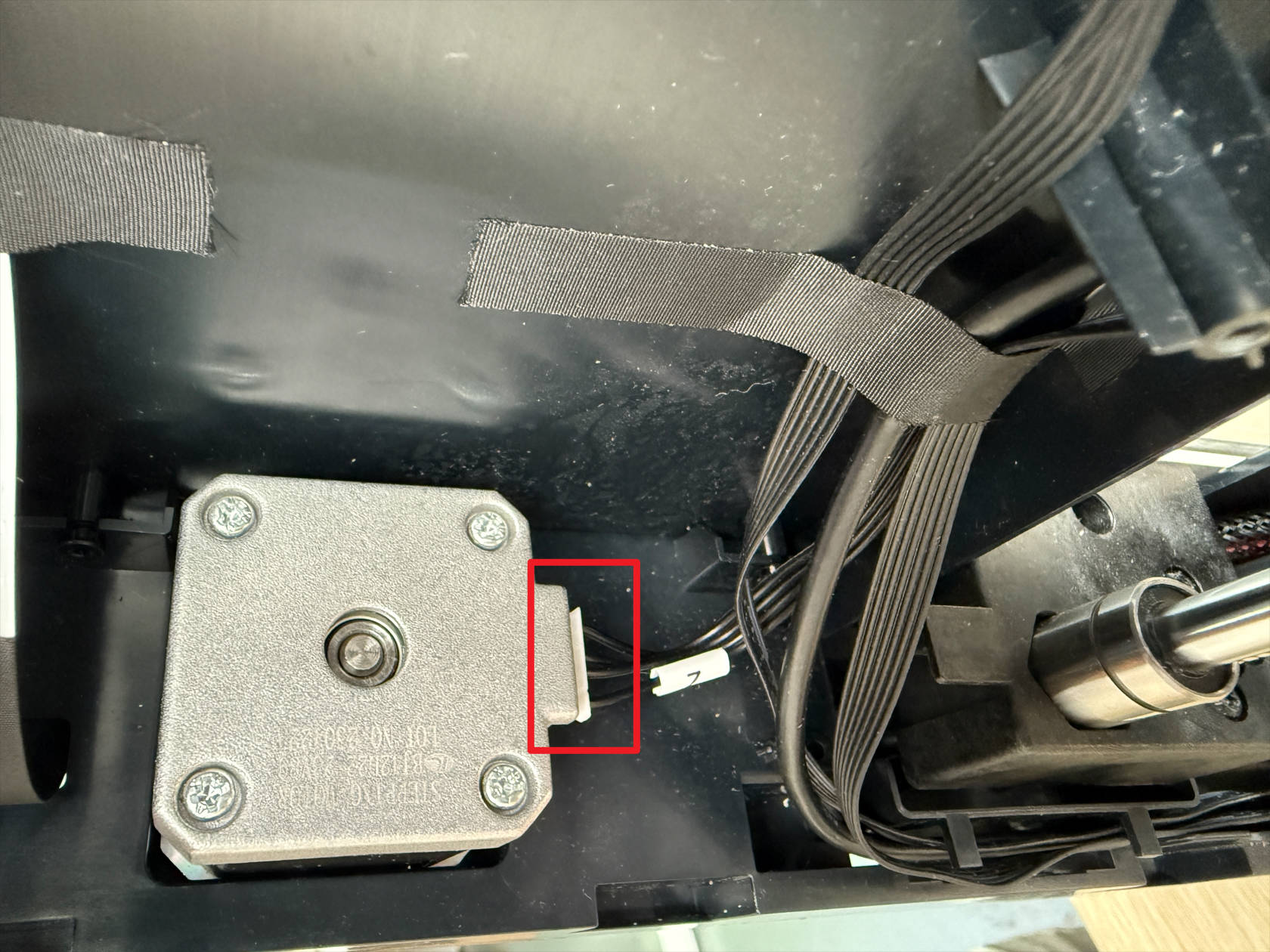
Disconnect Z motor wiring, remove the old Z motor, install the new Z motor, ensure wiring face orientation, reconnect the wiring
-
Use an H2.0 hex key to tighten the 4 screws
-
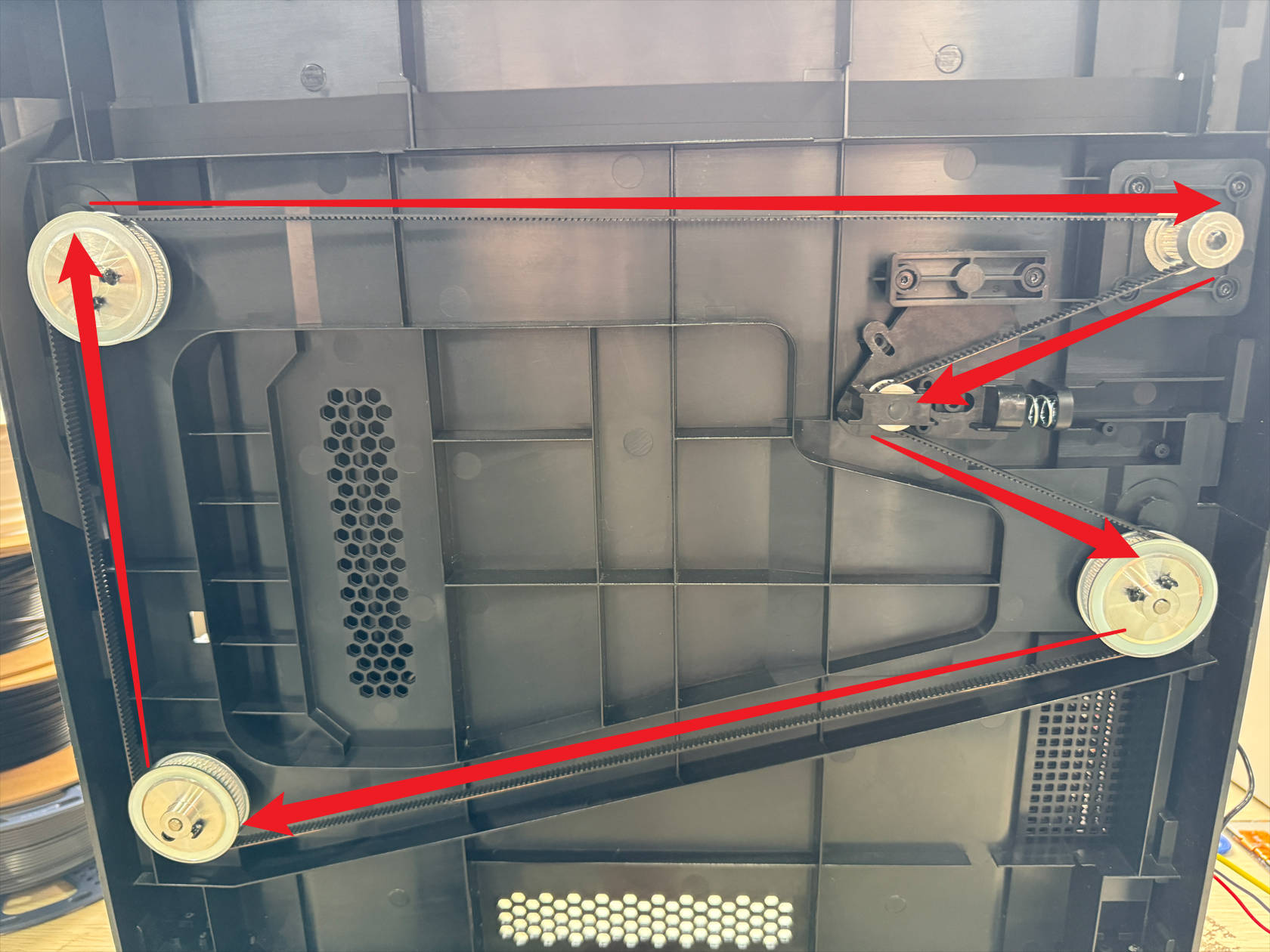
Press the timing belt tension arm at point 1, route the Z-axis timing belt over the 2 Z motor pulleys, after installation the timing belt should be tensioned and routed over a total of 4 pulleys
Note: When routing the timing belt around the timing pulley, the pulley may rotate. Turn the timing pulley fully clockwise until it stops, then keep it in position while routing the belt to prevent it from rotating counterclockwise.
-
Use an H2.0 hex key to tighten the 2 screws
-
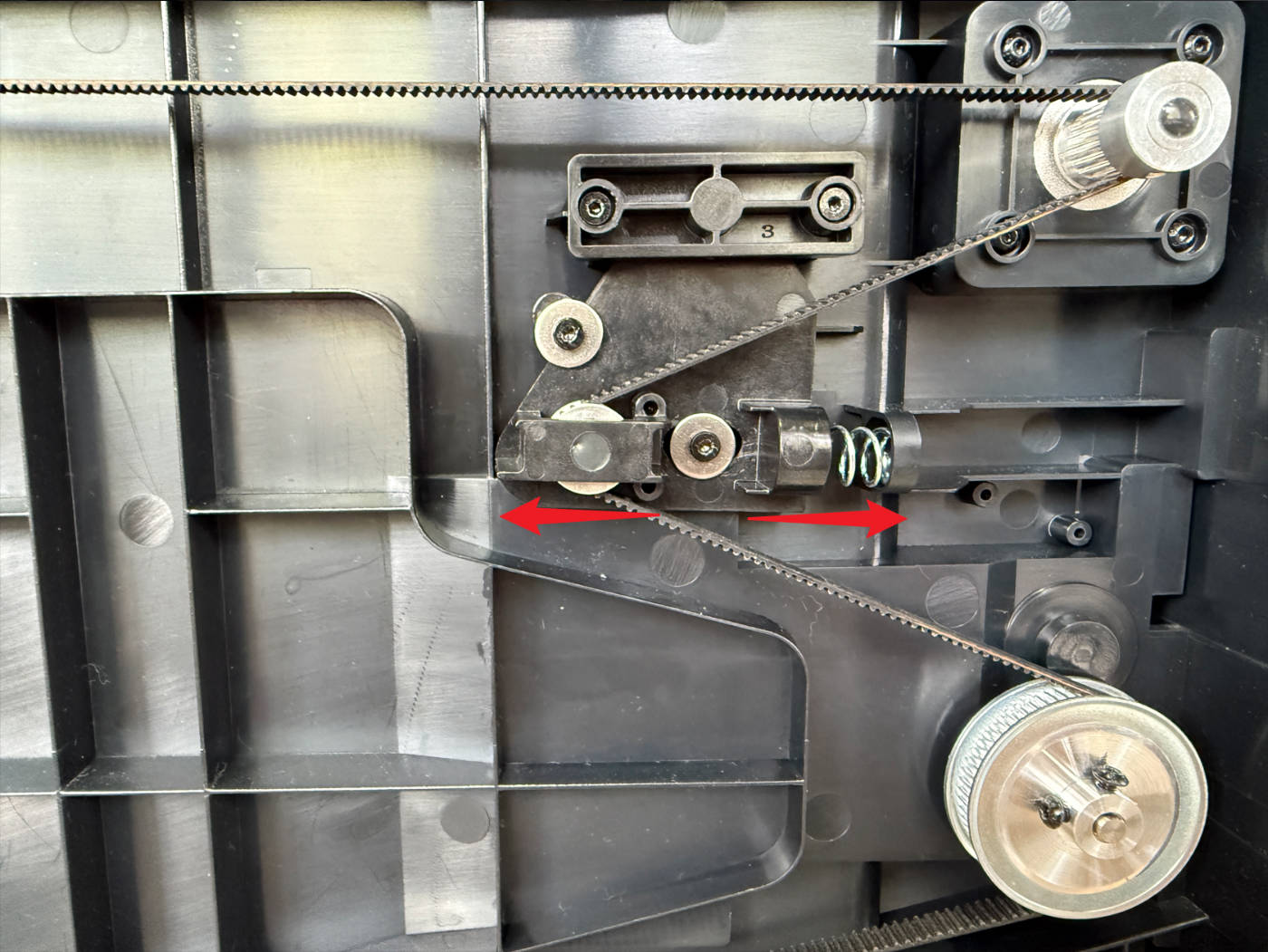
Adjust timing belt tension, loosen screws 1 and 2 until the tension arm can move left and right, the compression spring will automatically adjust the timing belt tension, then tighten screws 1 and 2
¶ Step 5. Install the printer casing
-
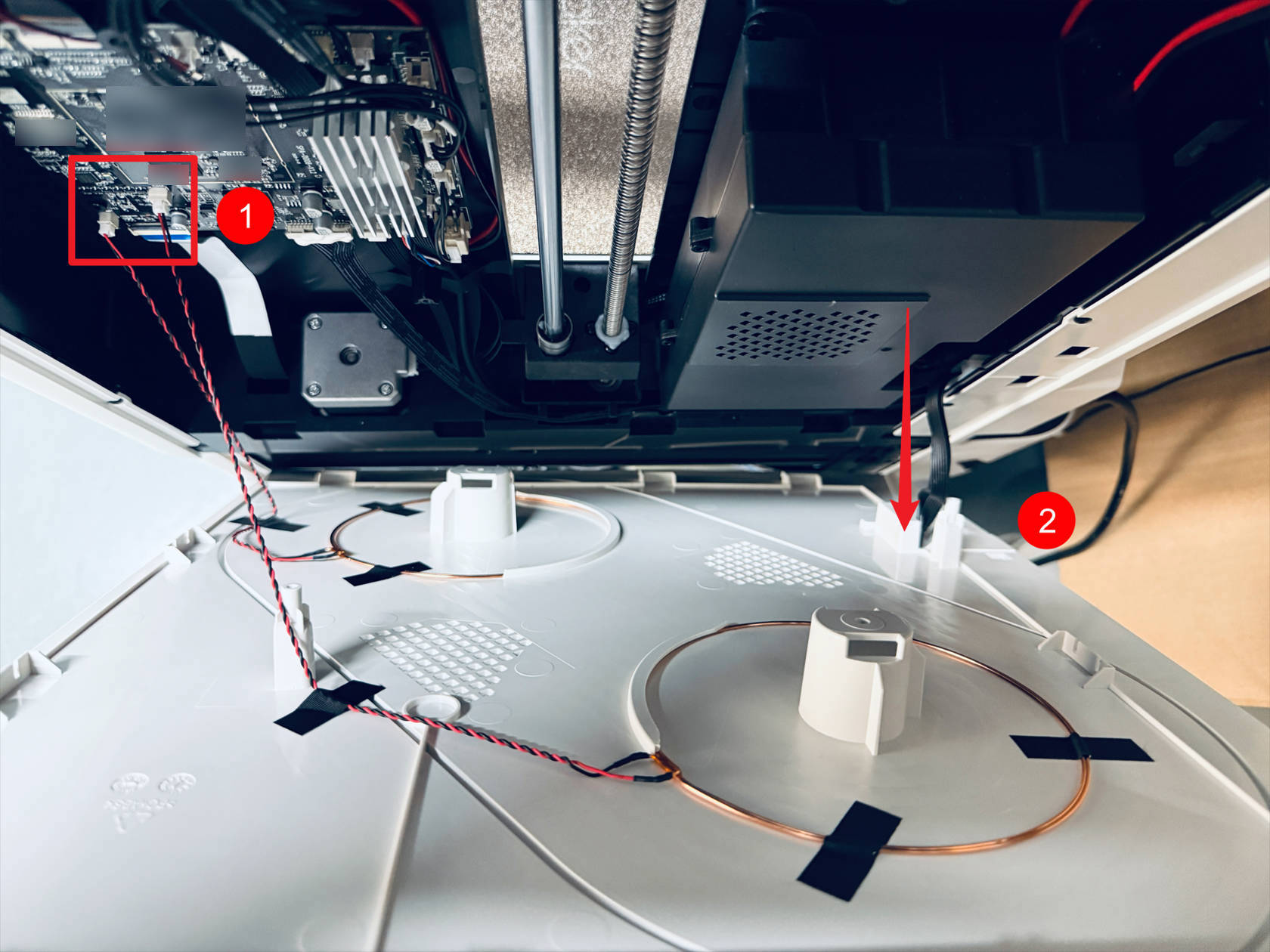
Restore the RFID cable at point 1, pass the filament feeder cable through point 2, install the right plastic panel

-
Use an H2.0 hex key to tighten 8 screws on the right plastic panel
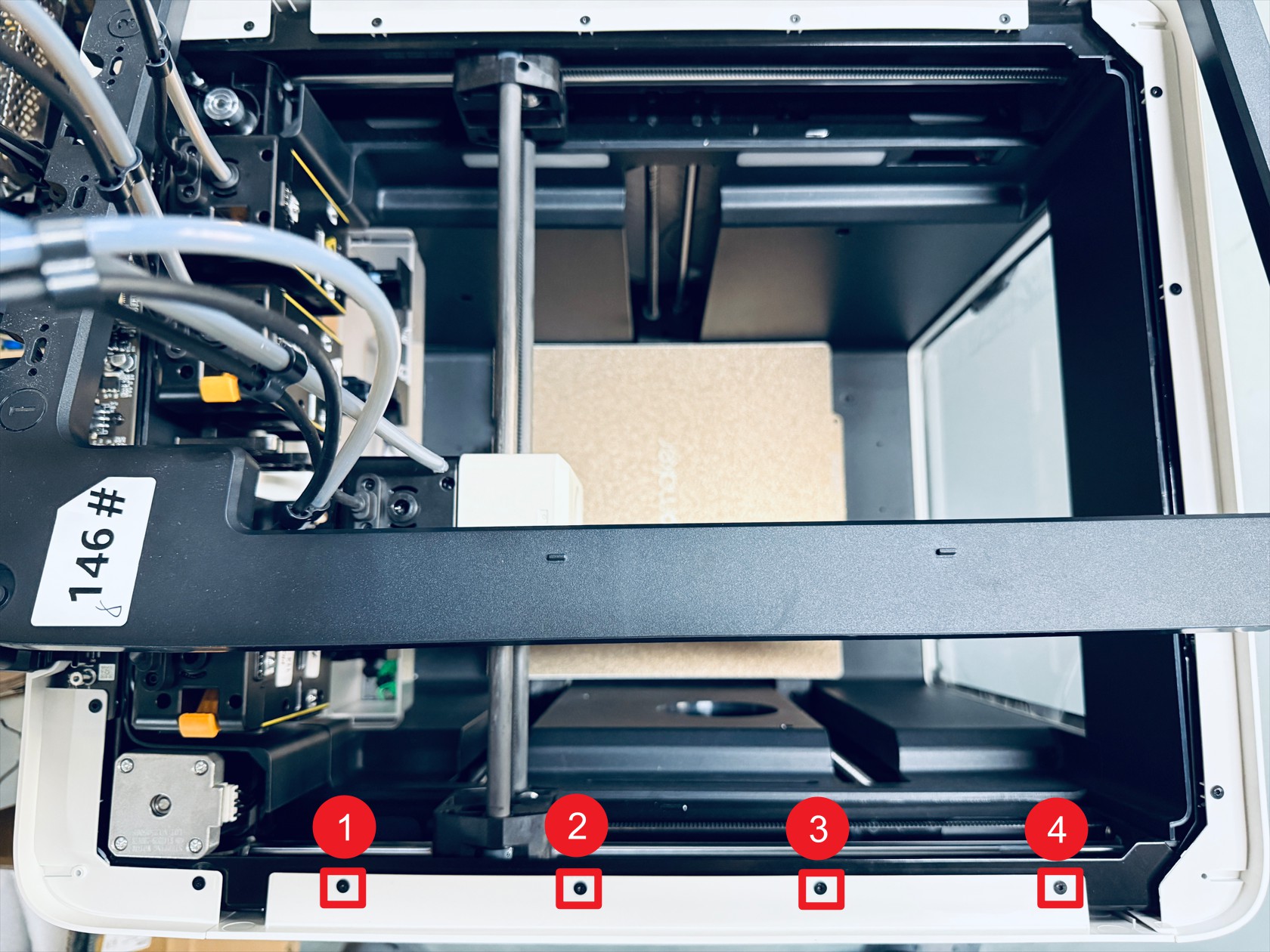 Tighten screws 1—4
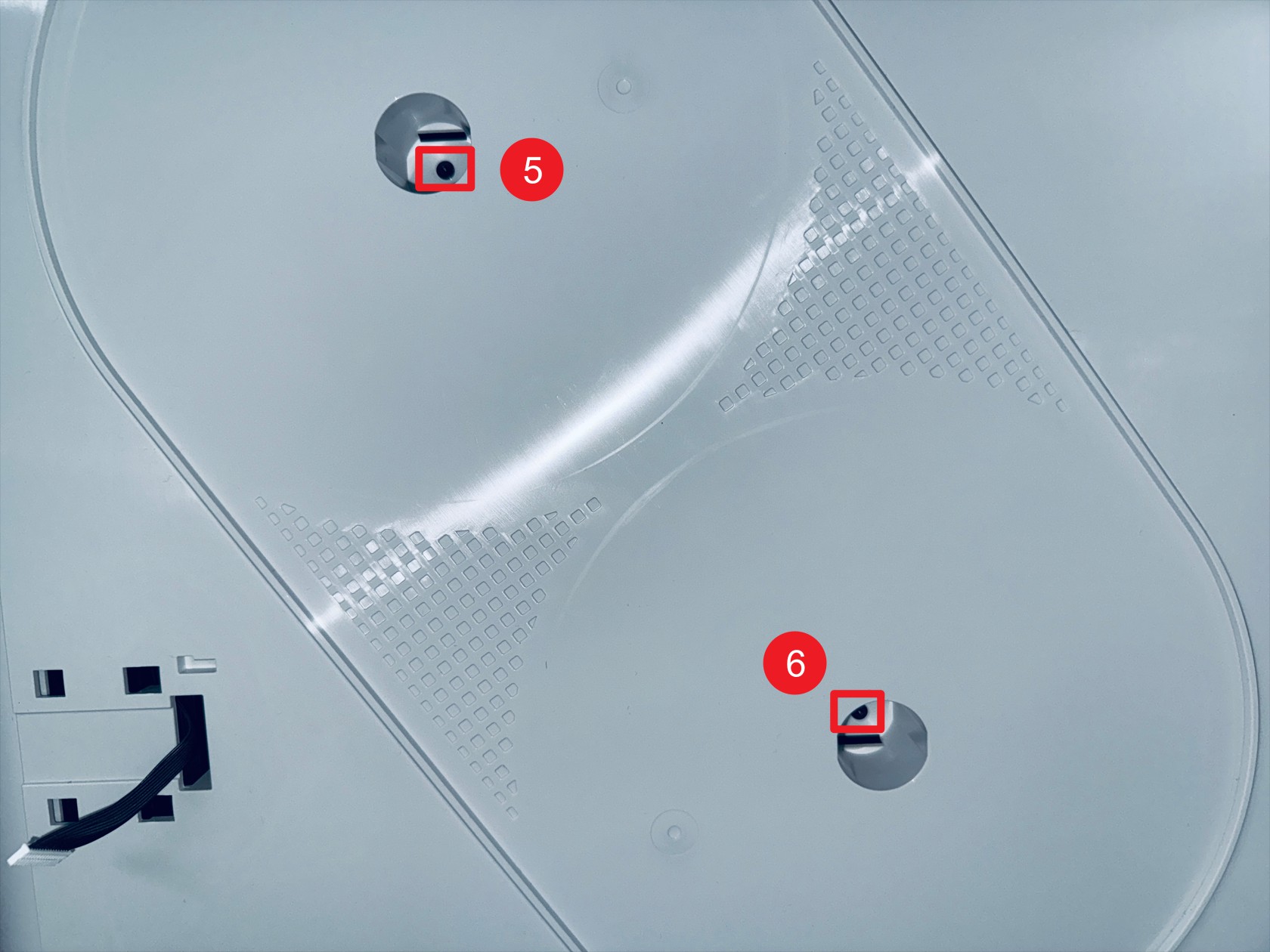 Tighten screws 5—6 in the holes corresponding to the filament holder
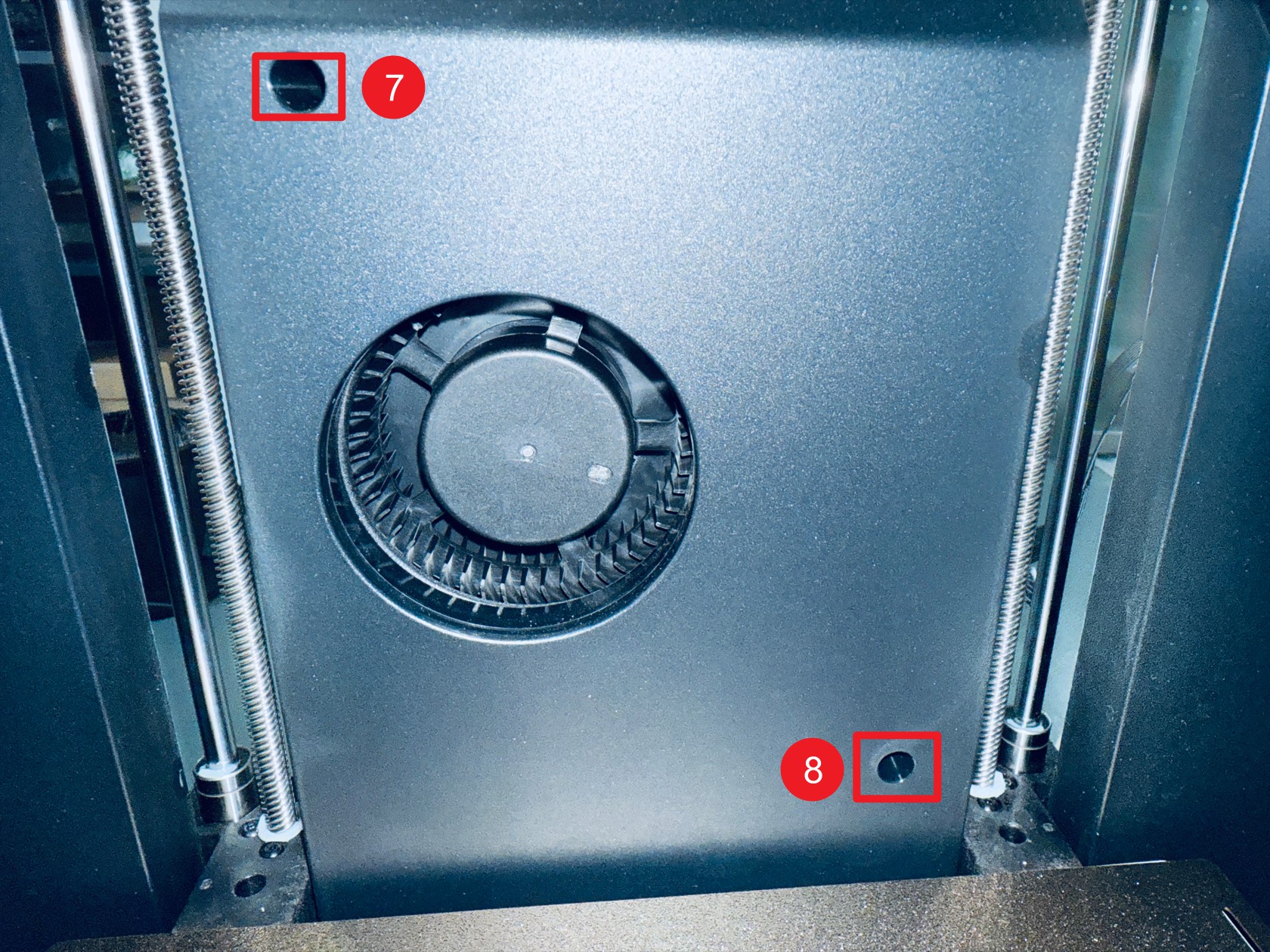 Tighten screws 7—8 on the right inner panel
-
Install the top cover panel, use an H2.0 hex key to tighten 4 screws, and reinstall the silicone plugs
-
The installation method for the right-side filament feeder and filament holder is as follows
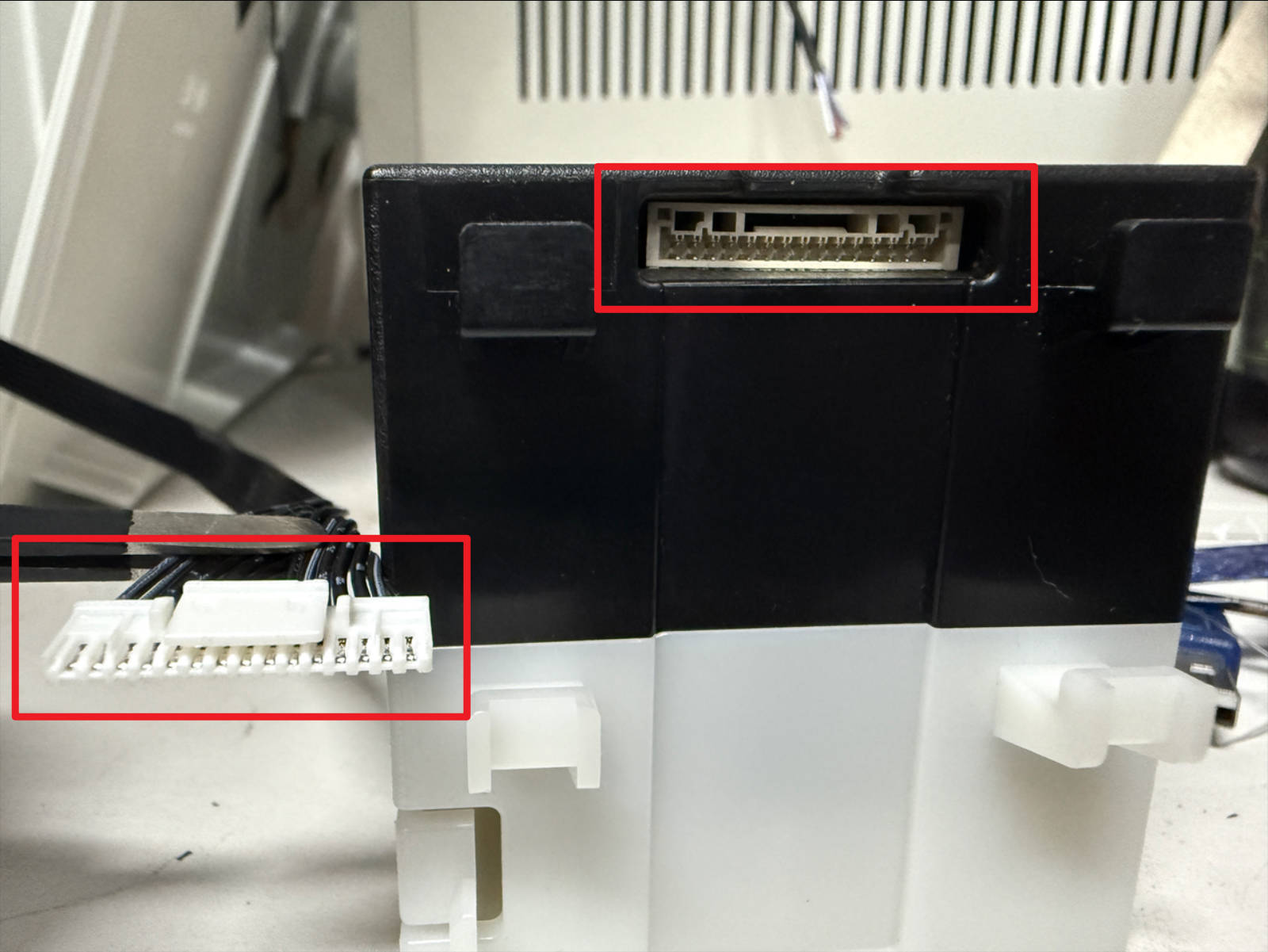 Orient the cable terminals and connectors as shown
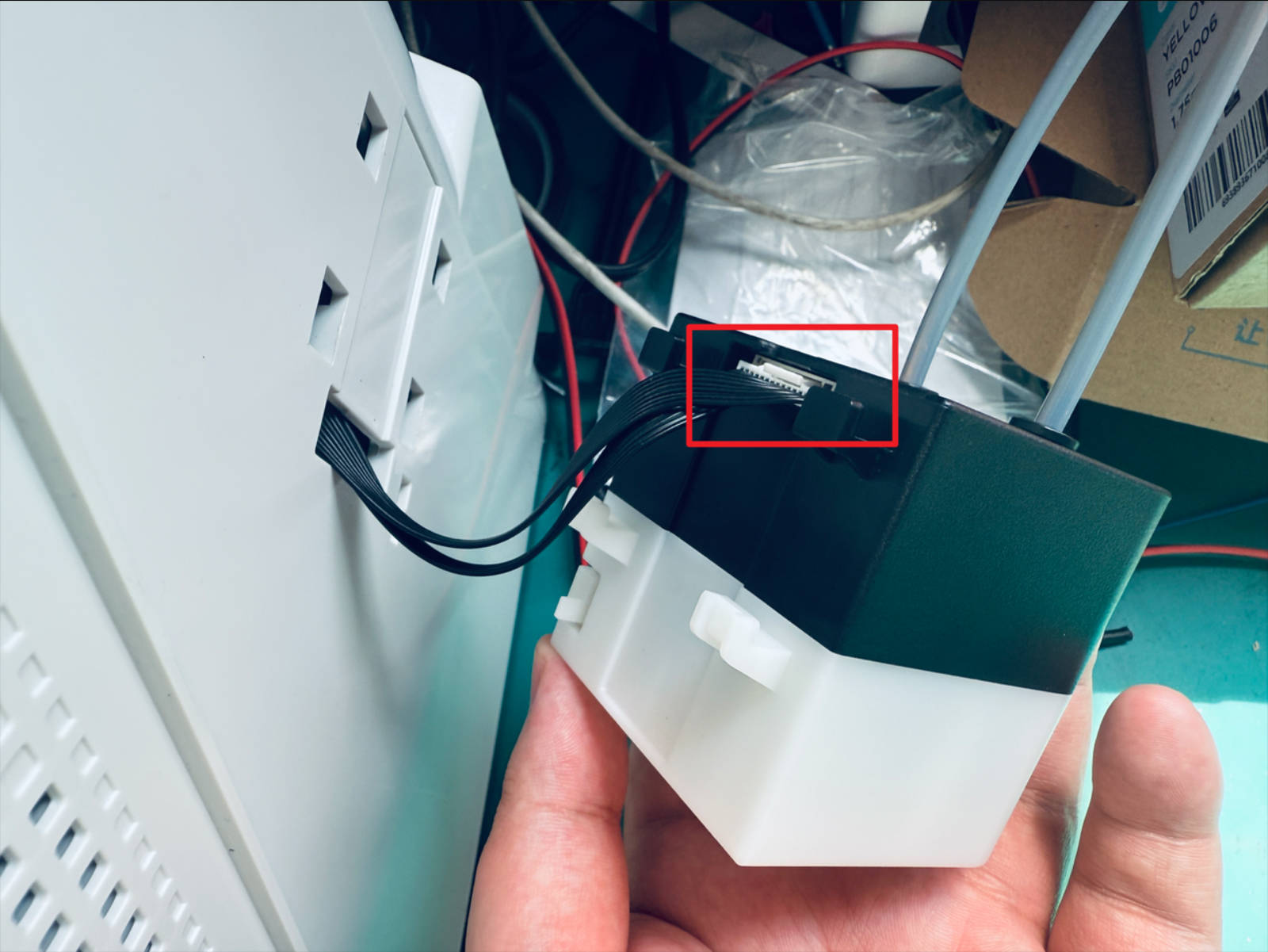 Restore the filament feeder wiring
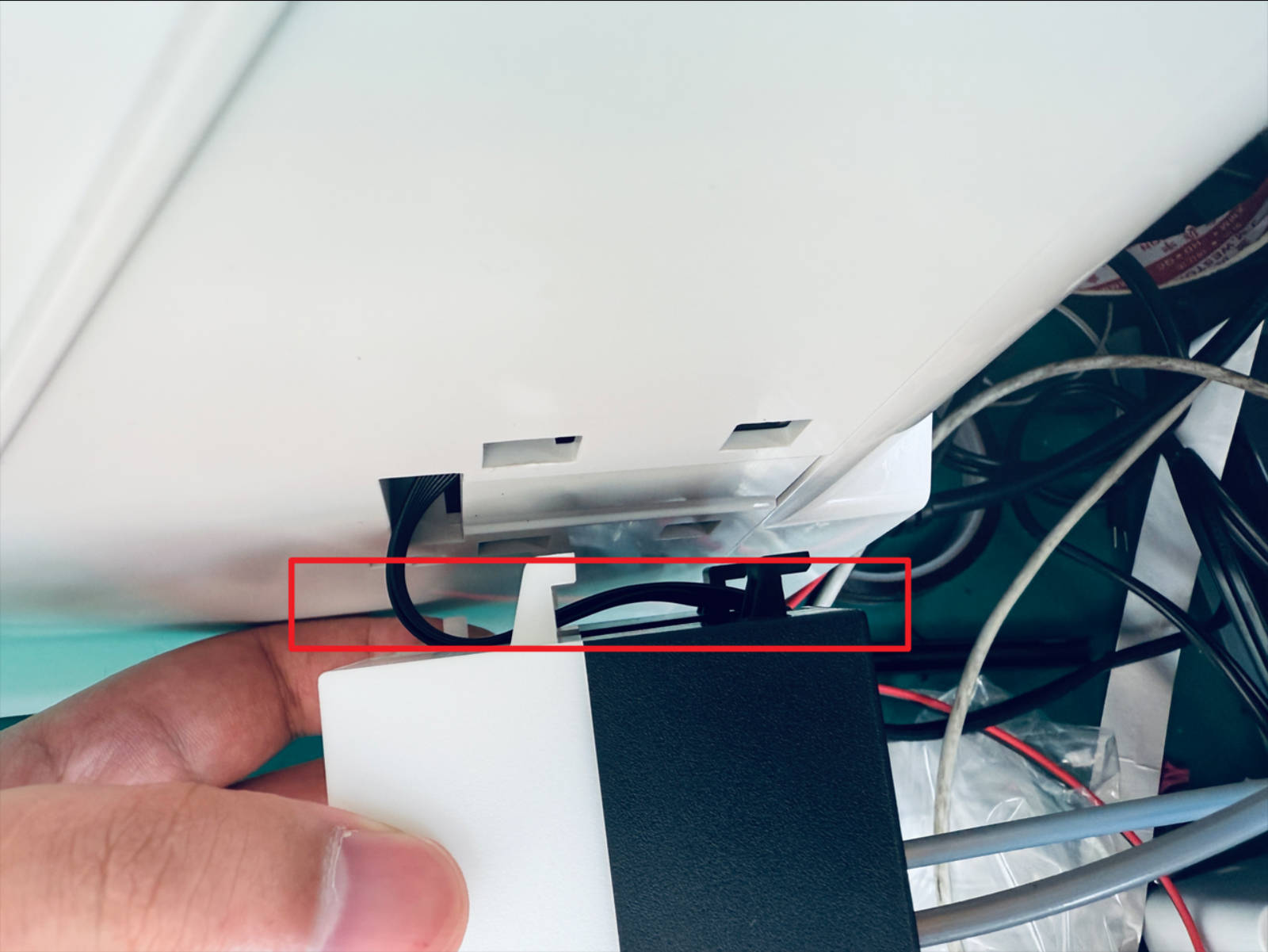 Route the cables as shown
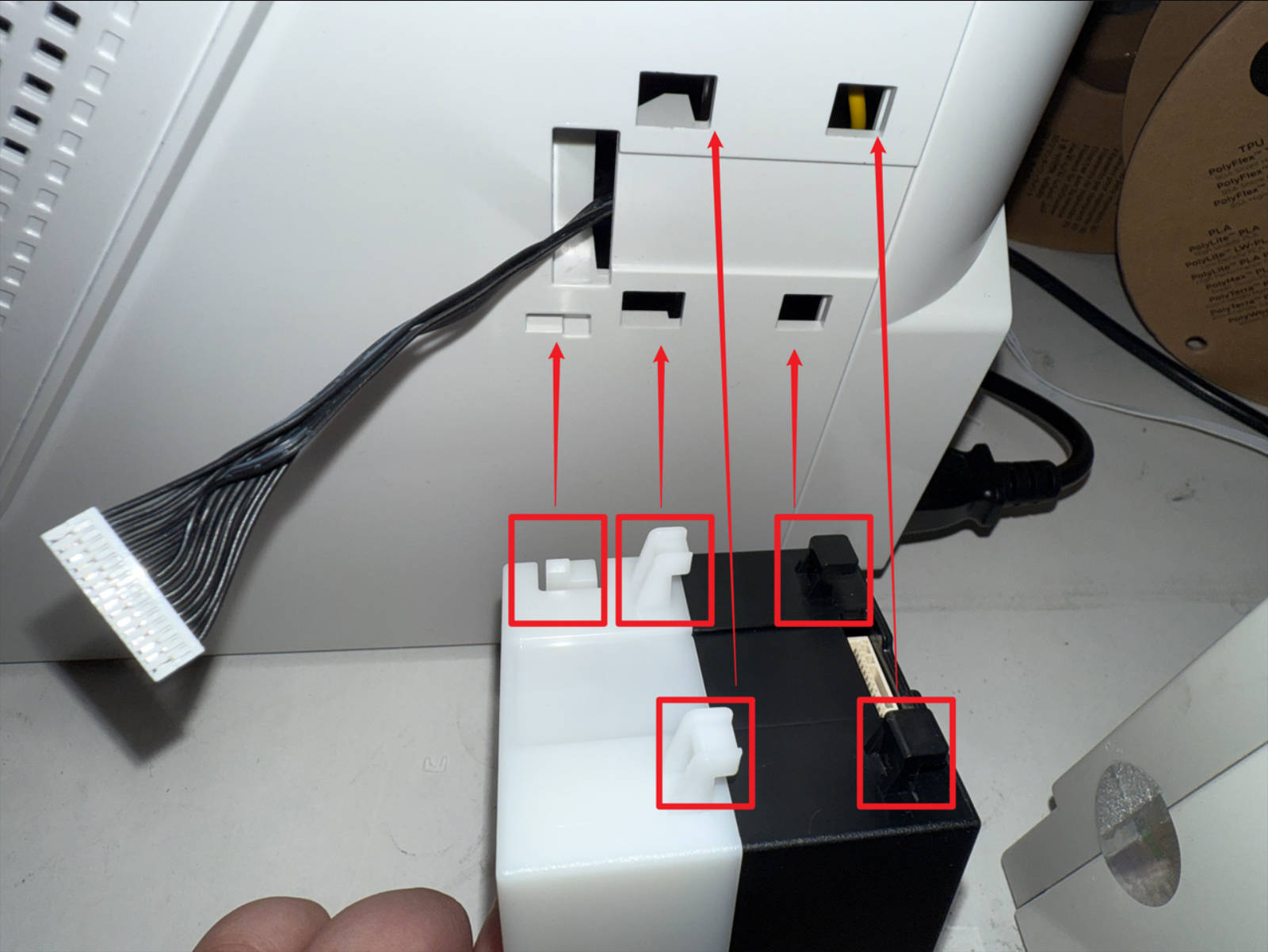 Align the clips to the corresponding positions as shown, install the filament feeder
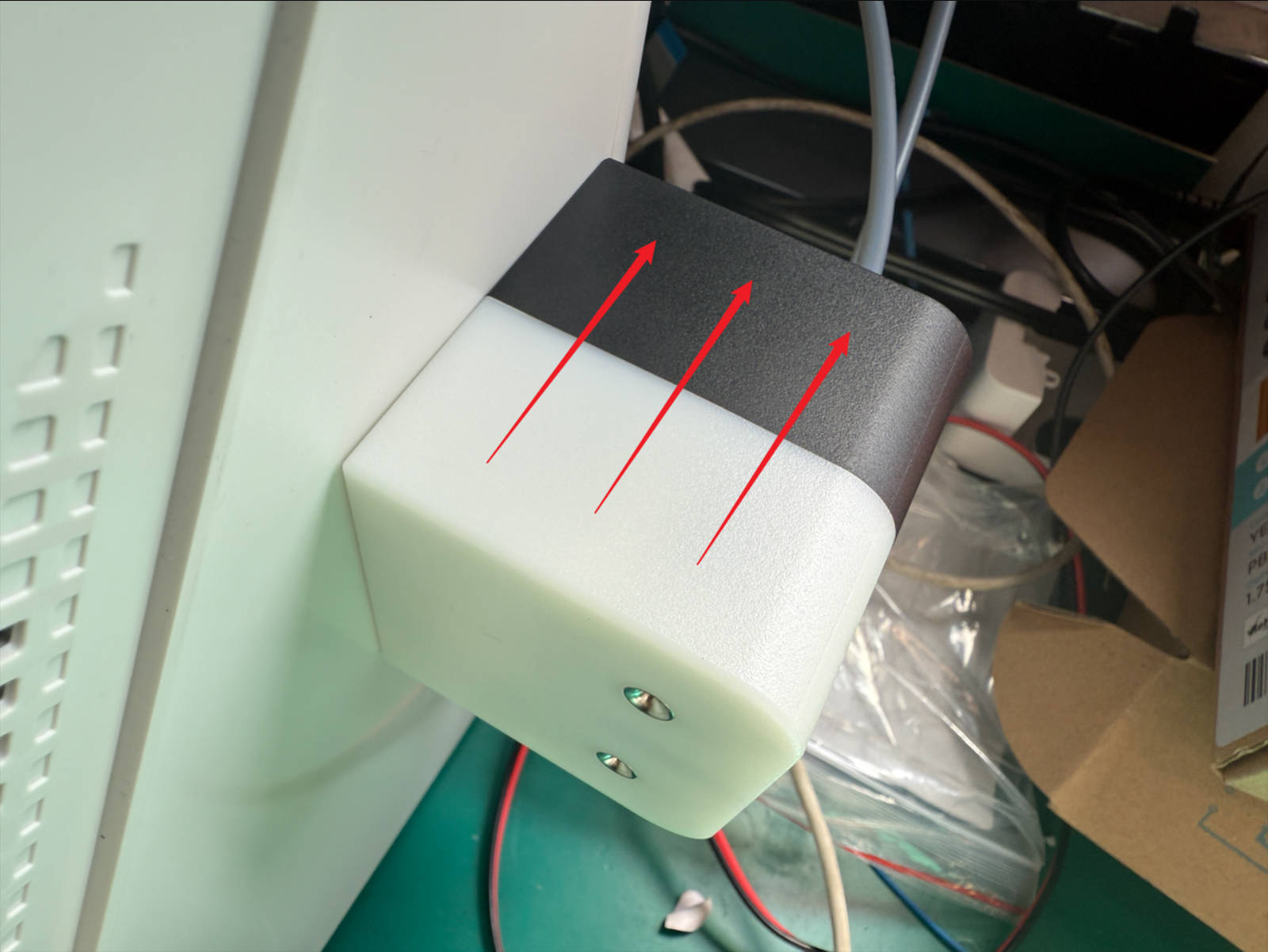 Push the filament feeder into place following the illustrated direction
Connect the two 4 mm filament tubes from the filament feeder to the quick connectors at the back of the machine
Push the filament feeder into place following the illustrated direction
Connect the two 4 mm filament tubes from the filament feeder to the quick connectors at the back of the machine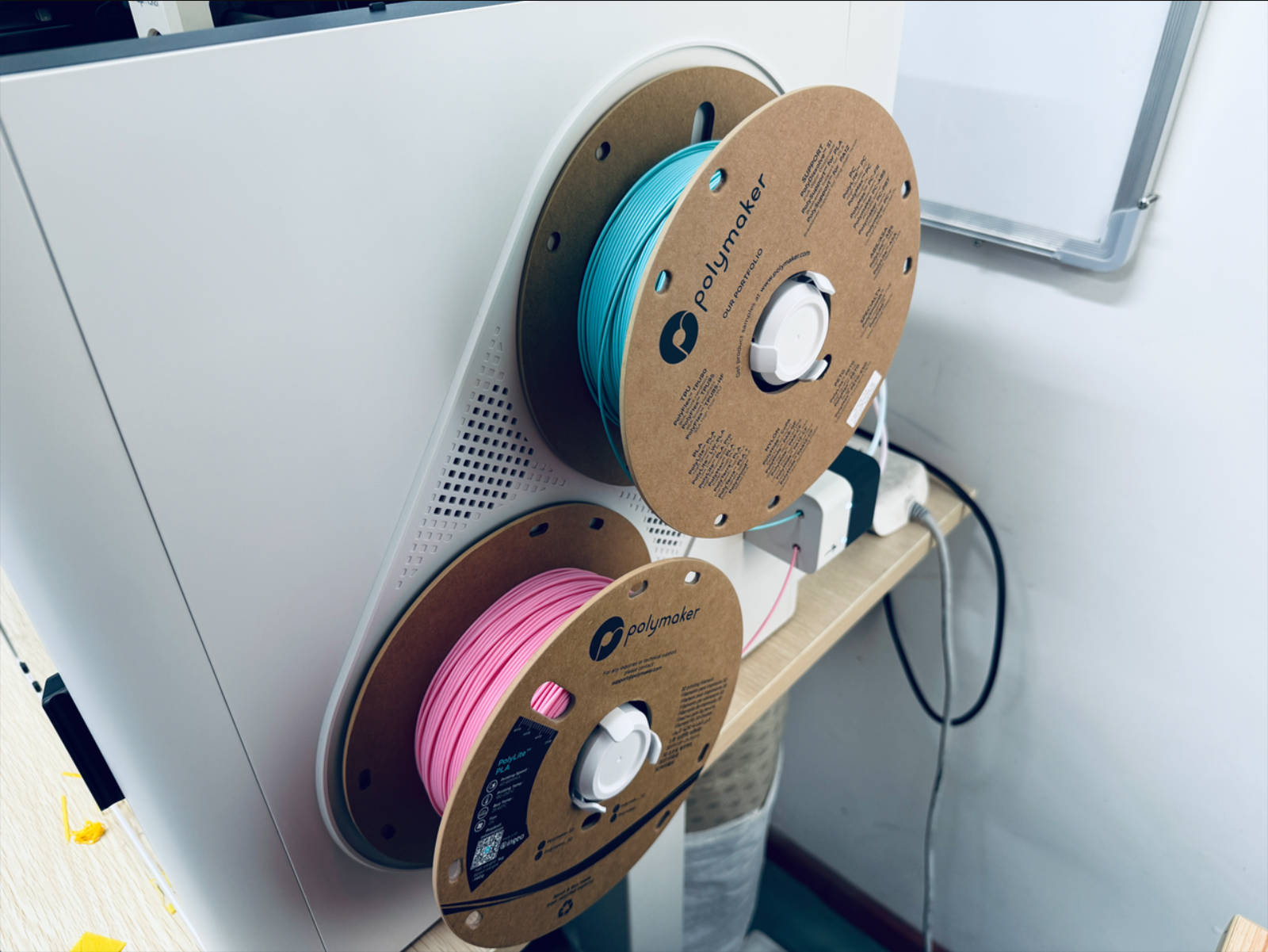 Install the spools
-
Reconnect all USB cables and tighten 8 fixing screws with a H2.0 hex key
-
Use H2.0 hex key wrench to remove the 3 ST3×10 hex thin head flat tail self-tapping screws from the indicated holes
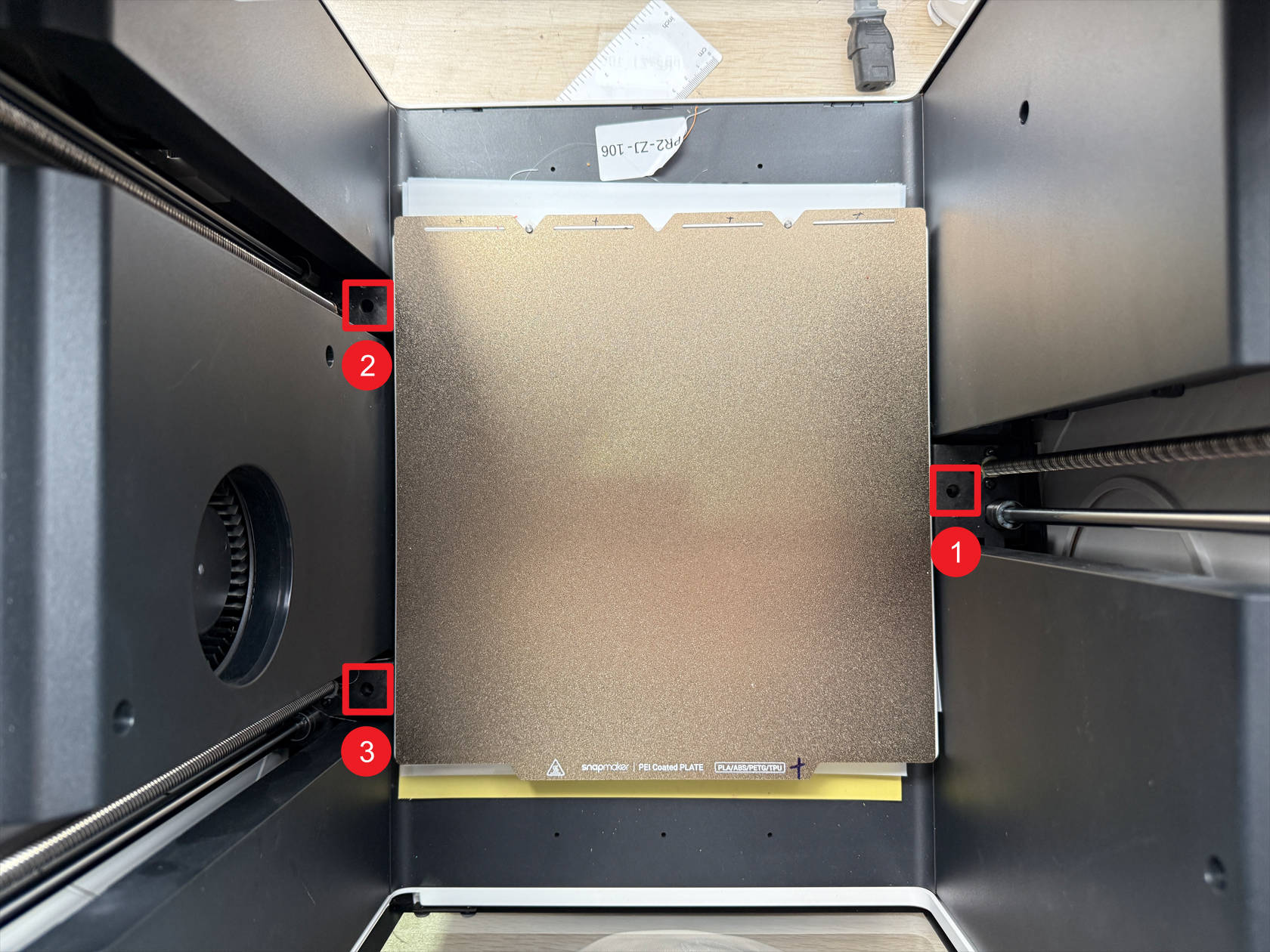
¶ Step 6. Load filament
-
Power on the printer
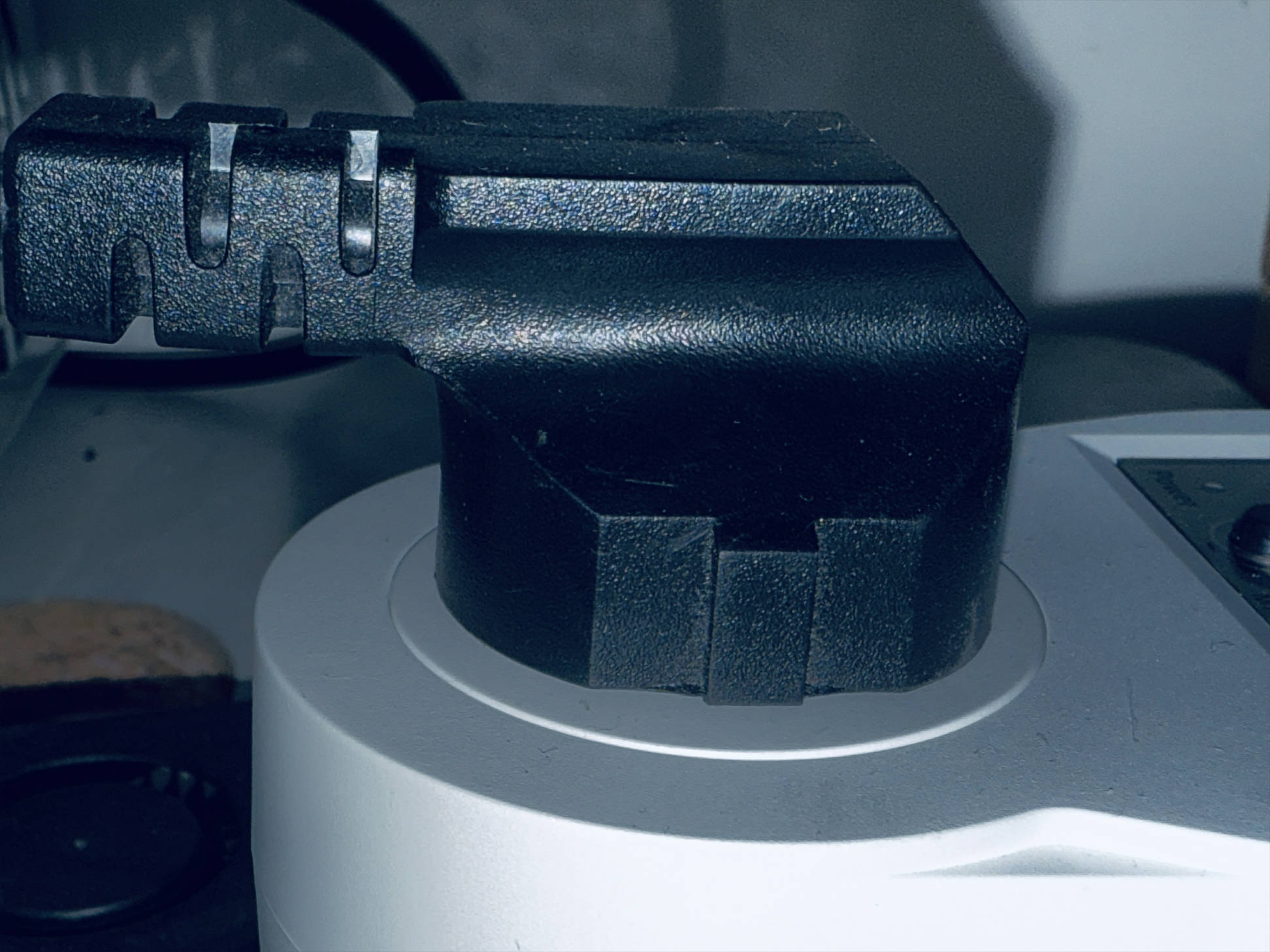

-
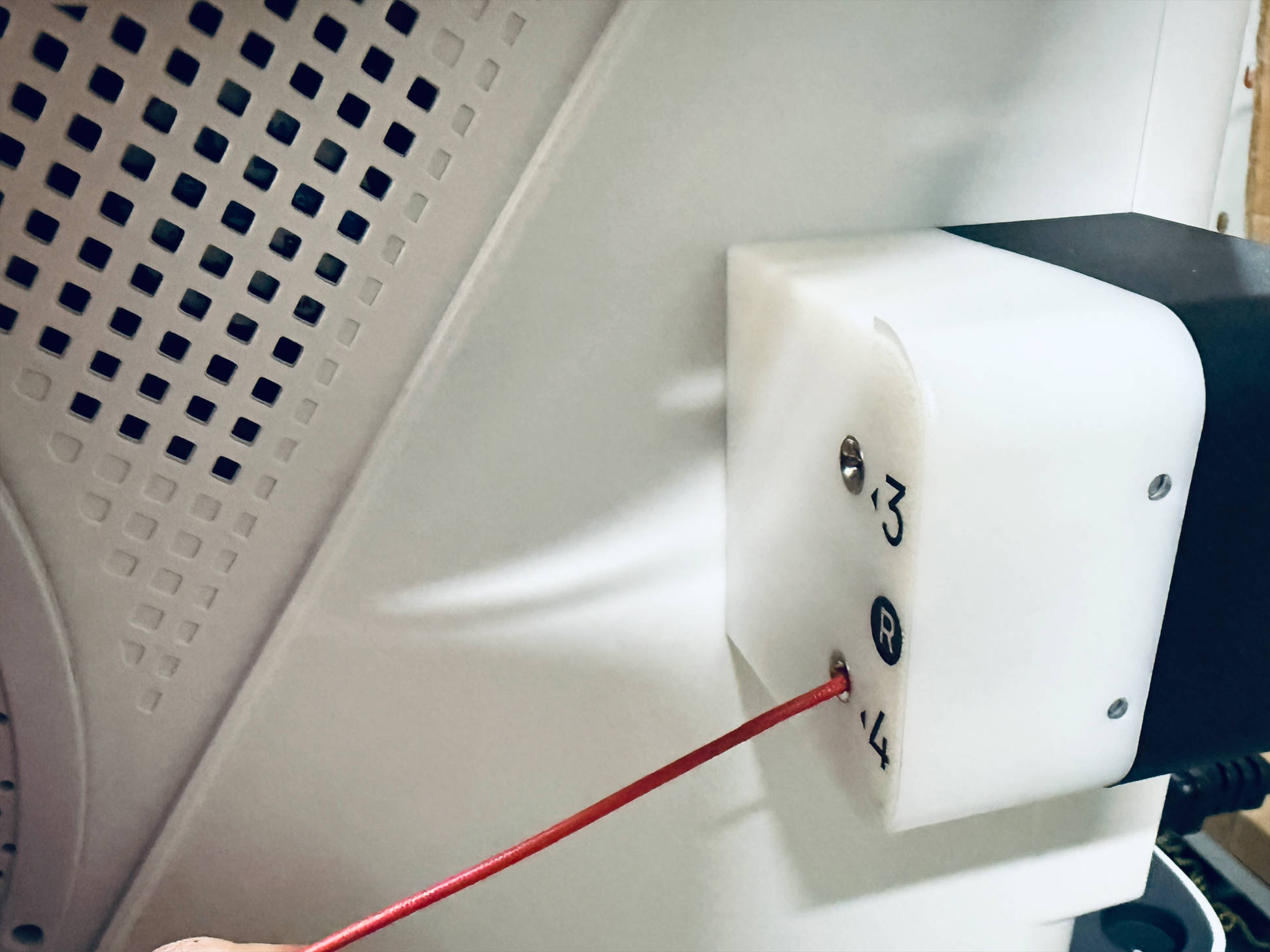
Insert the filaments into their corresponding filament feeders
-
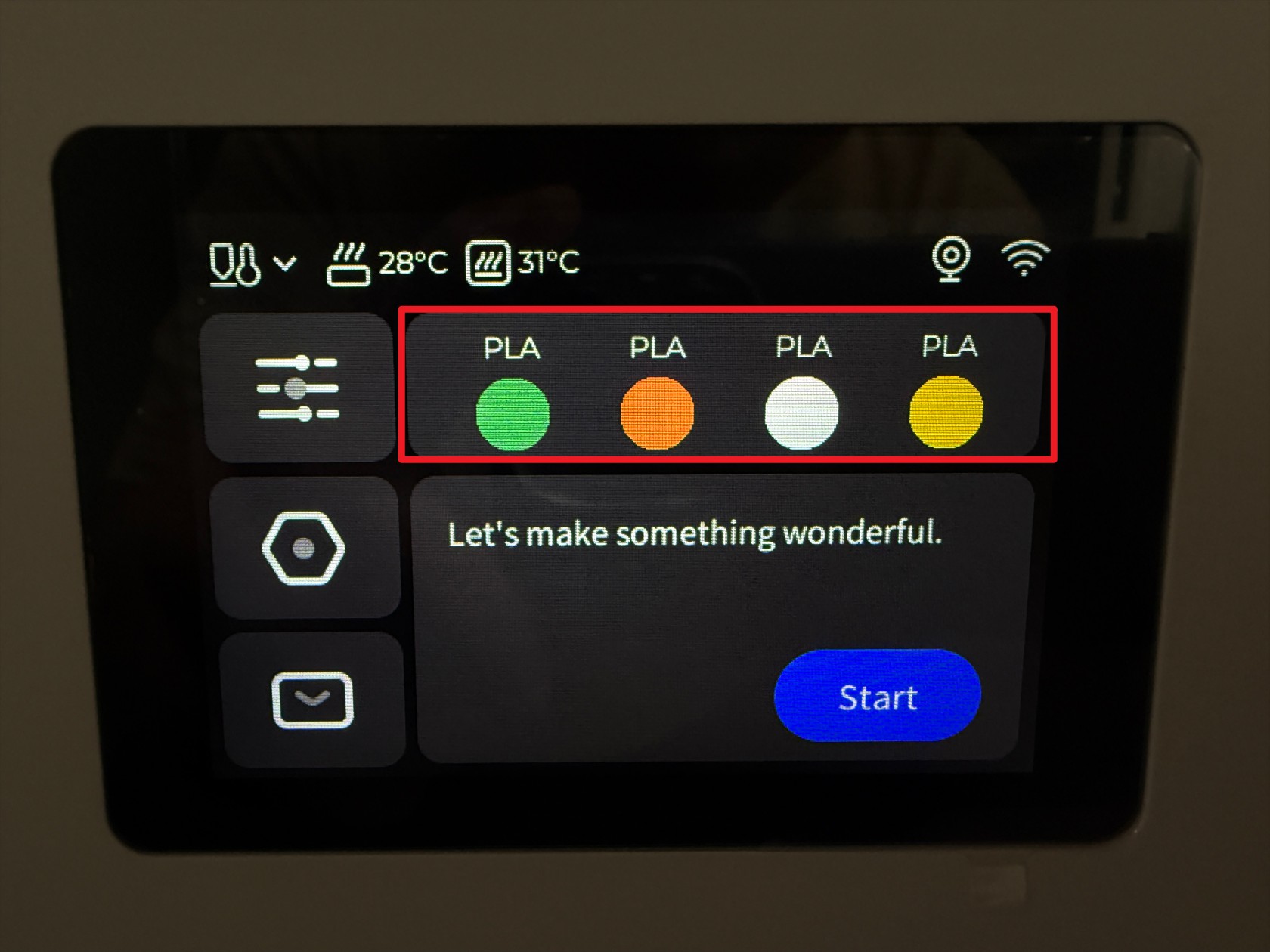
Tap the indicated position on the touchscreen
-
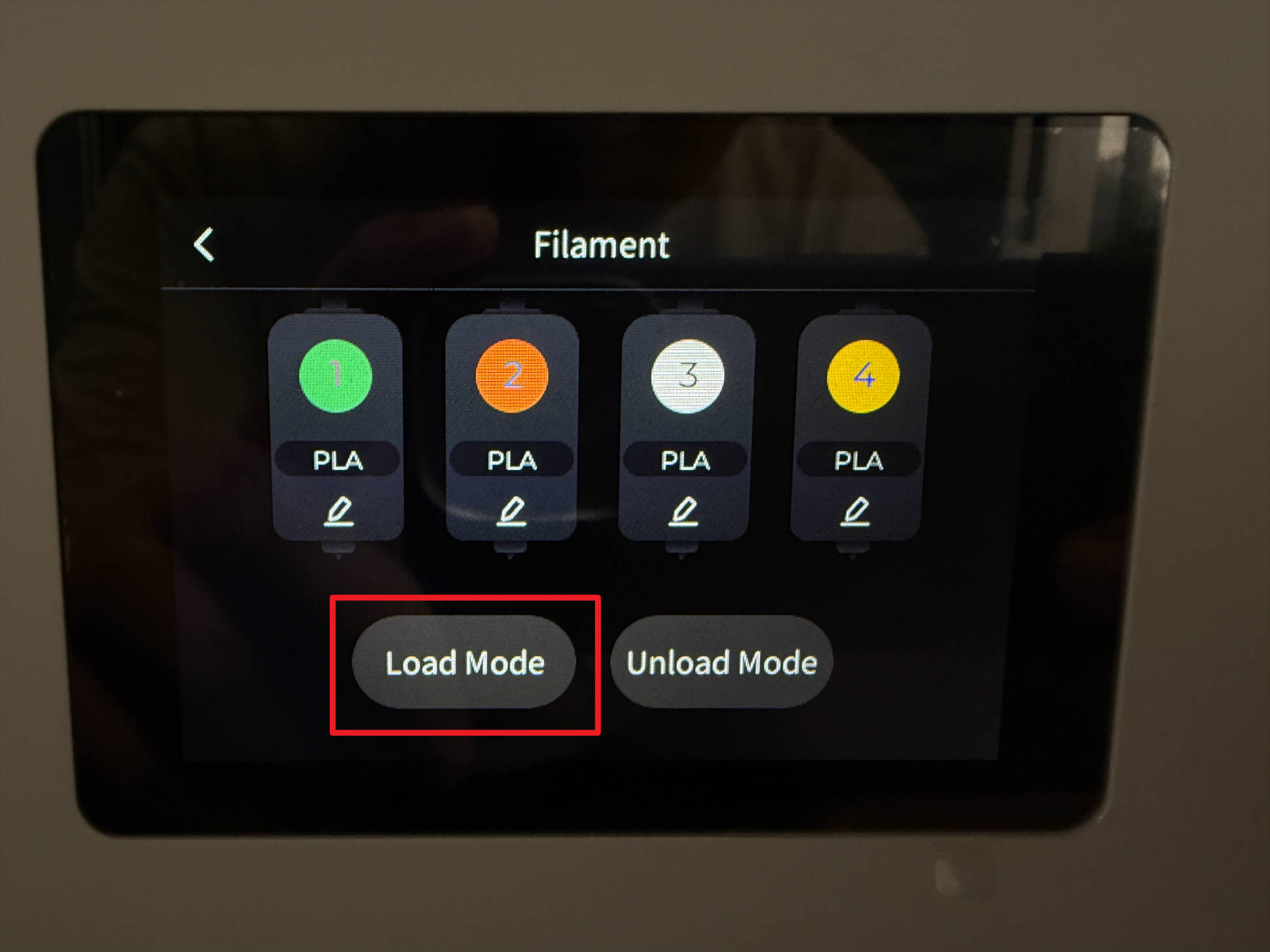
Tap Load Mode
-
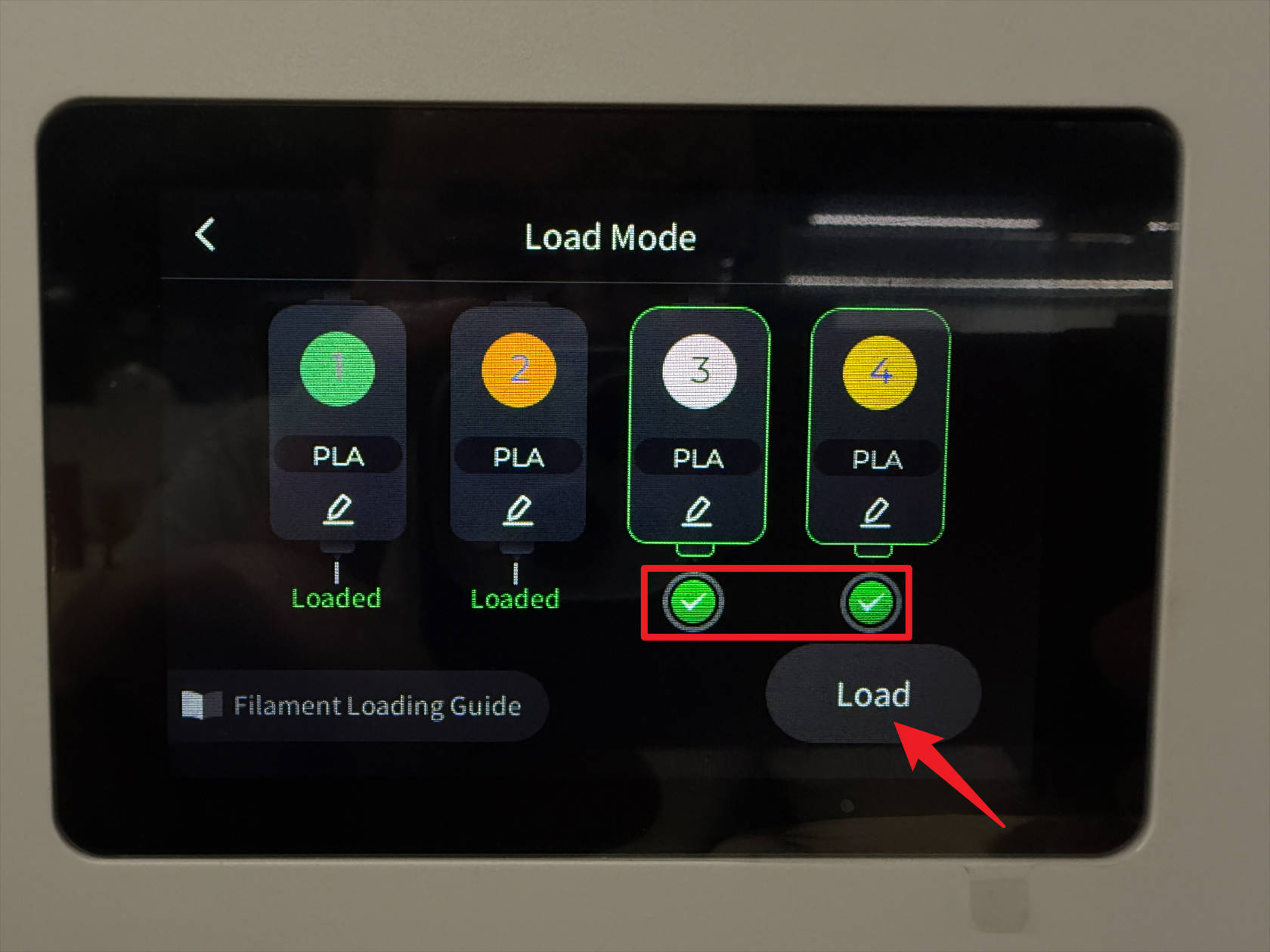
Select toolhead-3、4, tap Load, note that unrecognized filaments need to have type and color manually adjusted, save changes to complete loading
-
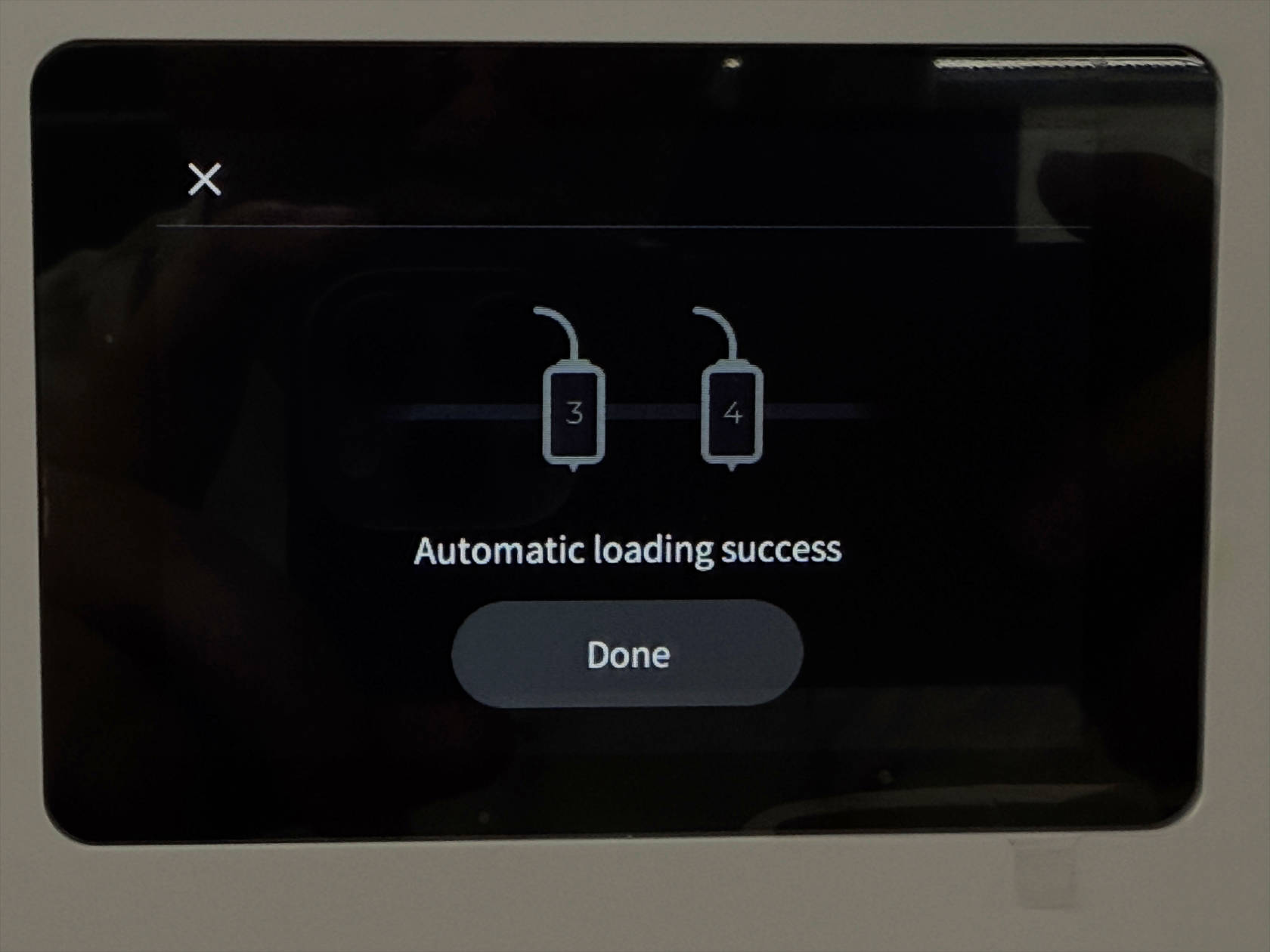
Wait for the automatic filament loading to finish

¶ Reach out to Snapmaker Support
After following the troubleshooting steps, if you find it difficult to resolve your issue, kindly submit a support ticket through https://snapmaker.formcrafts.com/u1-troubleshooting-request and share your troubleshooting results with some pictures/videos.
Our dedicated support team will be more than willing to assist you in resolving the issue.