¶ Compatibility
This article applies to the following model and module. Please take note when referencing:
Model: U1
¶ Error Codes
This troubleshooting guide applies when the screen displays the following error codes:
| 0002-0523-0000-0019 | 0002-0523-0001-0019 |
| 0002-0523-0002-0019 | 0002-0523-0003-0019 |
| 0002-0523-0000-0020 | 0002-0523-0001-0020 |
| 0002-0523-0002-0020 | 0002-0523-0003-0020 |
¶ Issue Description
-
When starting or during printing, the screen displays "Toolhead Parking Failure" and the U1 cannot properly pick or park the toolhead.
-
Unable to park the toolhead
- Unable to pick the toolhead
¶ Terminology
Different from our official term, some people may use the following terms to describe the machine’s toolhead pick and park process:
- Pick and dock
- Attach and detach
- Pick and drop
- Take and park
- Take and return
¶ Possible Causes
-
If the error occurs right after the job starts, it may be caused by a homing failure.
-
If the error occurs during printing, it may be due to a toolhead position shift. Common causes include:
- The nozzle scraped the model, causing skipped steps.
- The nozzle interfered or collided with the wiper bracket, causing skipped steps.
- The toolhead hit an external object during movement (for example, a hand touching the toolhead), causing skipped steps.
- If the issue happens occasionally, and after manually park the toolhead it wobbles, it may be caused by an incorrect toolhead docking position.
¶ Troubleshooting Steps
¶ Scenario 1. Error occurs at the beginning of the job (homing failure):
¶ 1.1 Manually move the X and Y axes to check if the resistance is too high.
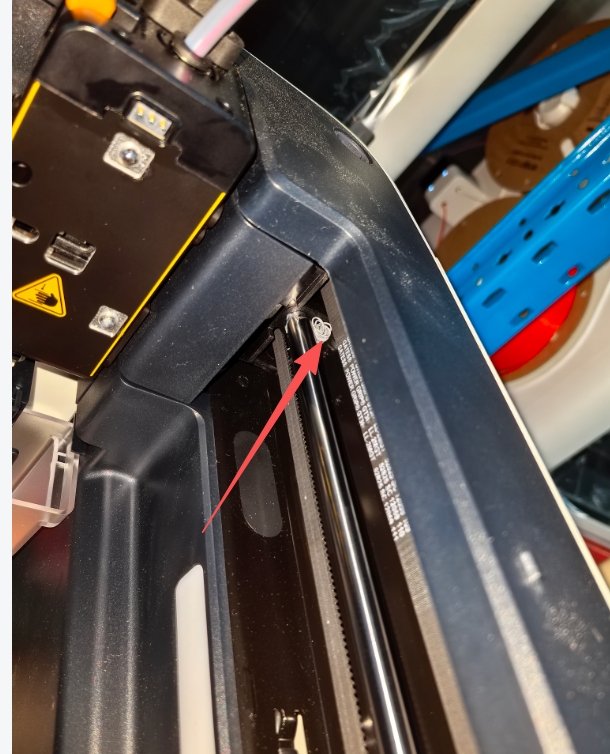
¶ 1.2 Check if there is filament or foreign object at the homing position.
U1 Homing Sequence: Y Axis → X Axis → Z Axis
(1) As shown in the image below, during Y axis homing, the Y axis slider will collide with the front pillar. If there is debris on either side of the contact surface, such as leftover filament, it will cause an error. Please check that the contact area is clean.
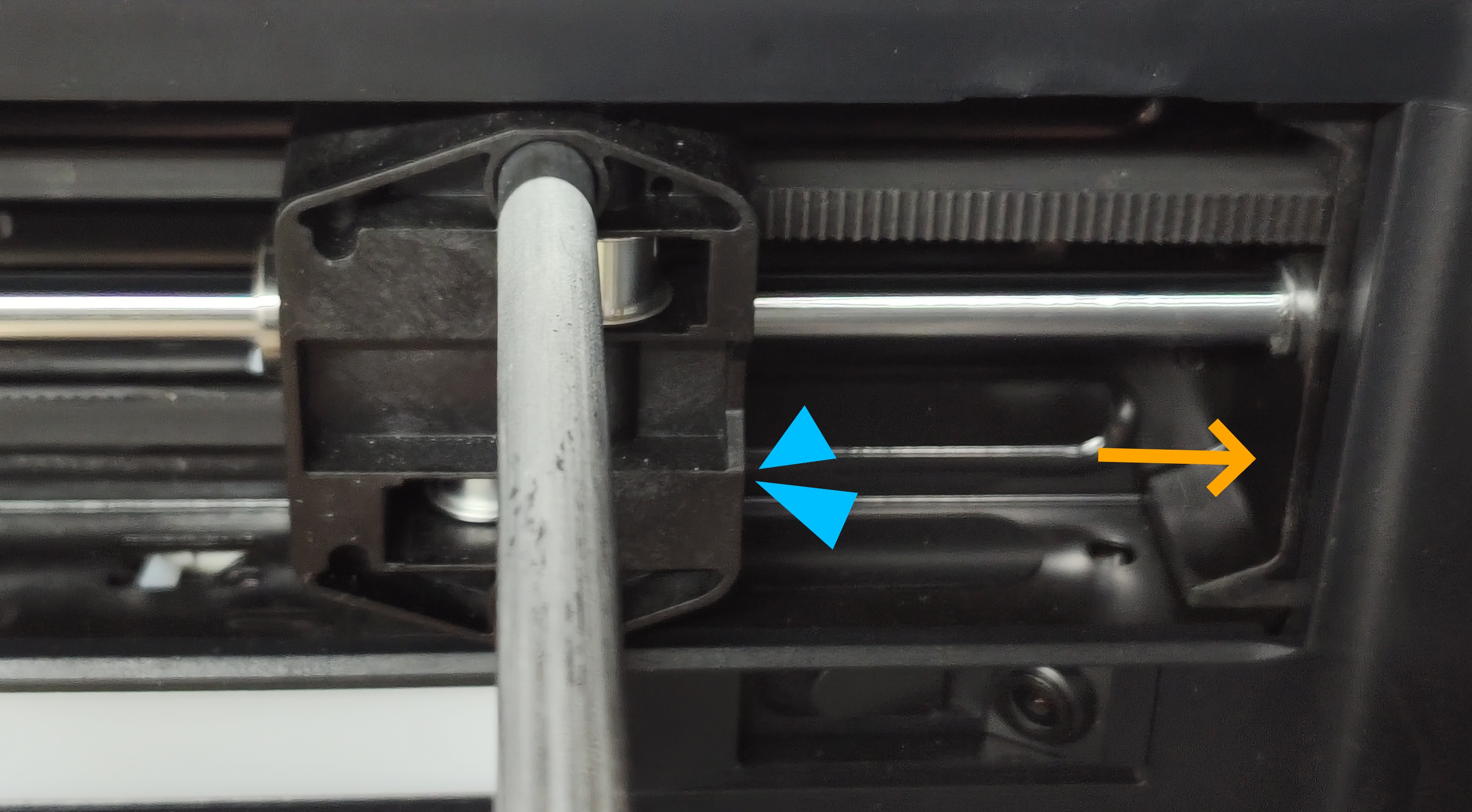
As shown in the image, there is filament sticking to the homing position, which can cause errors.
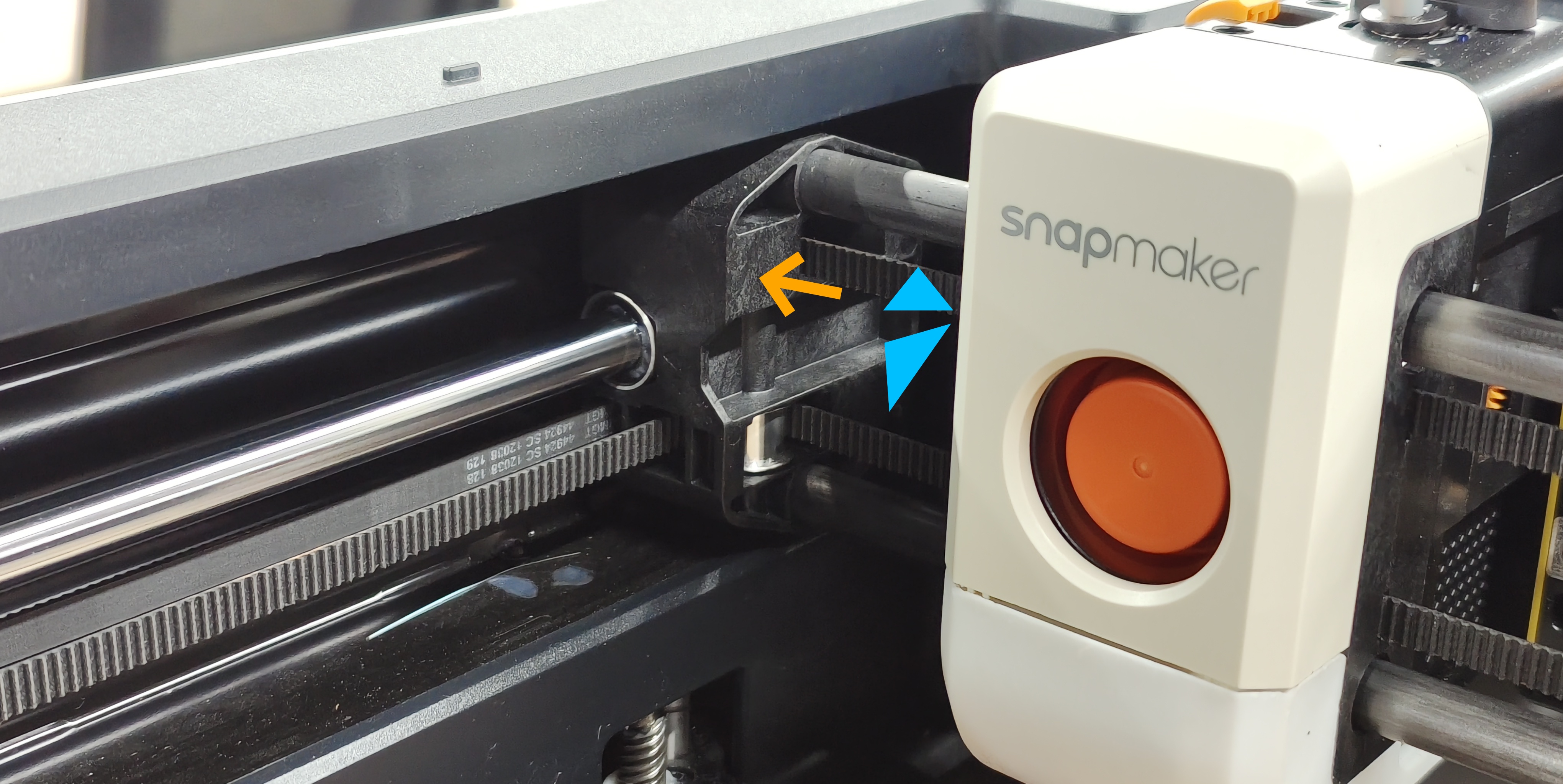
(2) As shown in the image below, during X axis homing, the toolhead swapper cover will collide with the Y axis slider. If there is debris on either side of the contact surface, such as leftover filament, it will cause an error. Please ensure the contact area is clean.
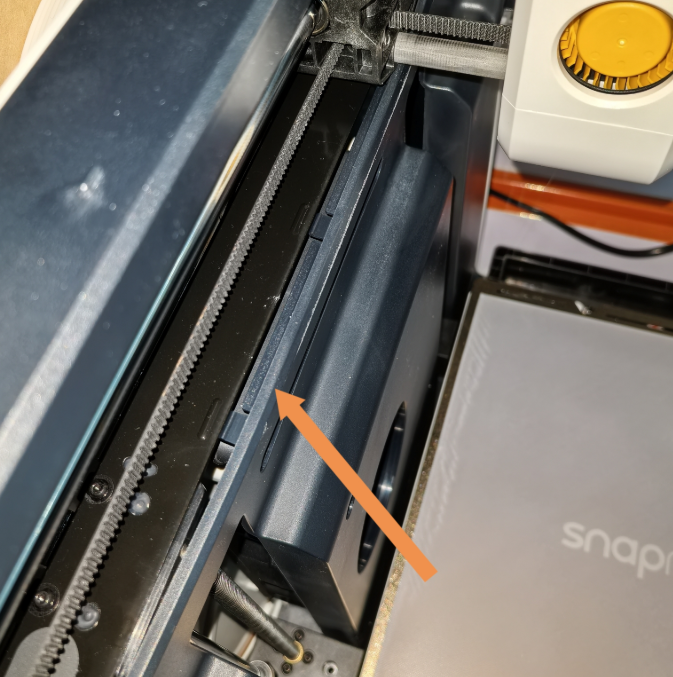
(3) In some cases (for example, when excessive force is applied during filament holder installation), the inner panel may be lifted. Check whether the inner panel has been lifted, as this may prevent the X-axis from homing properly.
¶ 1.3 Power off the U1, manually park the toolhead onto the bracket, restart the U1, and then detach the toolhead via the touchscreen to check if the issue is resolved.

¶ Scenario 2. Error occurs during printing (position shift):
¶ 2.1 Nozzle Scraped the Model and Caused Skipped Steps
Temporary solutions:
Tap Continue to resume printing.
If it cannot be recovered, tap Home or restart the U1
Long-term solutions:
Check why the nozzle scraped the model:
Whether the first-layer adhesion is normal.
Whether the model has overhangs without supports.
Whether the Z offset is set too low.
¶ 2.2 Nozzle Interfered or Collided with the Wiper Bracket
- Power off the U1, and check if there is interference between the nozzle and the wiper bracket.

- If interference exists, adjust accordingly, power off the U1, manually park the toolhead onto the bracket, restart the U1, and then detach the toolhead via the touchscreen to check if the issue is resolved.
¶ 2.3 Toolhead Hit an External Object During Movement
- If the toolhead hits an external object (for example, a hand blocking it) during printing, skipped steps may occur and trigger this error.
Solutions:
Tap Continue to resume printing.
If it cannot be recovered, tap Home or restart the U1.
¶ Scenario 3. If the error occurs occasionally, and after powering off and manually placing back the toolhead you notice that it wobbles.
The issue may be caused by an incorrect docking position. Please record a video of the error and contact Snapmaker Support.
¶ Reach out to Snapmaker Support
After following the troubleshooting steps, if you find it difficult to resolve your issue, kindly submit a support ticket through https://snapmaker.formcrafts.com/u1-troubleshooting-request and share your troubleshooting results with some pictures/videos.
Our dedicated support team will be more than willing to assist you in resolving the issue.