¶ Overview
¶ Location
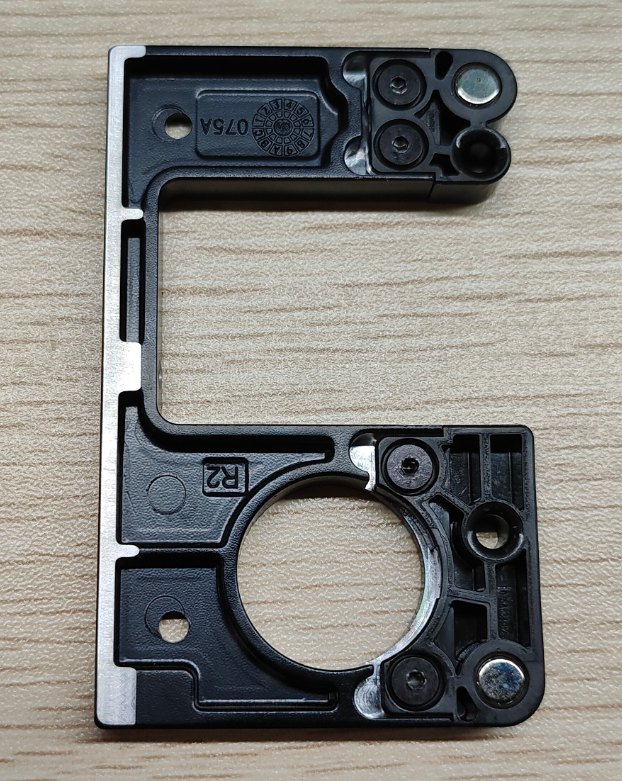
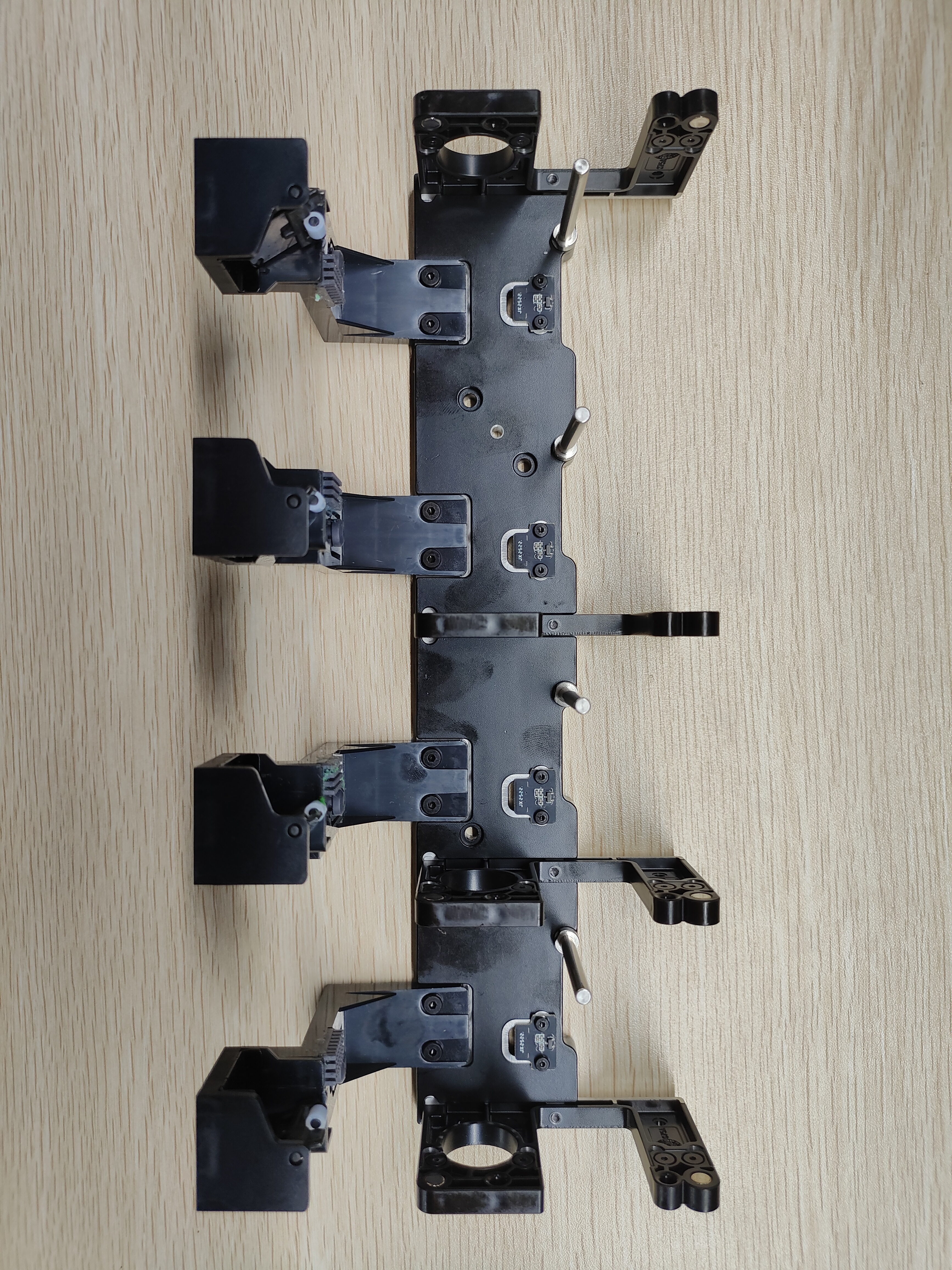
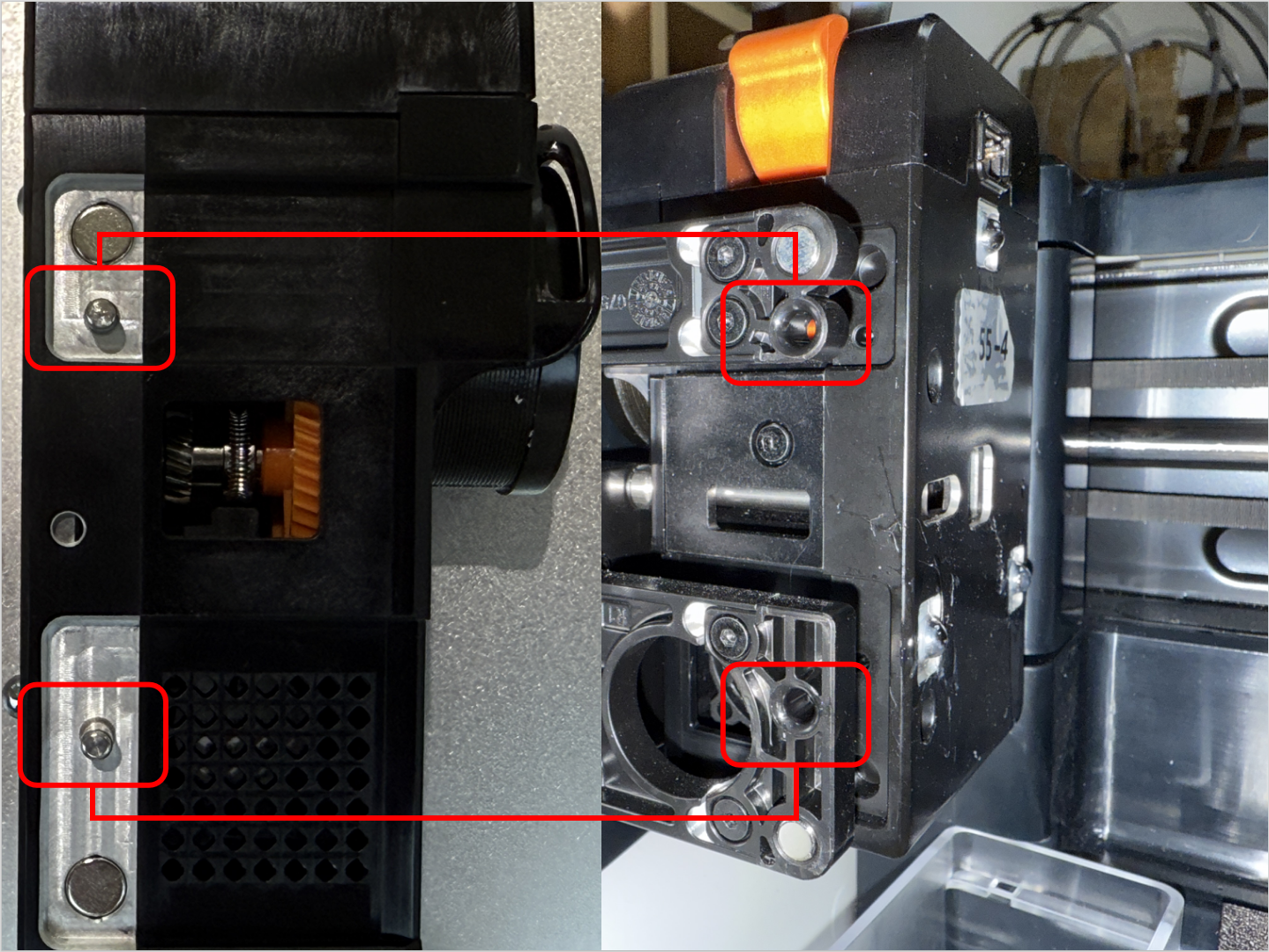
The parking tools are located on the toolhead docking bracket. The leftmost one is the left parking tool, and the three on the right are the right parking tools.

- Left parking tool:

- Right parking tool:
¶ Difficulty and Time Estimate
- Difficulty:★★☆☆☆ (Easy)
- Estimated Time:20 minutes
¶ Where to Buy
This accessory is expected to be available on the official Snapmaker online store soon. Please stay tuned.
¶ Tools and Parts Required
- H2.0 hex key
- New parking tool
¶ Procedure
¶ Step 1. Detach the toolhead from the docking bracket
-
Before proceeding, please turn off the machine and unplug the power cable!

-
Detach the 4 toolheads from the docking bracket, and place them on the print platform.
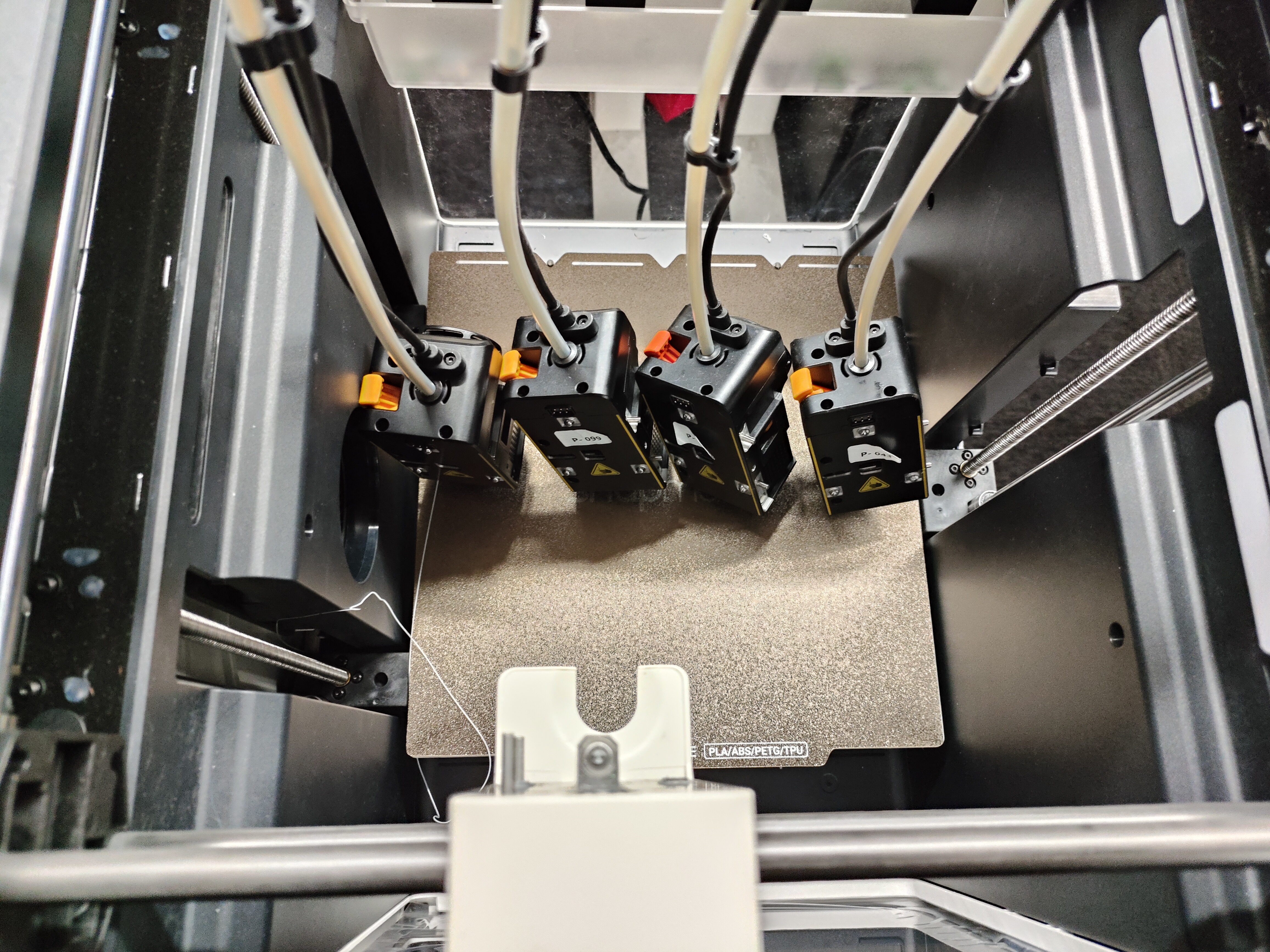
For head No.1: Slide to the right until the locating pin is fully visible.
For heads No.2/3/4: Slide the toolhead to the left until the locating pin is fully visible.
¶ Step 2. Remove the toolhead docking bracket
-
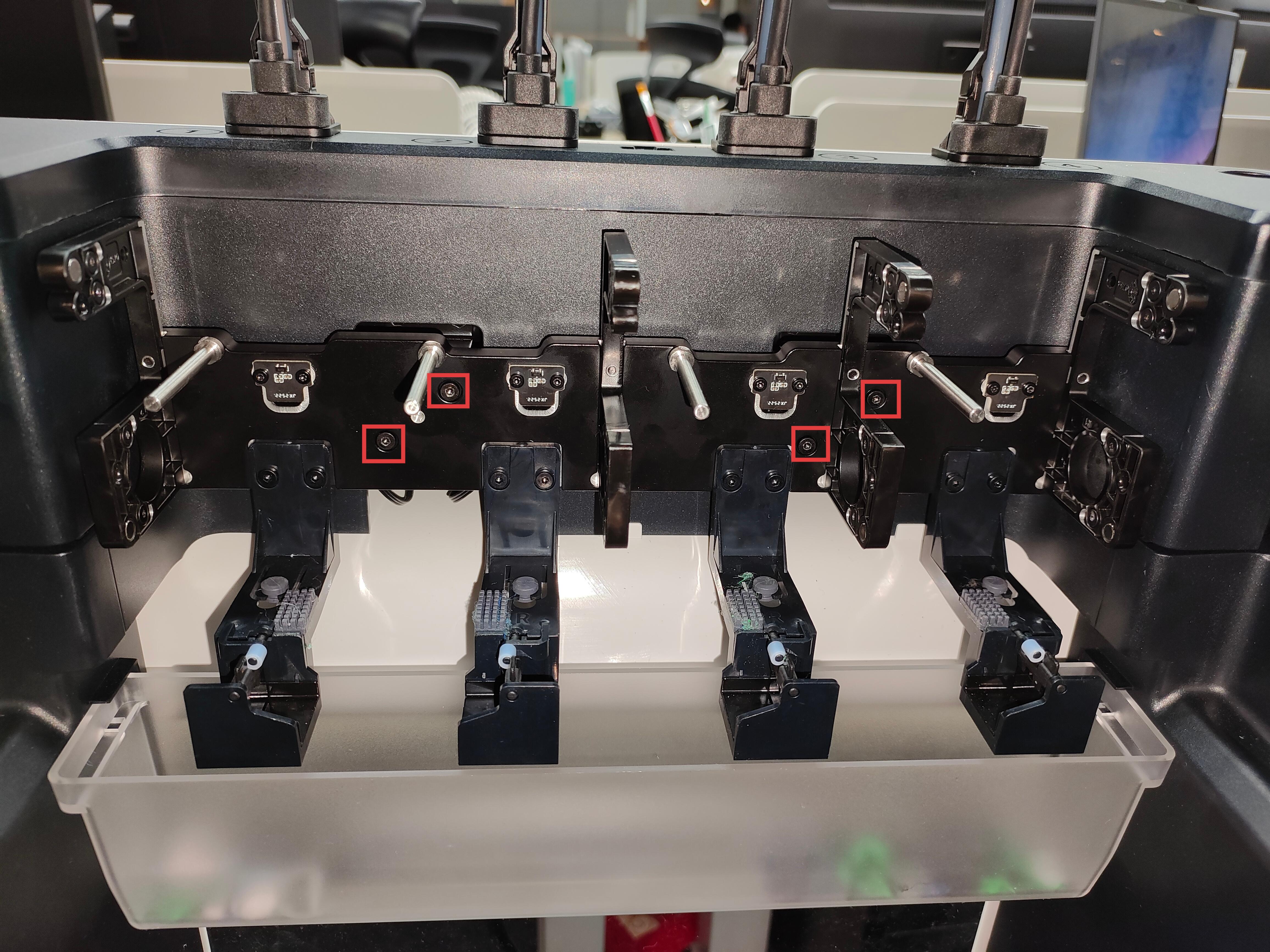
Use the H2.0 hex key to unscrew the 4 fixing screws.
-
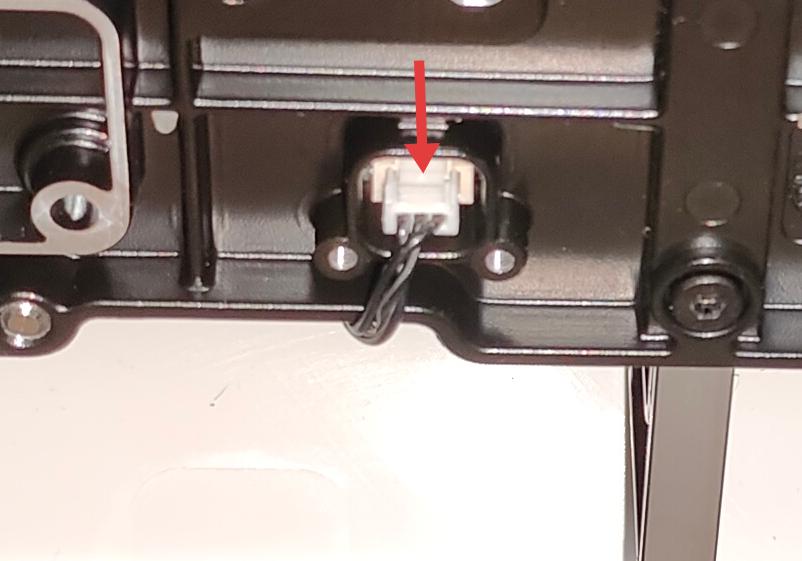
Carefully move the bracket outward and flip it over. Press the clip indicated by the arrow while pulling out the 4 cables of the docking Hall sensor board.

-
Remove the toolhead docking bracket.
¶ Step 3. Remove the old parking tool
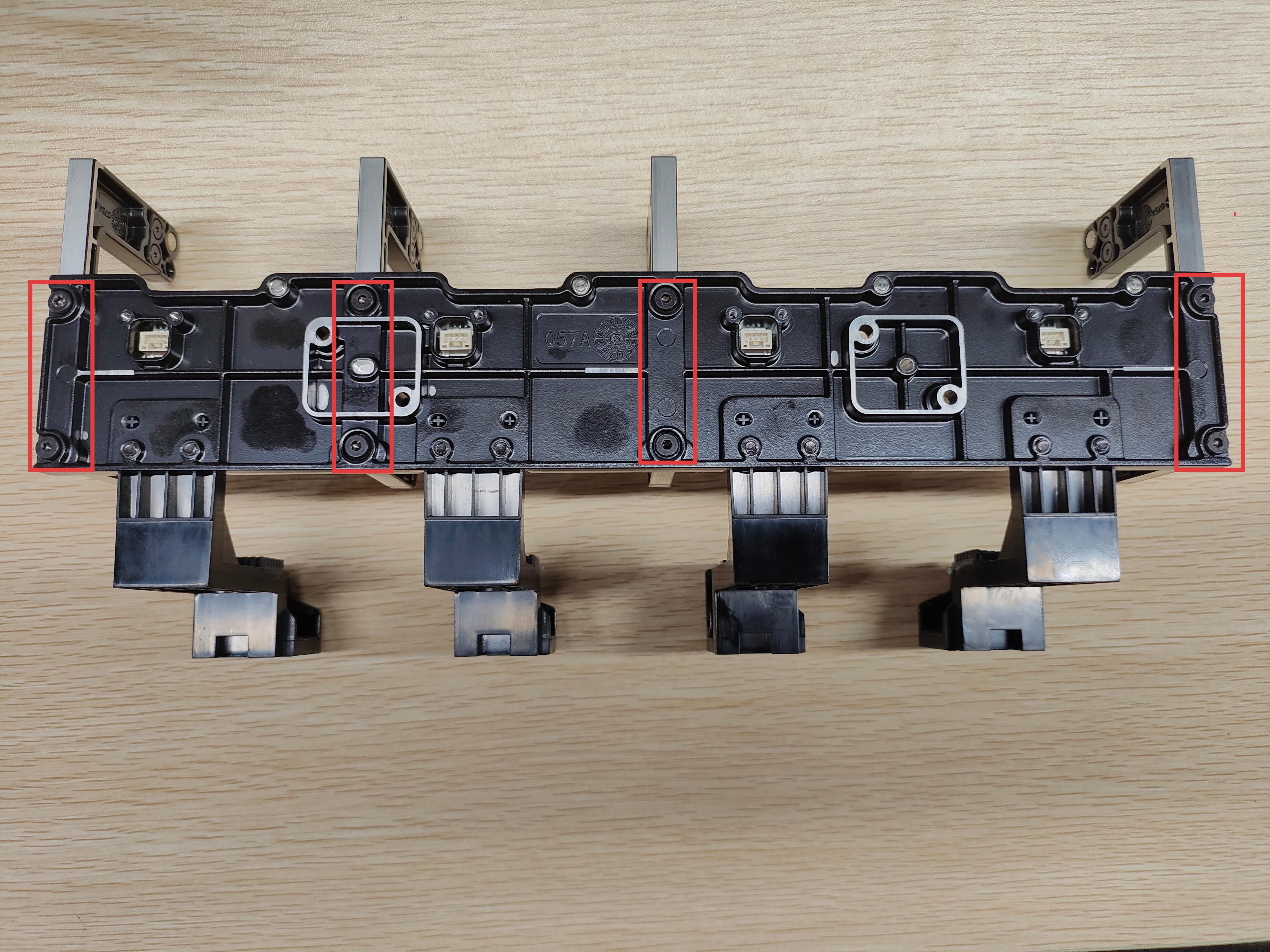
- Each parking tool is secured with 2 fixing screws. Use the H2.0 hex key to unscrew the fixing screws.
¶ Step 4. Install the new parking tool
- Install the new parking tool and use the H2.0 hex key to tighten the fixing screws.
¶ Step 5. Install the toolhead docking bracket
- Connect the 4 cables of the docking Hall sensor board, install the toolhead docking bracket, and use the H2.0 hex key to tighten the 4 fixing screws.
¶ Step 6. Place the toolhead onto the docking bracket
Before installing the toolhead, please make sure the sliders are in the correct positions. The slider for Toolhead No. 1 should be set to the far left, while the sliders for Toolheads No. 2, 3, and 4 should all be set to the far right.
You can use a hex key to adjust the slider and make sure the red mark on the slider is visible.
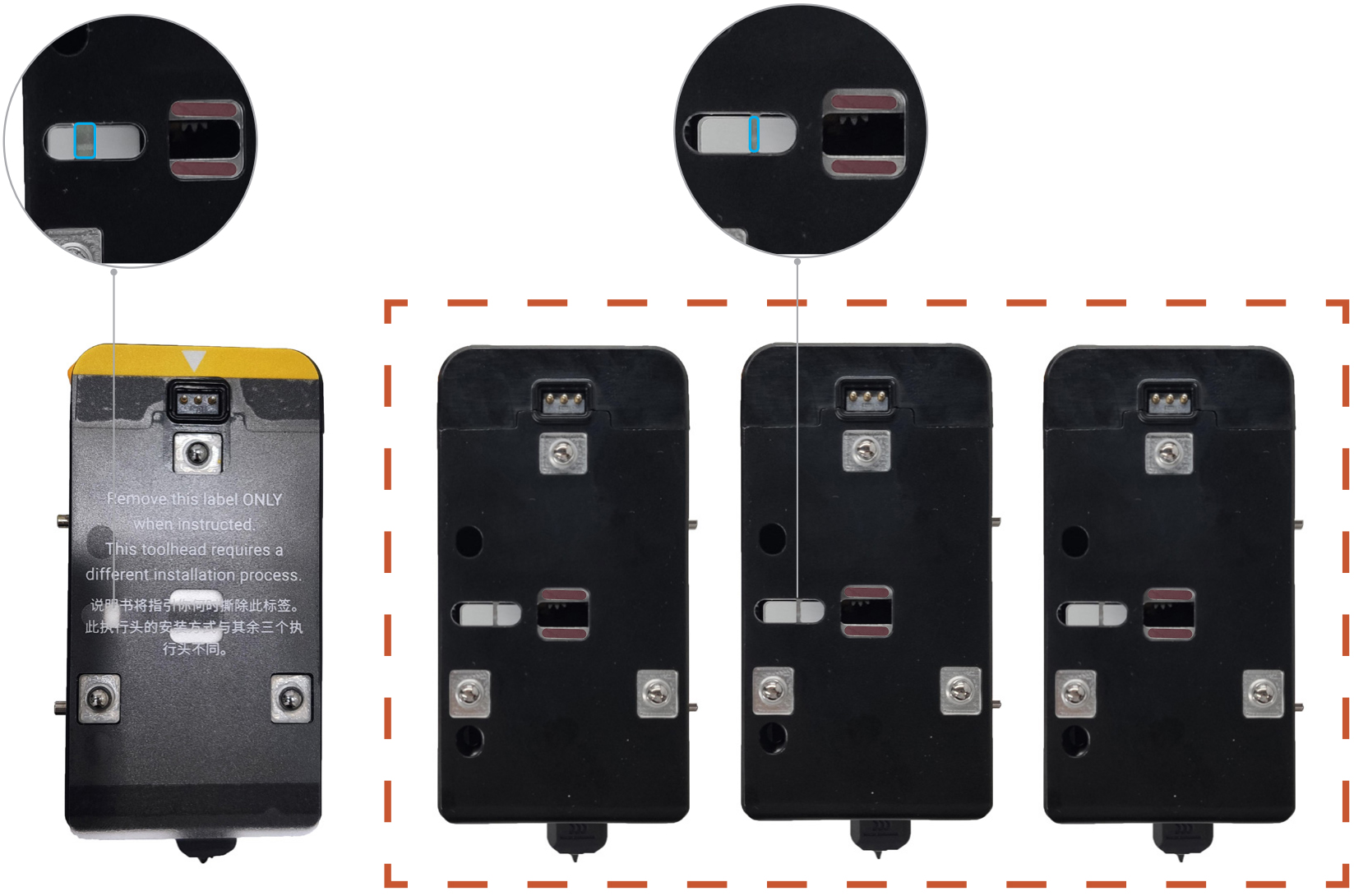
- Align the hole on the toolhead with the long locating pin on the docking bracket, and push inward until it stops.
The illustrated side of the toolhead should face inward.
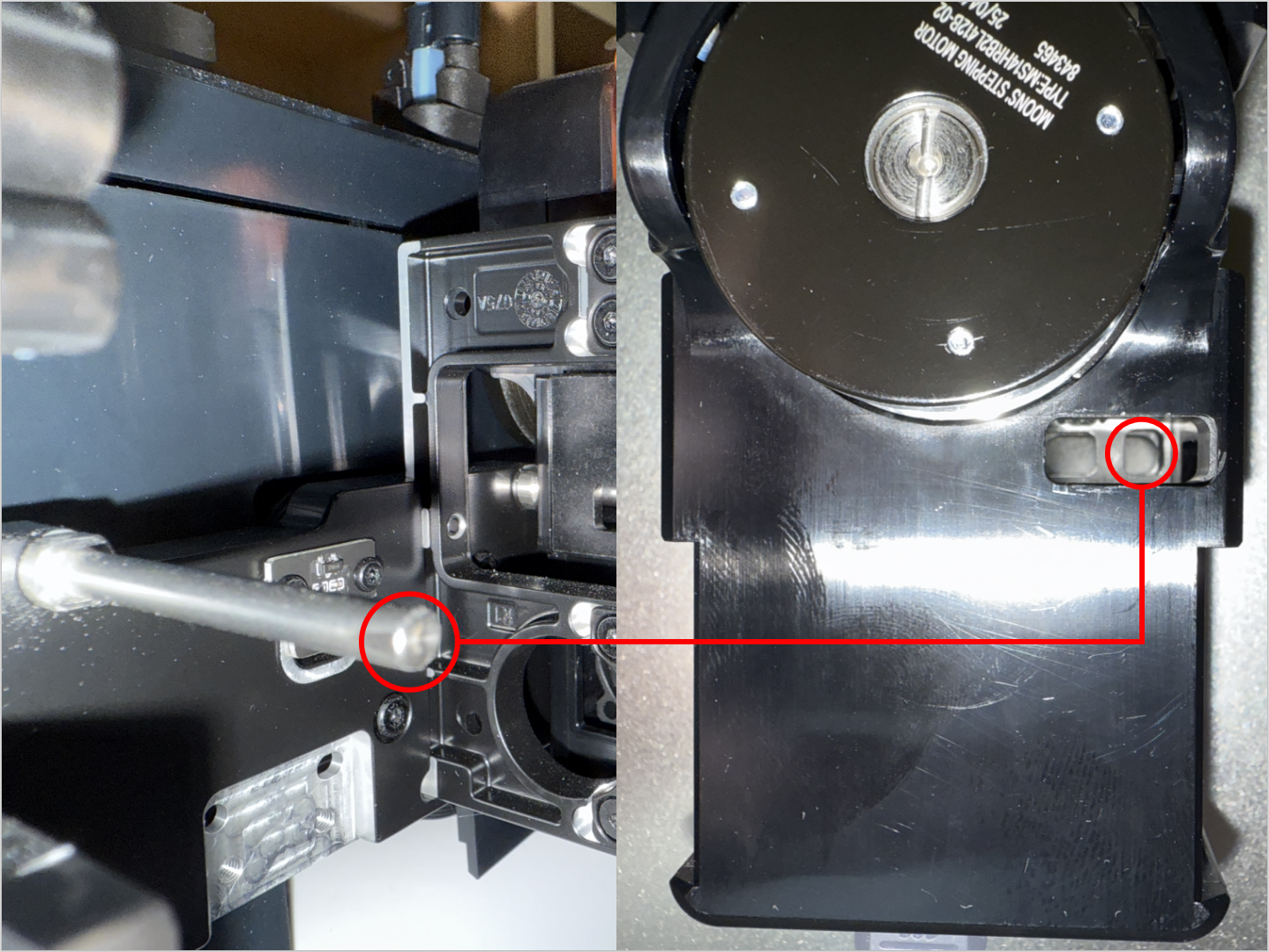
- Align the two locating pins on the toolhead with the holes shown on the mount.
For No.1 head: hole is to the left of the pins
For No.2/3/4 heads: hole is to the right of the pins
¶ Reach out to Snapmaker Support
After following the troubleshooting steps, if you find it difficult to resolve your issue, kindly submit a support ticket through https://snapmaker.formcrafts.com/u1-troubleshooting-request and share your troubleshooting results with some pictures/videos.
Our dedicated support team will be more than willing to assist you in resolving the issue.