¶ Issue Description
The screen displays error code: 0003-0522-0100-0006
¶ Quick Info
Difficulty: ⭐⭐⭐☆☆ (Medium)
Estimated Time: 10–30 minutes
¶ Preparation
(1) H2.0 Hex Key
(2) Multimeter
¶ Important Notes
During troubleshooting, all operations involving plugging or unplugging cables must be performed with the machine powered off and disconnected from power!
¶ Quick Diagnosis
After powering on, can you see the internal indicator light illuminated through the gap on the toolhead shown here?
Indicator light off → Continue troubleshooting
Indicator light on → Contact Technical Support
¶ Troubleshooting Steps
¶ 1. Toolhead Failure
¶ 1. Identify the Faulty Toolhead
(1) Disconnect all toolheads, then connect only one toolhead at a time and power on.
(2) Check whether the internal indicator light of the toolhead illuminates. If it does not, that toolhead is faulty.
If the indicator light fails to illuminate for every toolhead when connected individually, continue to the next step to determine whether the capacitors on all toolheads are damaged. If they are not, refer to 2. Abnormal Toolhead Power Supply.
¶ 2. Locate the Specific Fault
(1) Refer to the Toolhead PCB Replacement Guide to remove the PCB and check whether the capacitors are damaged.
Why do the capacitors get damaged?
Using the wrong screws to secure the USB cable (the correct specification is ST2.6 × 10), or overtightening the screws, can cause a screw to pierce a capacitor.
(2) If the capacitors are undamaged, disconnect all cables from the PCB, connect only the USB cable, and power on.
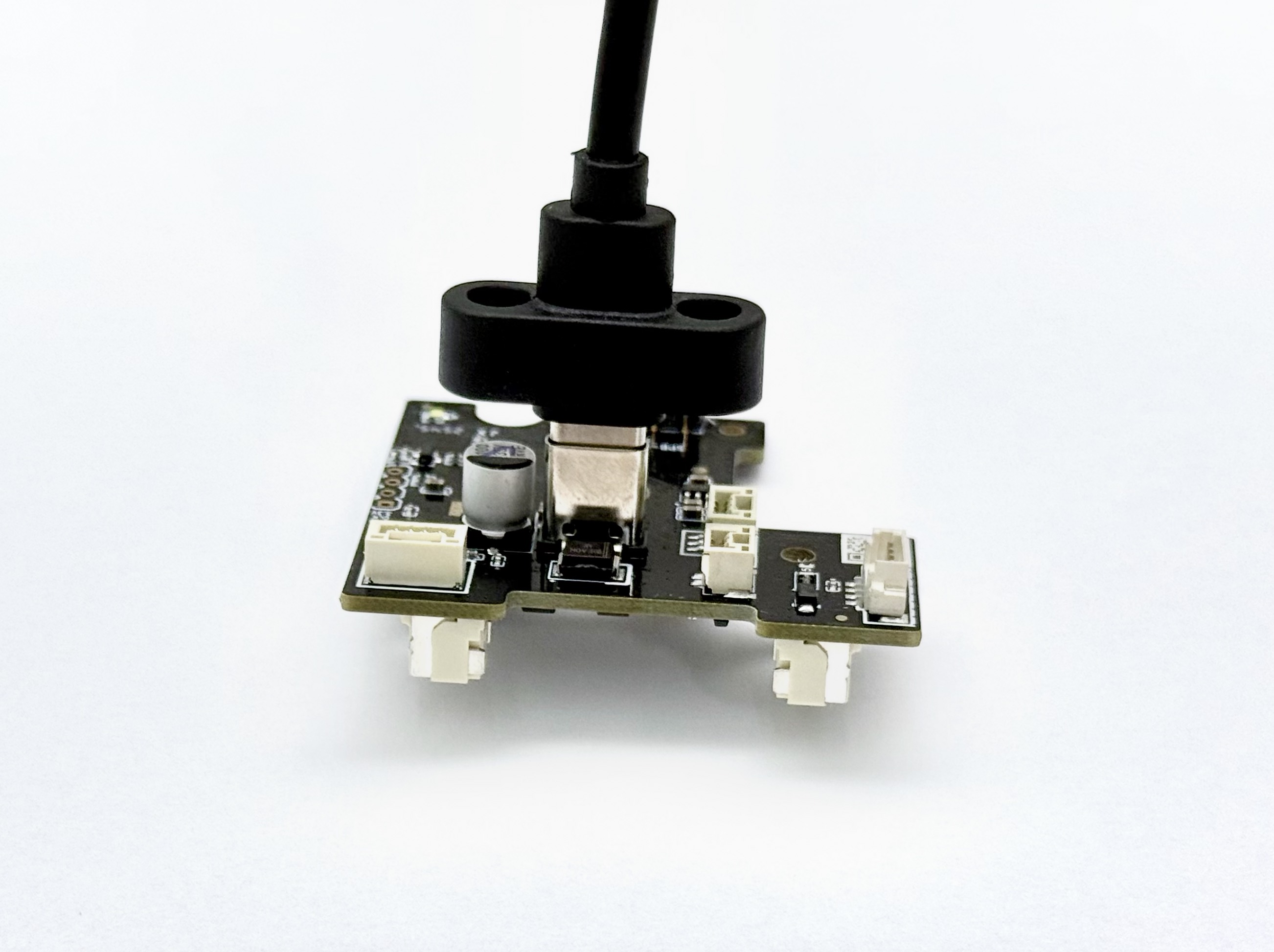
If the indicator light does not illuminate, the PCB is faulty.
(3) If the indicator light illuminates, connect the two hotend cables to the PCB and power on.
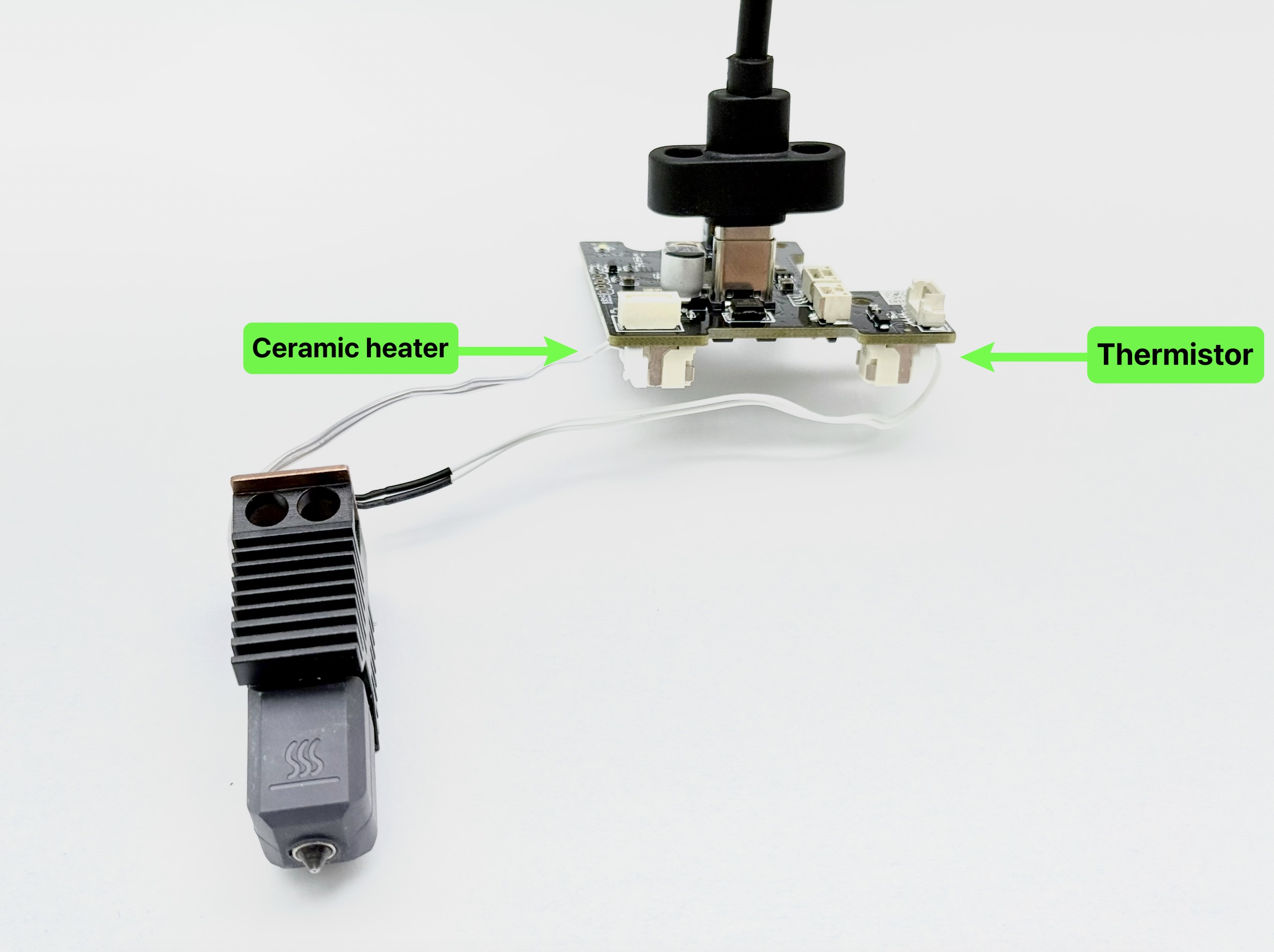
If the indicator light remains on, please contact technical support.
(4) If the indicator light goes out, the hotend is faulty.
Once the hot end is confirmed faulty, you can connect only the thermistor (right side) to the PCB and power on again. If the indicator light illuminates at this point, the ceramic heater inside the hotend is faulty.
¶ 3. Replace the Faulty Component
¶ 2. Abnormal Toolhead Power Supply
¶ 1. Reseat the 16-Pin Cable
(1) Refer to the Side Panel Removal and Installation Tutorial to remove the right side panel of the machine.
(2) With the top panel and right side panel still removed, reconnect all toolhead USB cables, tighten the screws, and power on.
(3) Unplug and reseat both ends of the 16-pin cable. When plugging it back into the main control board connector, support the machine's inner side panel behind the board.
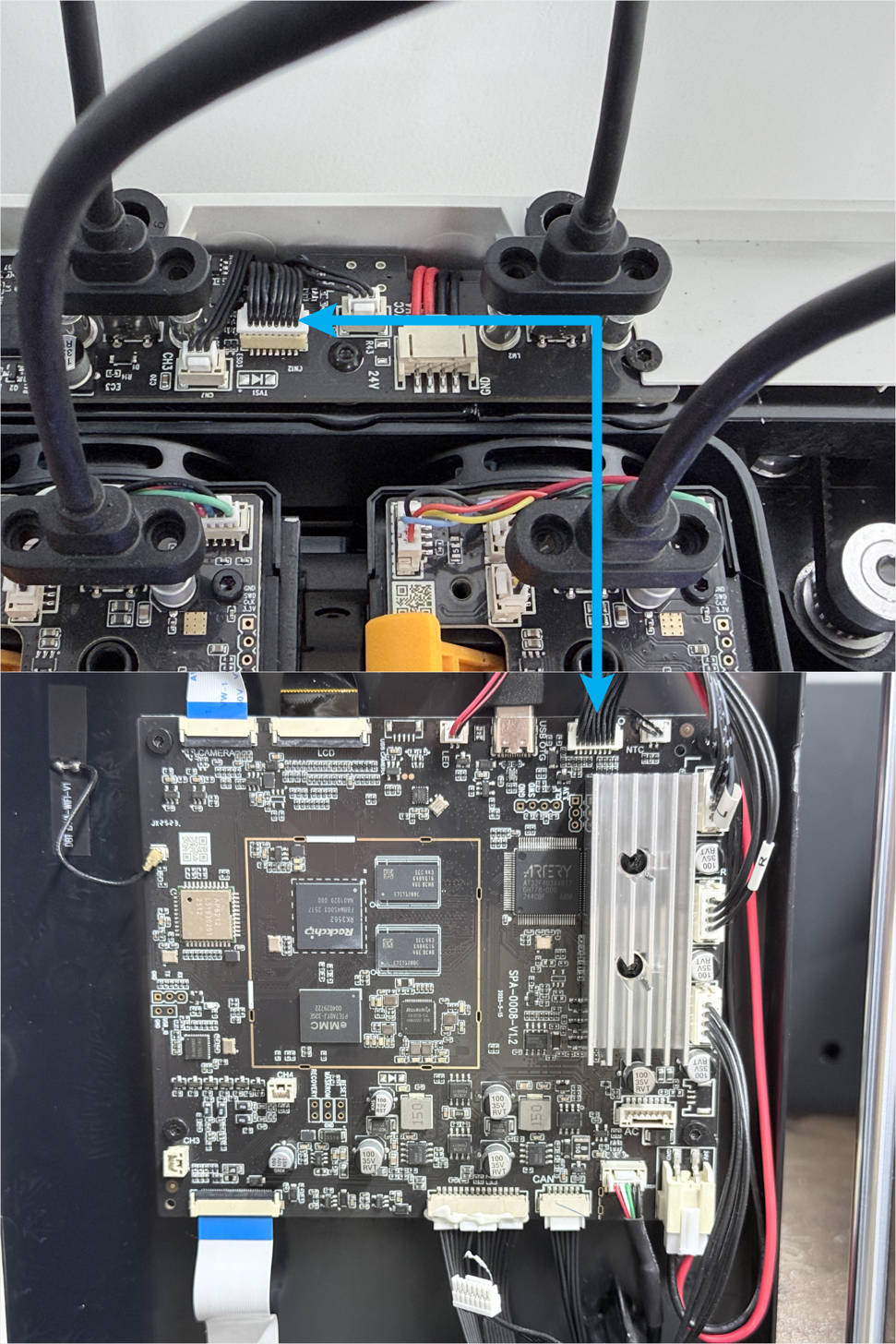
One line of the 16-pin cable is the power control line for all toolheads. A loose 16-pin cable can therefore prevent all toolheads from powering on, meaning none of them can be detected.
¶ 2. Check with a Multimeter
(1) With the machine powered on, set the multimeter to the DC voltage range. The measurement points and reference values are listed in the table below.
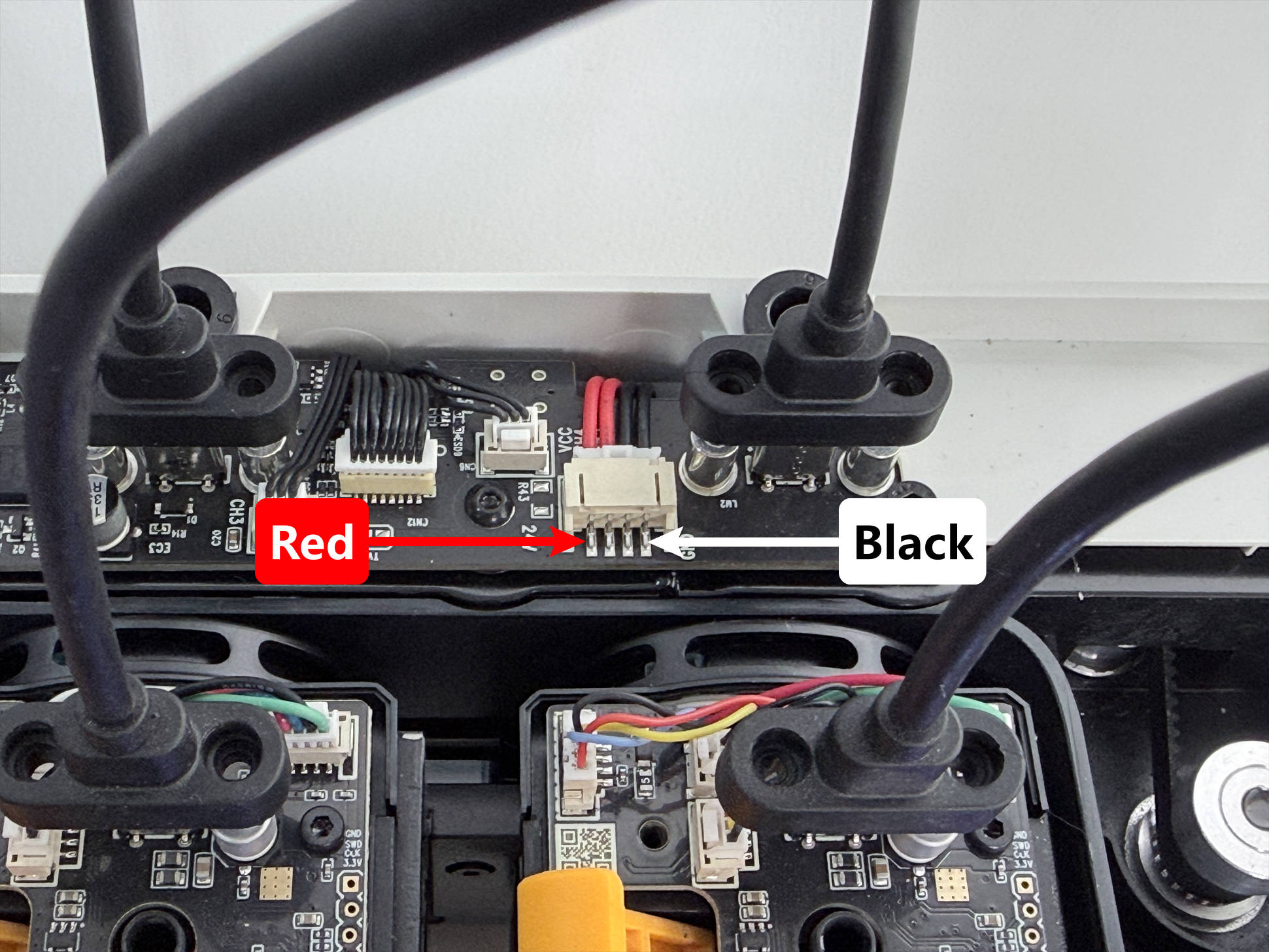
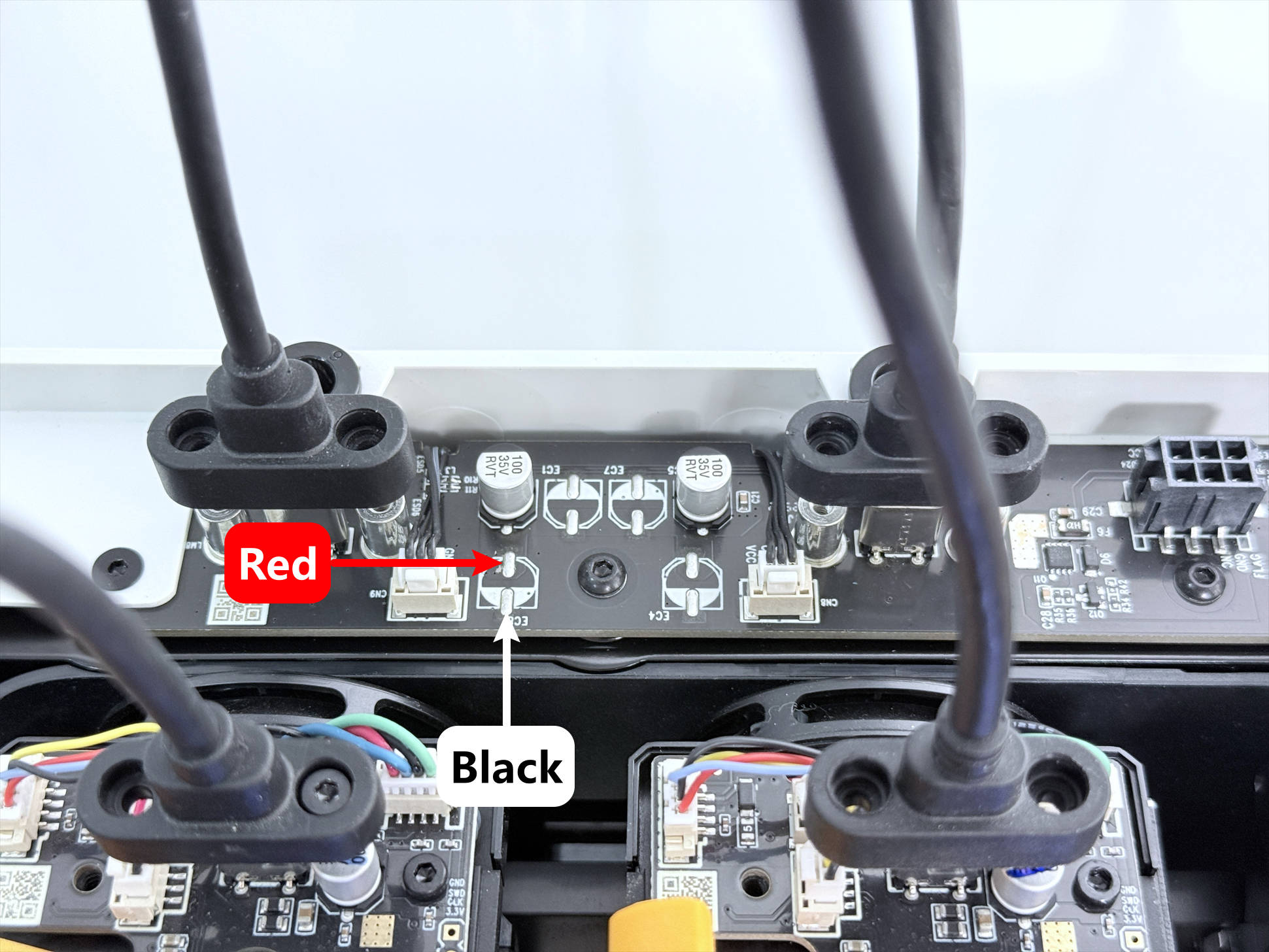
(2) The measurement results generally fall into two cases:
- Check Item 1: 24V | Check Item 2: 0V
- Check Item 1: 0V | Check Item 2: 0V
When error 0003-0522-0100-0006 is present, no other measurement result should theoretically occur. If you obtain a different result, we recommend measuring again.
¶ Related Resources
U1 Video Tutorials | Side Panel Removal and Installation Tutorial
U1 Power Supply Replacement Guide
¶ End Note
If your issue remains unresolved, please contact technical support, our dedicated support team will be more than willing to assist you in resolving the issue.
If you have any suggestions or feedback about this wiki, feel free to leave a comment below. Every piece of feedback helps us improve our documentation.