¶ 💡 Compatibility
This guide applies to the following machine. Please note when referencing:
- Machine model: U1
¶ 📝 Issue Description
A plastic blob causes abnormal nozzle temperature, triggering an error message (Error Code: 0003-0523-0000-0002) appears on the screen. The error persists even after restarting, preventing the device from continuing operation.
¶ 🔎 Possible Causes
When a filament blob wraps around the hot end, it may damage the thermistor cable, which can lead to abnormal temperature readings (such as negative temperature values). Even after the blob is removed, the error may persist after restarting because the cable has already been damaged. In this case, the printer cannot operate even if other toolheads are functioning normally. Disabling the faulty toolhead is therefore required to resume operation.
¶ ✅ Solution
¶ 1. Enable Advanced Mode
- On the touchscreen, navigate to Settings >
Maintenance>Advanced Mode. Then check the box toAgreeand enable Advanced Mode.
¶ 2. Access Fluidd
- In a browser, enter the device's IP address.
- Click
Configurationin the left navigation bar, and locateprinter.cfg.
- Right-click
printer.cfgand selectDownloadto save a backup file.
The backup is used to quickly restore the original configuration after replacing the faulty component. For details, refer to the Follow-Up Steps.
¶ 3. Locate the Code Block
- Use
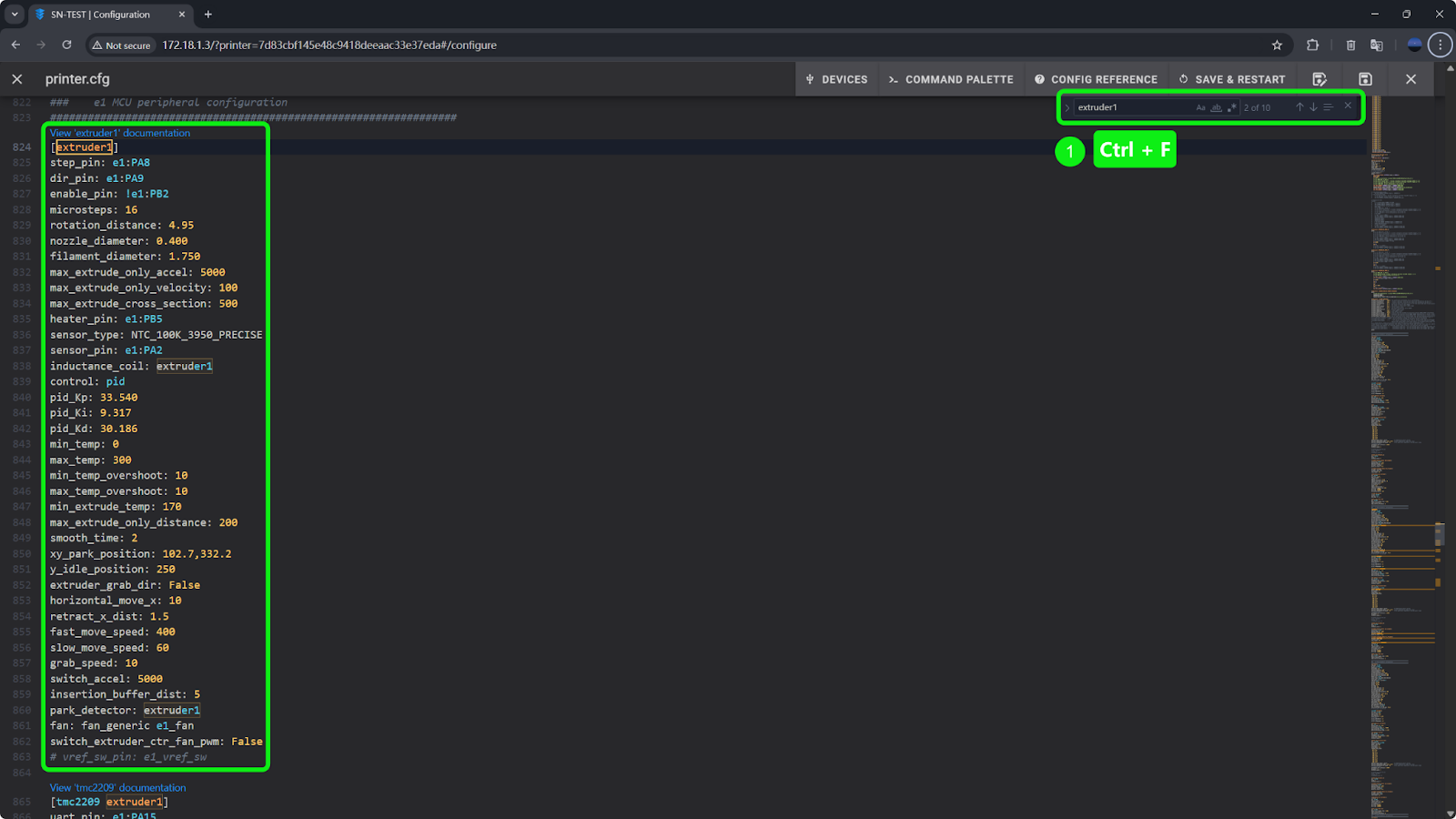
Ctrl + Fto search for keywords and quickly locate the code block corresponding to the faulty toolhead. The table below shows the correspondence between toolhead numbers and their code entries.
| Toolhead Number | Code Entry |
|---|---|
| 1 | extruder |
| 2 | extruder1 |
| 3 | extruder2 |
| 4 | extruder3 |
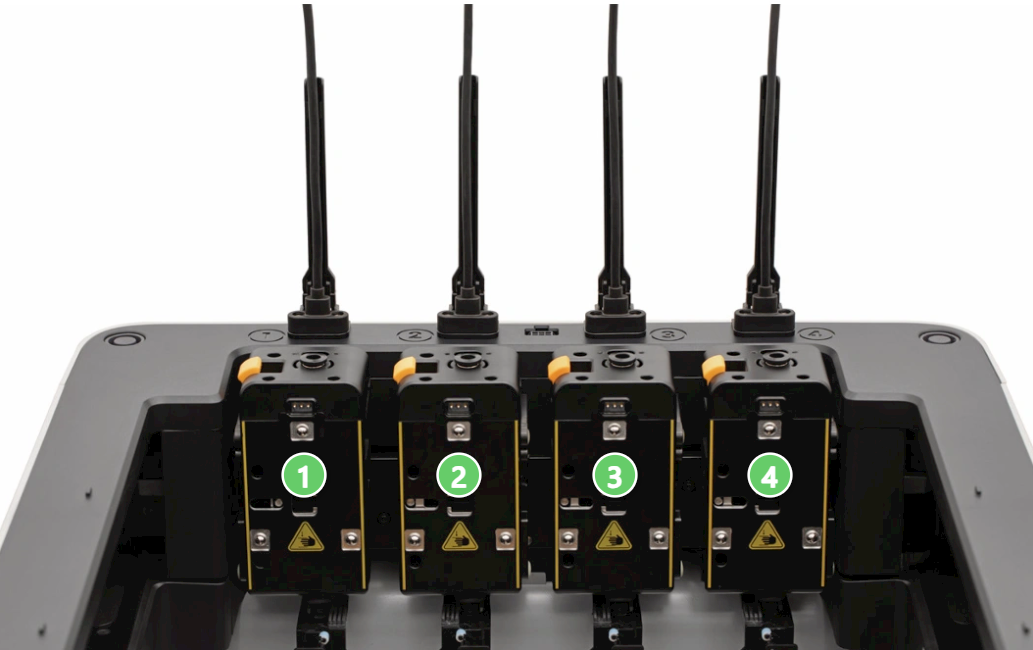
- For example, to locate Toolhead 2, enter
extruder1in the search bar.
¶ 4. Modify the Temperature Sensor Pin
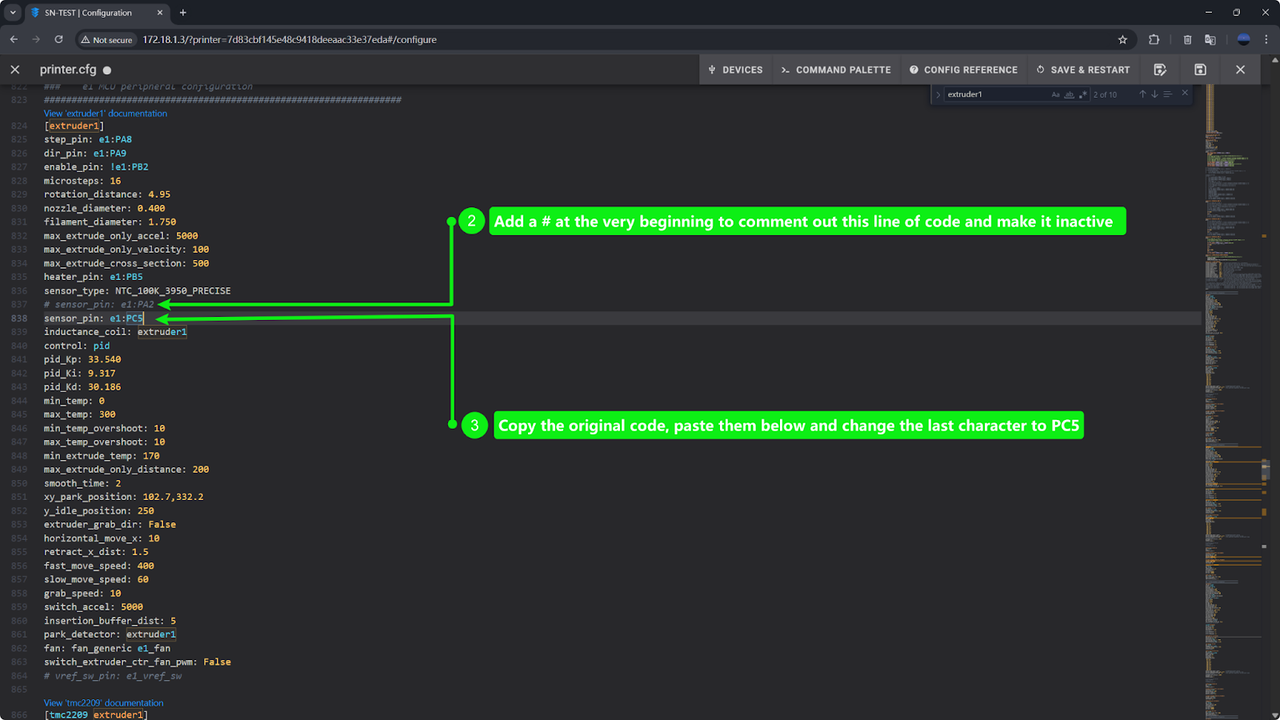
- Copy the line of code.
- Add a
#at the beginning of the code to comment it out. - Paste the original code below, then change the last two characters to
PC5.
¶ 5. Modify the Temperature Definition Range
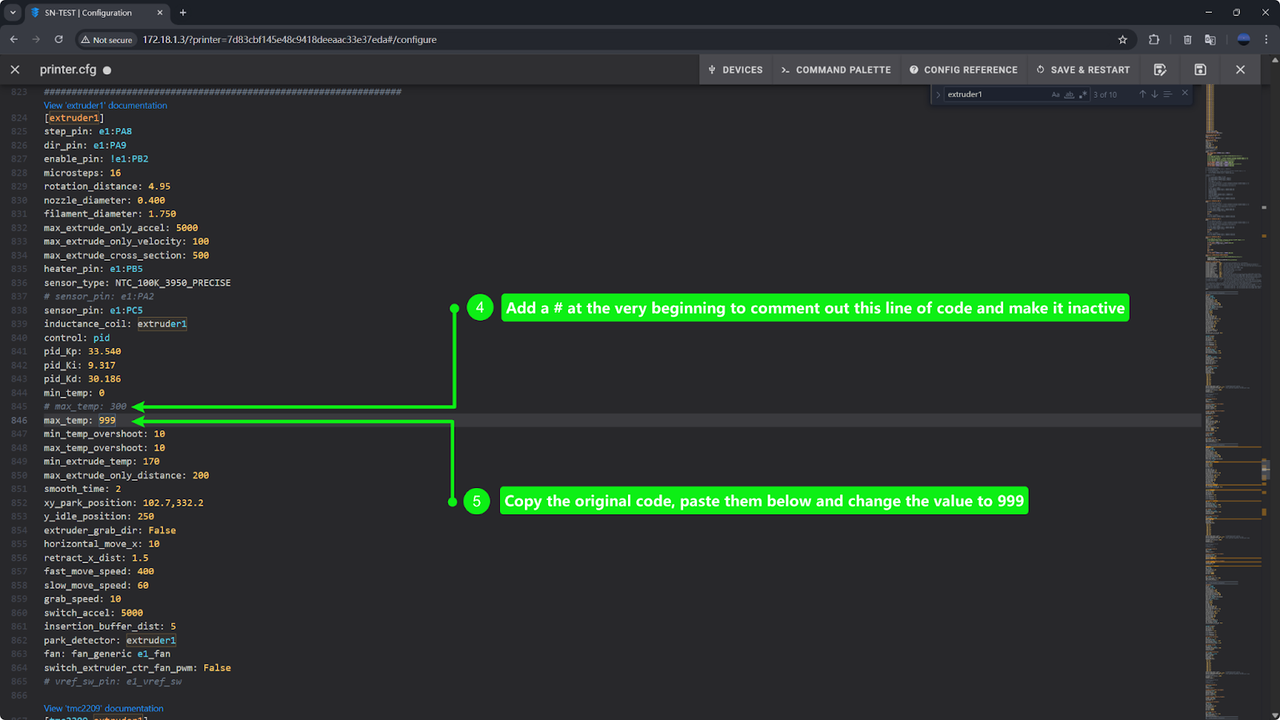
- Copy the line of code.
- Add a
#at the beginning of the code to comment it out. - Paste the original code below, then change the maximum temperature value to
999.
¶ 6. Modify the Cooling Fan Settings
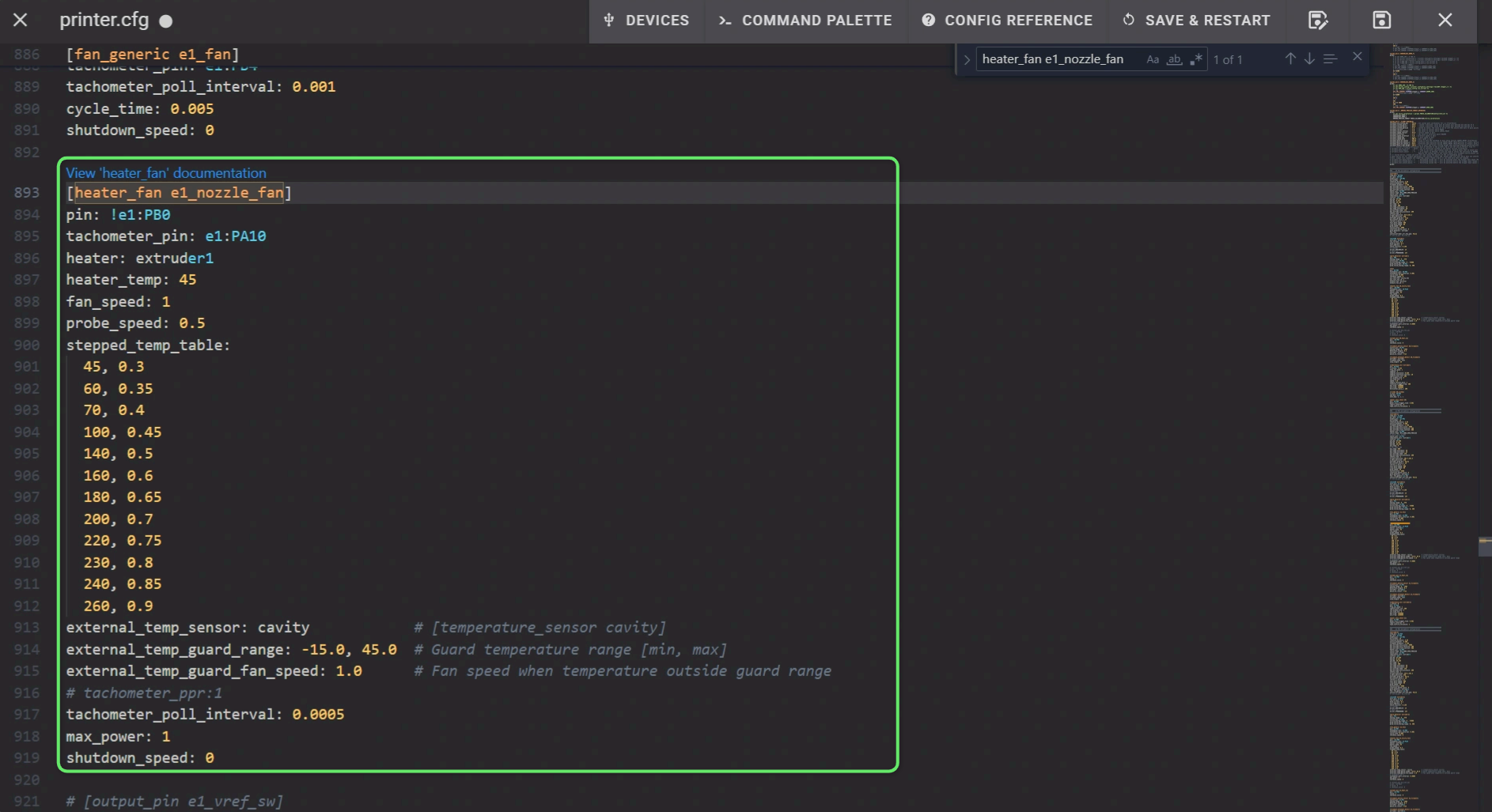
- Use
Ctrl + Fto search for the keywordsheater_fan e1_nozzle_fanto locate the code block that controls the hotend cooling fan.
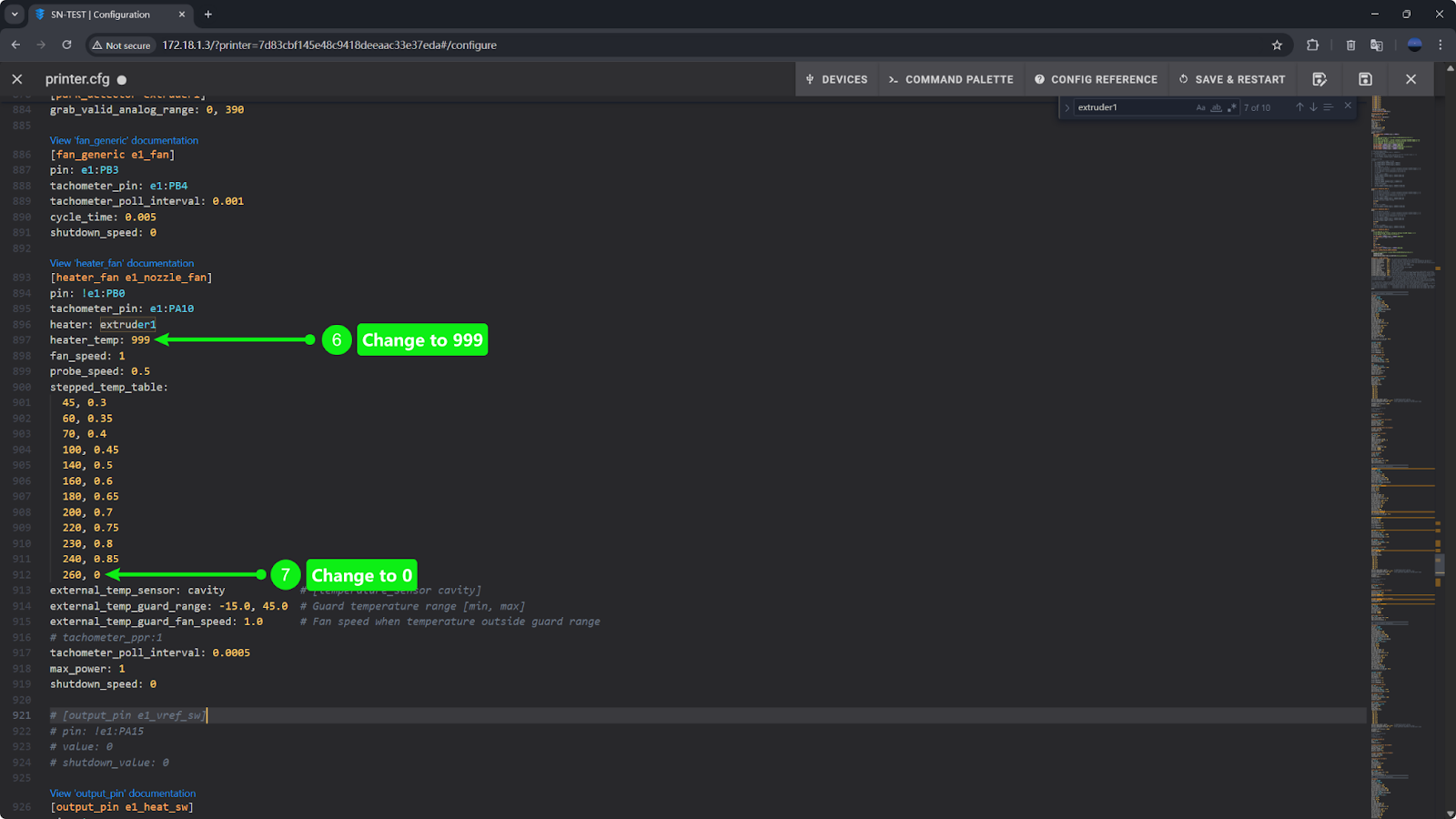
- Set the cooling fan temperature to
999and change the fan speed to0for temperatures above 260°C . This prevents the cooling fan from running at full speed continuously.
¶ 7. Save and Restart
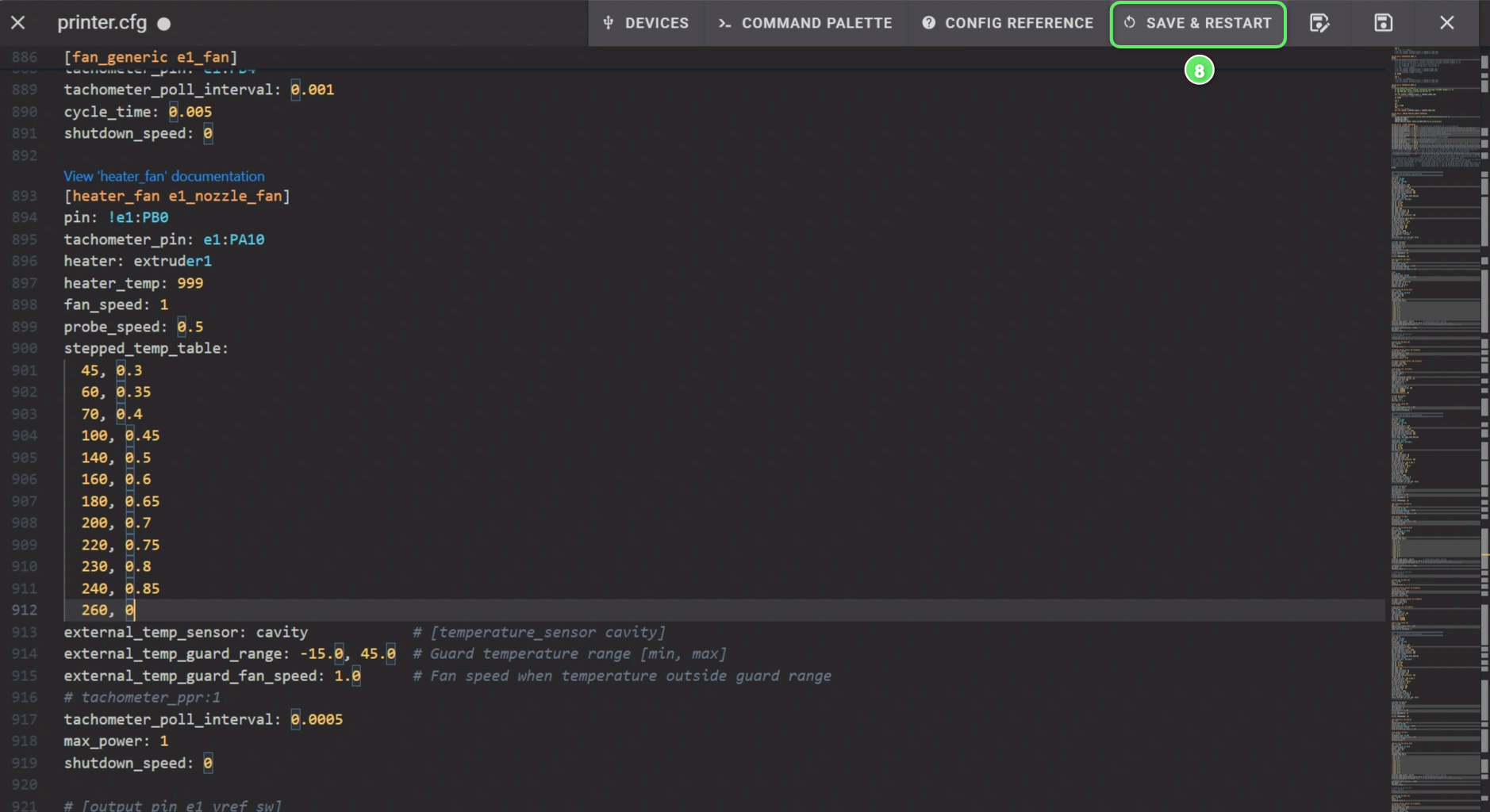
- Save the changes.
- After the firmware restarts, check whether the other toolheads can be used normally.
¶ 🛠️ Follow-Up Steps
After replacing the faulty part, promptly restore the printer settings to ensure correct detection of any issues in the future.
¶ Method 1
- Reverse the steps outlined above to restore the original settings.
¶ Method 2
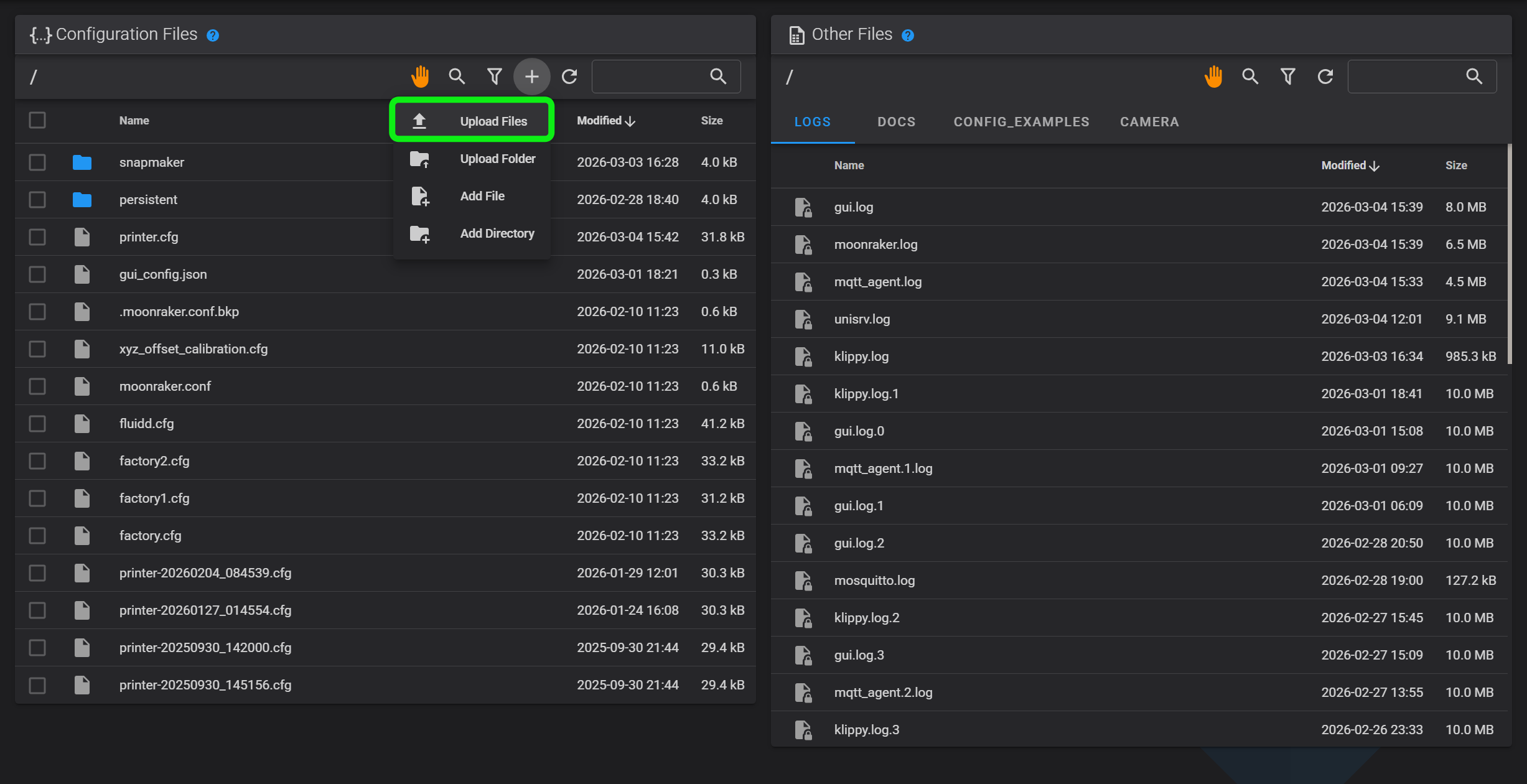
- Upload the previously downloaded backup file (ensure the file name is
printer.cfg) to Fluidd to overwrite the modified configuration.
¶ 💬 Reach out to Snapmaker Support
After following the troubleshooting steps, if you find it difficult to resolve your issue, kindly submit a support ticket through https://snapmaker.formcrafts.com/u1-troubleshooting-request and share your troubleshooting results with pictures or videos. Our dedicated support team will be more than willing to assist you in resolving the issue.