¶ 💡 Compatibility
This article applies to the following devices and software. Please note:
- Device Model: U1
¶ 📝 Issue Description
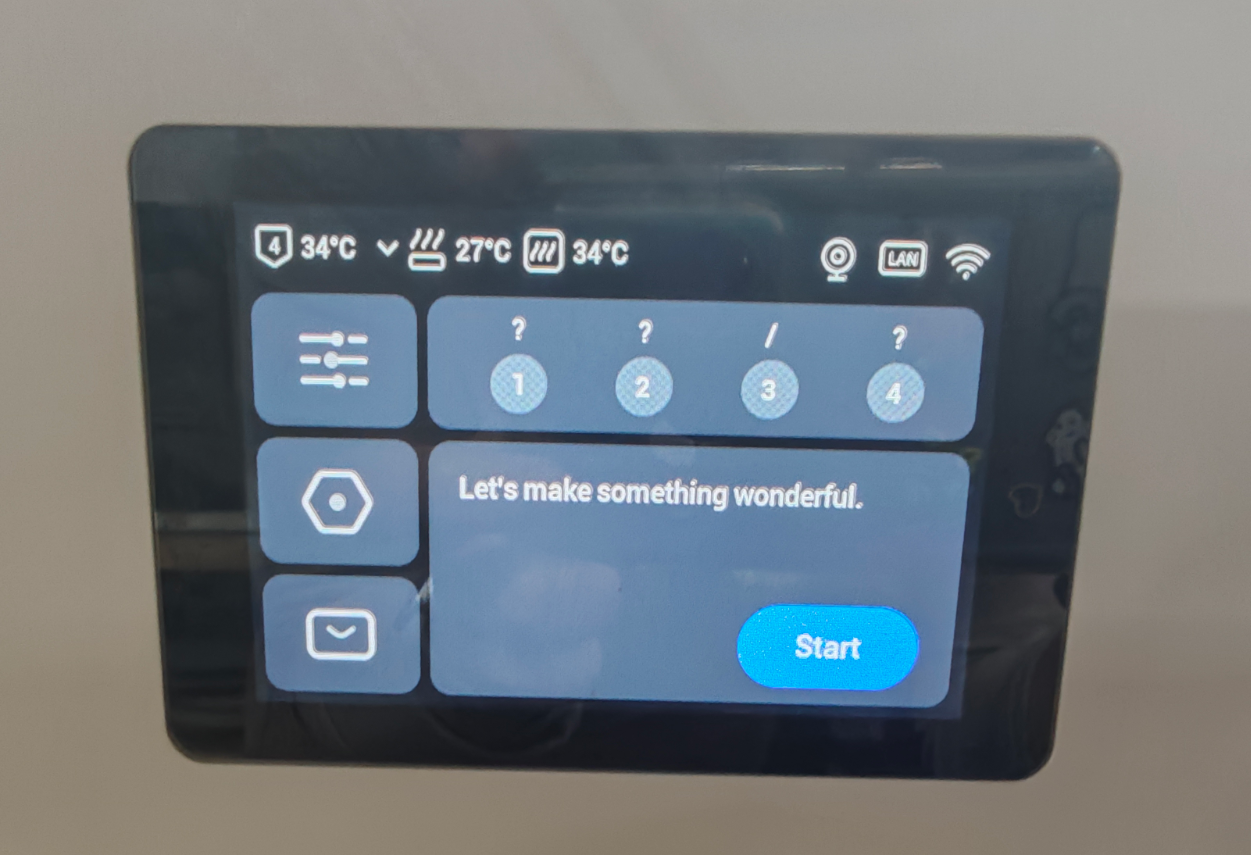
U1 cannot recognize filament type and color.
¶ 🔎 Possible Causes
- Filament chip malfunction
- Toolhead’s filament runout detection is disabled
- Residual filament inside the toolhead
- Filament runout sensor in the toolhead is abnormal
- RFID chip or antenna issue
¶ 🛠️ Troubleshooting Steps
¶ 1. Check the Filament Chip
- Ensure you are using Snapmaker store-purchased filament with an RFID chip.
- Insert the same spool into another channel that can recognize filament and check if it is detected.
- If it still cannot be recognized, try a different recognized filament for testing.
- If it can be recognized, the current filament chip is fine.
¶ 2. Check the Toolhead’s Filament Runout Detection
- On the touchscreen, go to the settings page and select Restore Factory Settings to see if the issue is resolved.
- If resolved, the runout detection might have been disabled; observe if it reoccurs during use.
- If the issue persists, continue troubleshooting.
¶ 3. Check for Residual Filament Inside the Toolhead
Open the toolhead and inspect for any leftover filament.
¶ 4. Check the Toolhead’s Filament Runout Sensor
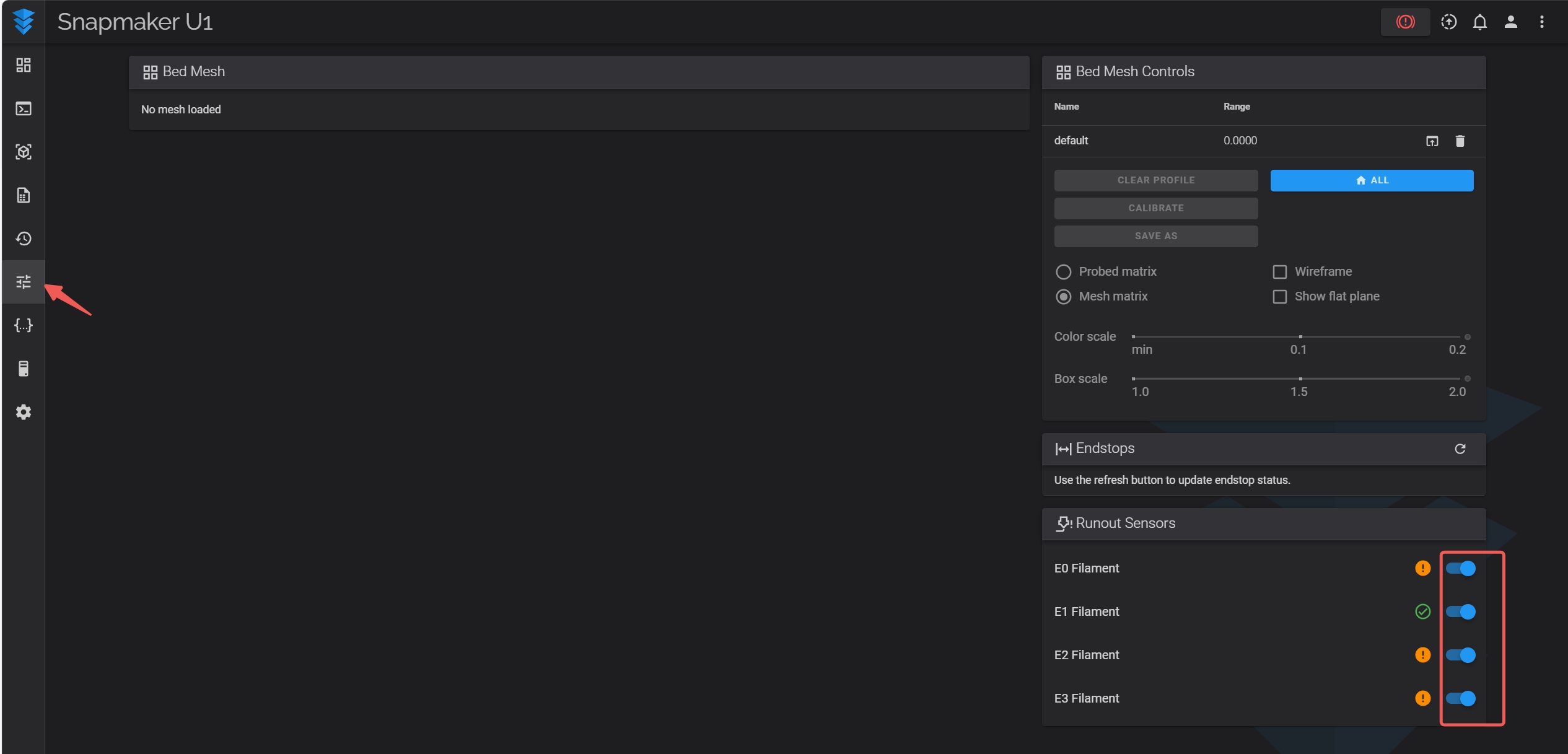
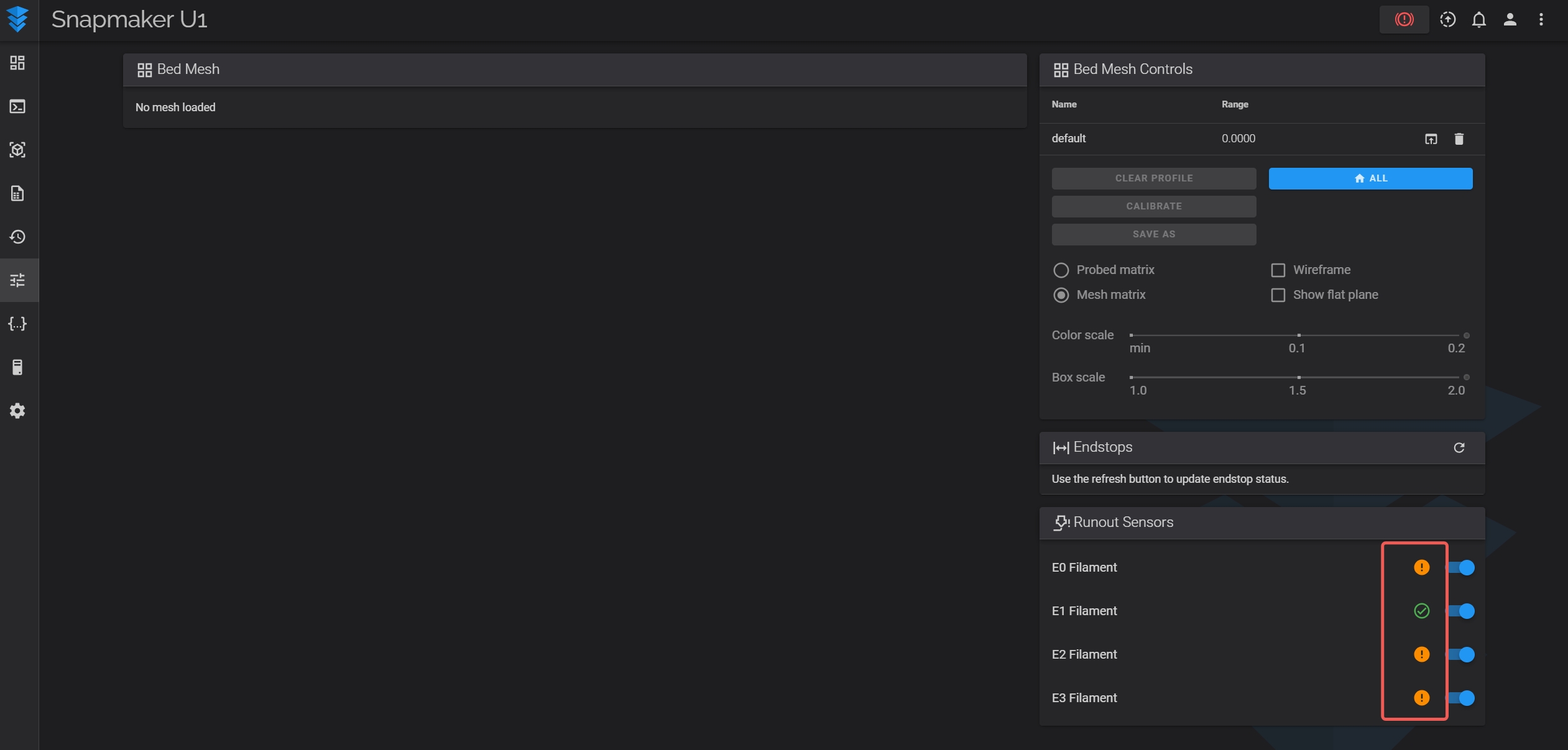
- On the Fluidd page, verify if filament runout detection is enabled.
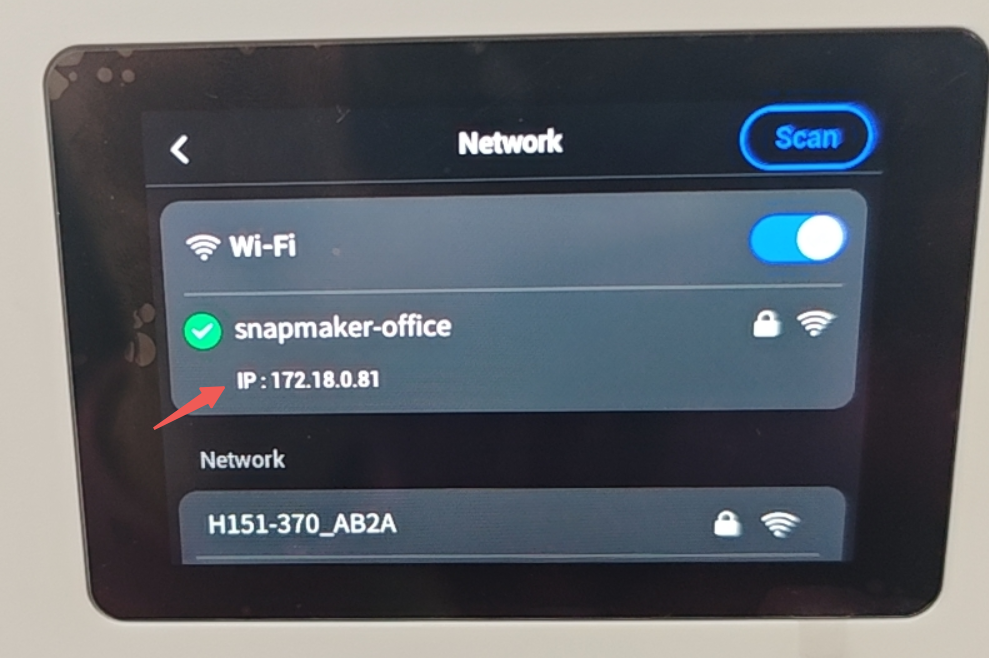
- On the touchscreen, go to Settings > Wi-Fi to find the machine IP.
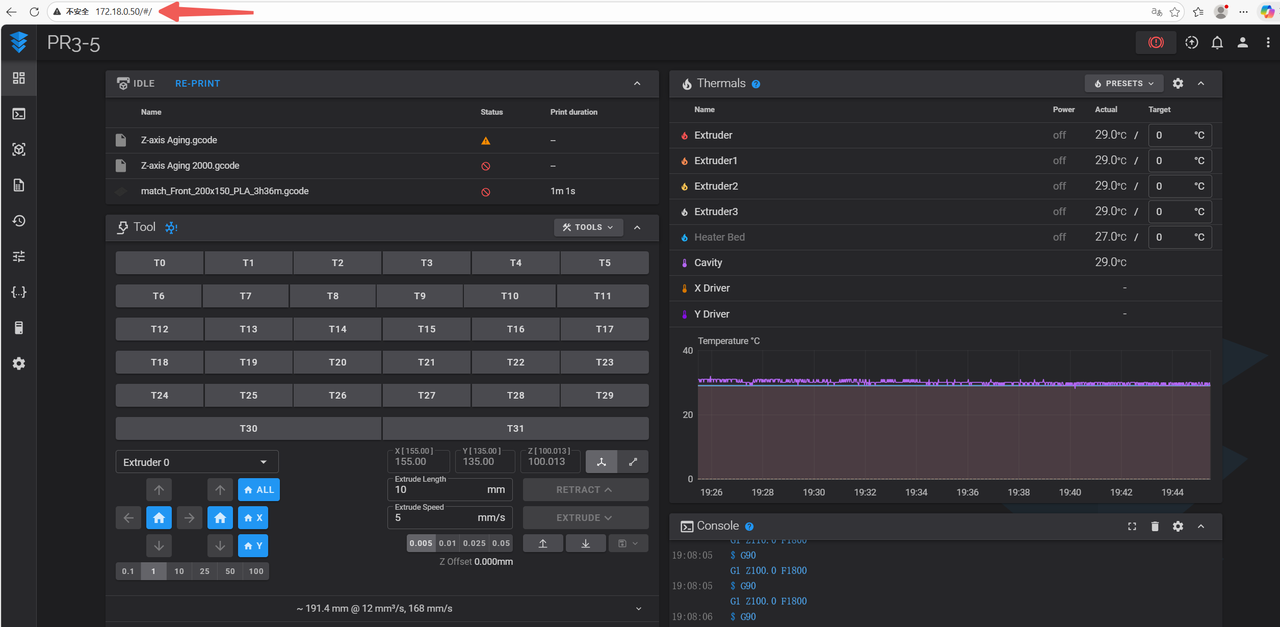
- Enter the machine IP in a computer browser.
- Open the Fluidd page and check the Tune section on the left panel to ensure all Runout Sensors are enabled.
-
If enabled, further check:
- Remove the filament tube above the toolhead
- Insert filament and verify that the Fuild page shows a green √
- Pull out filament and check that the Fuild page shows an orange exclamation mark
¶ 5. Check RFID Chip and Antenna
- If the above steps are normal, place the filament back on the filament holder and feed it into the automatic filament feeder.
- On the Fluidd console, send the following commands to check if the machine recognizes the filament type and color:
FILAMENT_DT_UPDATE CHANNEL=0
FILAMENT_DT_UPDATE CHANNEL=1
FILAMENT_DT_UPDATE CHANNEL=2
FILAMENT_DT_UPDATE CHANNEL=3
CHANNEL=0 corresponds to Channel 1, CHANNEL=1 corresponds to Channel 2, and so on.
- If multiple channels fail to recognize filament, feed one channel at a time and send the corresponding command to avoid interference.
- If the filament is recognized via command, the RFID chip and antenna are functioning.
-
If it still cannot be recognized after sending commands:
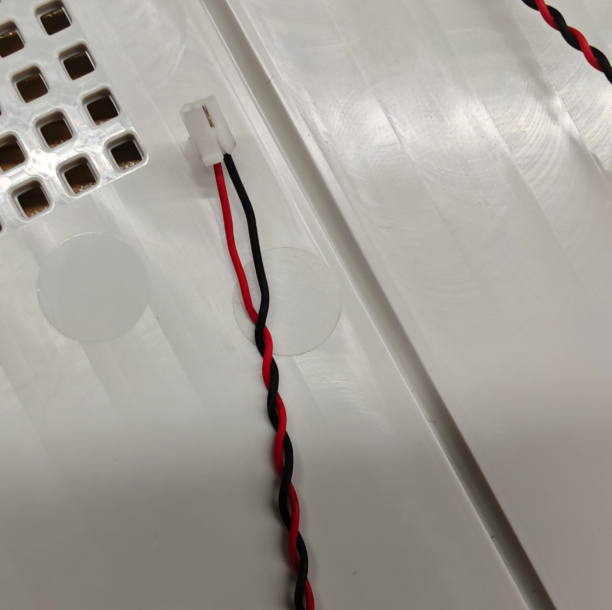
- Open the side panel and check the channel’s cable connection; try reseating the connector
- Check if connector pins are bent or damaged
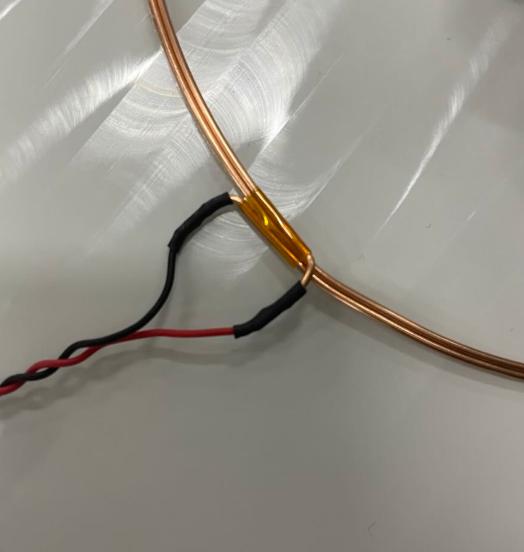
- Verify the antenna coil wiring sequence
The coil terminal of the red wire should be located above the black wire.
¶ ✅ Solution
After identifying the cause through troubleshooting, proceed as follows:
- Filament chip issue: Replace with a functional filament
- Disabled runout detection: Restore factory settings and monitor
- Residual filament inside toolhead: Clean out leftover filament
- Filament runout sensor abnormal: Verify sensor status and filament tube installation
- RFID chip or antenna issue: Check cable connections and antenna coil wiring
¶ 💬 Reach out to Snapmaker Support
After following the troubleshooting steps, if you find it difficult to resolve your issue, kindly submit a support ticket through https://snapmaker.formcrafts.com/u1-troubleshooting-request and share your troubleshooting results with some pictures/videos.
Our dedicated support team will be more than willing to assist you in resolving the issue.