¶ Overview
¶ Location
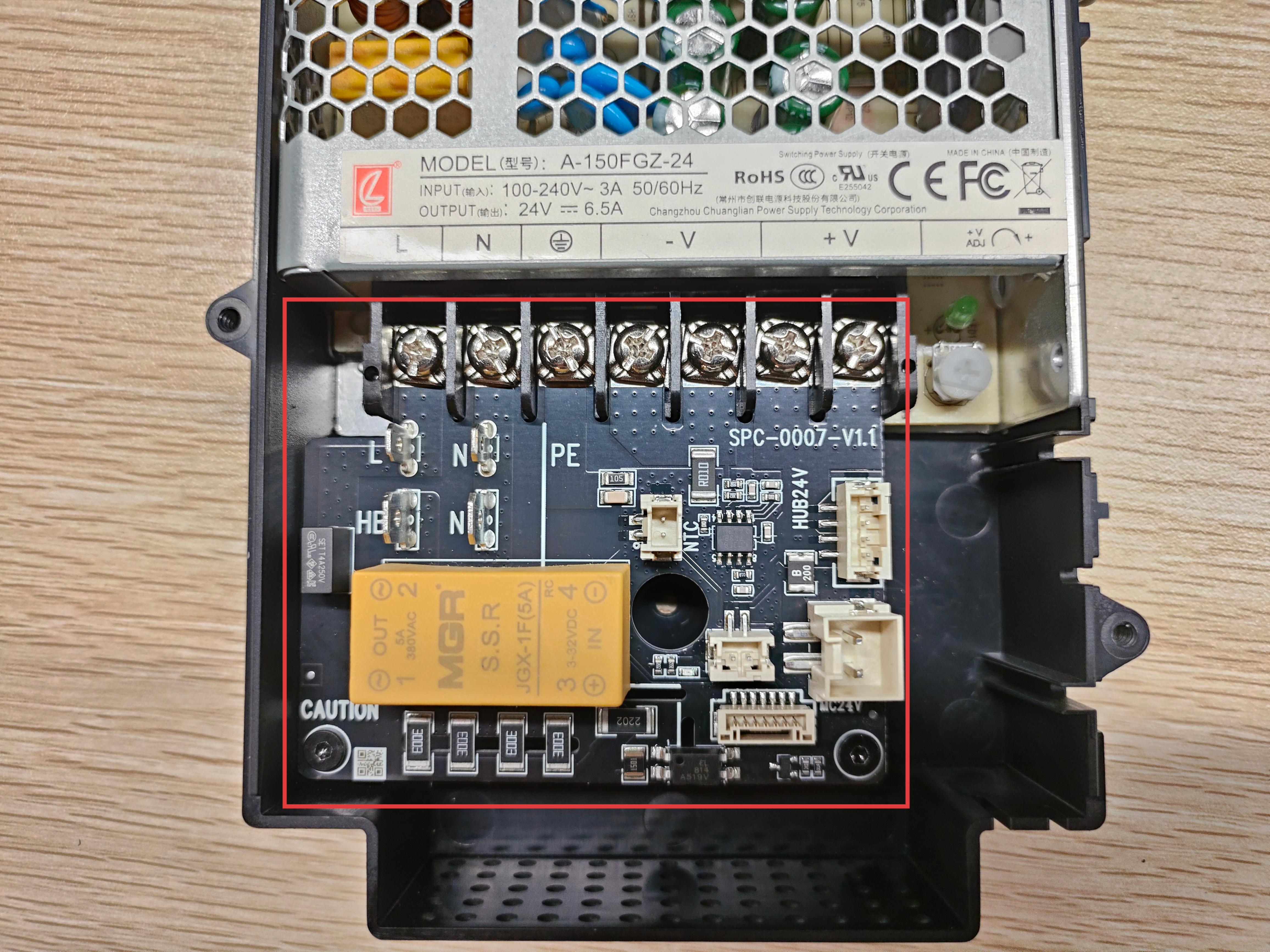
The AC heated bed control board is located below the power supply, which is situated inside the right panel. To replace it, please remove the right panel first.
¶ Difficulty and Time Estimate
- Difficulty:★★★☆☆ (moderate)
- Estimated Time:30 minutes
¶ Where to Buy
This accessory is expected to be available on the official Snapmaker online store soon. Please stay tuned.
¶ Tools and Parts Required
- H2.0 hex key
- PH1 Phillips screwdriver
- New AC heated bed control board
¶ Part 1. Remove the panels
¶ Step 1. Unload filament from toolheads 3 and 4
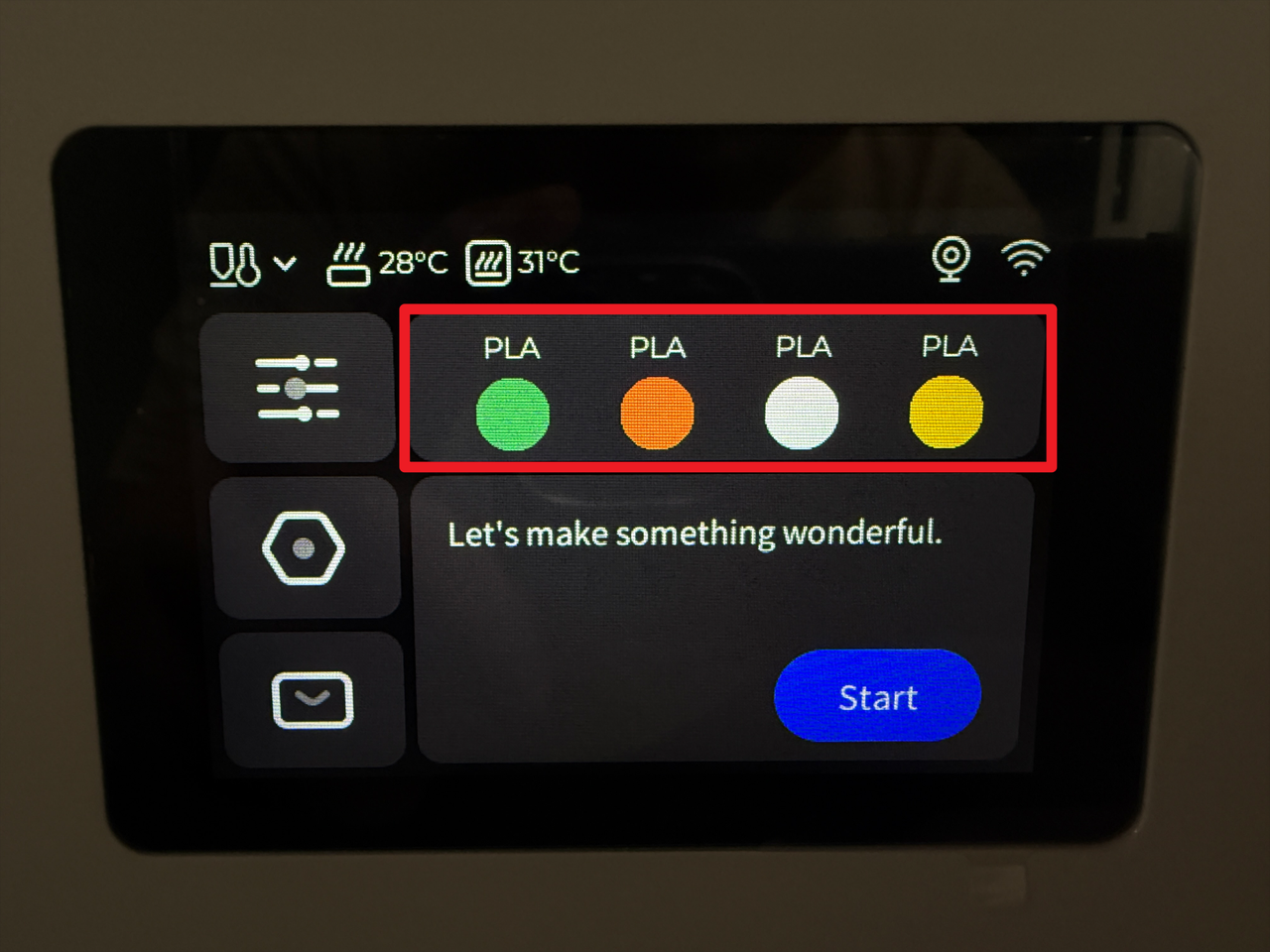
- Tap the highlighted area on the screen.
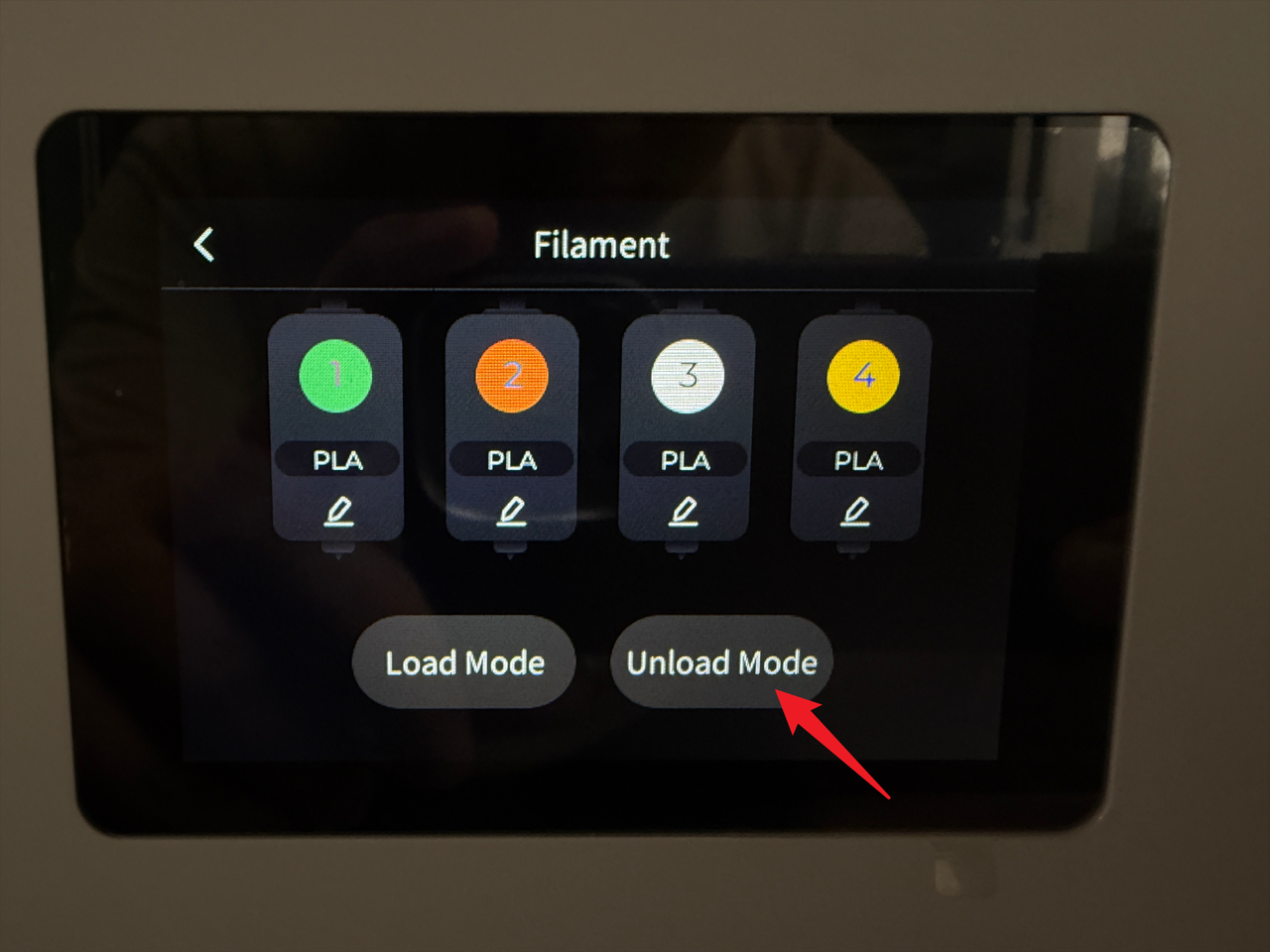
- Tap "Unload Mode".
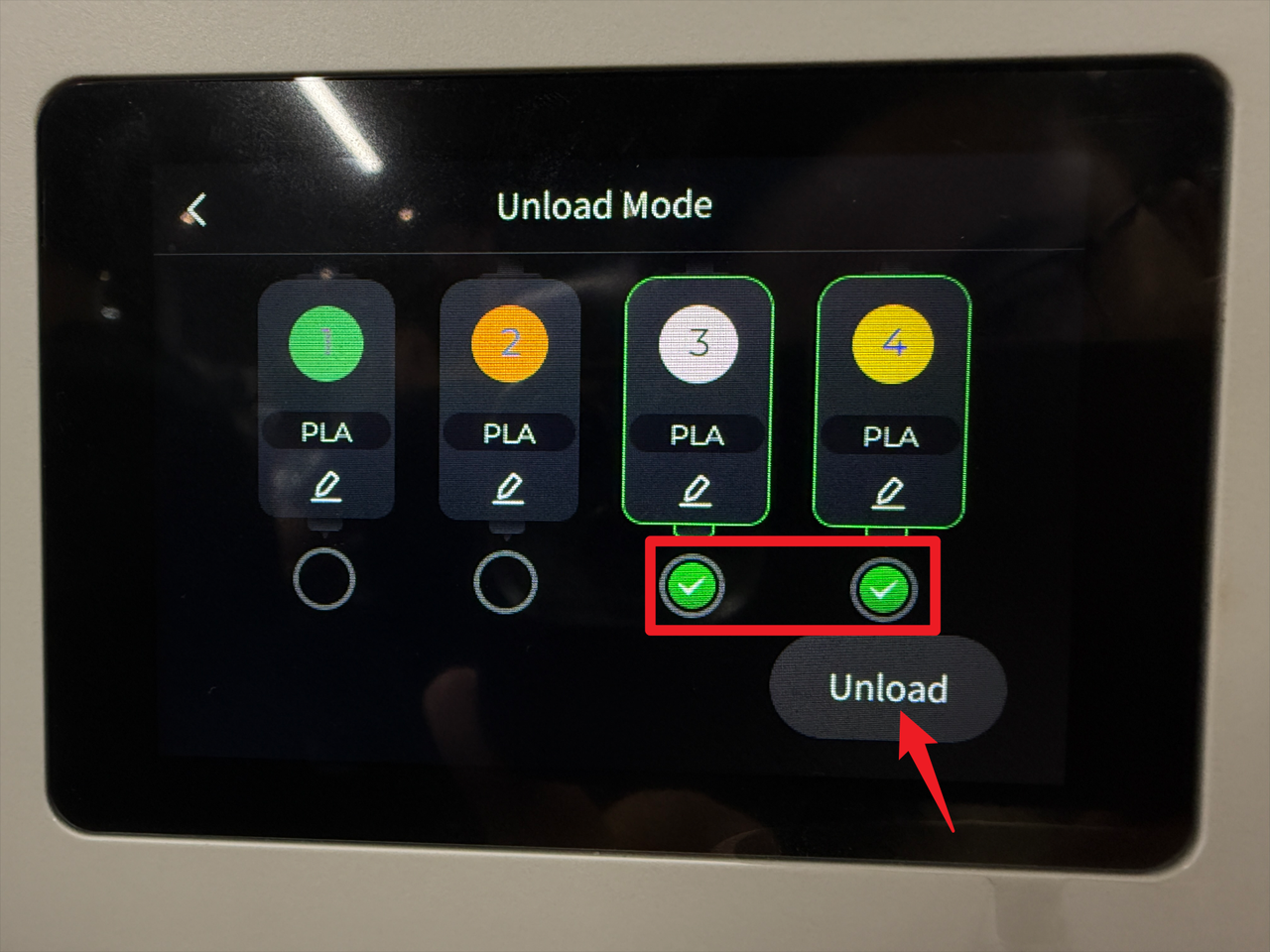
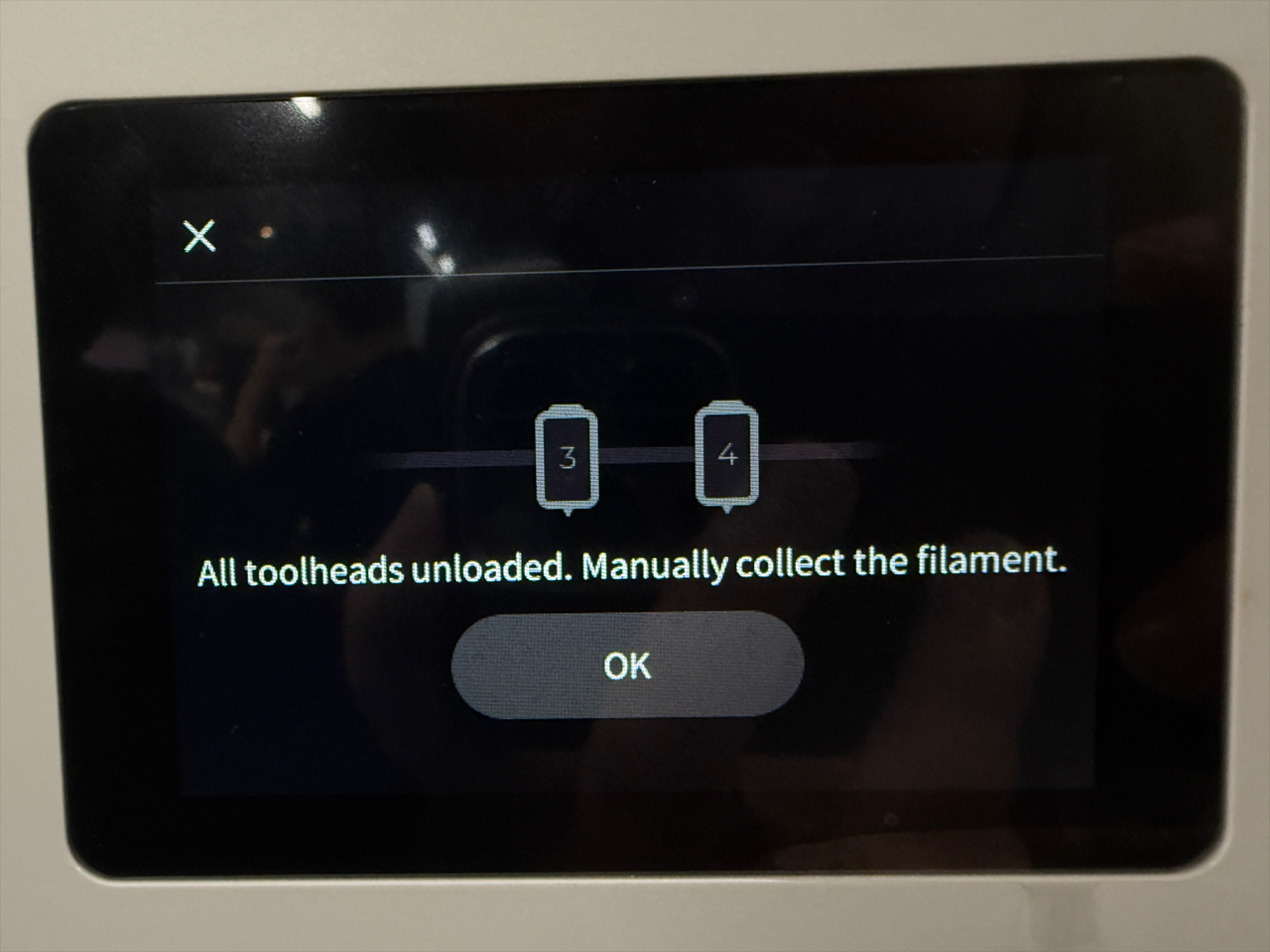
- Select toolheads 3 and 4, then tap "Unload".
- Wait for the machine to complete the unloading.
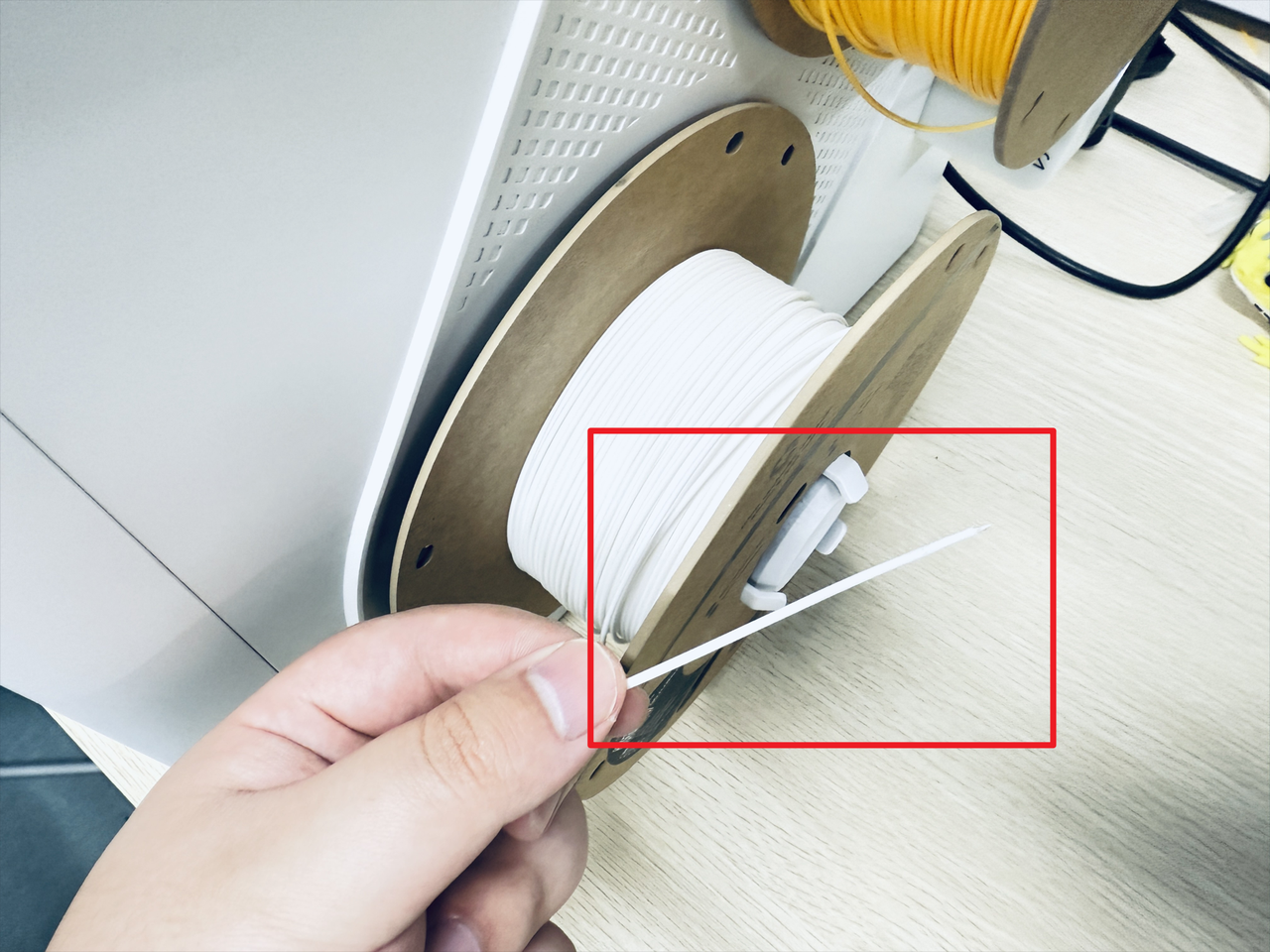
- Turn the spool to retract the remaining filament.
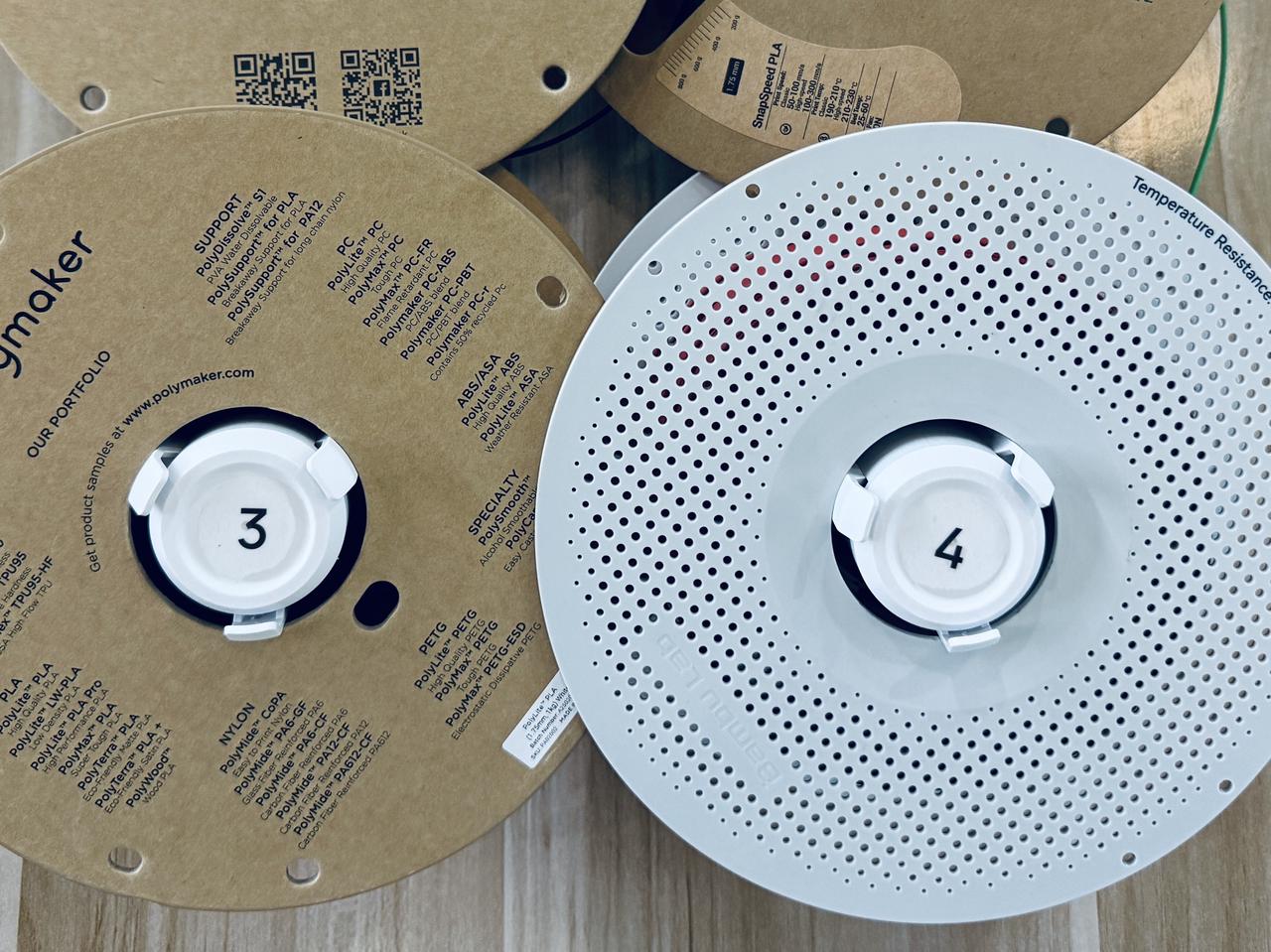
- Remove the spools and filament holders 3 and 4.
¶ Step 2. Power off the machine
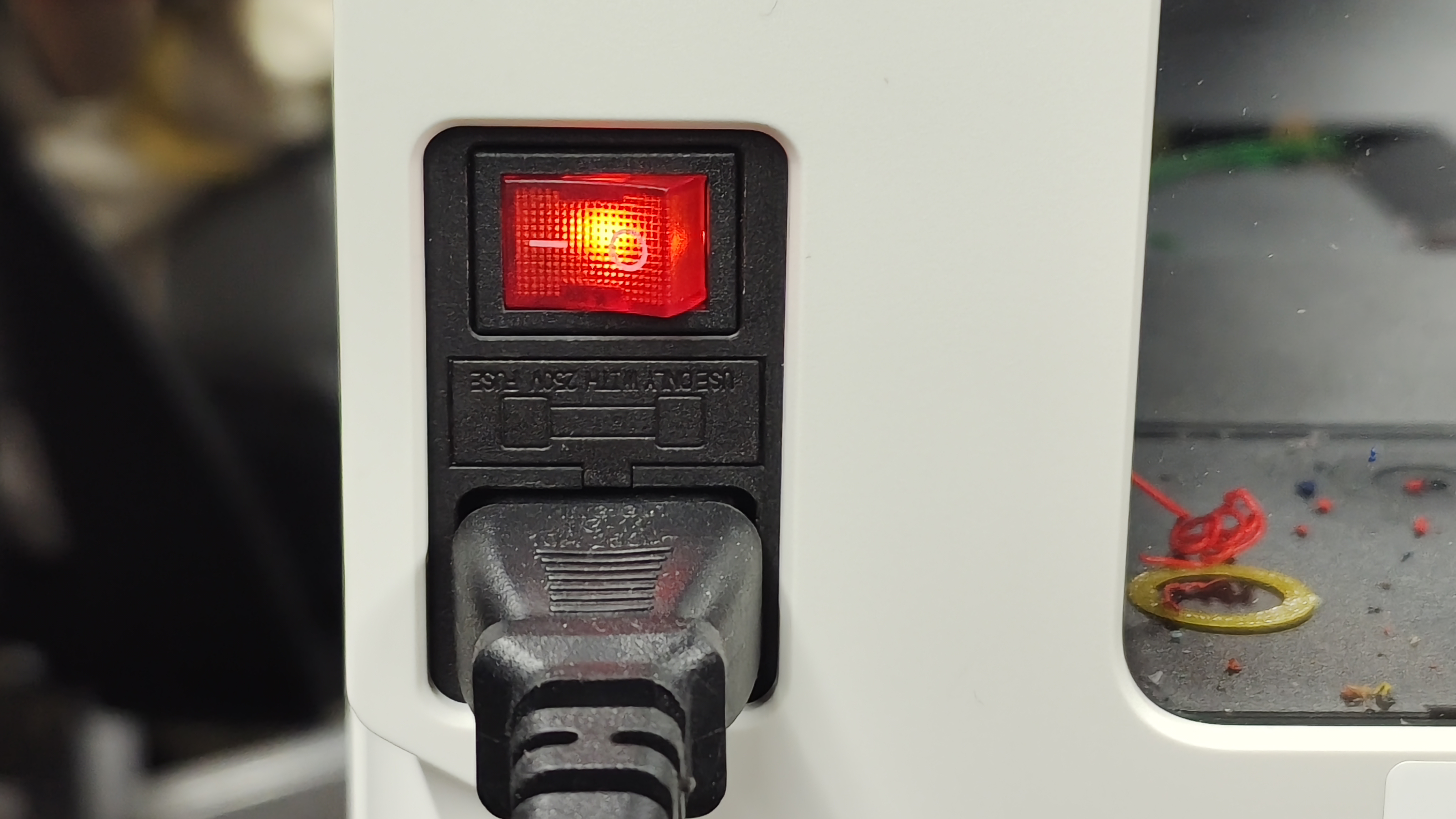
- Before proceeding, please turn off the machine and unplug the power cable!

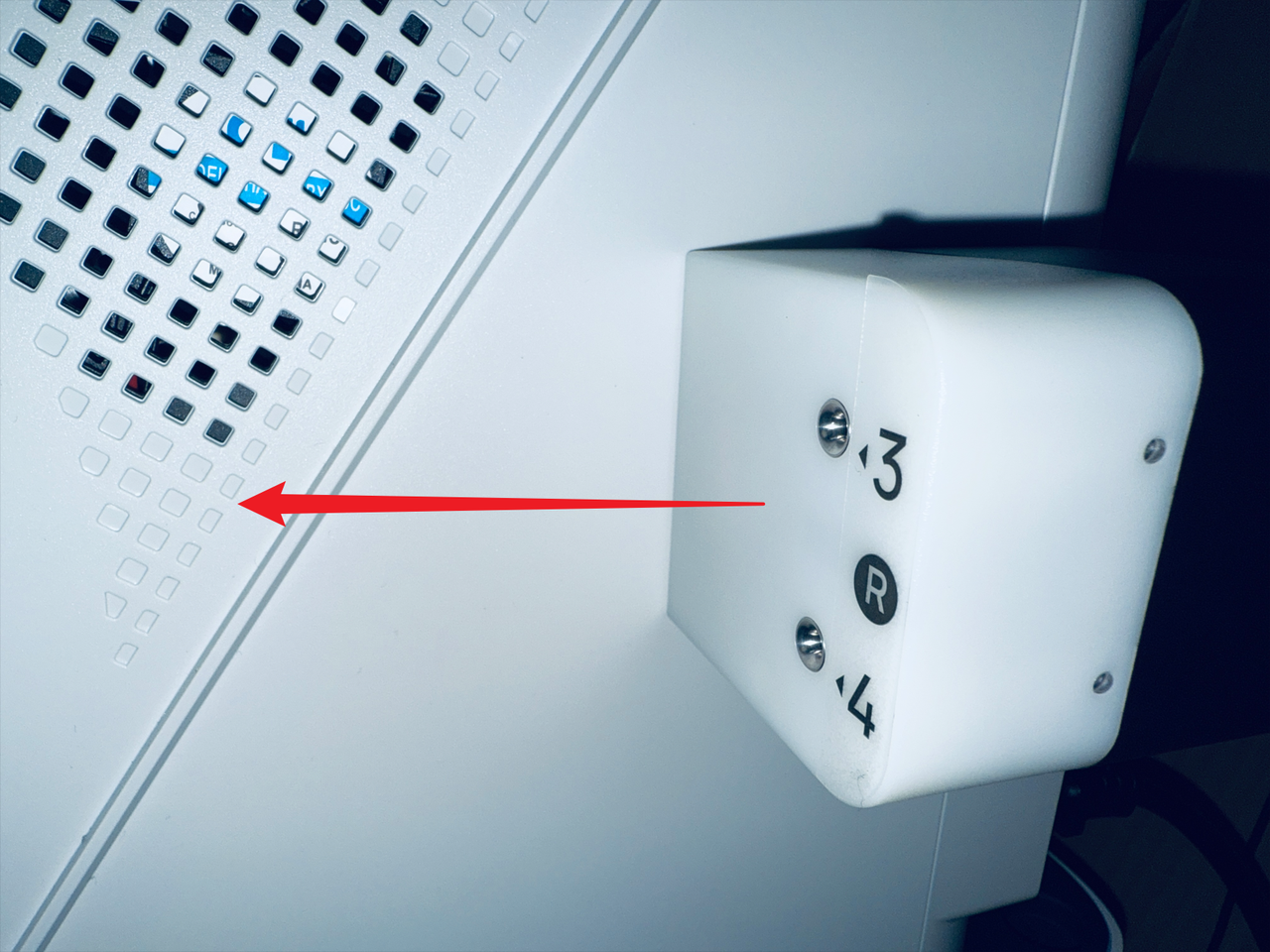
¶ Step 3. Remove the filament feeder on right side
- Press the clip at the marked location.
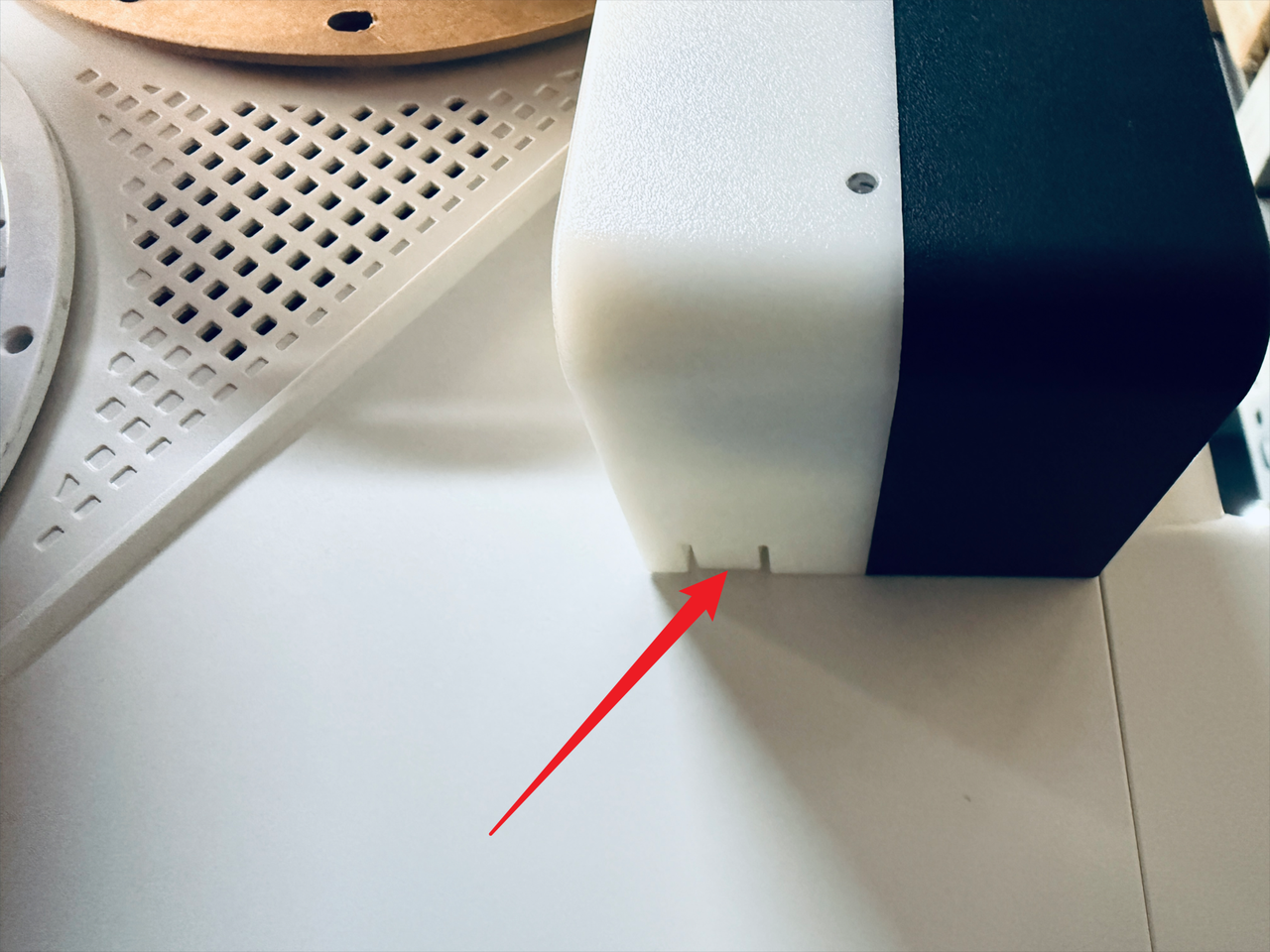
- While pressing the clip, slide the filament feeder in the indicated direction to remove it.
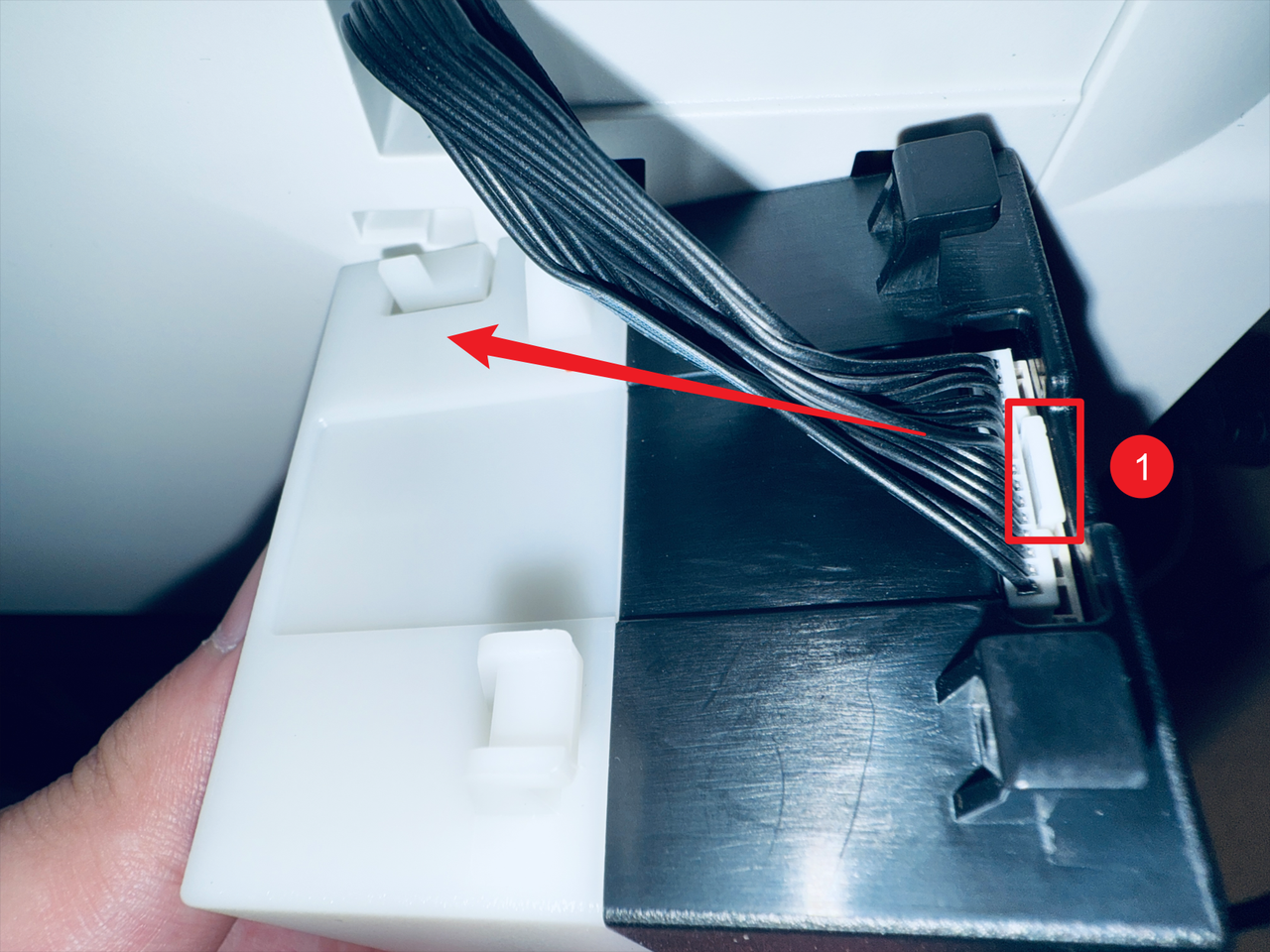
- Next, press point 1 as shown in the image to disconnect the filament feeder cable.
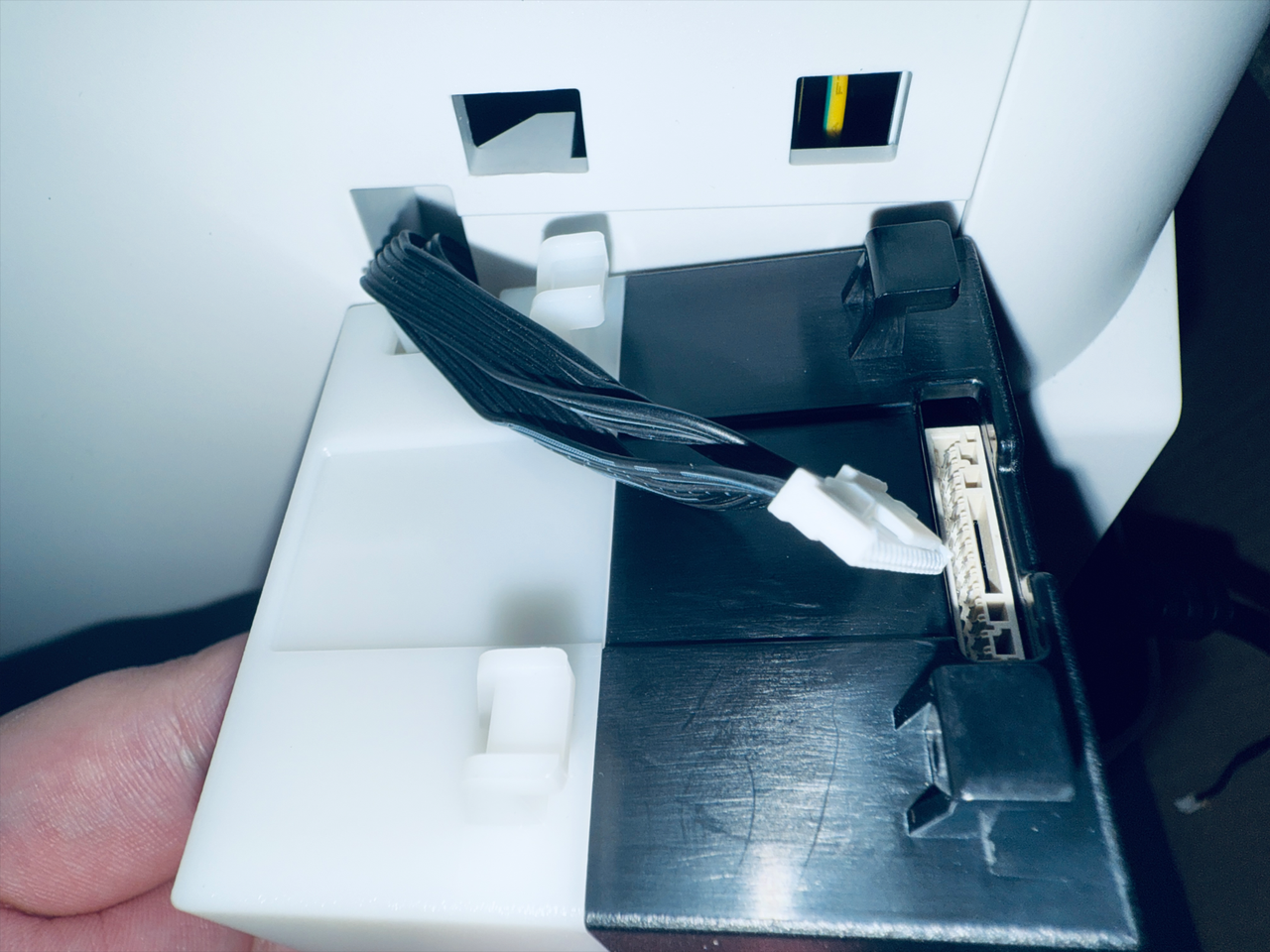
- Complete.
¶ Step 4. Disconnect USB cables
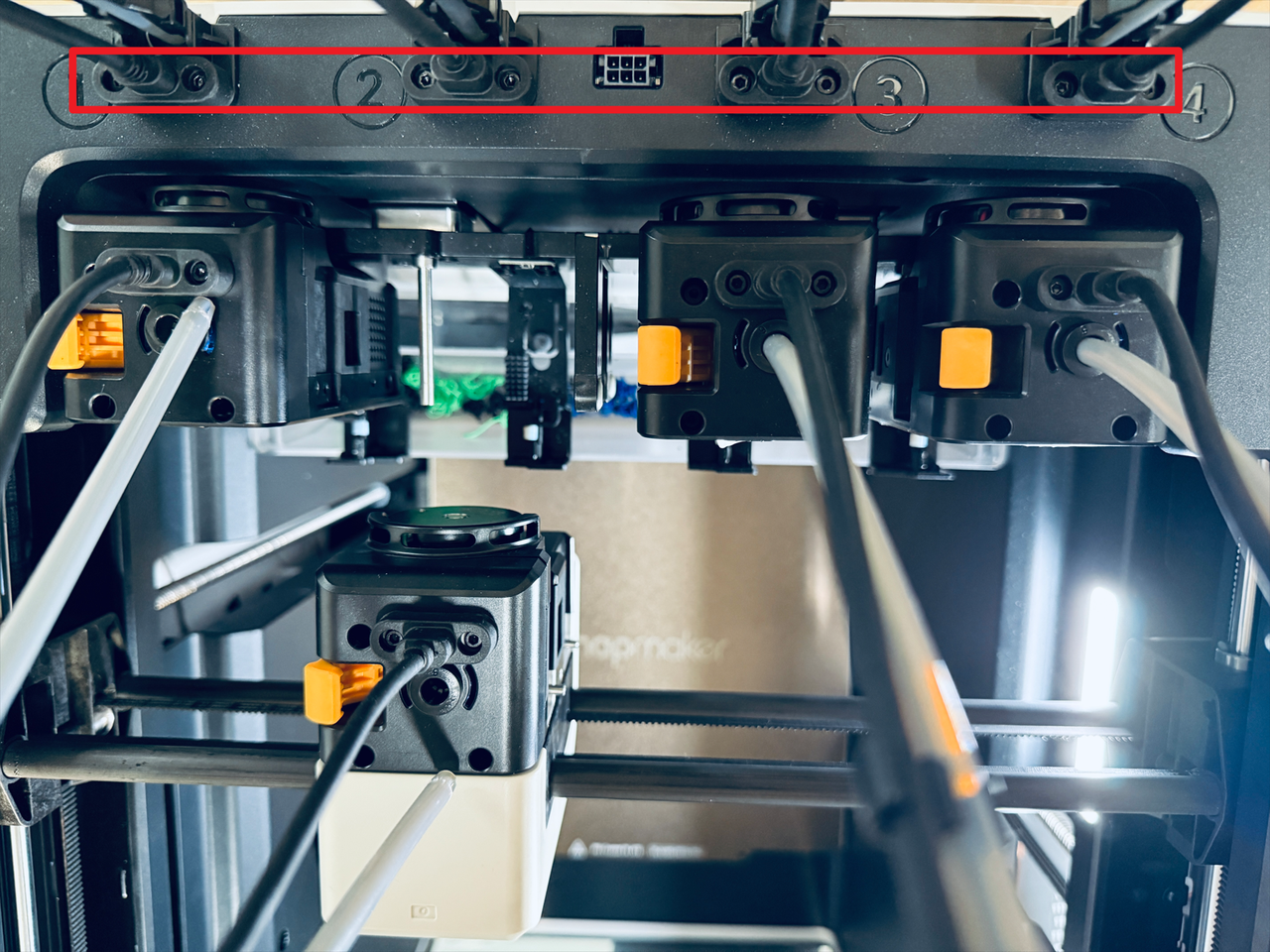
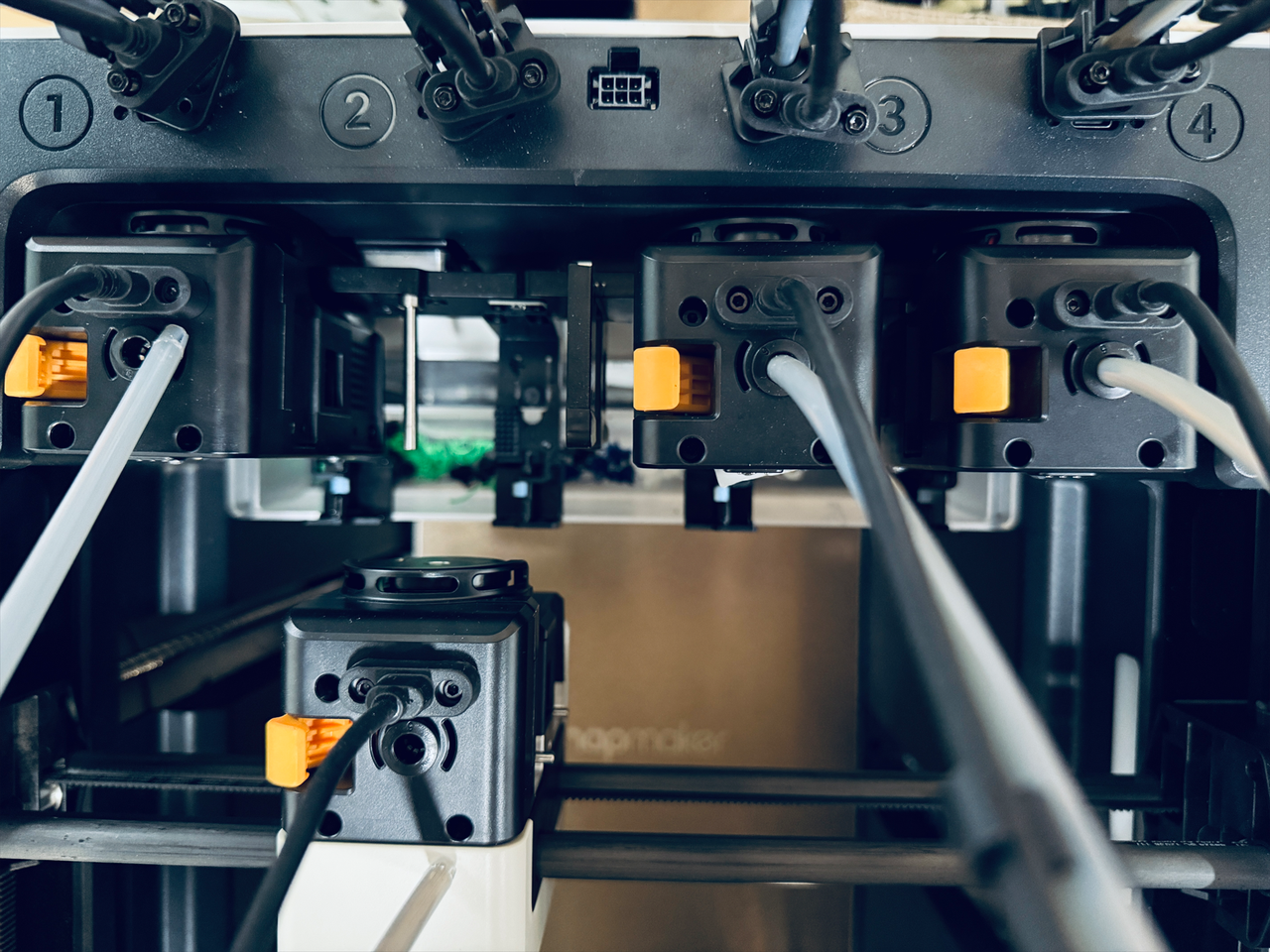
- Use a H2.0 hex key to remove the 8 screws from the 4 USB cables, then unplug the cables.
¶ Step 5. Remove the top cover panel
- Take out the silicone plugs from all four corners of the top cover panel.
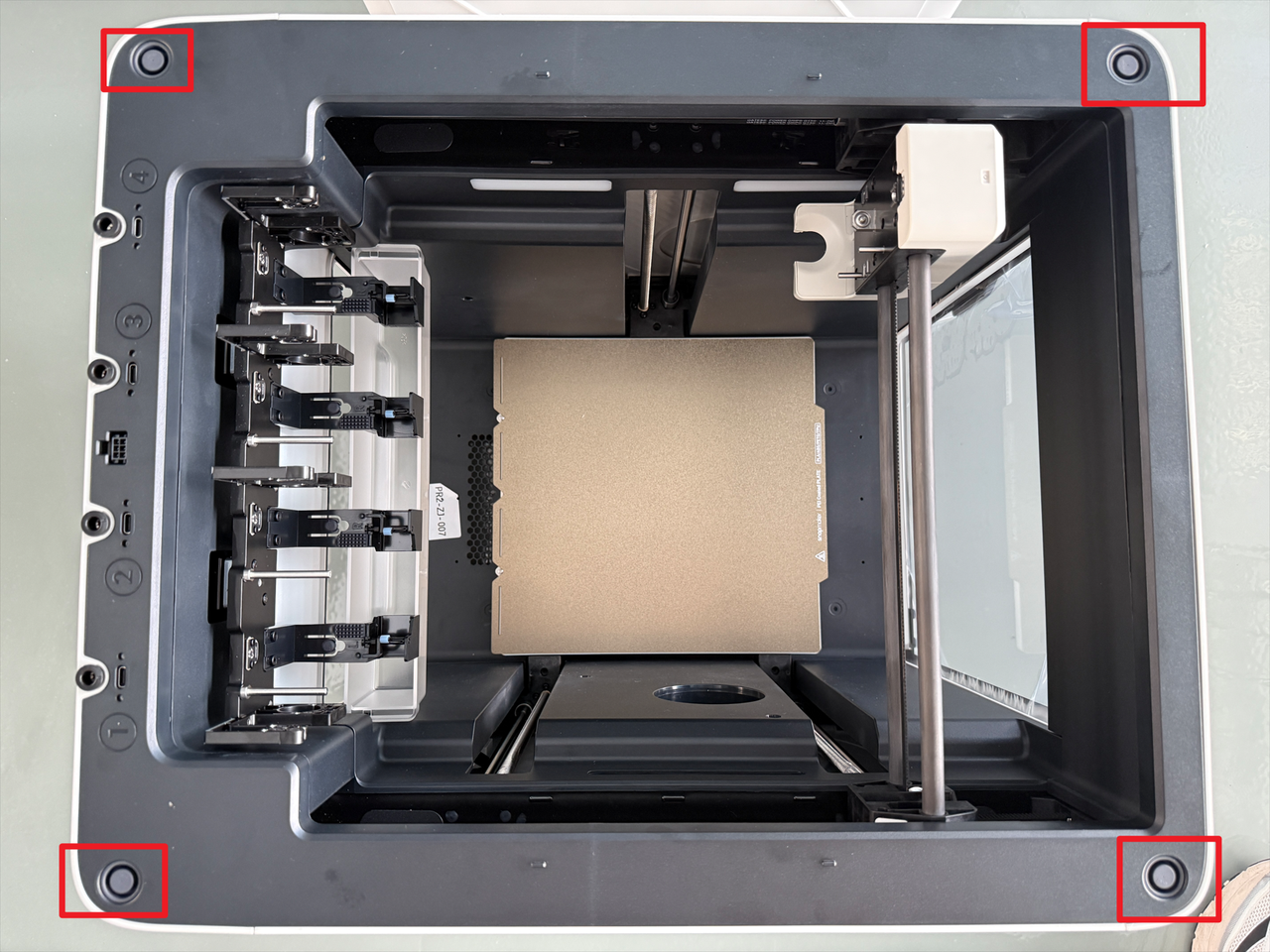
- Use the H2.0 hex key to remove the 4 screws beneath the plugs.
¶ Step 6. Remove the right panel
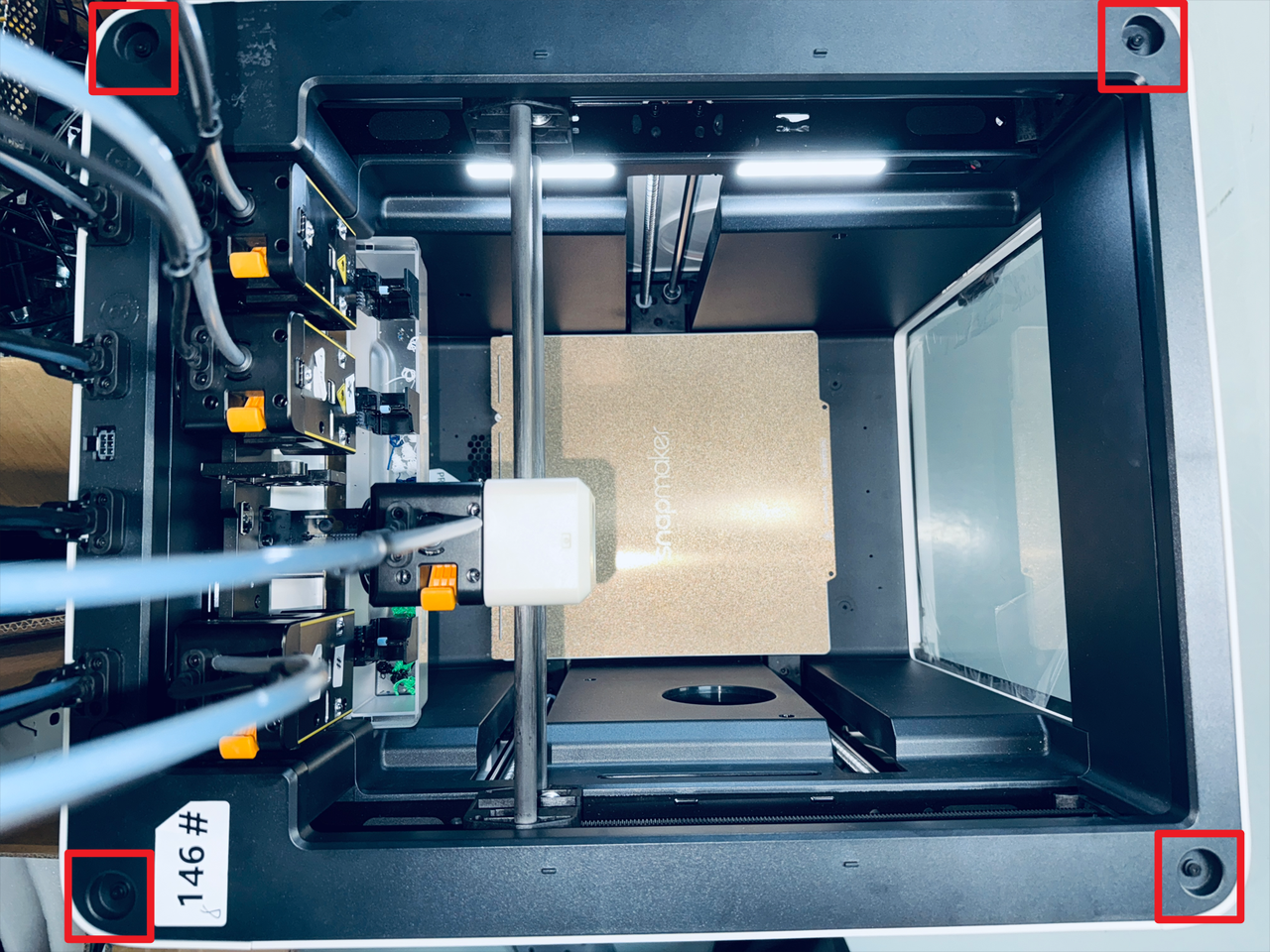
- Slightly shift the top cover panel as shown in the image, then remove the four marked screws.
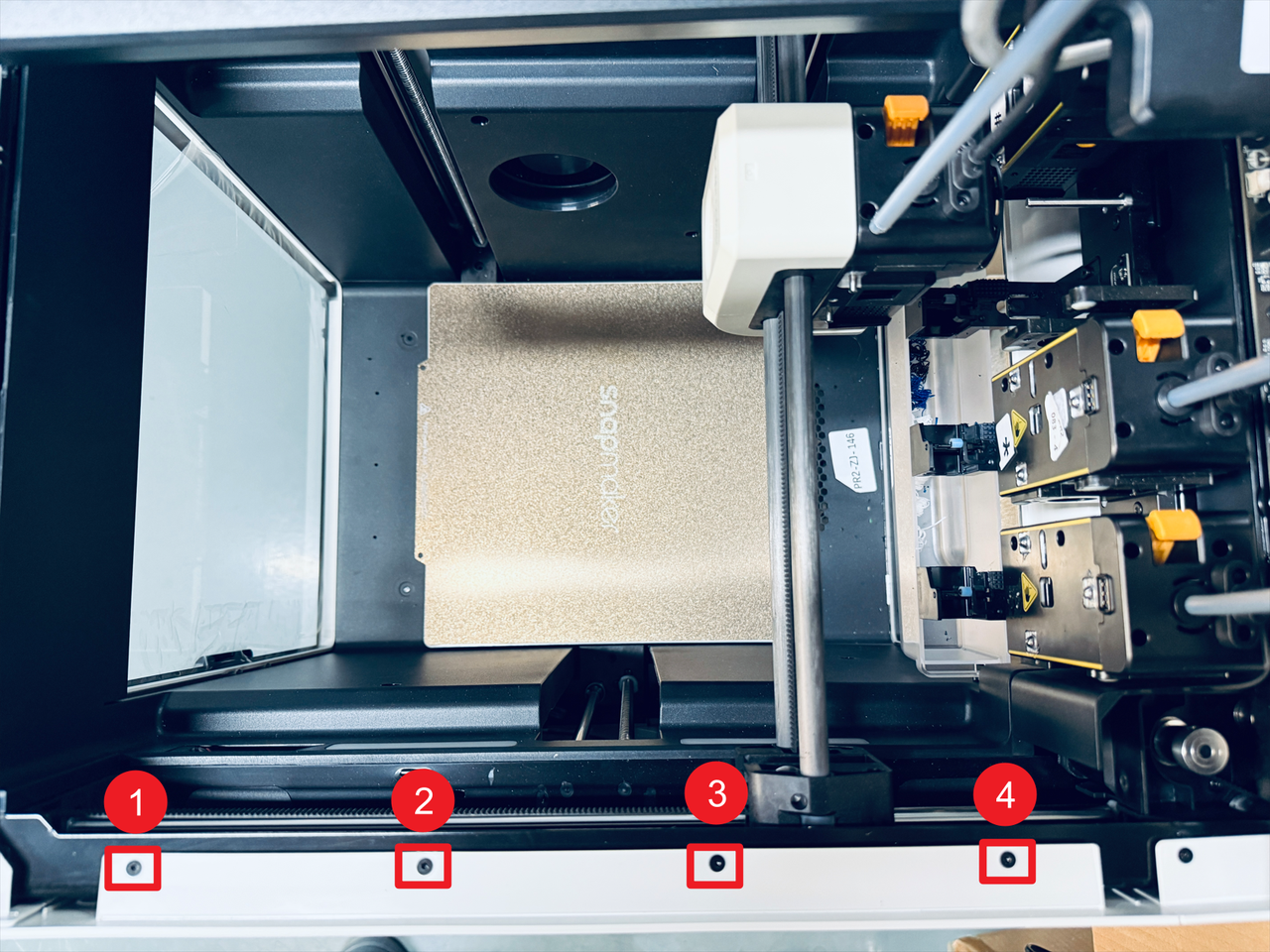
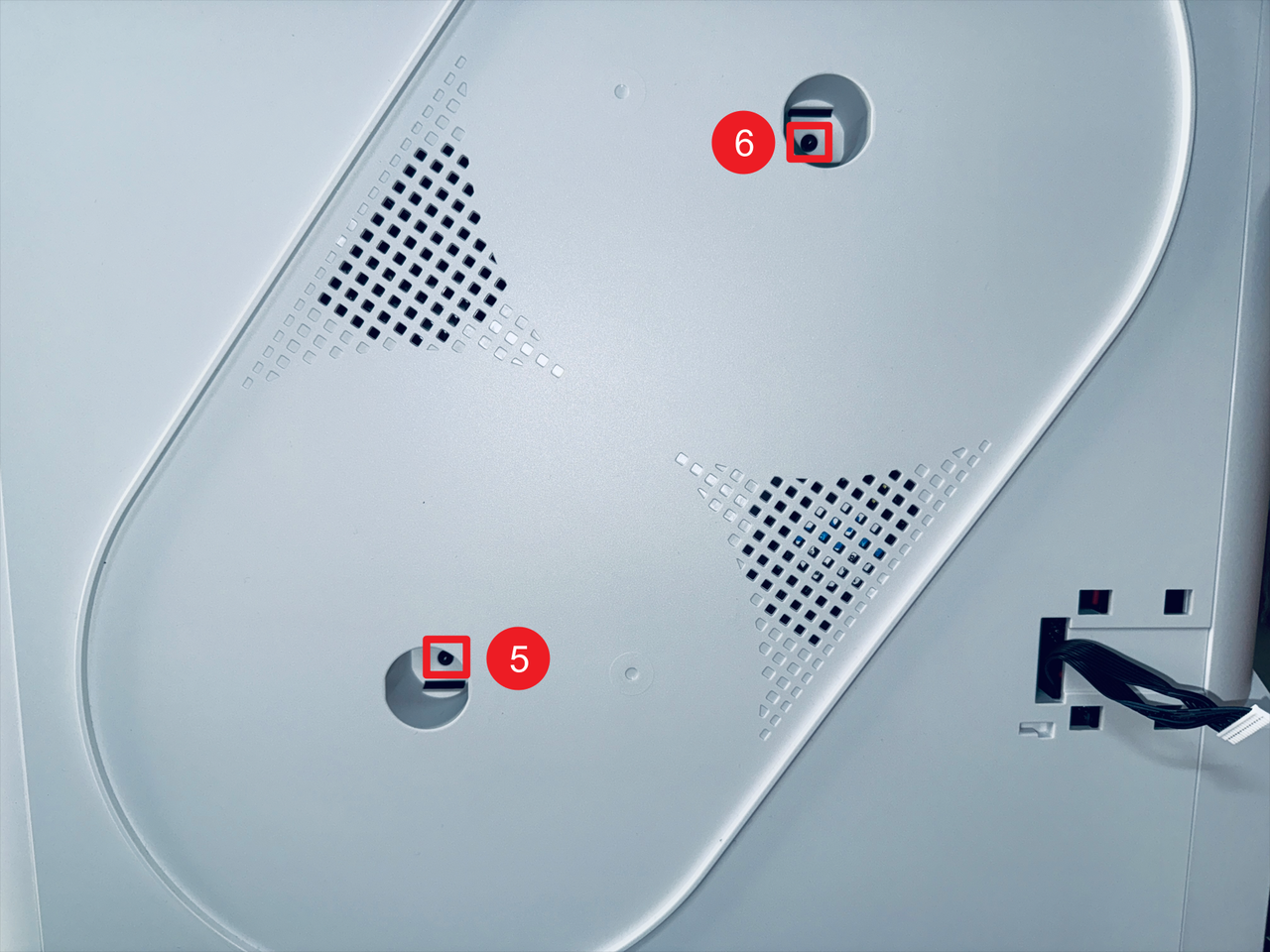
- Remove screws 5 and 6 located inside the spool holder holes.
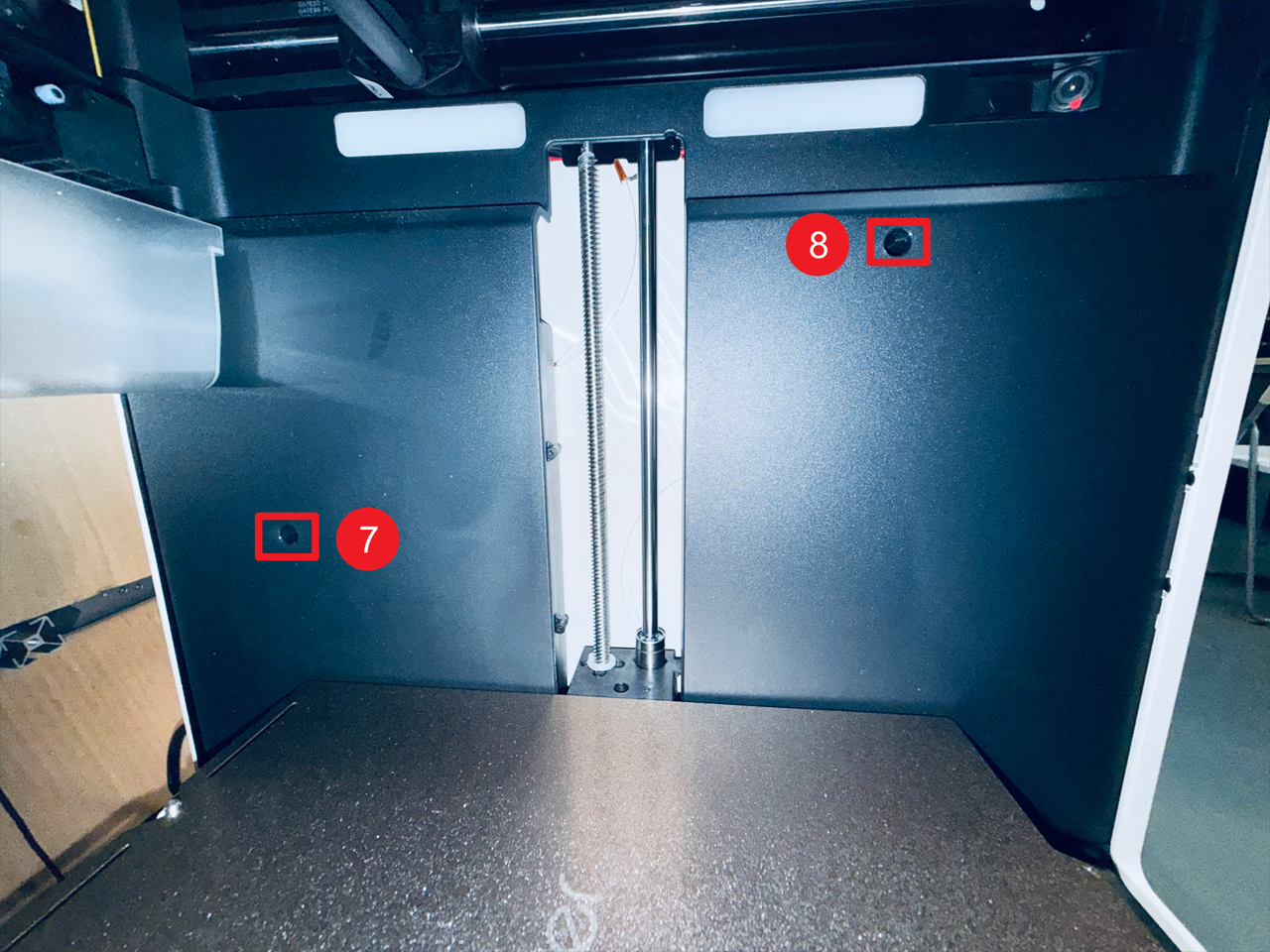
- Then remove screws 7 and 8 on the right inner panel.
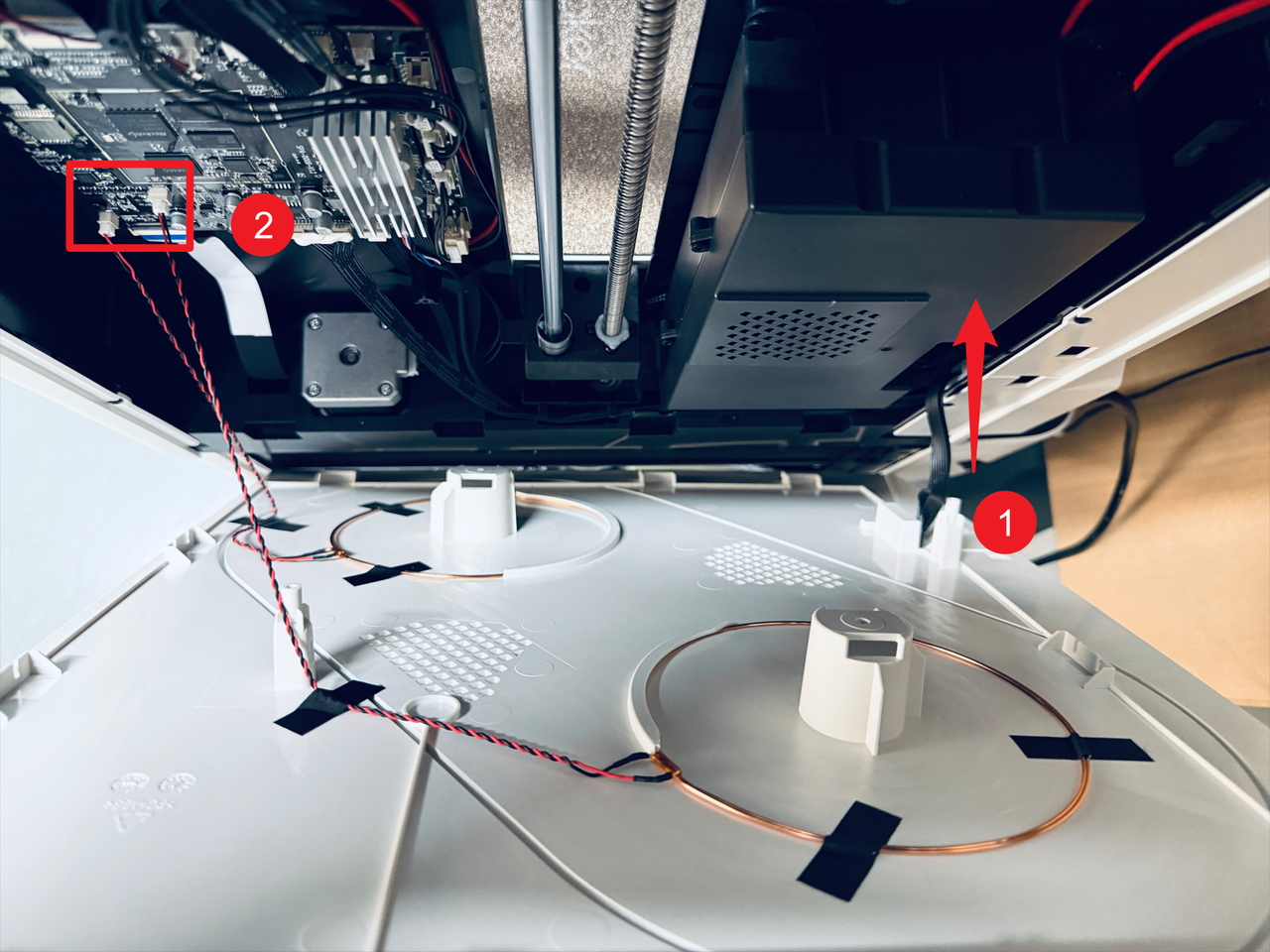
- Pass the filament feeder cable through position 1 and disconnect the two RFID cables at position 2, then remove the right panel.
¶ Part 2. Replace the AC heated bed control board
¶ Step 7. Remove the power supply cover
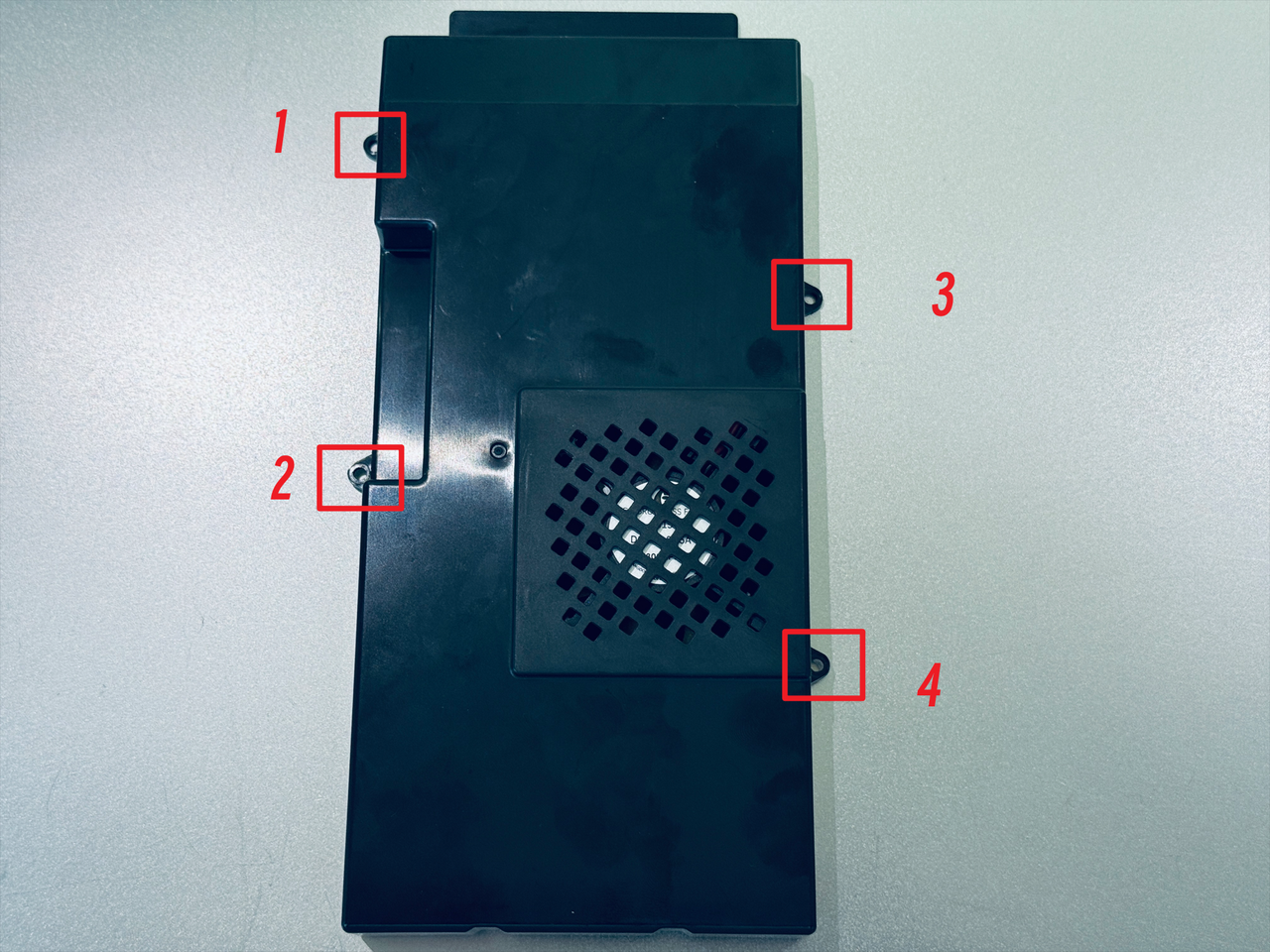
- Use the H2.0 hex key to remove the screws marked 1 to 4 that secure the power supply cover.
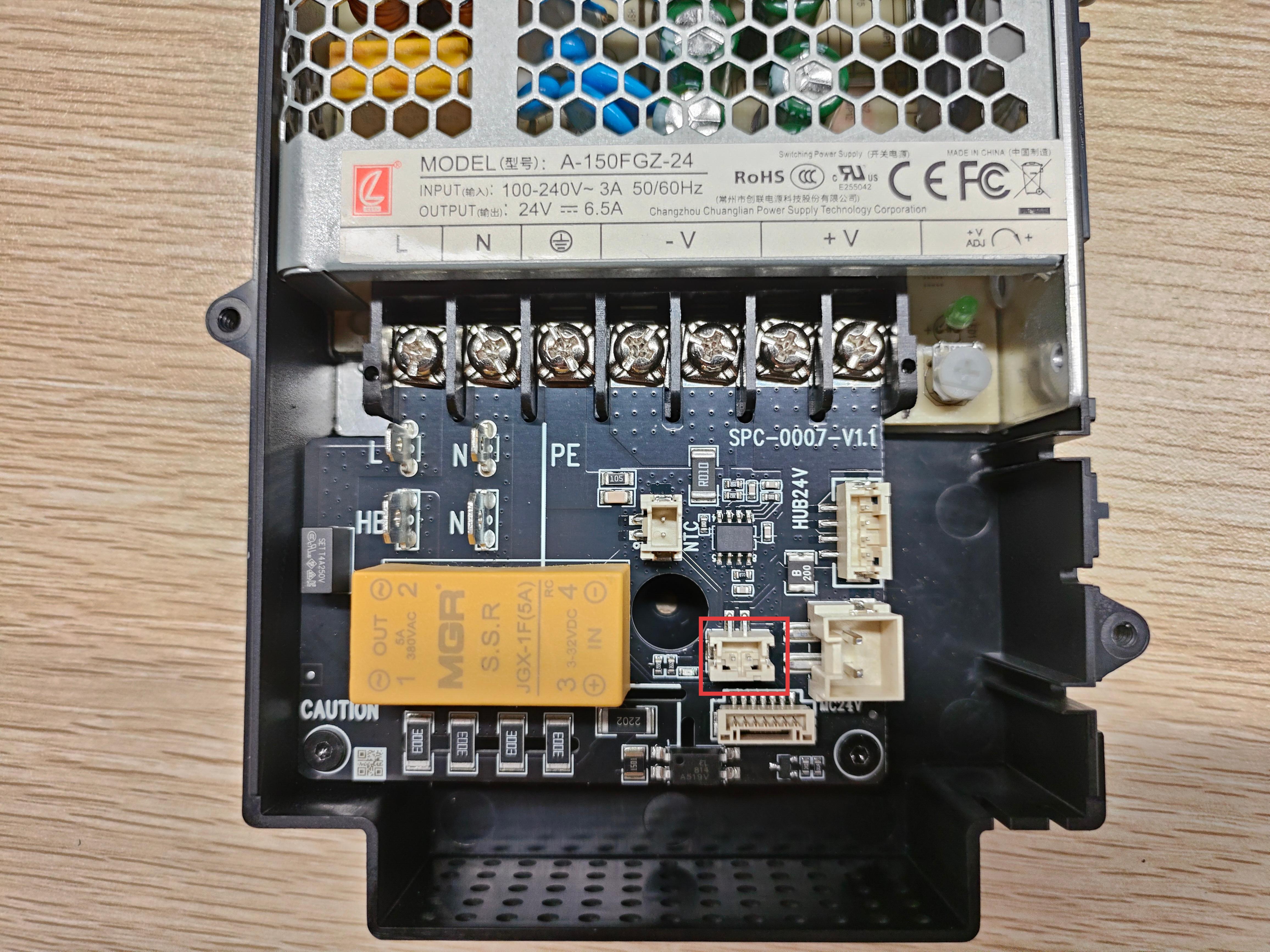
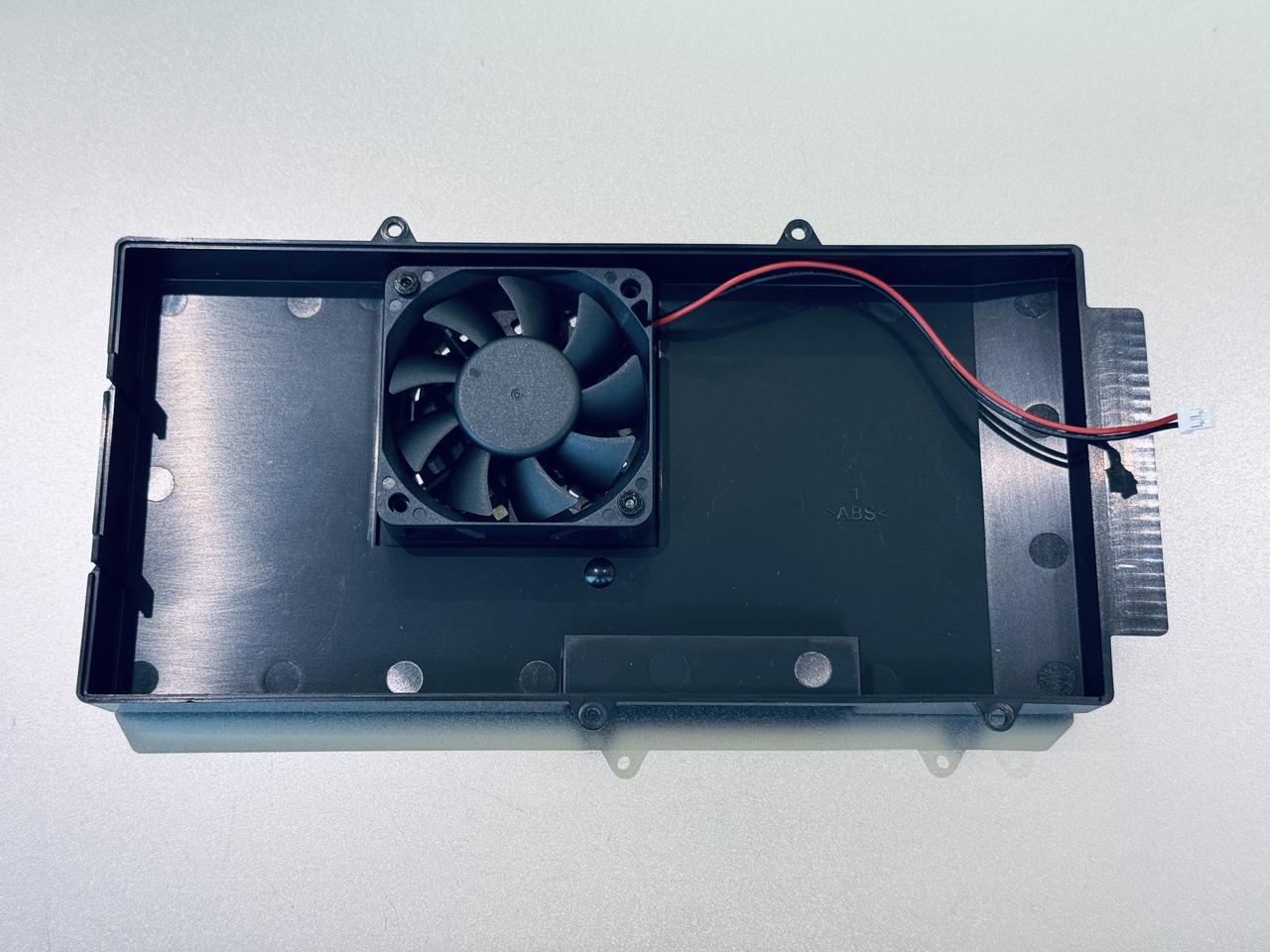
- Carefully take out the power supply cover, then disconnect the fan cable first.
- Remove the power supply cover.
¶ Step 8. Remove the old AC heated bed control board
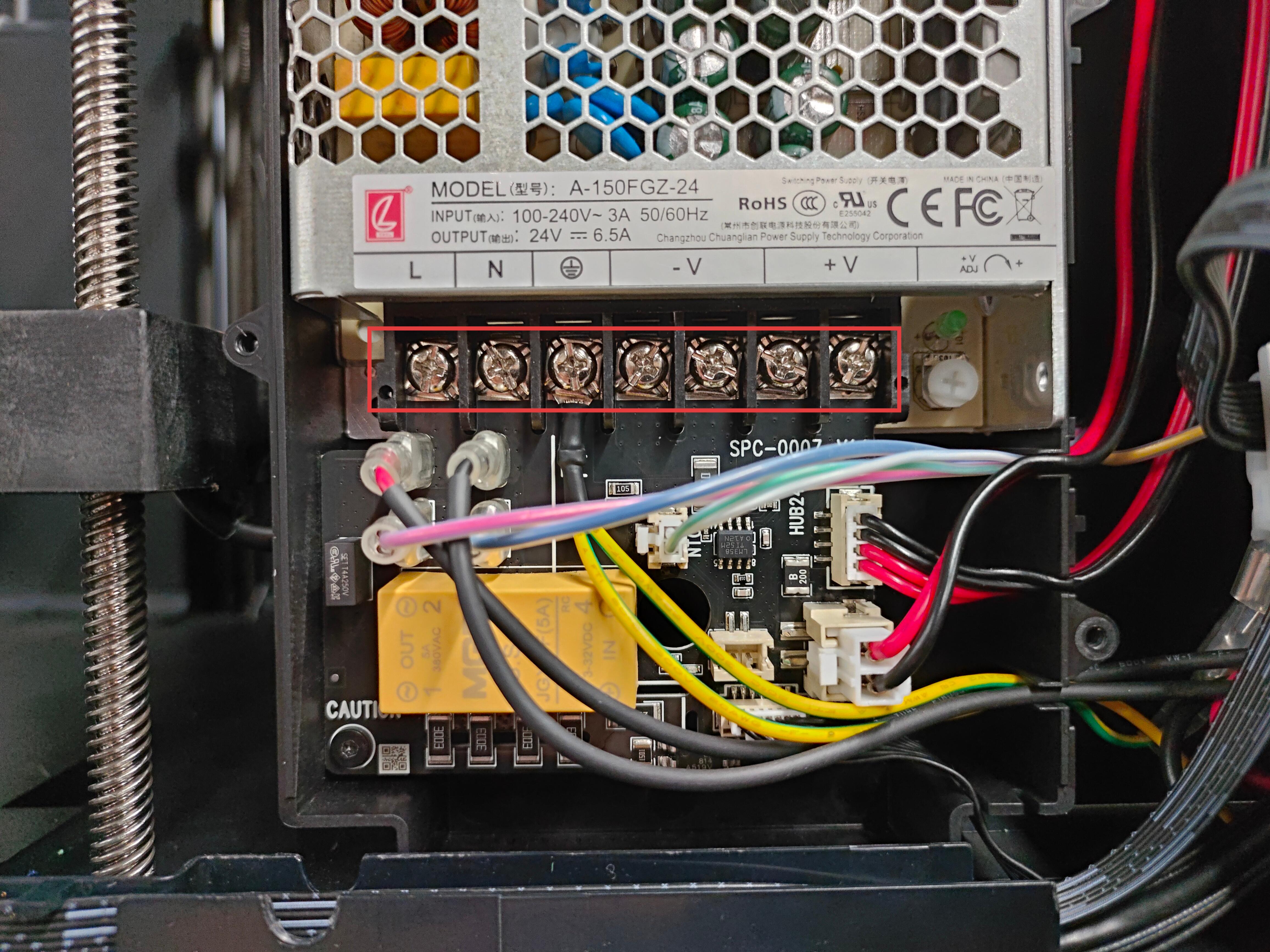
- Use the PH1 Phillips screwdriver to loosen the 7 screws on the top of the AC heated bed control board, disconnect cables from the AC heated bed control board.
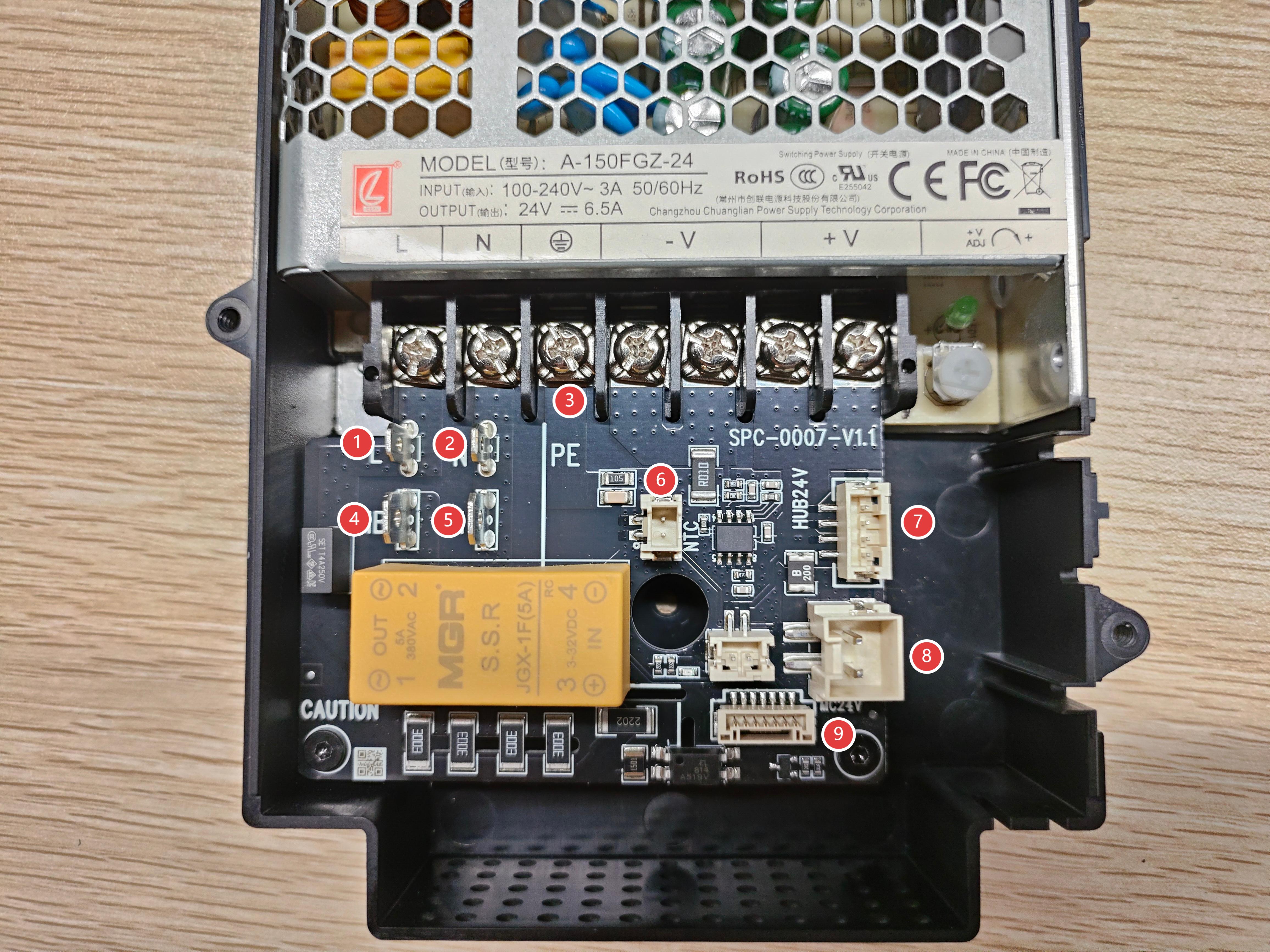
| No. | Cable | No. | Cable |
|---|---|---|---|
| 1 | AC cable - Red | 6 | Heated bed NTC cable |
| 2 | AC cable - Black | 7 | HUB board power cable |
| 3 | AC and Heated bed cables - Yellow | 8 | Main control board power cable |
| 4 | Heated bed cable – Red | 9 | Heated bed control cable |
| 5 | Heated bed cable – Blue |
Press the buckle indicated by the arrow in the picture below, and pull out the cables numbered 1, 2, 4, and 5 outward.
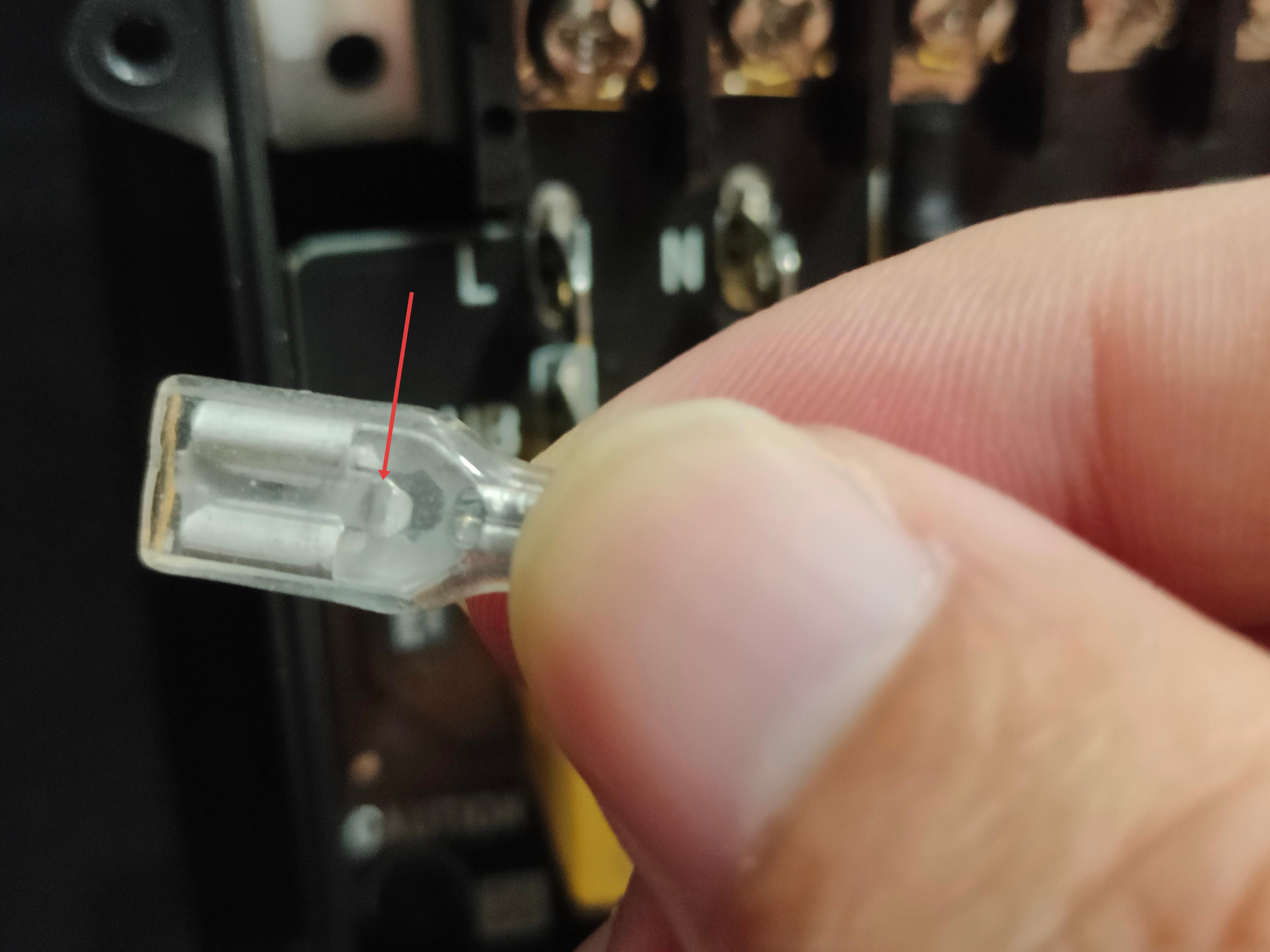
- Use the H2.0 hex key to remove the screws on the bottom of the AC heated bed control board, then remove the old AC heated bed control board.

¶ Step 9. Install the new AC heated bed control board
- Install the new AC heated bed control board an angle, use the H2.0 hex key to tighten the screws on the bottom of the AC heated bed control board.
- Reconnect cables to the AC heated bed control board, use the PH1 Phillips screwdriver to tighten the 7 screws, and organize the cables as shown in the picture.

| No. | Cable | No. | Cable |
|---|---|---|---|
| 1 | AC cable - Red | 6 | Heated bed NTC cable |
| 2 | AC cable - Black | 7 | HUB board power cable |
| 3 | AC and Heated bed cables - Yellow | 8 | Main control board power cable |
| 4 | Heated bed cable – Red | 9 | Heated bed control cable |
| 5 | Heated bed cable – Blue |
¶ Step 10. Install the power supply cover
- Connect the power supply cooling fan cable, then use the H2.0 hex key to tighten all four screws securing the power supply cover.
¶ Part 3. Reassemble the machine
¶ Step 11. Reinstall the right panel
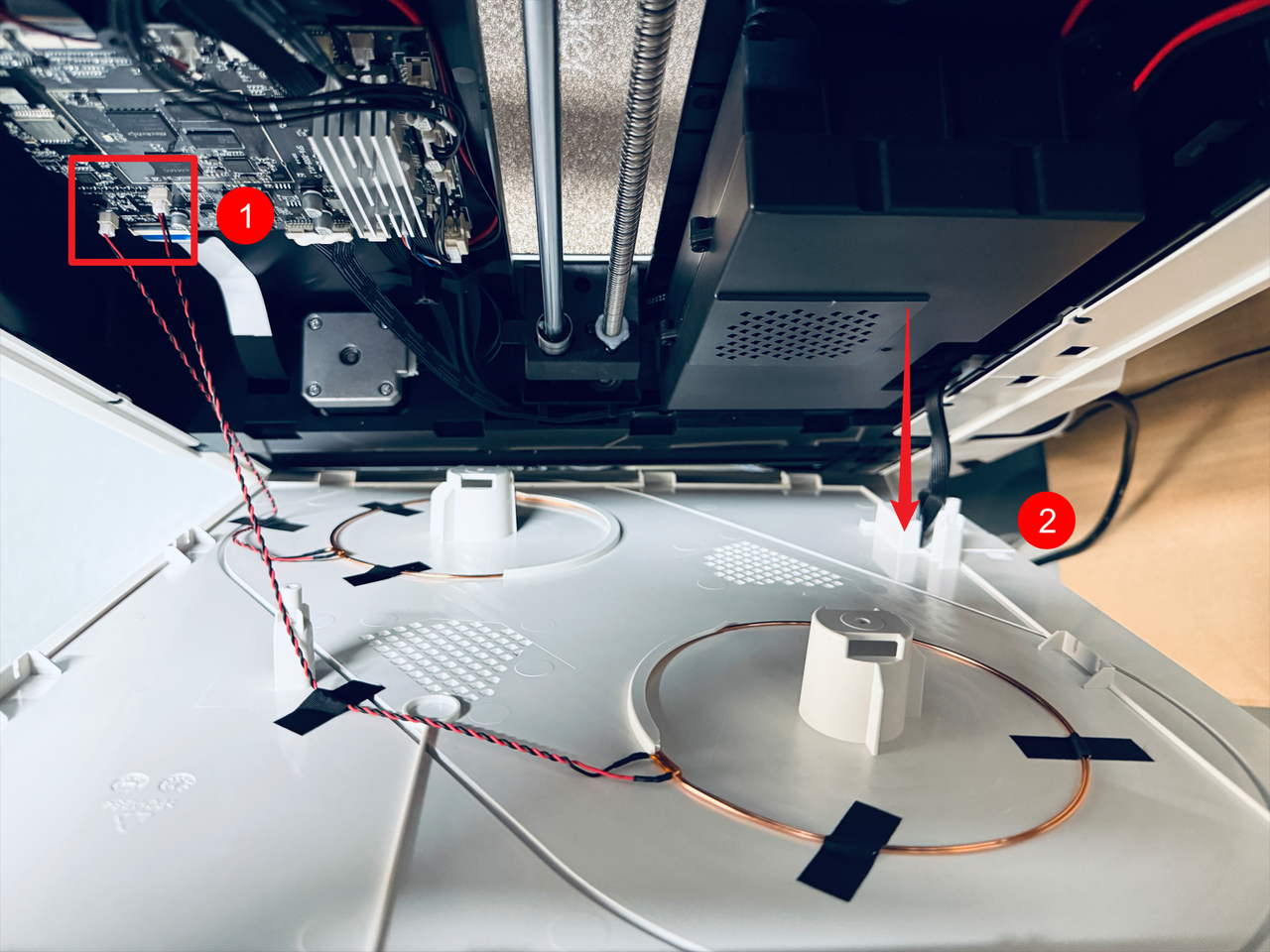
- Reconnect the RFID cables at position 1, pass the filament feeder cable through position 2, then install the right panel.
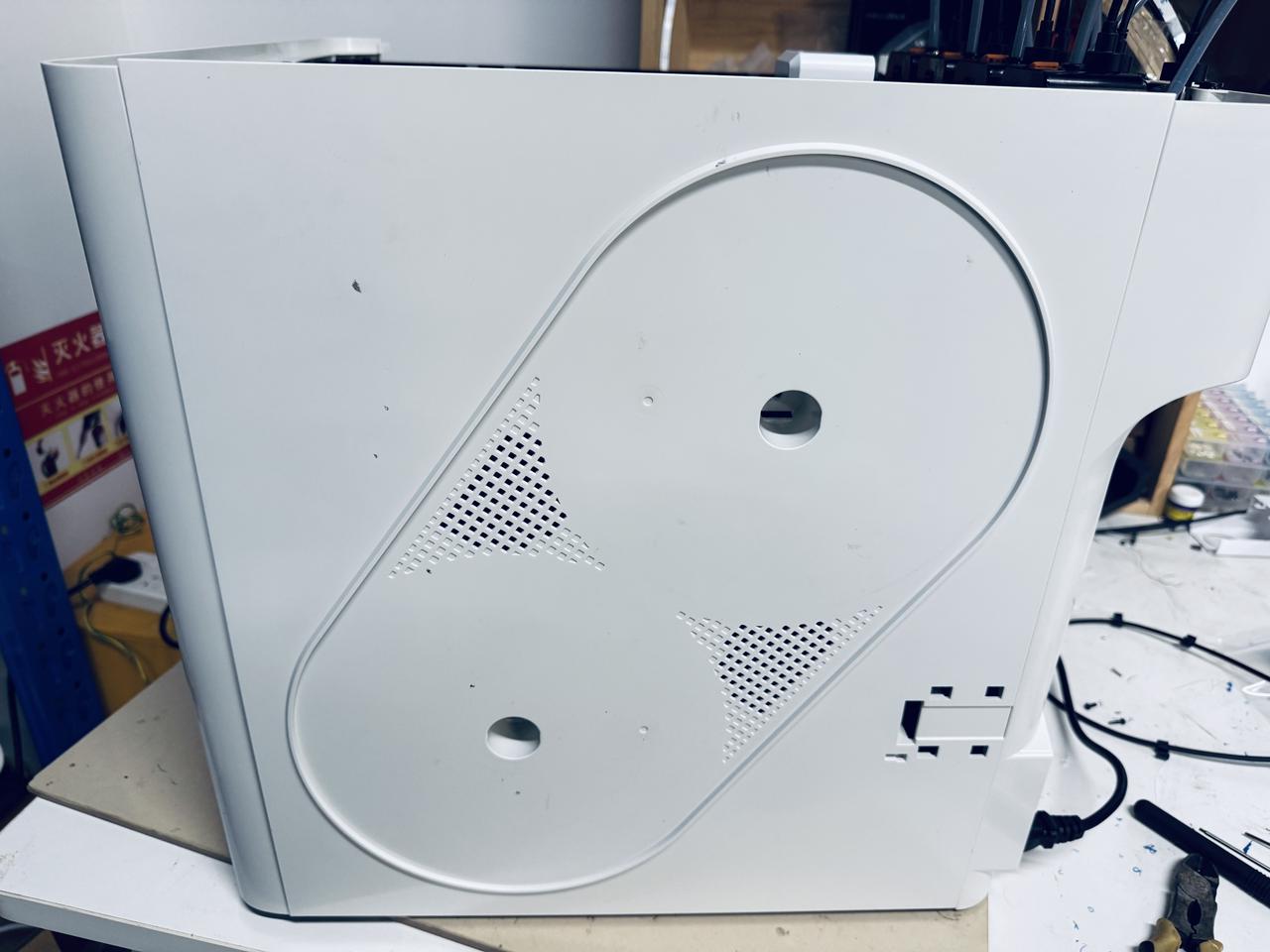
- Use the H2.0 hex key to tighten the 8 screws of the right panel.
¶ Step 12. Reinstall filament feeder and spools
- Reconnect the filament feeder cable and organize it as shown.
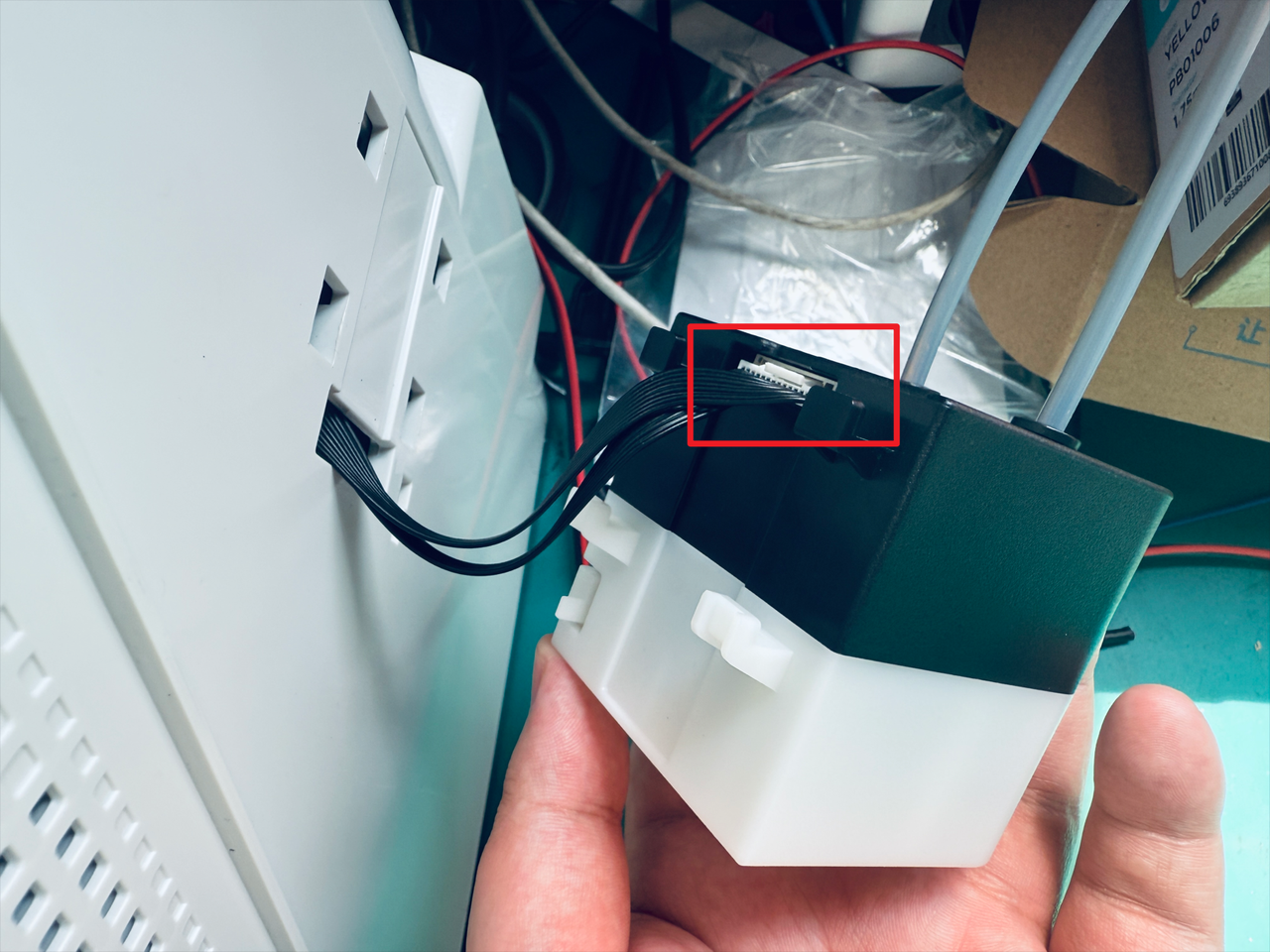
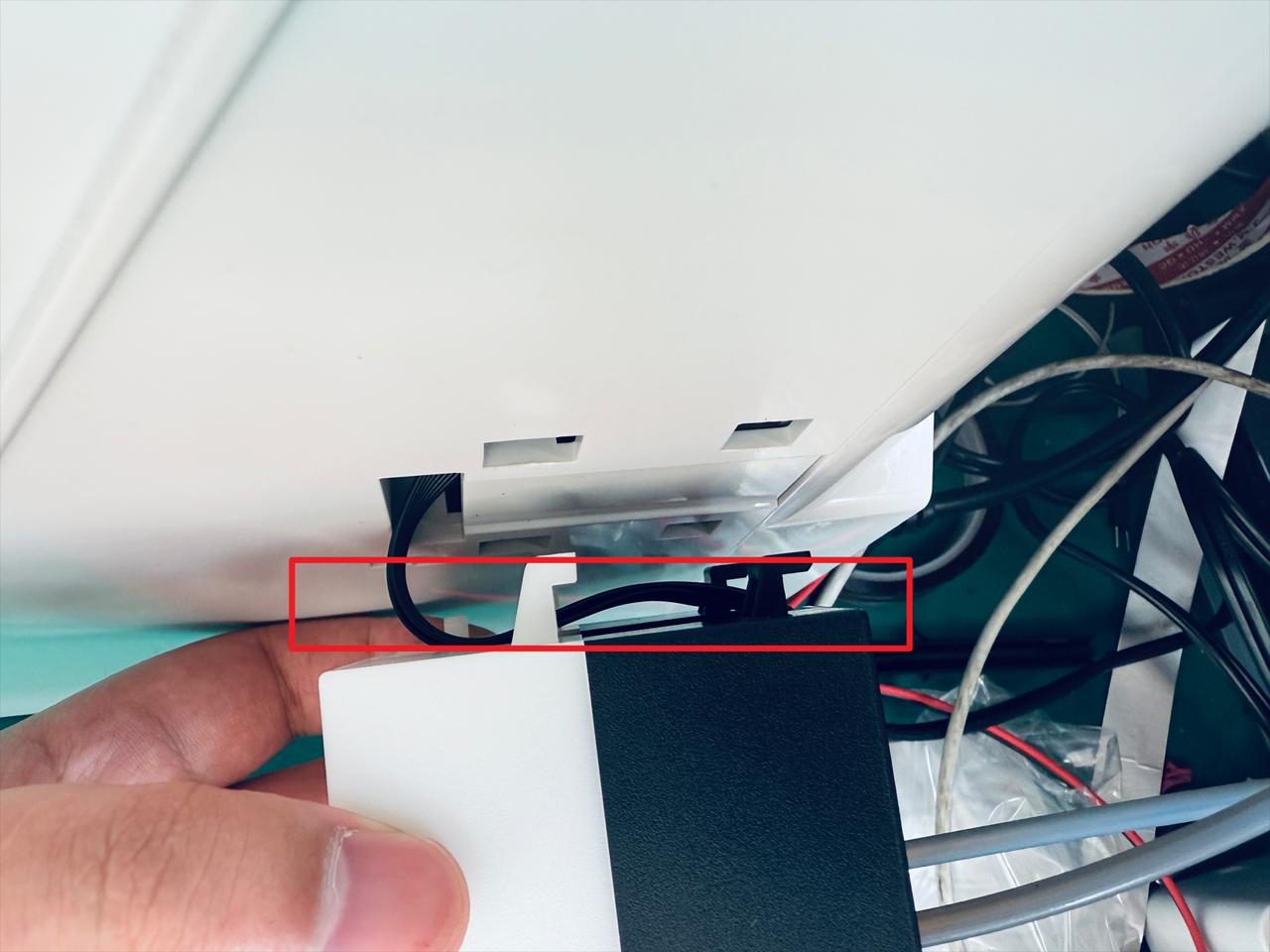
- Align the feeder clips with the corresponding positions, then push the feeder into place in the direction shown to complete installment.
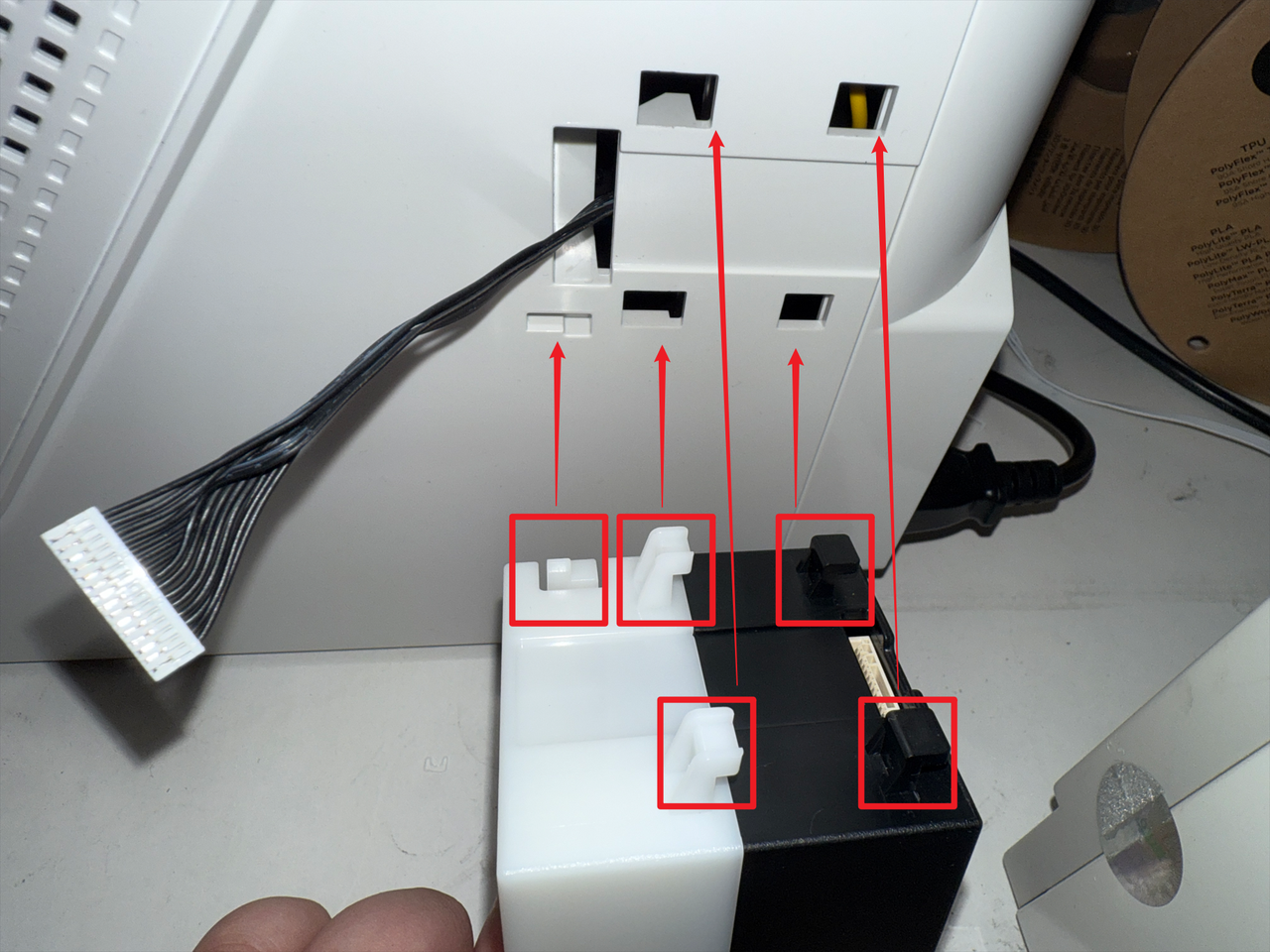
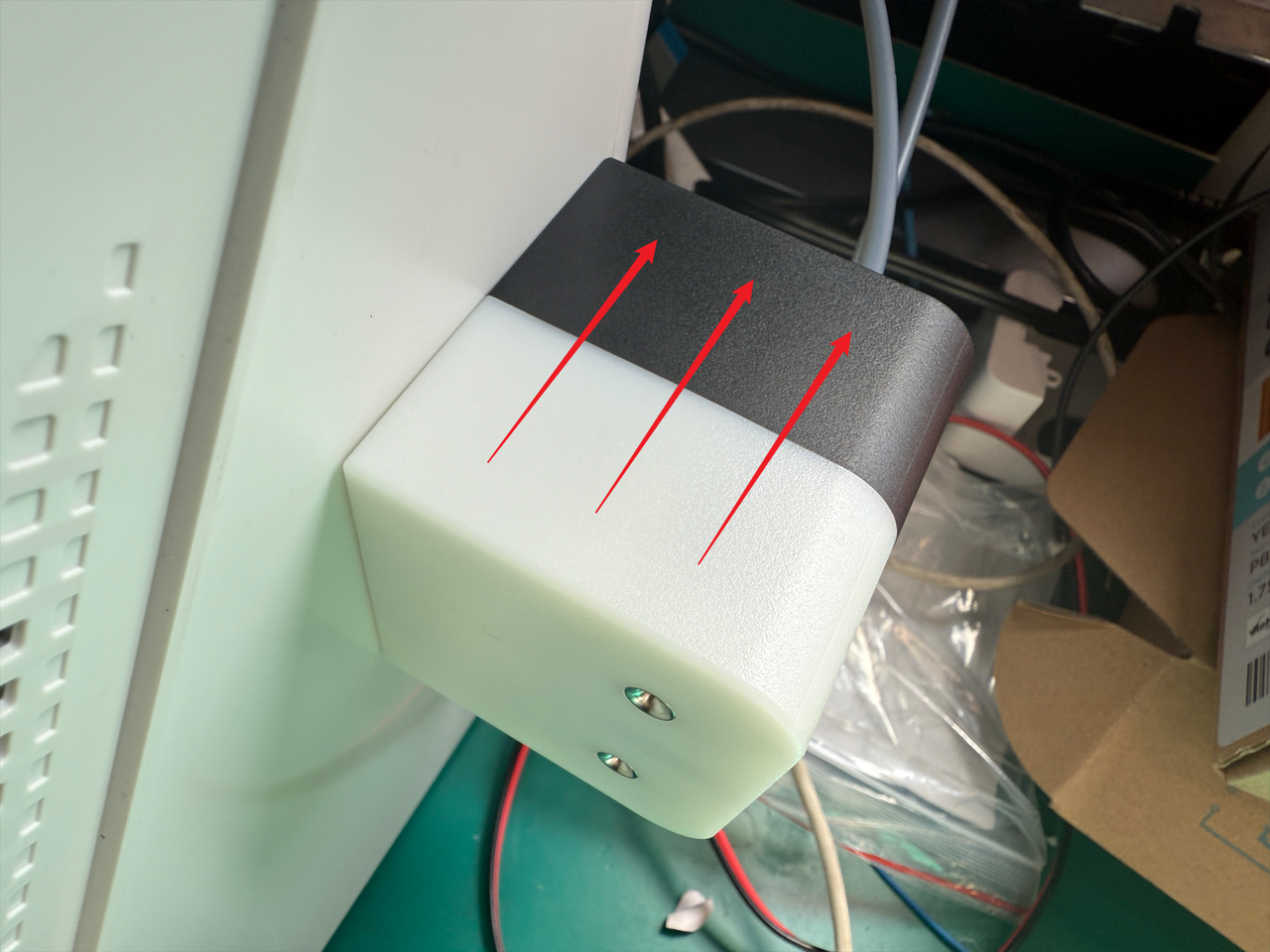
- Reinstall the spools and filament holders.
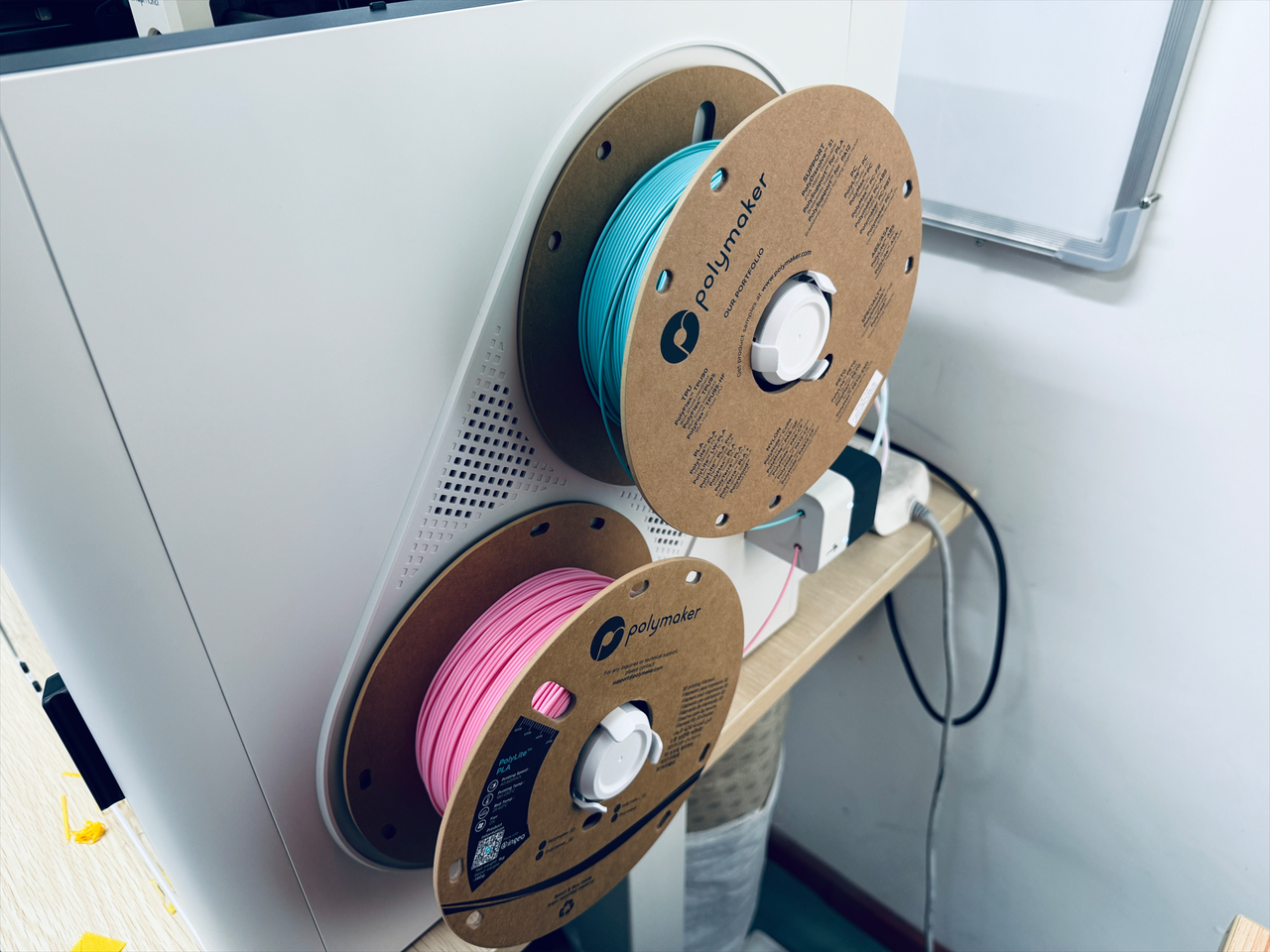
¶ Step 13. Reinstall the top cover panel
- Install the top cover panel, use the H2.0 hex key to tighten the 4 screws.
- Install the silicone plugs.
¶ Step 14. Reconnect USB cables
- Reconnect the USB cables, then use the H2.0 hex key to tighten the 8 screws.
¶ Step 15. Insert filament
- Power on the machine and insert the filaments into the corresponding feeder ports in sequence.
¶ Reach out to Snapmaker Support
After following the troubleshooting steps, if you find it difficult to resolve your issue, kindly submit a support ticket through https://snapmaker.formcrafts.com/u1-troubleshooting-request and share your troubleshooting results with some pictures/videos.
Our dedicated support team will be more than willing to assist you in resolving the issue.