¶ 💡Before You Start
¶ 1. Compatibility
This guide applies to the U1 printer. Please verify your device model before following the instructions.
¶ 2. Version Upgrade
Snapmaker App V2.3.0 or above supports built-in models. Please refer to the Snapmaker App Release Notes and upgrade to the corresponding version to access the latest features.
¶ 3. Initial Setup
To complete software installation, registration or login, and basic configuration, please refer to the Quick Start Guide for Snapmaker App.
¶ 📍How to Use
- Open the Snapmaker App, navigate to the
Modelpage, and you'll find a list of officially recommended models in the Model Library section.
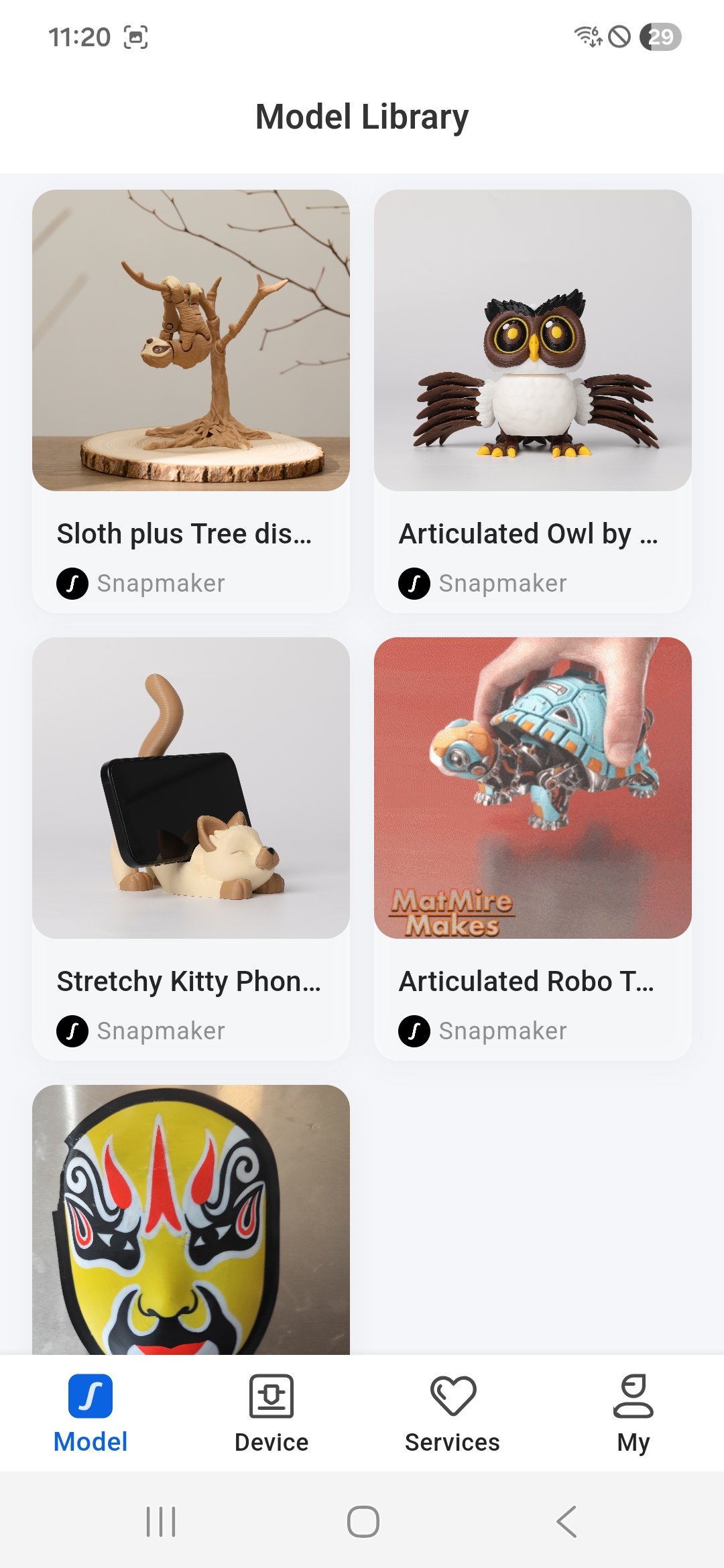
- Select a 3D model you like and tap to access more details.
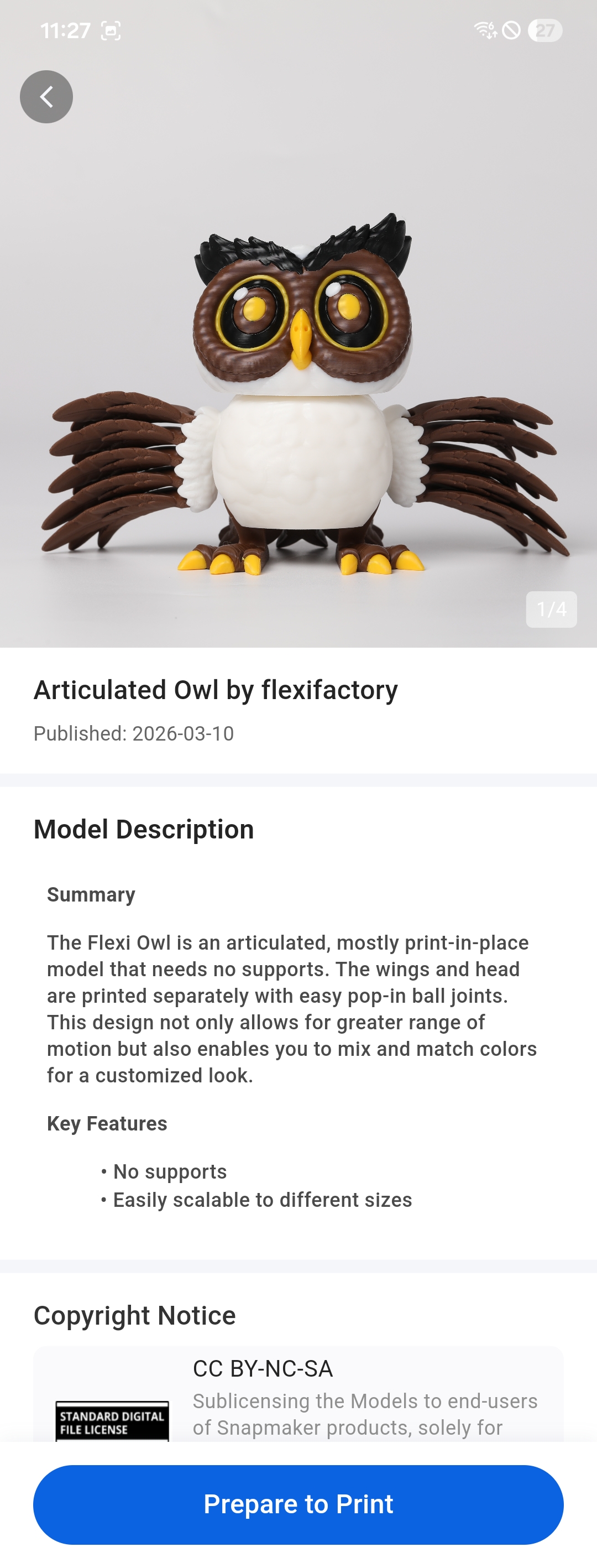
This page consists of three sections: ① Model Display ② Model Description ③ Copyright Notice.
- Model Display: You can swipe left or right to view multiple images, giving you a sense of what the finished model looks like.
- Model Description: This includes a summary and key features, helping you quickly understand its functional highlights, usage scenarios and design inspiration.
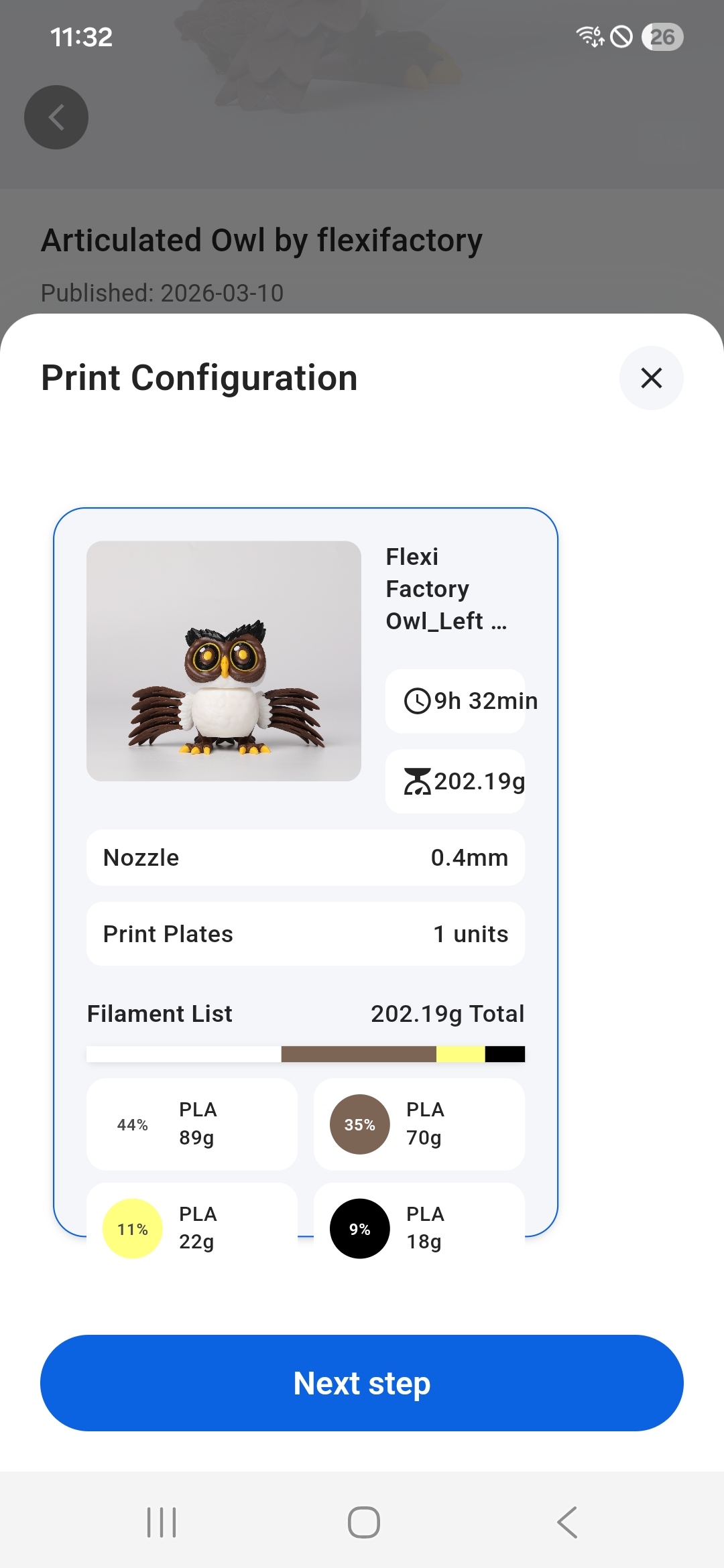
- Tap the
Prepare to Printbutton at the bottom of the page. The screen will then show information such as the estimated print time, nozzle diameter, recommended filaments, and plate assignment details. TapNextafter verifying that everything is correct.
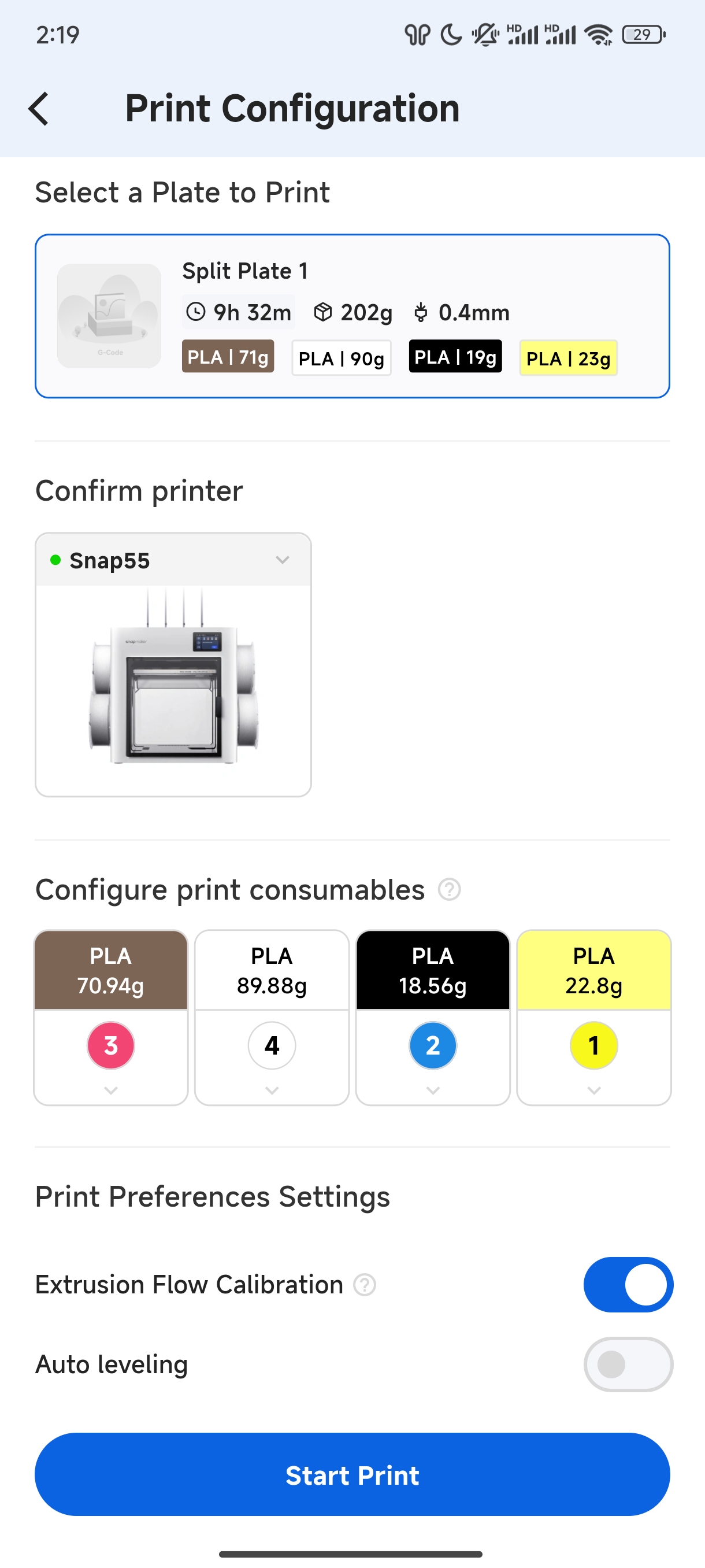
- On the Print Configuration page, Select a Plate to Print > Confirm Printer > Configure Materials > Print Preferences Settings, then tap
Startto initiate the print.
¶ 📚 Related Resources
¶ 💬 Reach out to Snapmaker Support
After following the troubleshooting steps, if you find it difficult to resolve your issue, kindly submit a support ticket through https://snapmaker.formcrafts.com/u1-troubleshooting-request and share your troubleshooting results with pictures or videos. Our dedicated support team will be more than willing to assist you in resolving the issue.